Page History
...
Actions can be categorized into three groups: Toolbar Actions, Footer Footerbar Actions, and Content Actions. More information on each can be found in their respective pages.
...
Toolbar actions are an important part of action placement. They control functions of the content as well as the container. Actions Toolbar actions are represented by action icons. If more than the allowed number is needed, group them in an overflow “More” menu. The allowed number is depending on the context.
Toolbars appear in different organisms and follow specific rules. Use the following placements and constraints.
| Name | Use Case |
|---|---|
| Header toolbar |
...
| Actions that affects all applications |
...
| and the entire user environment. |
...
| It sits in the |
...
| header |
...
| area. | |
| Boardlet toolbar | Actions controling a single boardlet and its content. It is always on the top- right side of |
...
| the boardlet |
...
| . |
...
| Ghost boardlet toolbar |
...
| It follows the boardlet toolbar rules |
...
| with one exeption: The first actionbar has only one “More” icon. |
| Card toolbar |
...
| Card-secific actions like “Expand/Collapse” if the card supports |
...
| expand. All other actions are gouped under a “More” icon. |
| Dialog toolbar |
...
| It contains actions related to the Dialog and follows boardlet behavior. | |
| Table row toolbars | Actions that pertain to a single row of a table |
...
| . They always control functions of the entire row. |
For more information, please go to [Toolbar Actions].
Footerbar actions
The footerbar controls the workflow of the organism it they is placed in, usually a boardlet. Actions related to the workflow are always at the bottom right of the boardletorganism.
The footerbar has a fixed height and must never be multiline. Use only the allowed combinations.
- Tabs only. Tabs are arranged side by side. There is no default number of tabs. Exeptions: Vertical tabs are placed below each other.
- Tabs with buttons. Use this when the boardlet has multilayer content and a content action. If an action exists only in one tab, show it disabled in all other tabs to avoid visual jumping. The number of possible actions is limited to a maximum of two buttons.
- Buttons only. Use this when an action is required in the boardlet. The number of possible actions is limited to a maximum of two buttons.
- Tabs with actionbar. Use this as a secondary display option. It can be used in kiosk mode to control tab rotation and timing.
Footerbars appear in different organisms and follow further rules.
- Boardlet footerbar. All four combinations are allowed. The kiosk mode variant can control the tabs, rotation, and time control.
- Dialog footerbar. Only the combinations Tabs only, Tabs with buttons, and Buttons only are allowed. If the dialog has a sidebar, the footerbar goes over the whole width. Buttons must not be wider than the footerbar.
- Modal footerbar. Only buttons are allowed. The designer chooses the button set. Primary buttons are always on the right.
- Tooltip footerbar. To be announced.
- Dashboard footerbar. Not further specified here.
For more information, please go to [Footerbar Actions].
Content actions
Content actions are placed directly in freely selectable content. They can appear in the content area of a boardlet, dialog, modal, or free-standing content.
We distinguish Content actions exist in three categories.
- Inline actions. The action molecule or organism is not enclosed by a body. The action is always on the left inside the molecule or organism.
- Actions. These actions also have no enclosing body. The action is always on the left inside the molecule or organism.
- Table Actions. They are placed inside an action column inside a table. Each row has the same actions. Actions effect the entire row.
For more information, please go to [Content Actions].
Best practices
Place and align
Place actions as close as possible to the content they affect. Prefer a toolbar or place actions directly in a form or table row when needed. Right-align actions inside toolbars. Keep navigation on the left and actions on the rightFor example, if an action only effects one items inside a boardlet, consider putting it into a content action rather than a toolbar action.
Keep alignemnt and order of actions inside organisms and toolbars consistent across the application. The same action should be found at the same place across boardlets and dashboards.
Choose the right pattern
Use a Toolbar action when the function controls the content or its container. This includes boardlets, cards, dialogs, or a whole table row.
Use a Footerbar action when the function advances or finalizes the workflow of the organism. Keep to the allowed combinations and the fixed single-line height.
Use a Content action when the function belongs inline to a specific field, record, or piece of content.
...
Follow this order in the Header toolbar. Place business actions first and then content management actions. Place layout management actions next and then generic actions. It is recommended to place the action most important for your business context on the very left within its group. Follow this order in
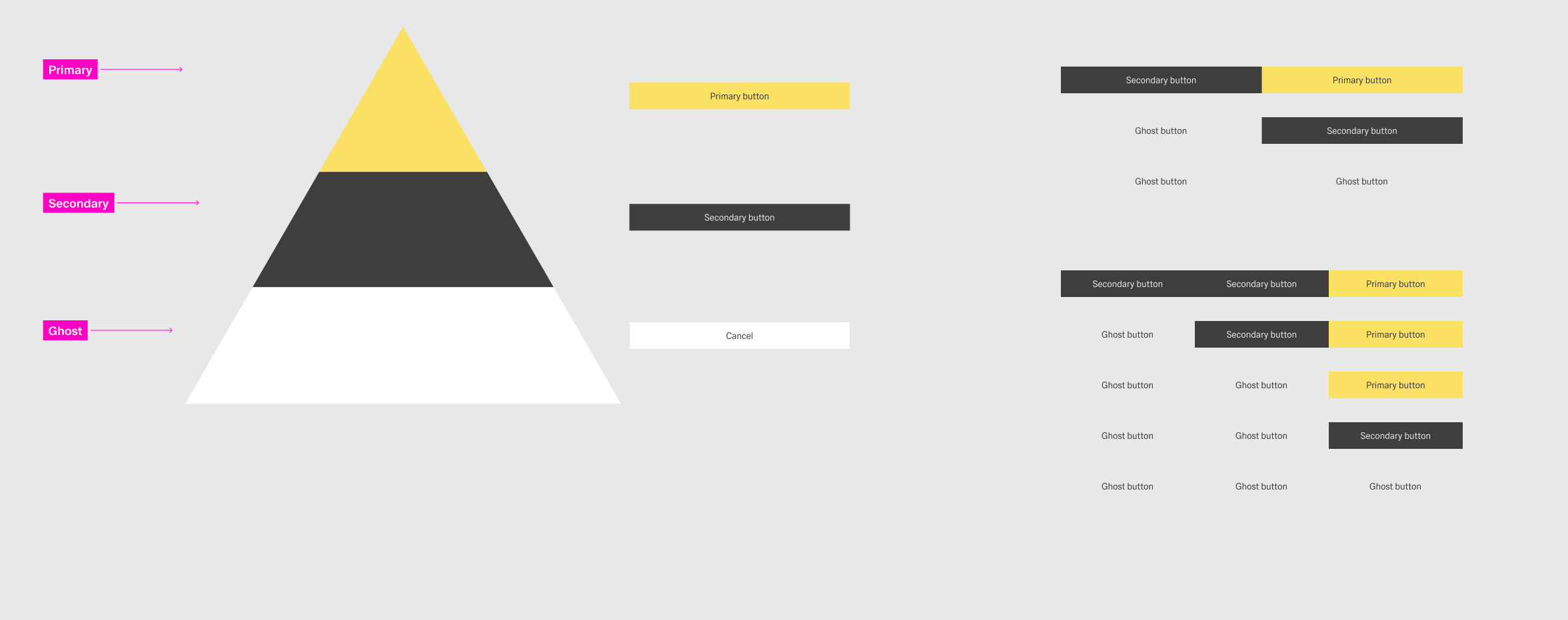
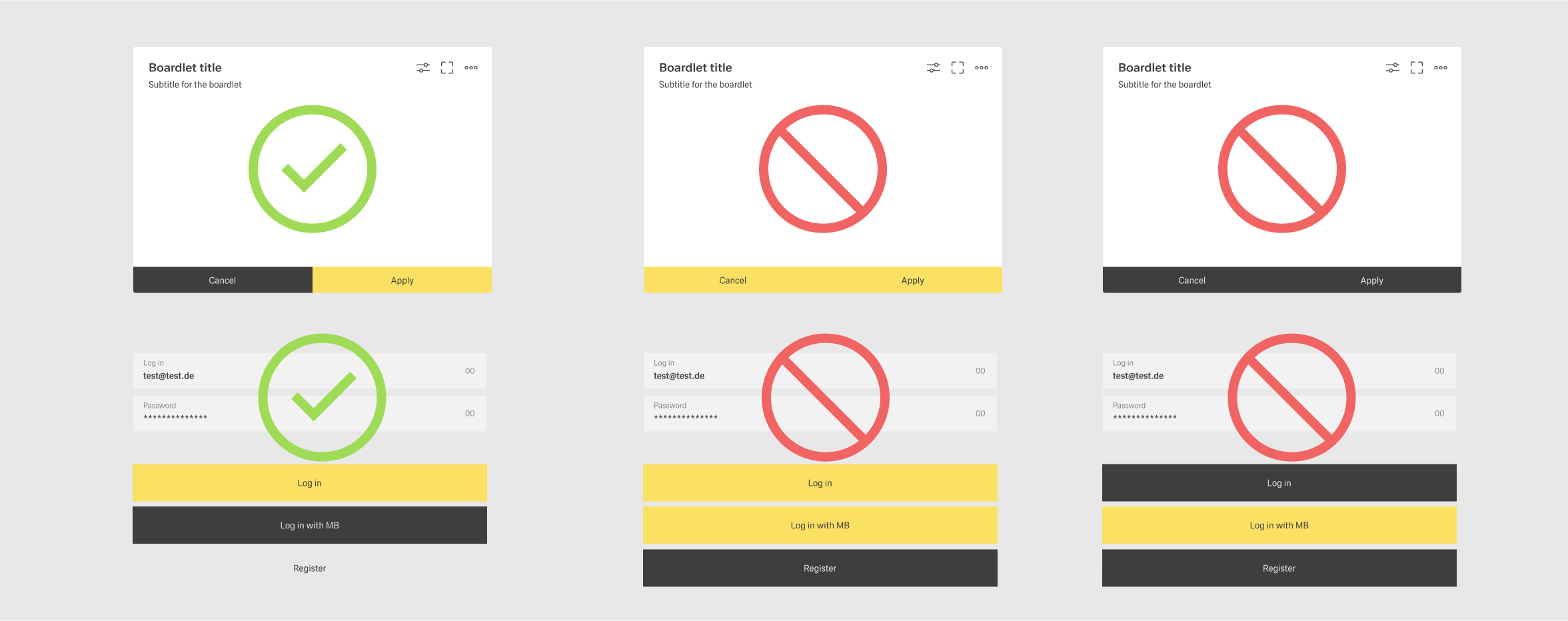
For the Footer toolbar. Place , place the primary workflow or finalizing action on the leftmost rightmost position. Place Going right to left, place secondary actions next and then the negative path. Use only When choosing buttons, only use one primary action per page. Show a primary action or a semantic danger action, but never both.
Hierarchy and alignment
Buttons follow a hierarchical order that moves from right to left. Primary actions come first and then danger actions. Secondary actions follow and then negative path actions. Secondary actions can be collapsed into menus to preserve clarity. Use the overflow menu when space is limited.button per organism, and if possible also page.
Toolbar capacity and grouping
Do not place more than three actions per boardlet toolbar. Group additional actions under the More action. List grouped actions in an overflow menu. A boardlet has actions, it must always include the More action. The second actionbar must not exist without the first.
Hierachy of Actions
The buttons follow a hierarchical order. It is important that you create a visual hierarchy between the buttons in your user interface. The hirachie moves linearly from right to left.