
Page History
...
Toolbars appear across multiple organisms. They exist in the header, in boardlets, in ghost boardlets, in cards, in dialogs, and in table rows. Each placement follows specific rules that fit its use case.
Anatomy
Header
...
Toolbar
The header toolbar contains actions that affect the entire application or the entire user environment. There is a distinction between primary and secondary actions. Primary actions are always be available, while secondary actions might not be present in some dashboards.
...
| Primary Actions | Secondary Actions |
|---|---|
| Settings | Search |
| Application Name | Notifications |
| Edge.One Wordmark | Home |

Boardlet
...
Toolbar
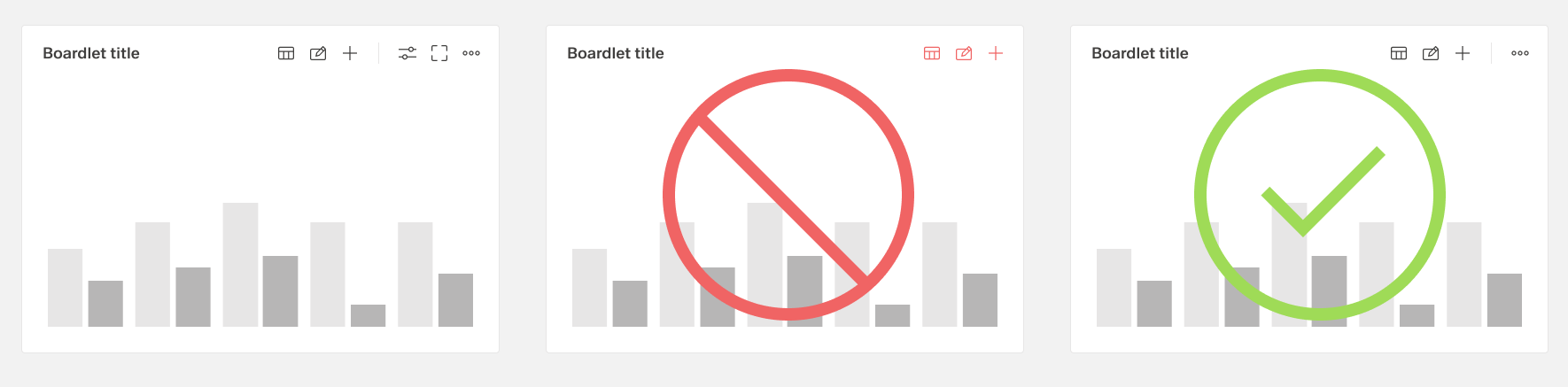
The boardlet toolbar is always on the right side of the boardlet. It controls actions for the boardlet and its content.
...
The second actionbar is always separated from the first actionbar by a dividing line. The second actionbar contains only actions that can be performed on the content of the boardlet, e.g. filtering and sorting the content, search, adding etc. The second actionbar never be used without the first action bar.
Ghost
...
Boardlet Toolbar
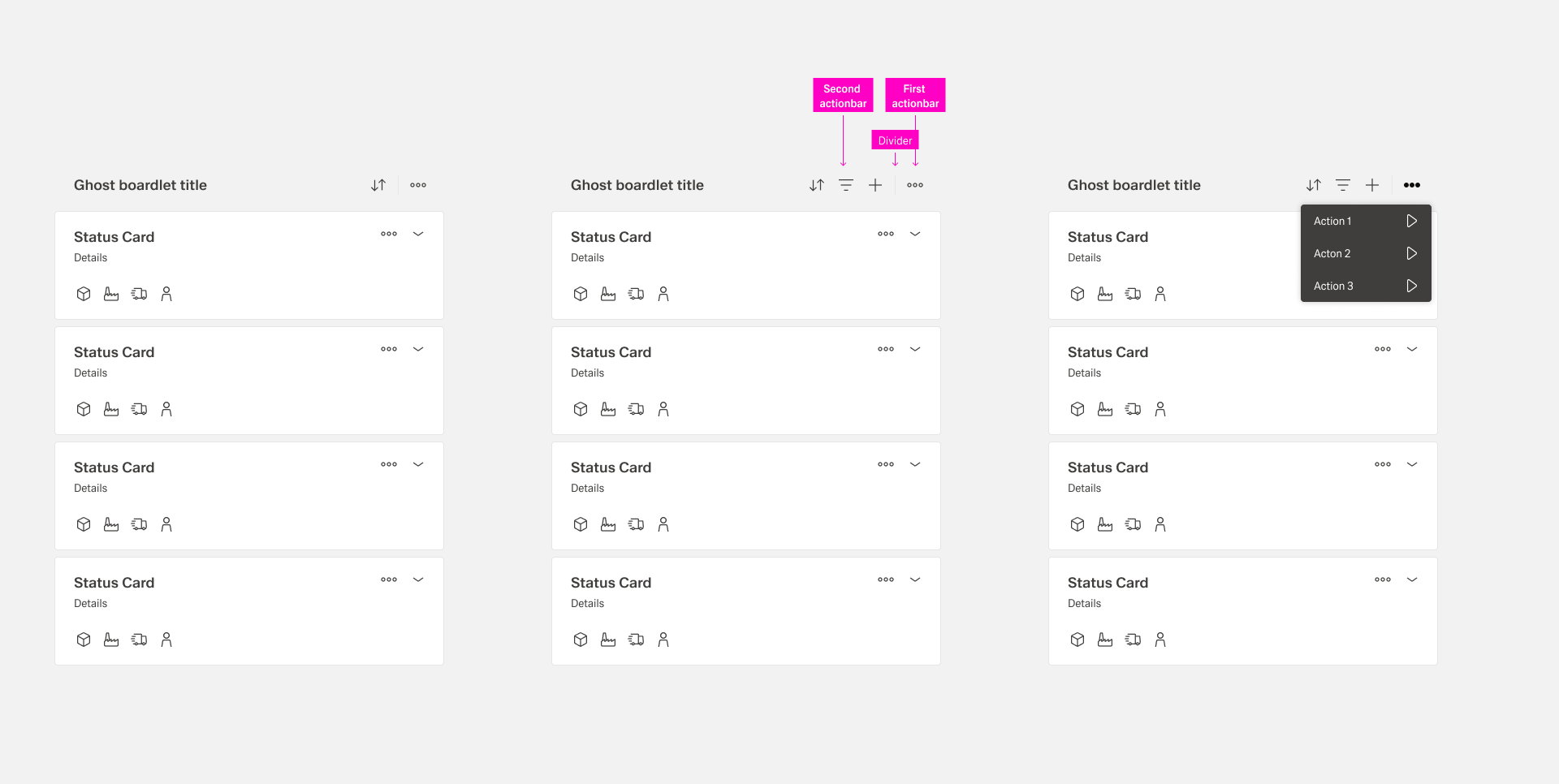
The ghost boardlet toolbar follows the boardlet rules. Alignment and grouping are the same. The only difference is the first actionbar, which contains only the more action with a dropdown menu.
Card
...
Toolbar
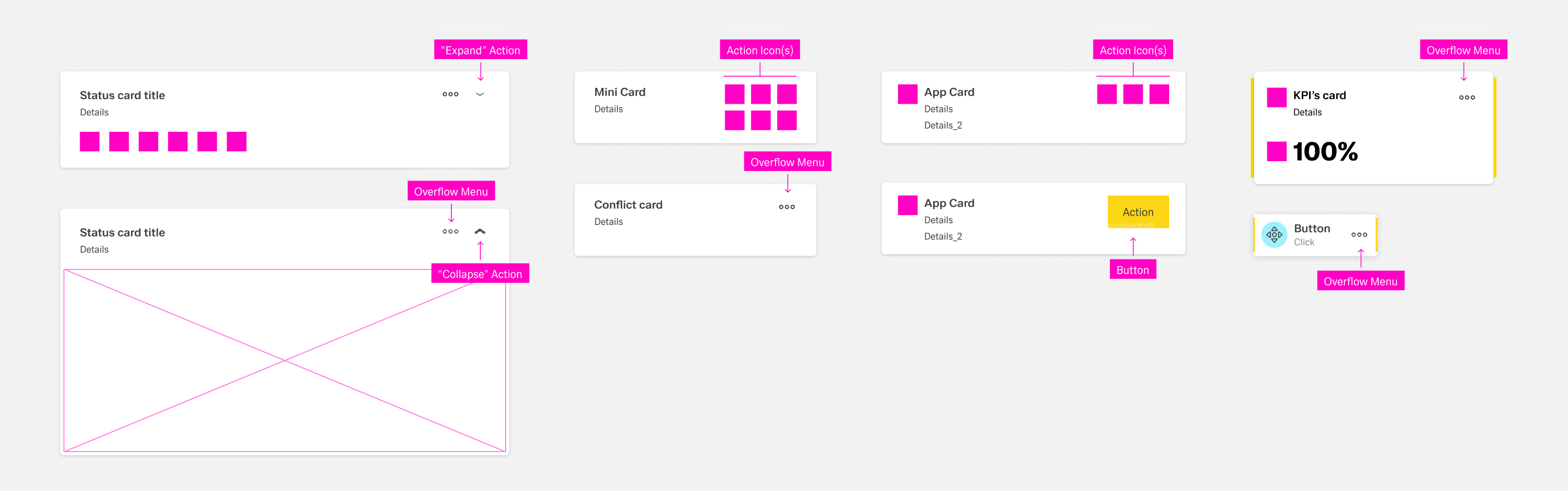
The placement and rules of actions inside cards depend on the tye of card:
| Type | Action Placement |
|---|---|
| Interactive Card (Collapsed) | The "More" and "Expand/Collapse" actions are placed in the top right. Further actions might be placed on the bottom left. |
| Interactive Card (Expanded) | Only two actions are allowed: "More" and "Expand/Collapse", placed in the top right corner. |
| Mini Card | Up to six actions icons in two roes of three can be placed at the right side of the card. |
| App Card | Up to three action icons ore one action button can be placed at the top-right side. |
| Conflict Card | The only allowed action is "More", placed in the top-right corner. |
| KPI Card | The only allowed action is "More", placed in the top-right corner. |
| Action Chain Card | The only allowed action is "More", placed in the center-right corner. |
Dialog
...
Toolbar
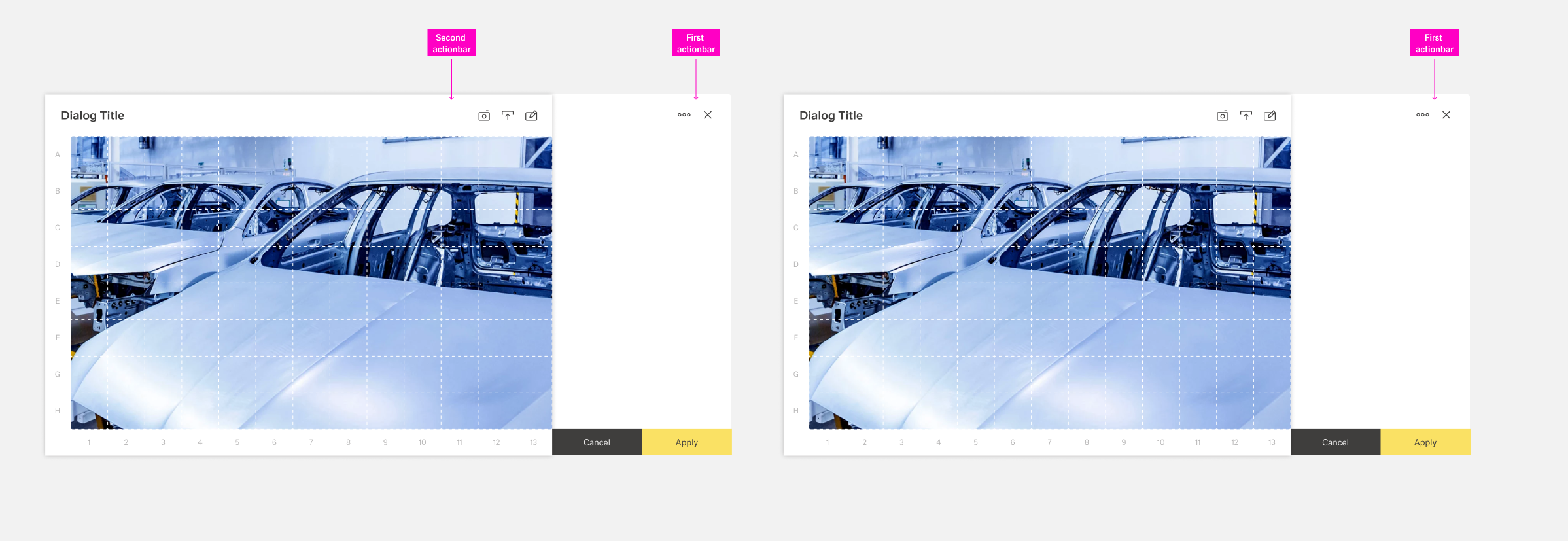
The Dialog Toolbar, as a child of the Boardlet Toolbar, follows its rules. However, the variant "Dialog with Sidebar" is an exception.
...
In case a dialog has a sidebar, the first actionbar must be placed in the outer right area of the sidebar. This ensures that the user notices the difference between dialog functions and content functions.
Table
...
Row Toolbars
Actions affection a specific row of a table are placed inside a table row toolbar in the form of action icons. The toolbar is a seperat column inside the table with the title "Actions" and located at the far right side.
...
To enhance clarity, there should never be more than 5 items inside the action toolbar. If more actions are needed, they should be placed inside the overflow menu of the more action.
Best Practices
Placement and
...
Alignment
Toolbars are generally aligned at the right with the most important actions being placed at the faremost right. If an organism has an overflow menu, it is placed at the farmost right.
...
