Page History
| View file | ||||
|---|---|---|---|---|
|
| Step | Description | Screen | |
|---|---|---|---|
| 1 | Open figma App |
| |
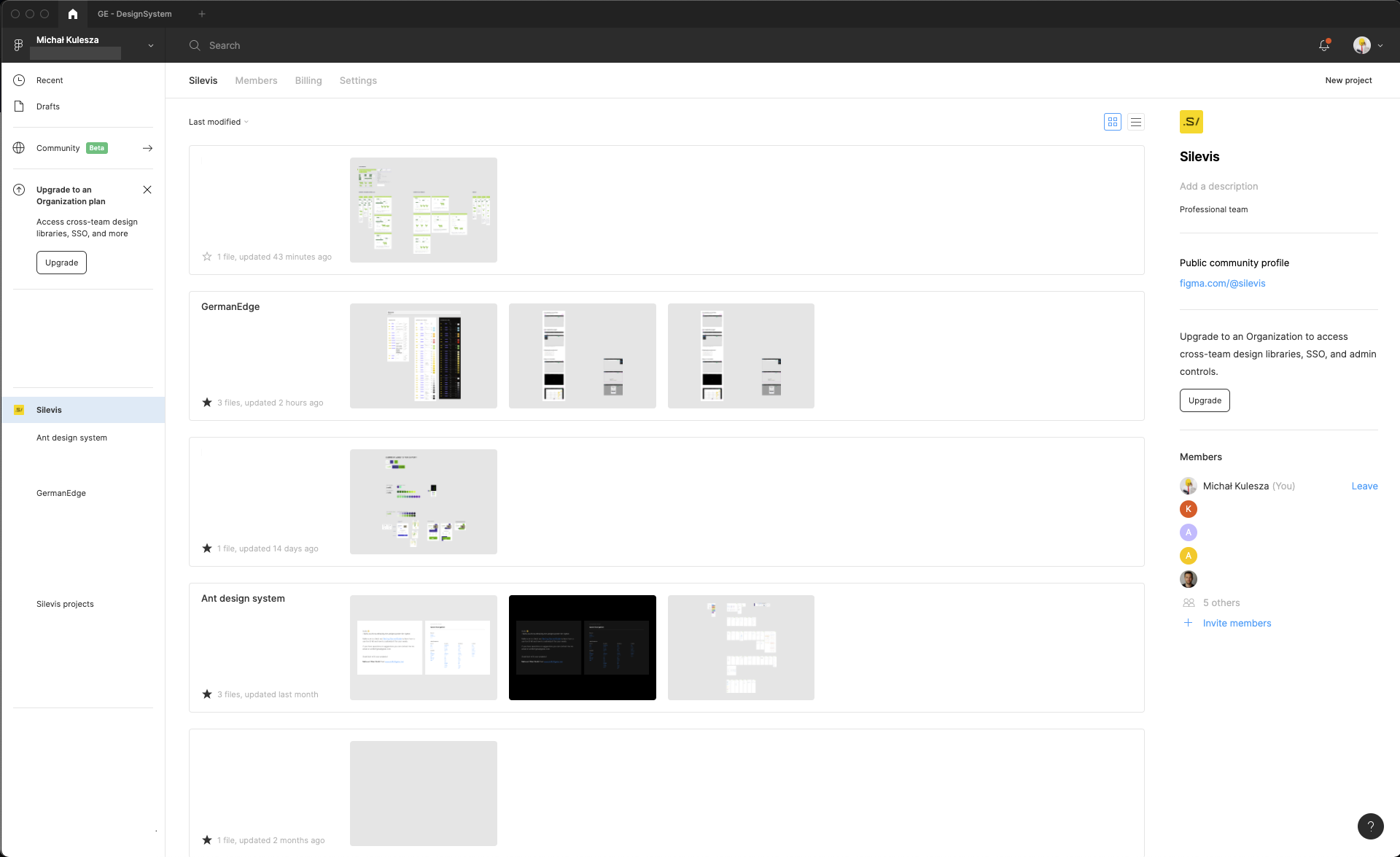
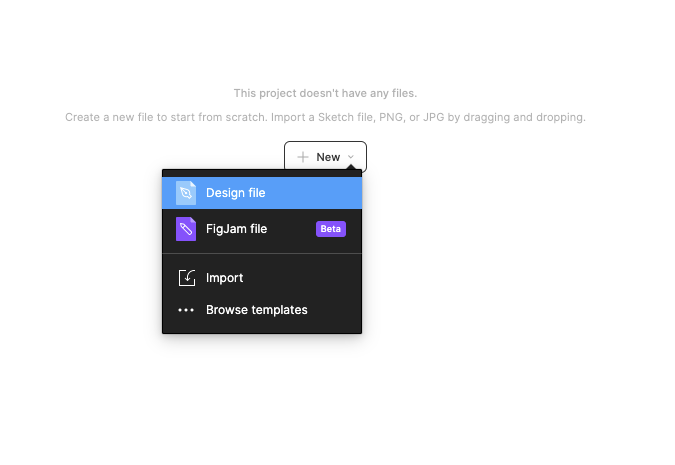
| 2 | Create new project | First screen:
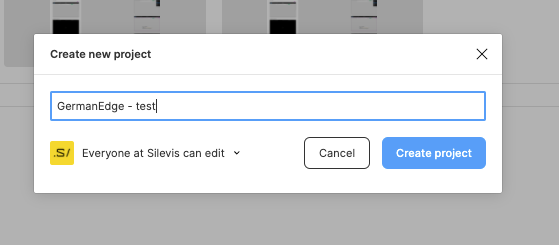
Creating new project:
| |
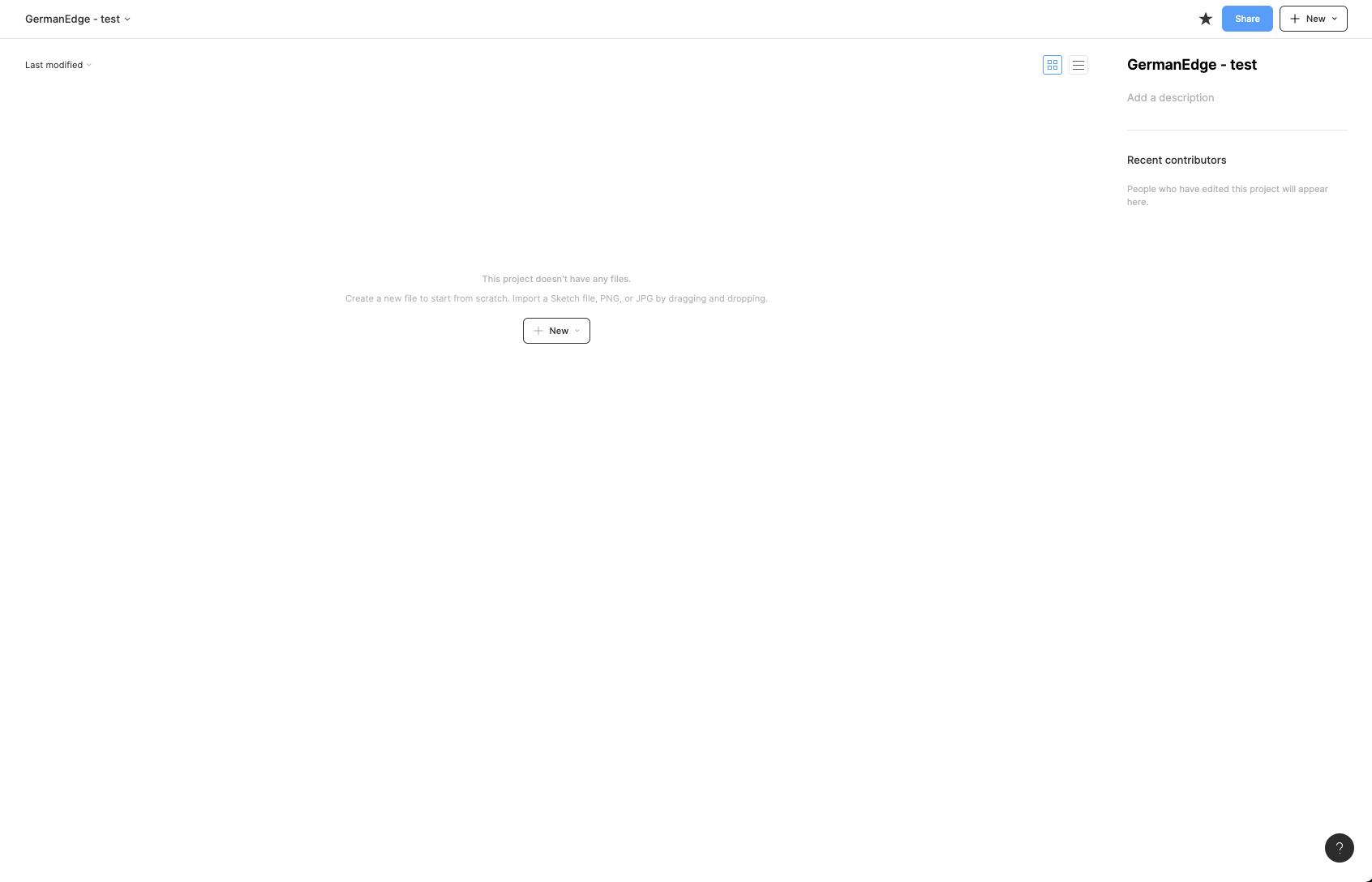
3 | Create a new file inside the project |
| |
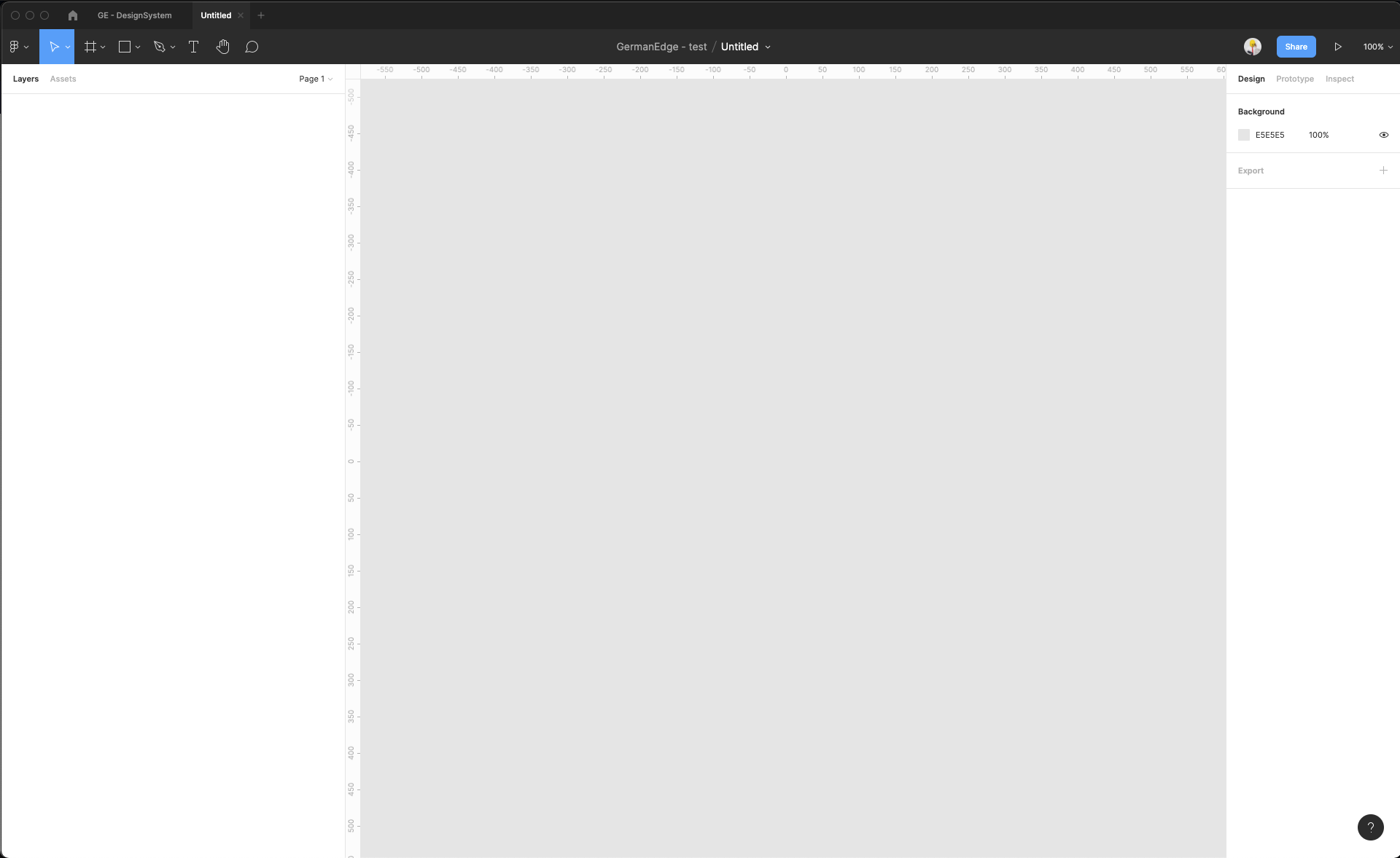
| 4 | Rename the filename (to keep order in files) | Initial workspace in Figma
Changed filename: 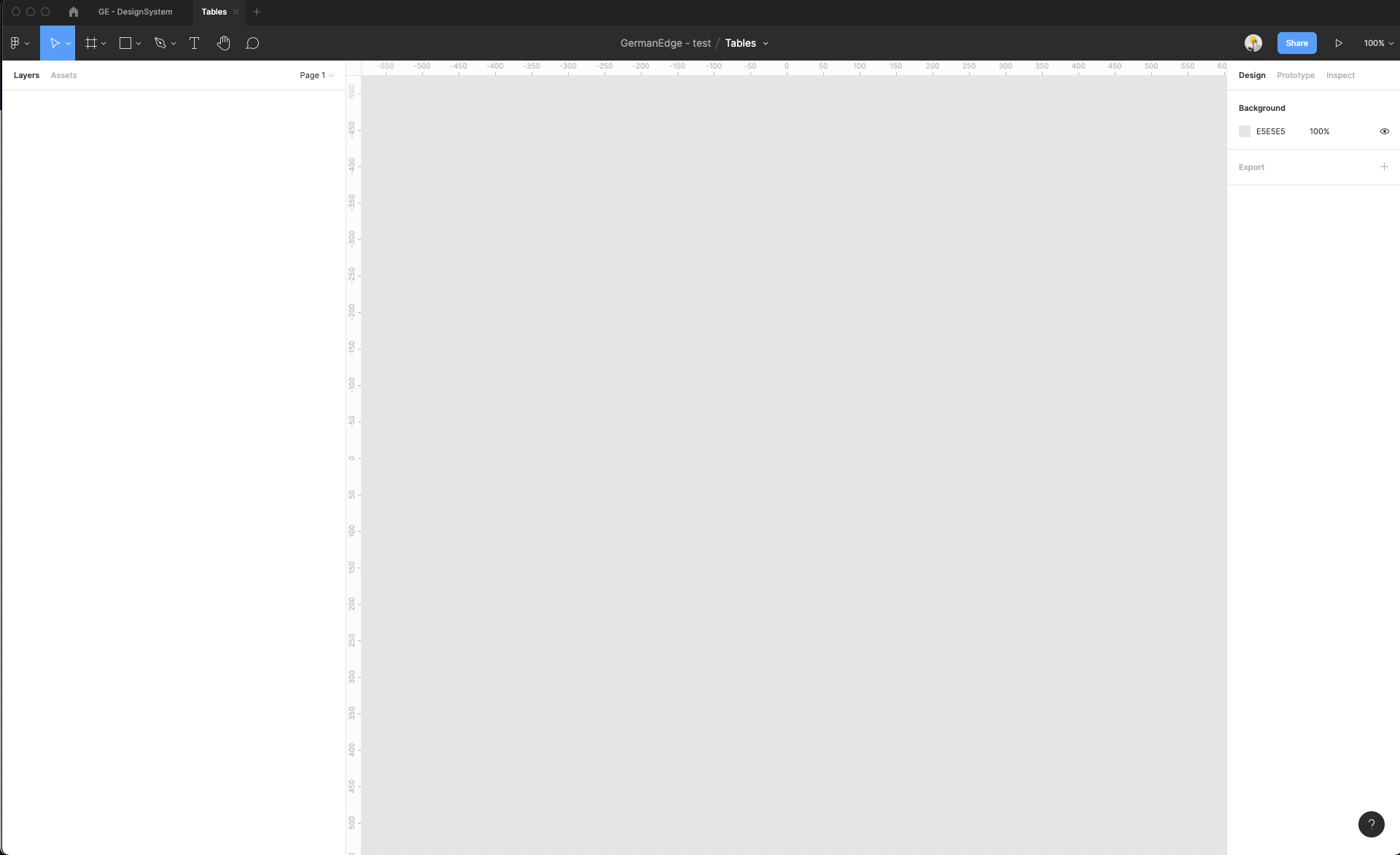 | |
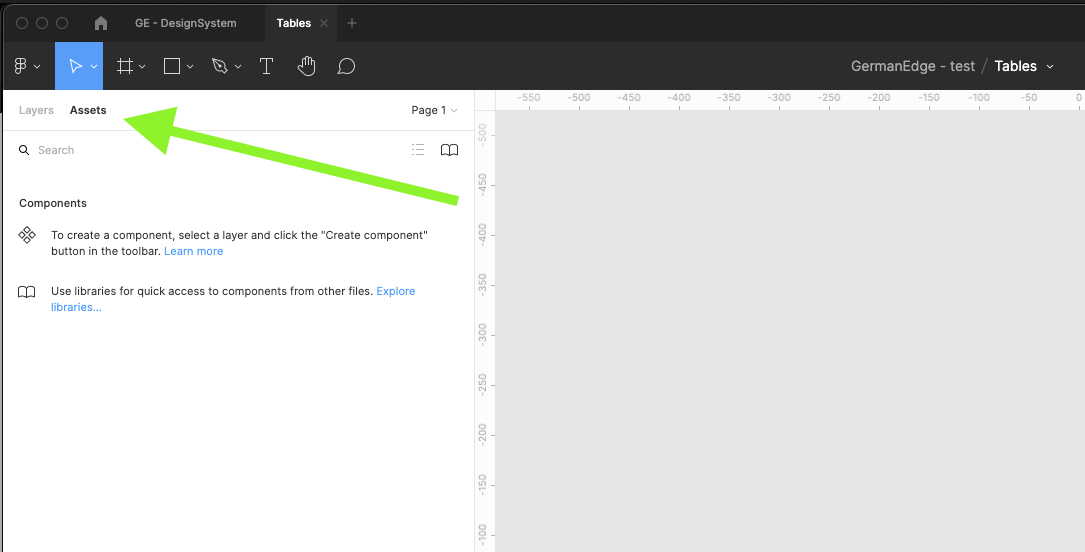
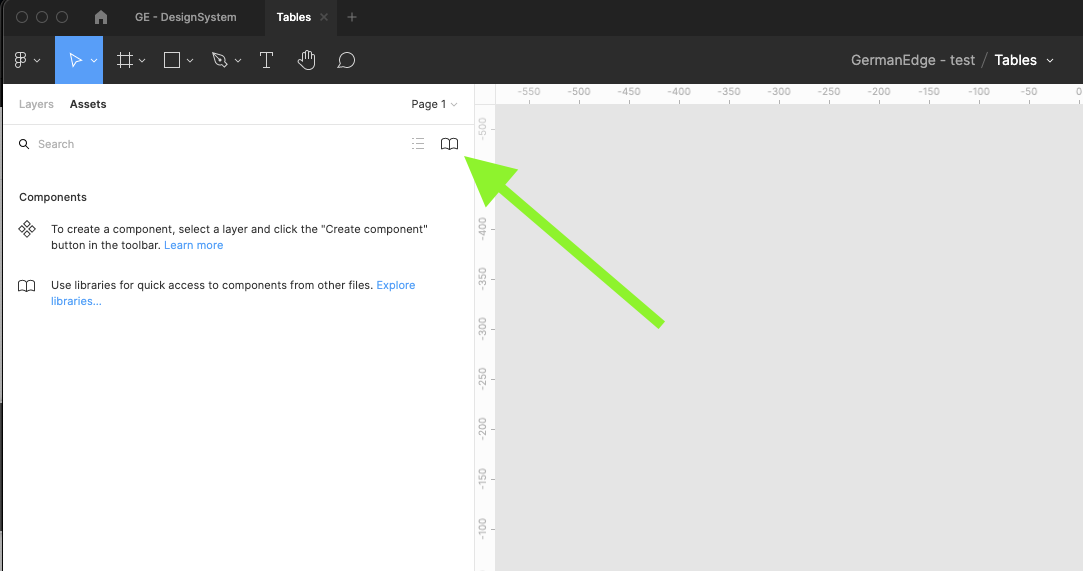
| 5 | On the left sidebar, switch to the Assets tab, and then click the Team Library icon |
| |
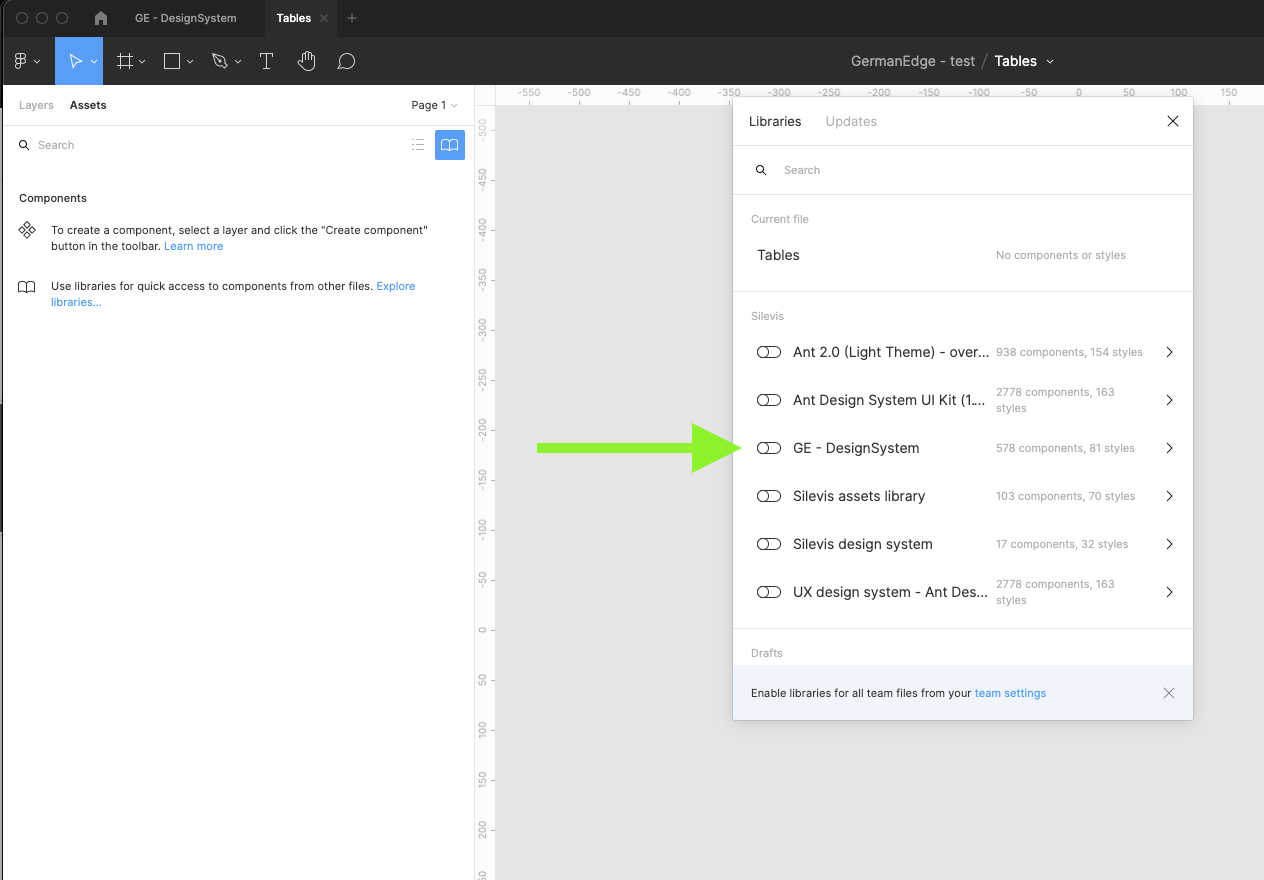
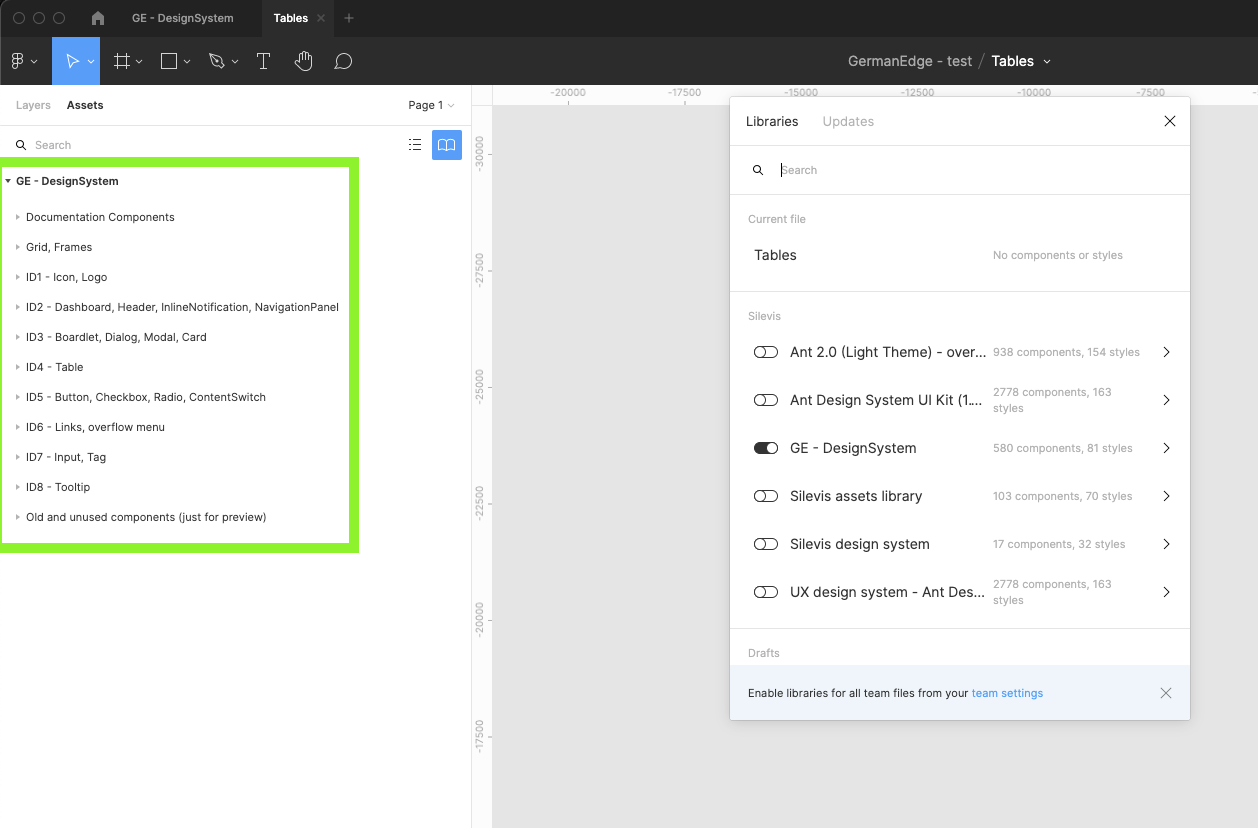
| 6 | Find the GE - Design system library and turn it on. Wait till figma loads all components categorized into different groups. Close the modal. |
 | |
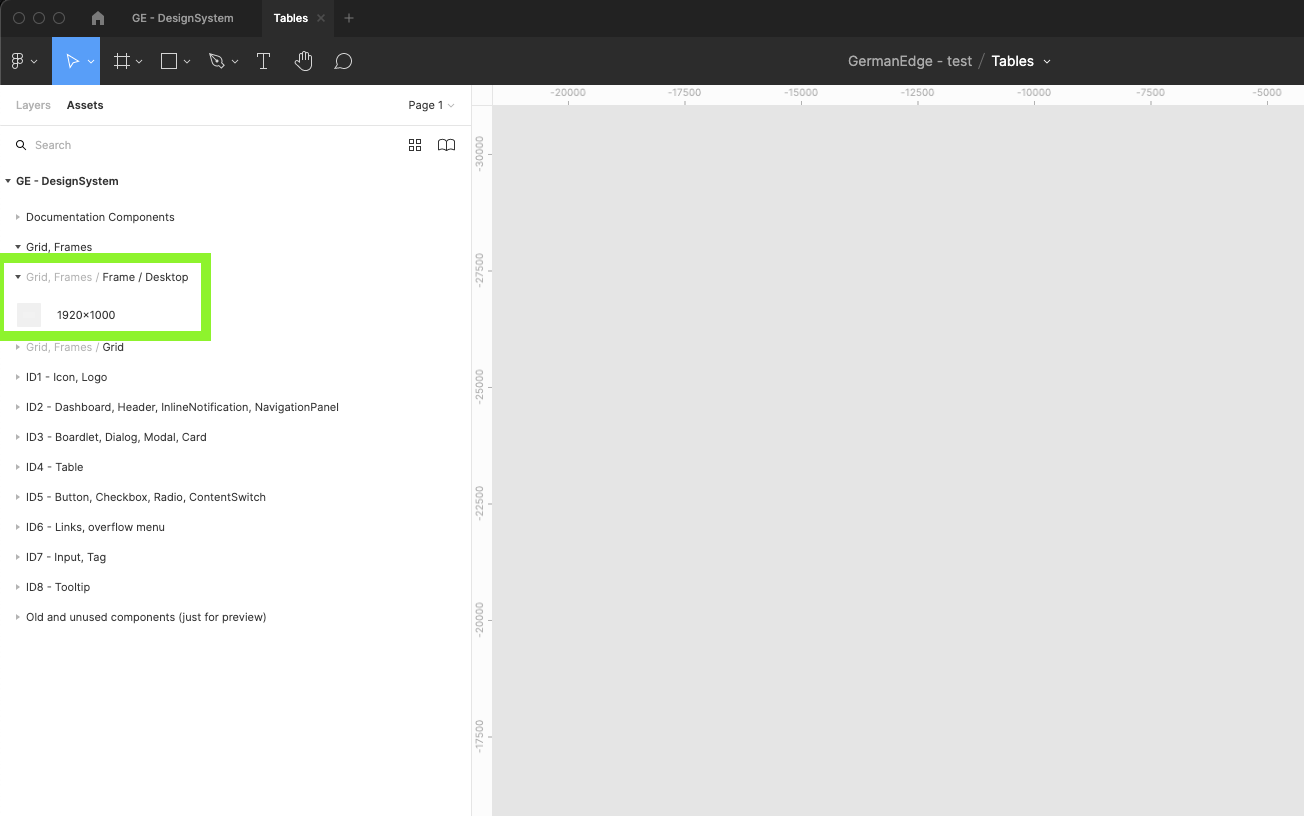
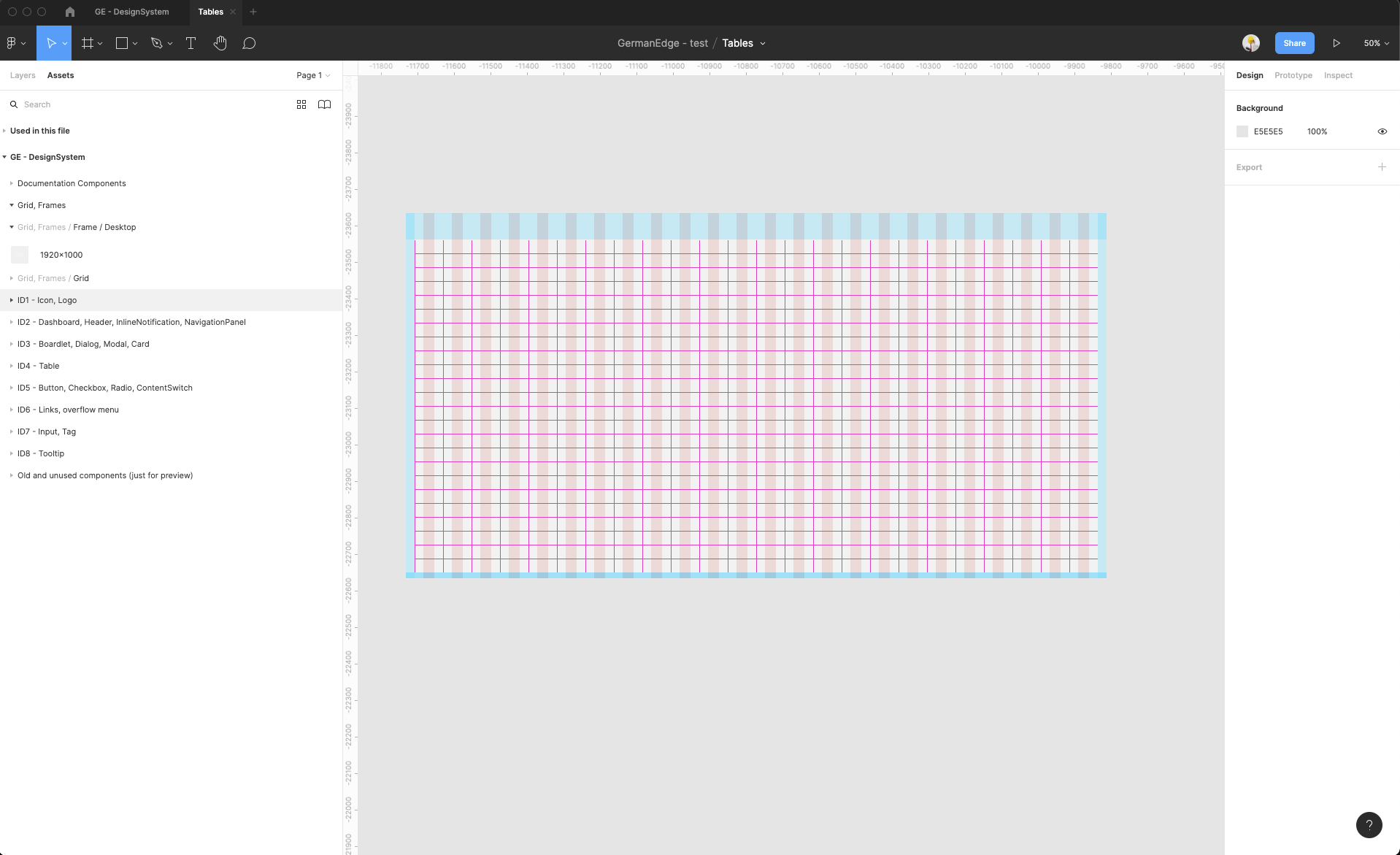
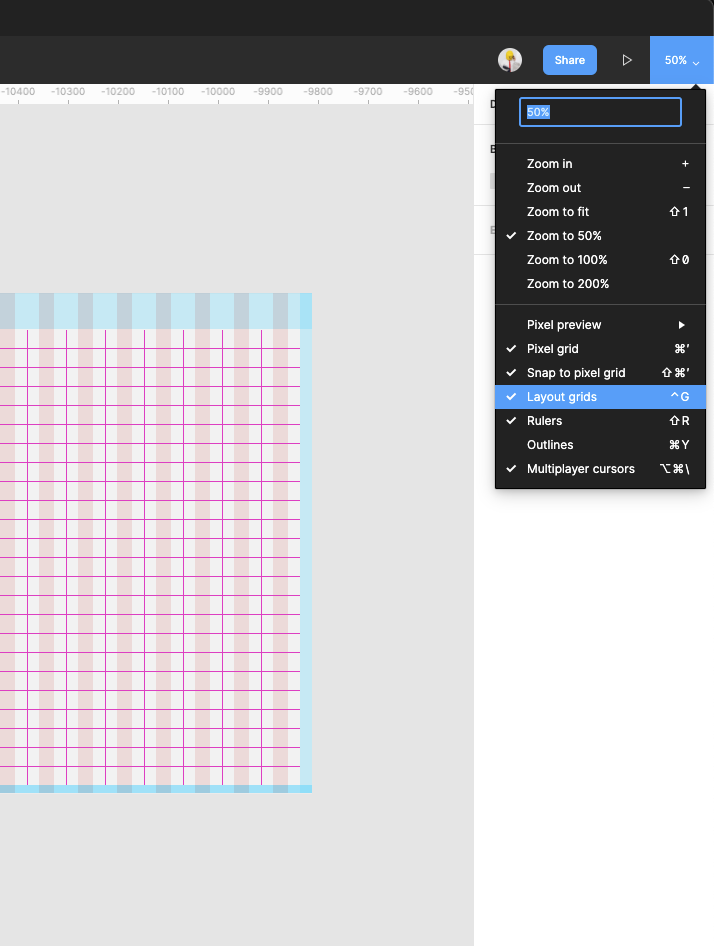
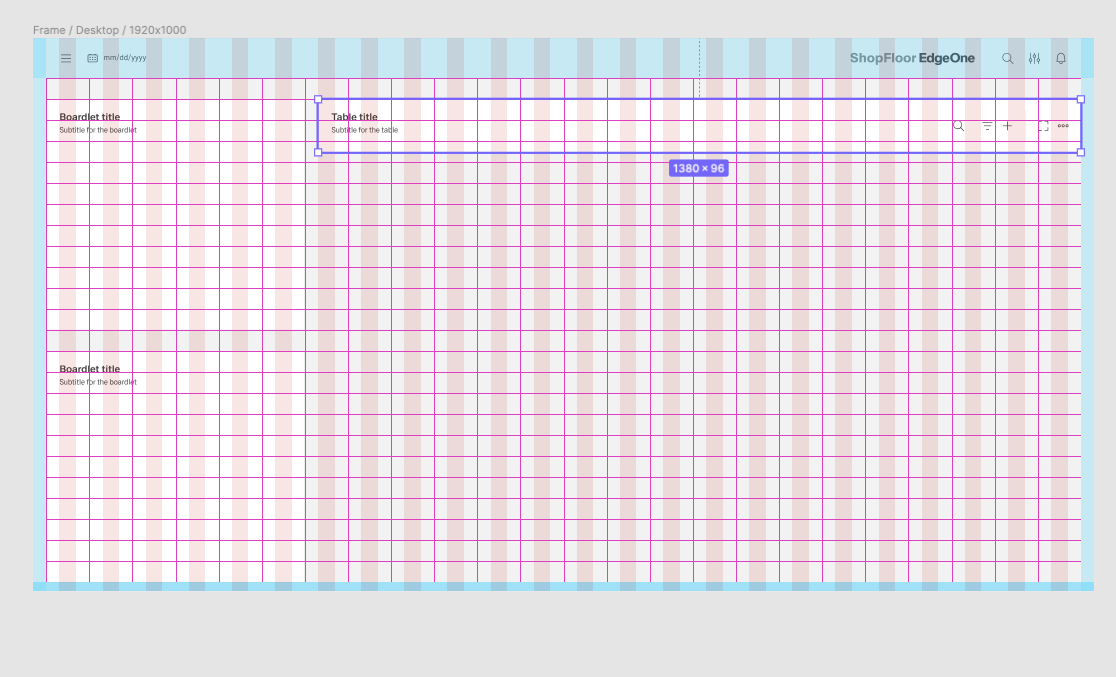
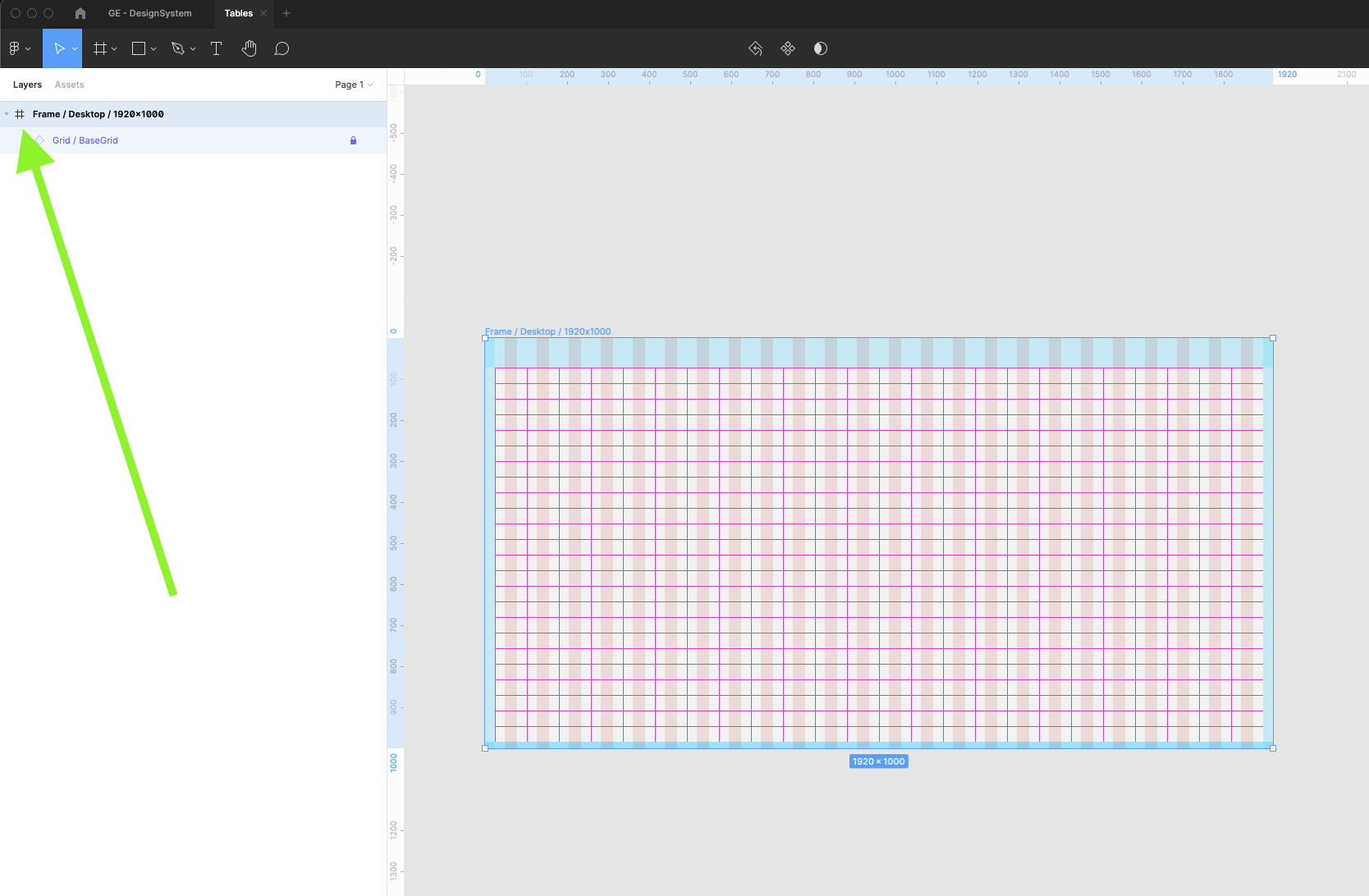
| 7 | Under Grid, Frames category find the basic Frame for Desktop window 1920x1000px. Drag and drop this component into your artboard. Make sure that in View options you have selected Layout Grids |
Select Layout grid if you cannot see any grids inside the frame.
| |
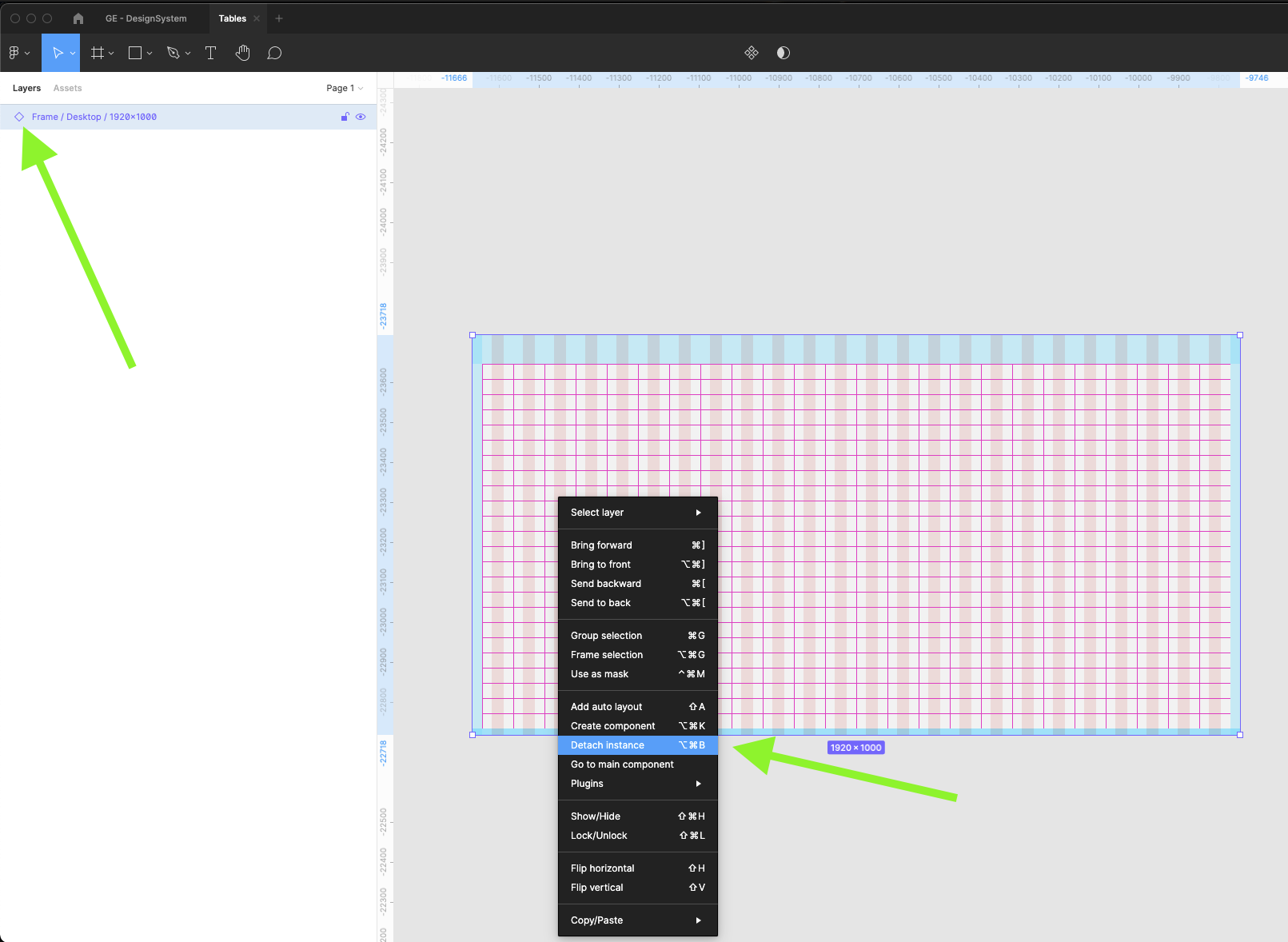
| 8 | Detach the selected frame. Because it's an instance from the master component inside GE Design System, you cannot edit this frame or put anything inside it. Detach it, so you can edit it but all grids won't be removed. |
 | |
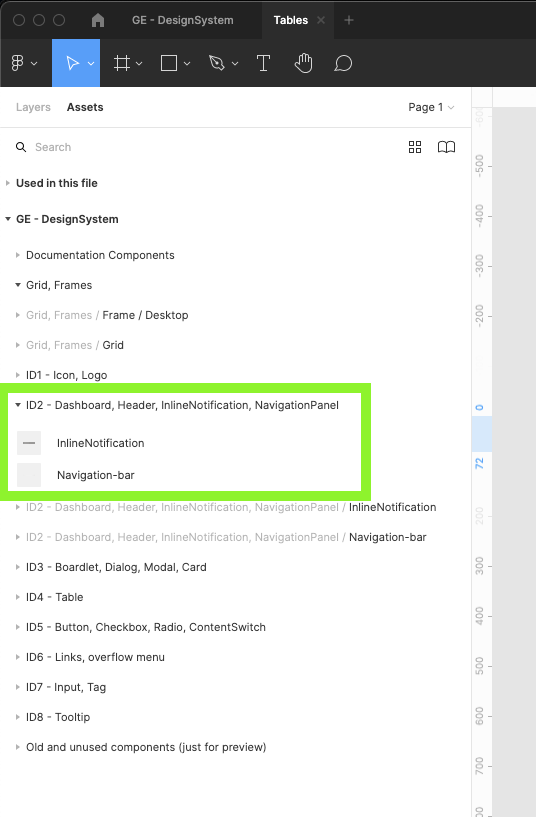
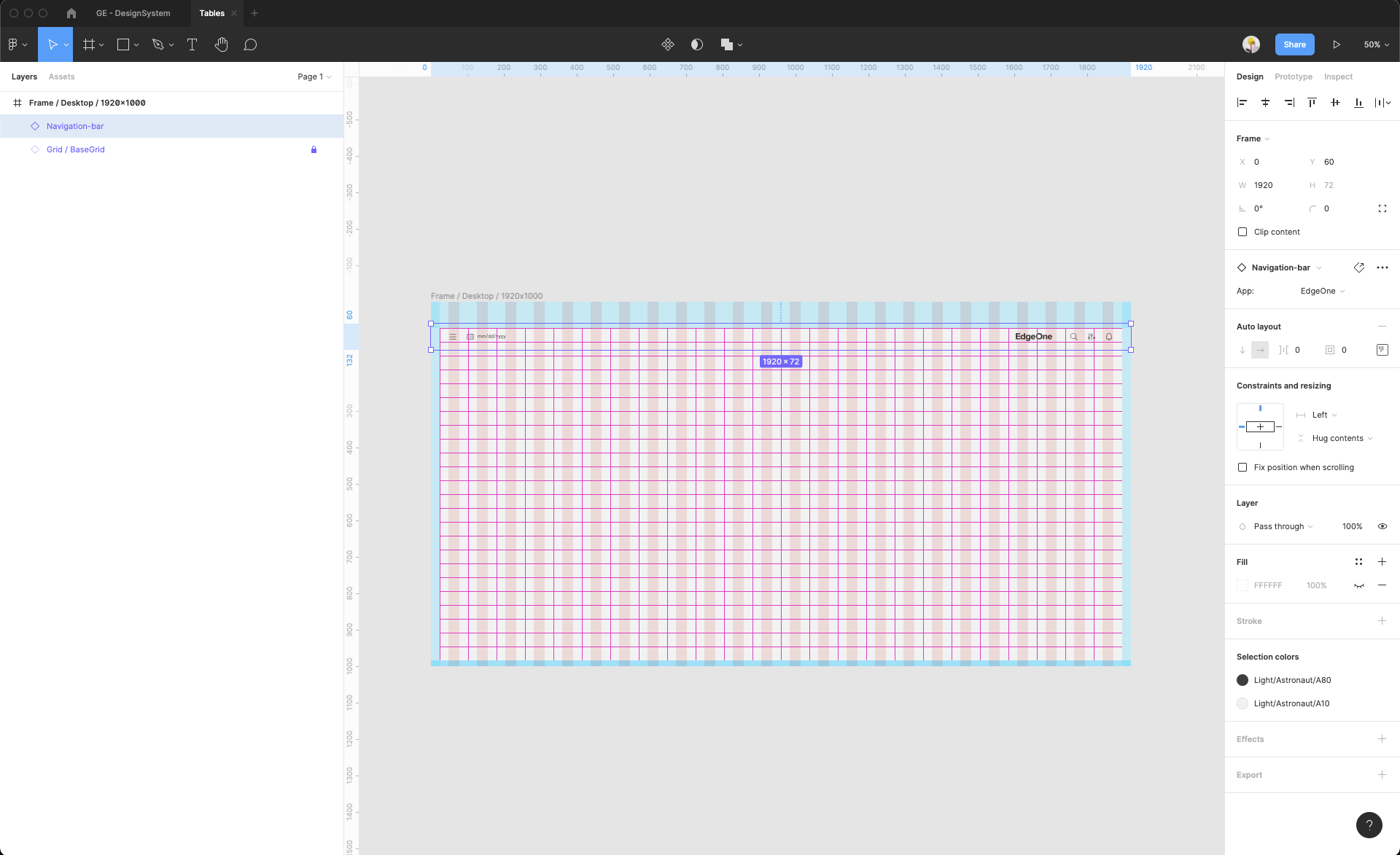
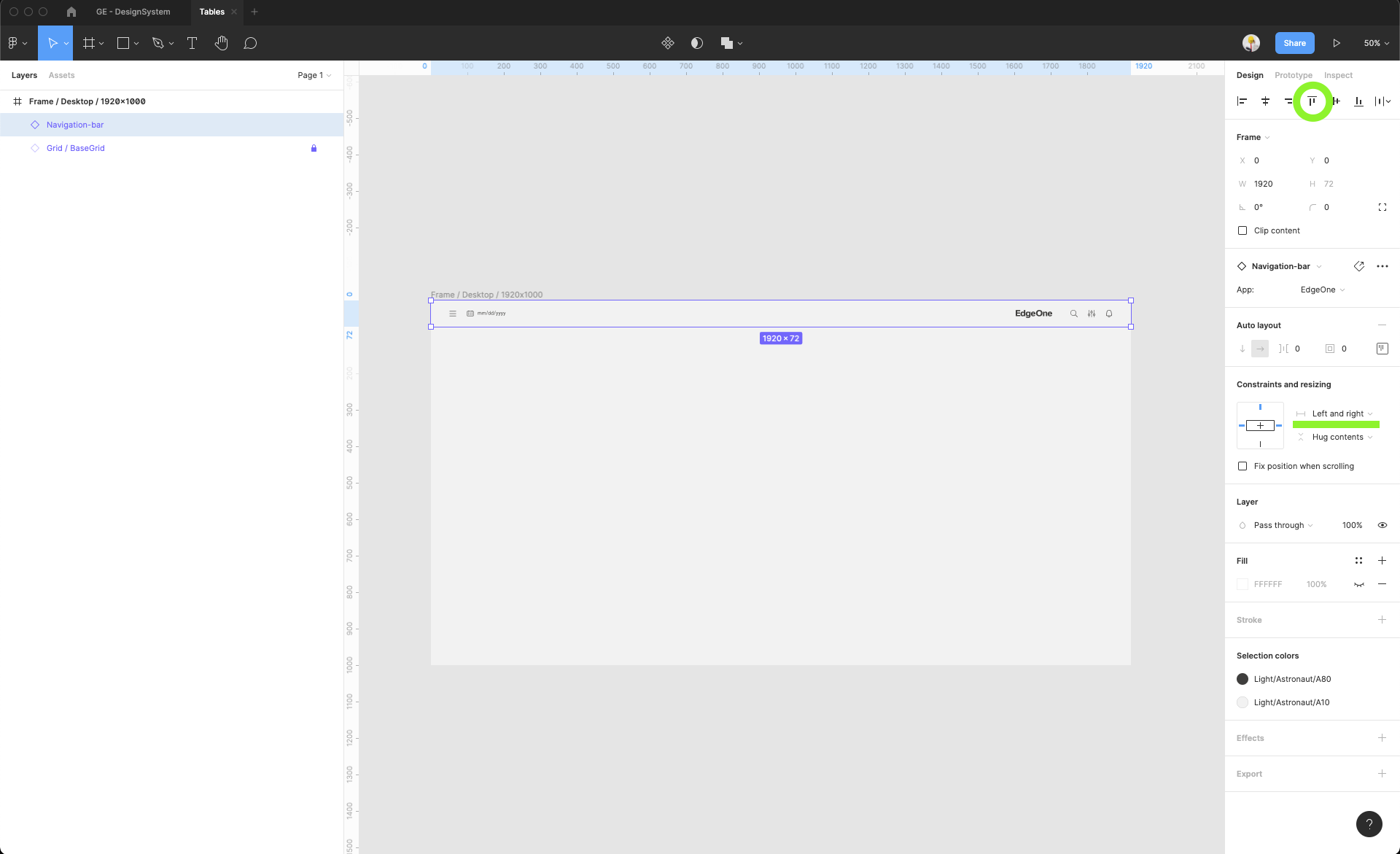
| 9 | Add the Navigation-bar. Switch again to the Assets tab in left sidebar and find the Navigation bar inside the ID2 components group. Drag and drop this component inside the frame. You can always switch off the layout grid because it's quite hard to spot components under the grid. |
Switch to the Layers tab to see the new component layer inside the frame.
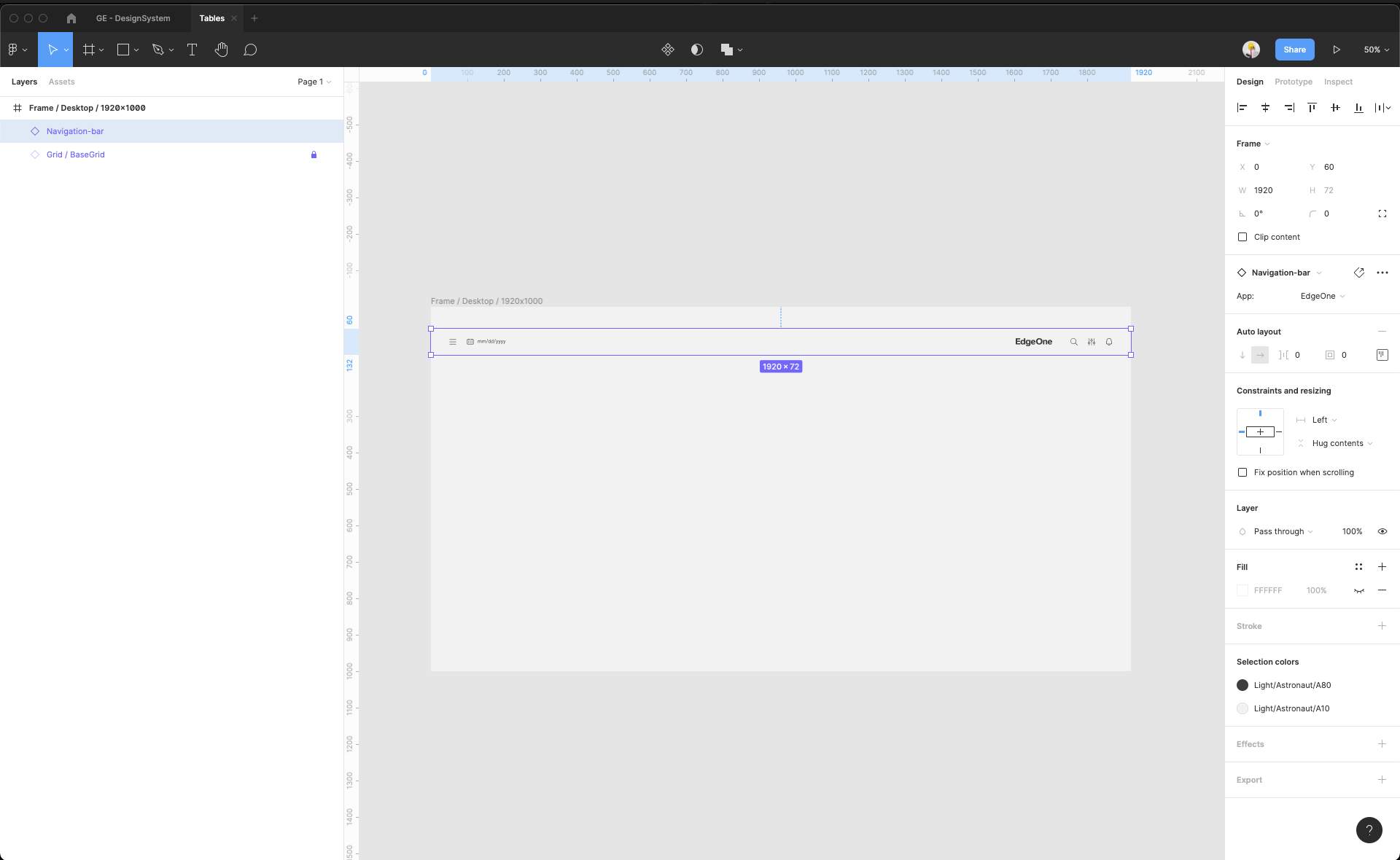
Switch off the layout grid (you can always turn it on)
Place the Navigation-bar in the right place. Align it to the top, add the constraints to let the navigation bar stick for the left and right side of this frame.
| |
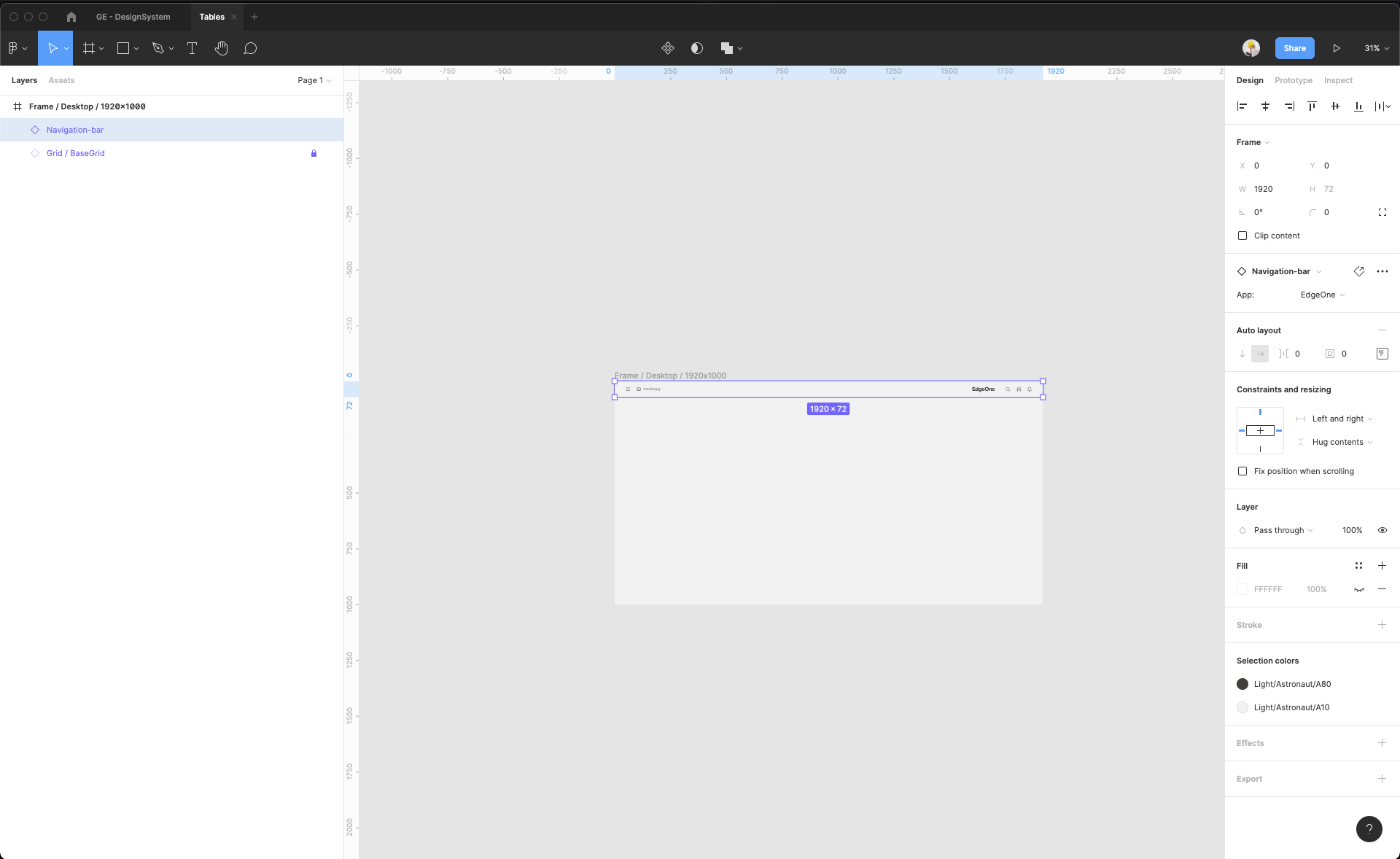
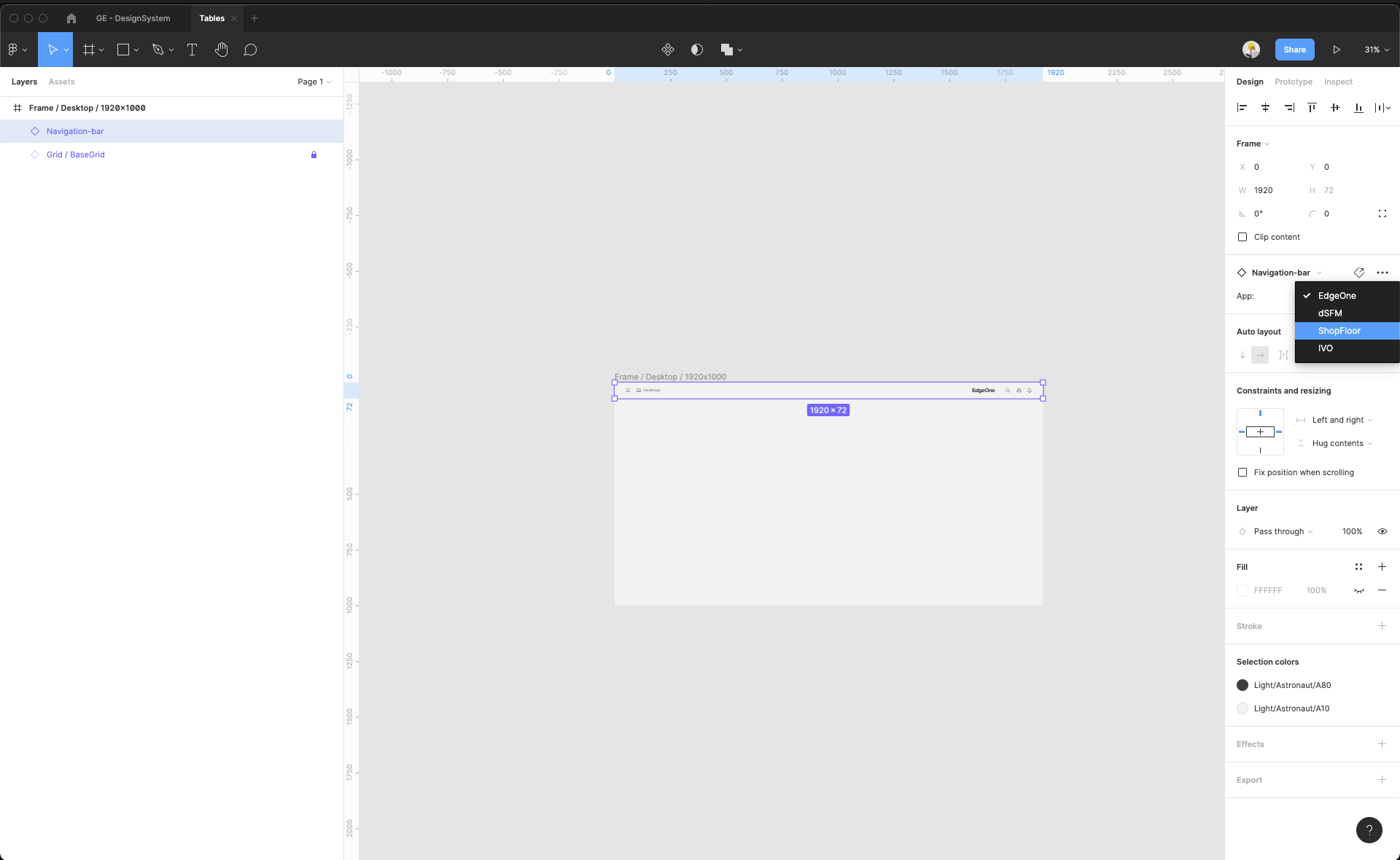
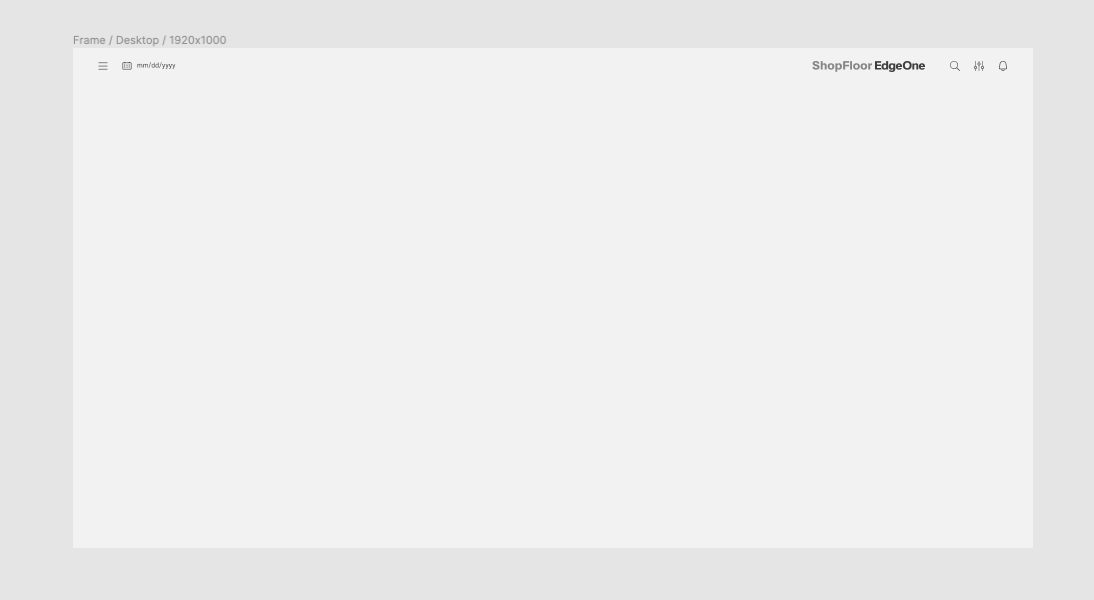
| 10 | Change the variant of Navigation bar. Select the App property and change it into ShopFloor value. |
| |
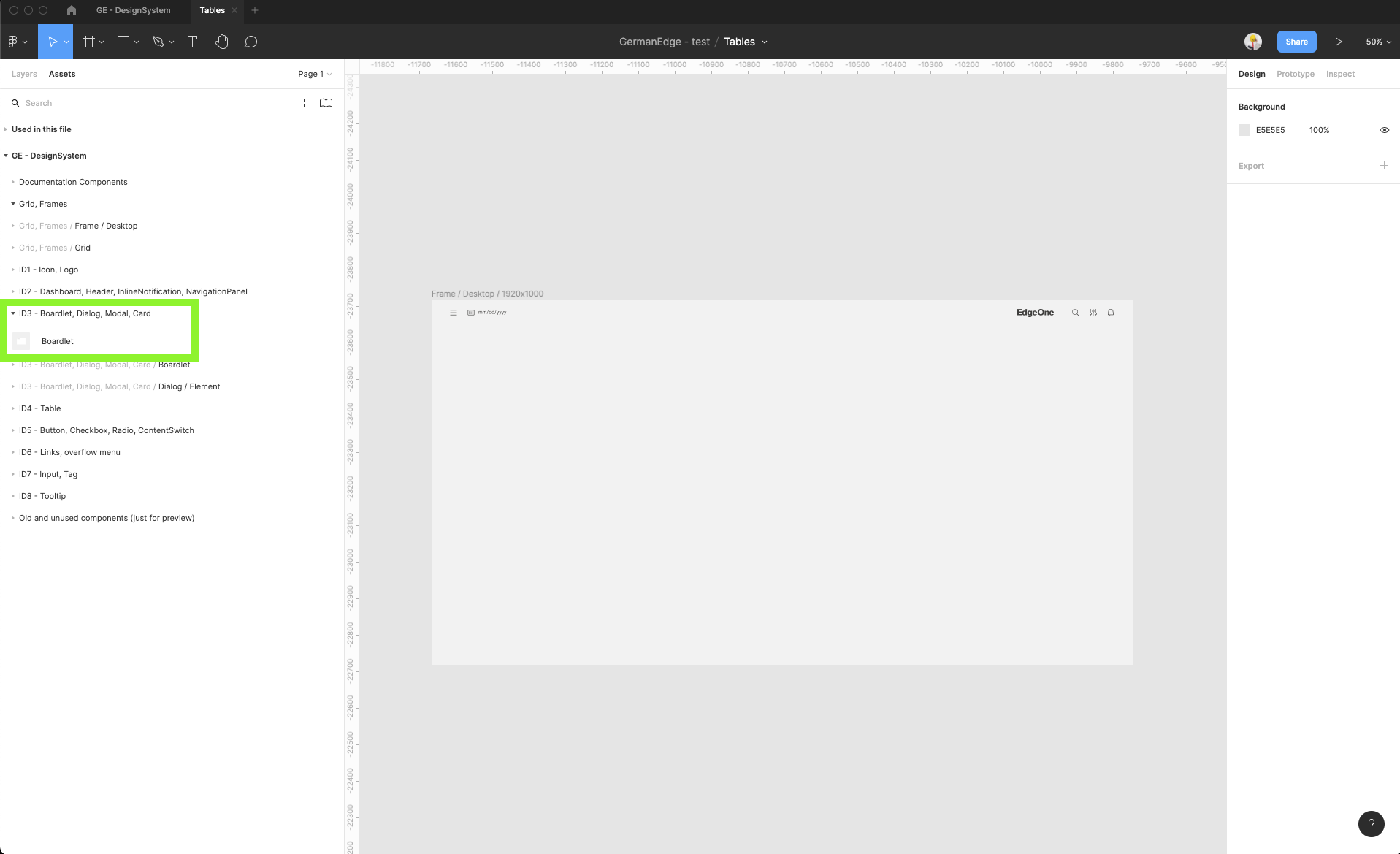
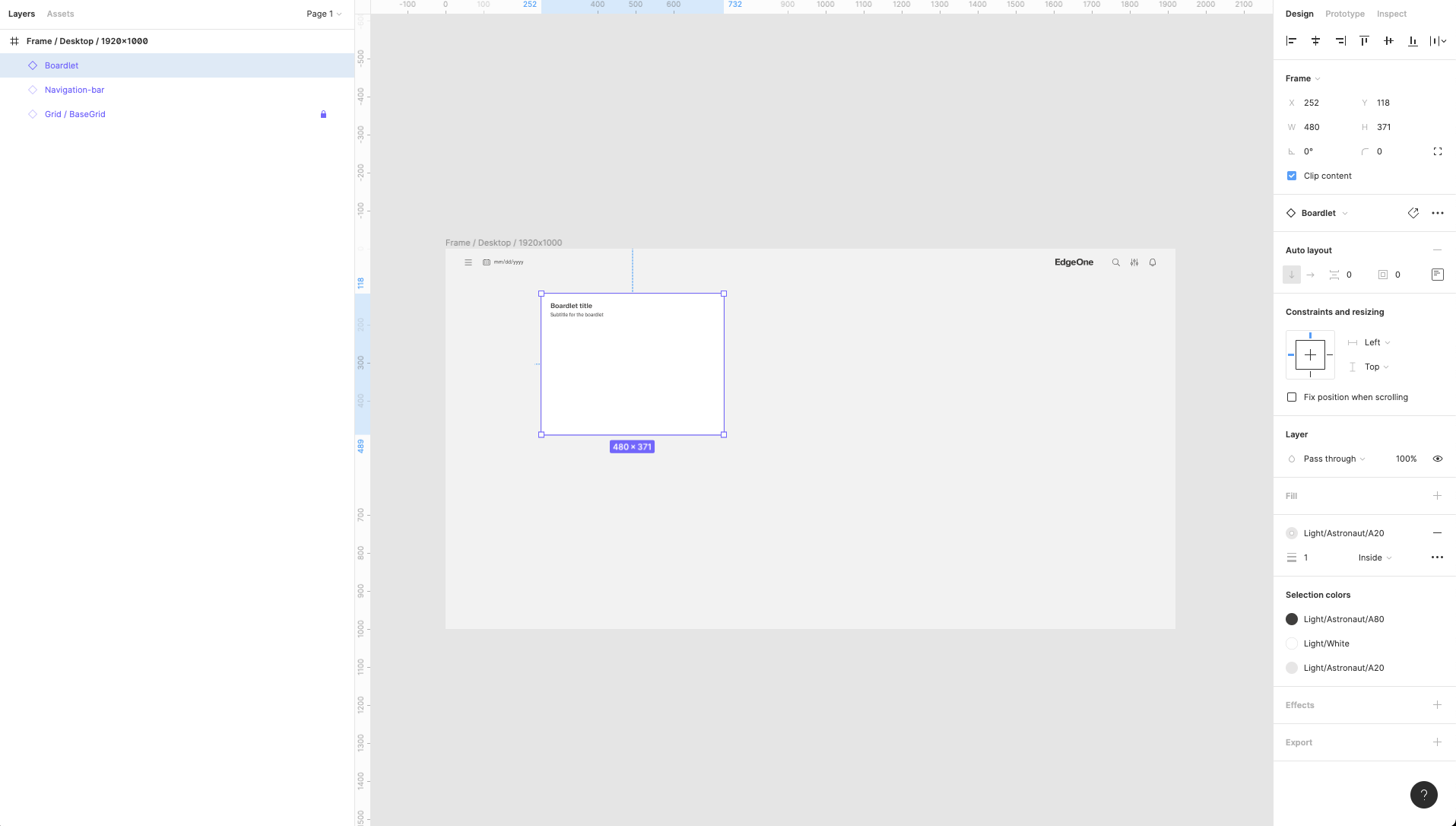
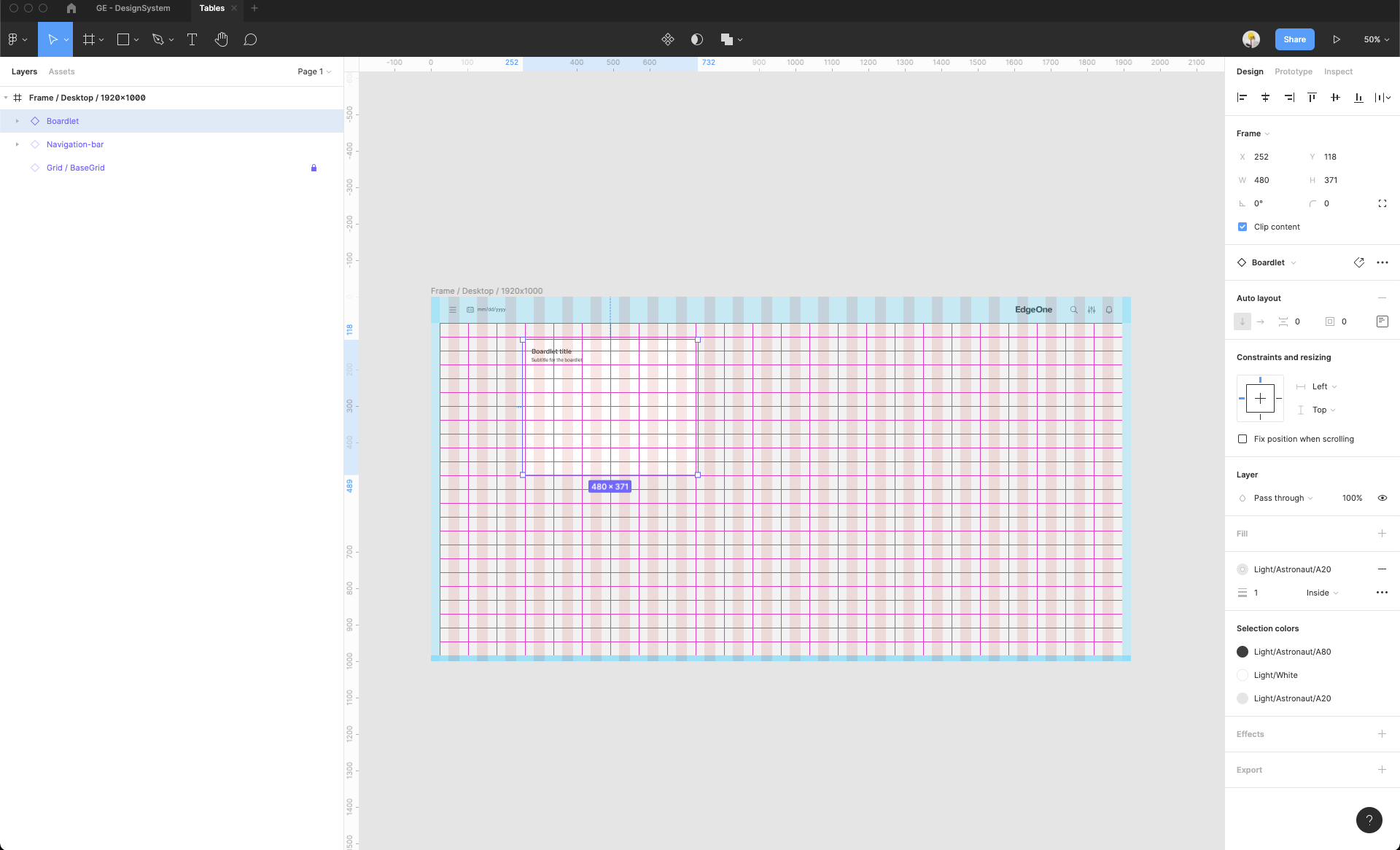
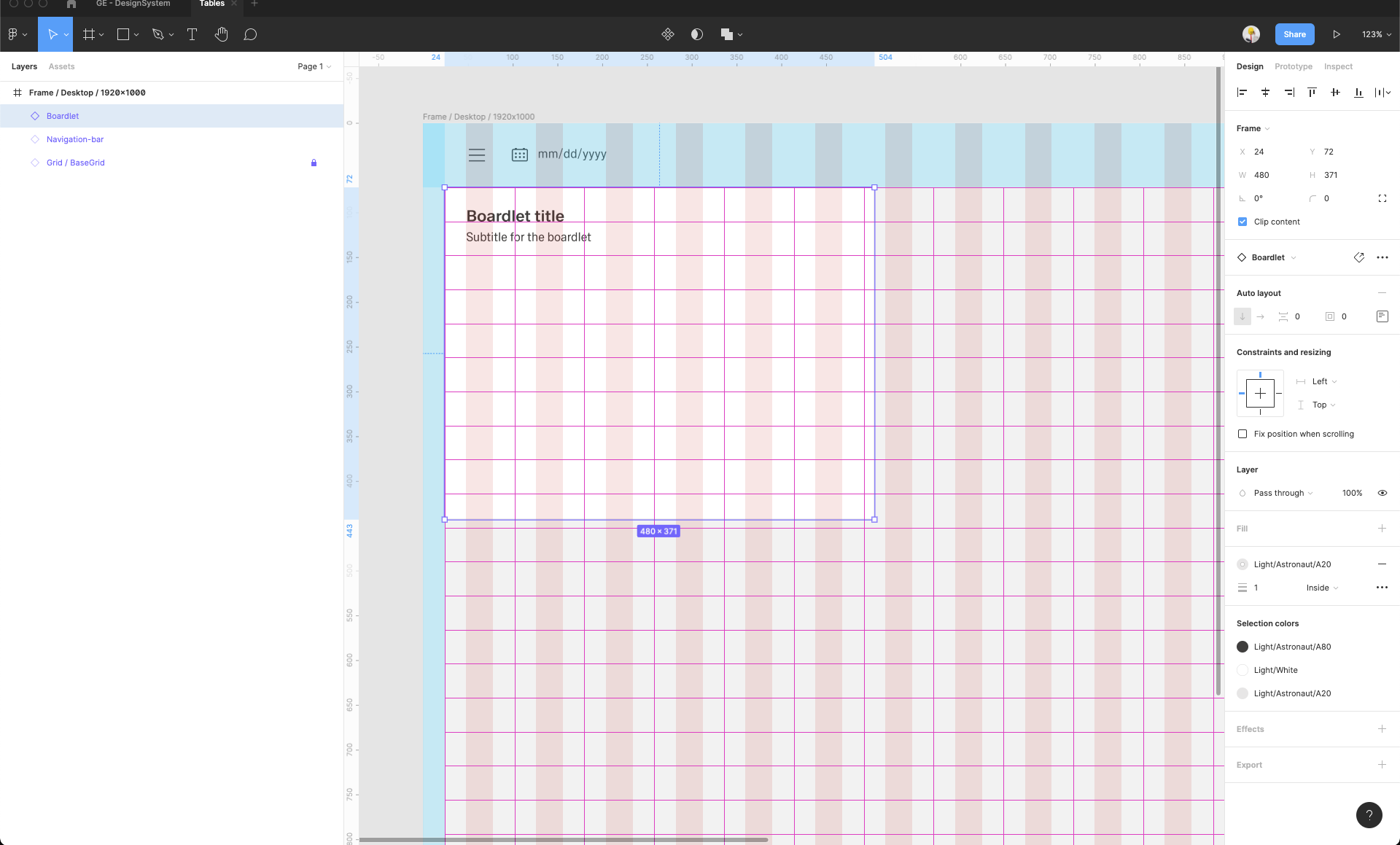
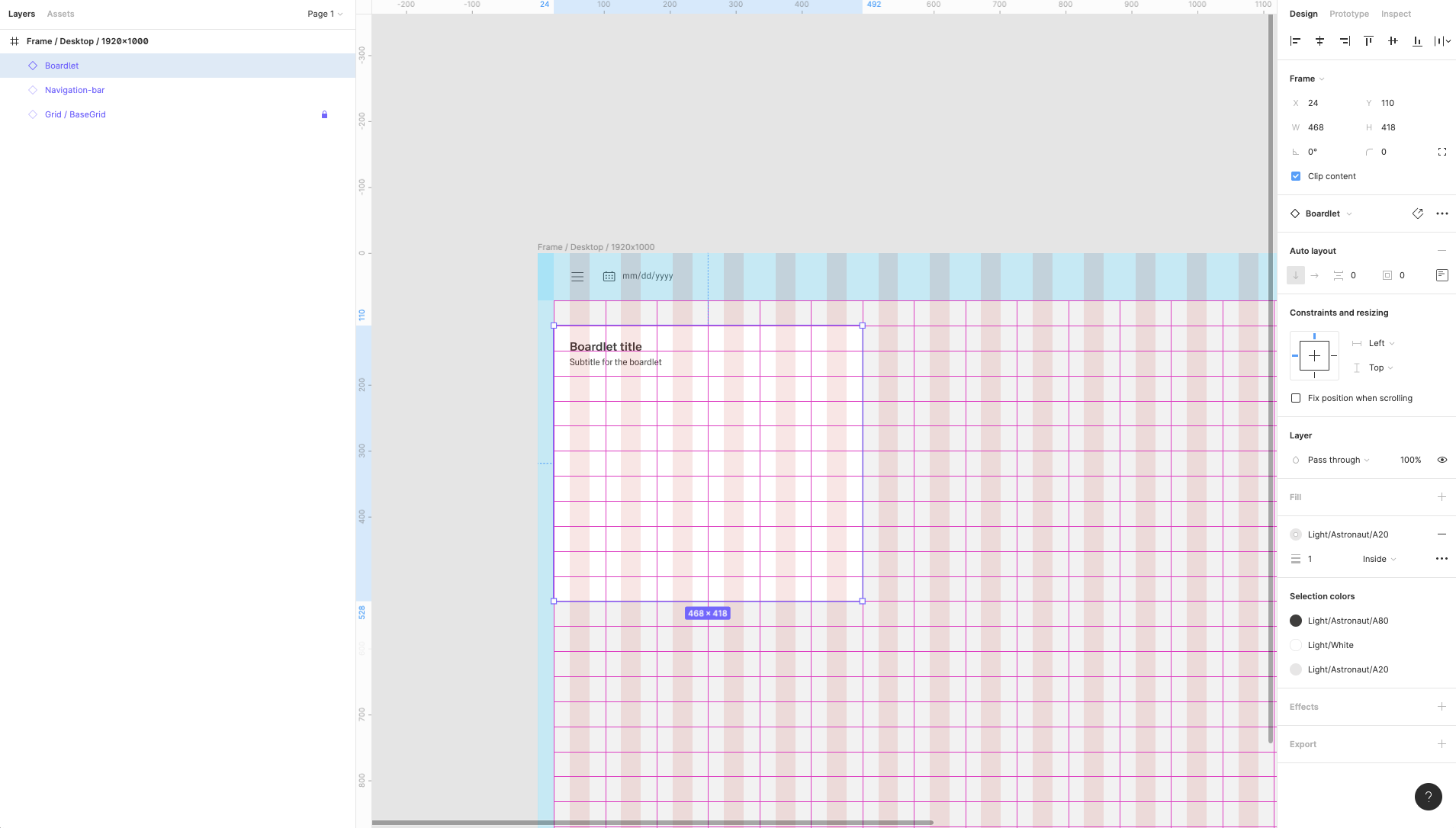
| 11 | Add boardlet components. Find the Boardlet component inside the ID3 components group. Add this component inside the frame. Turn on the Layout grid view to help yourself to place it into the right places. |
| |
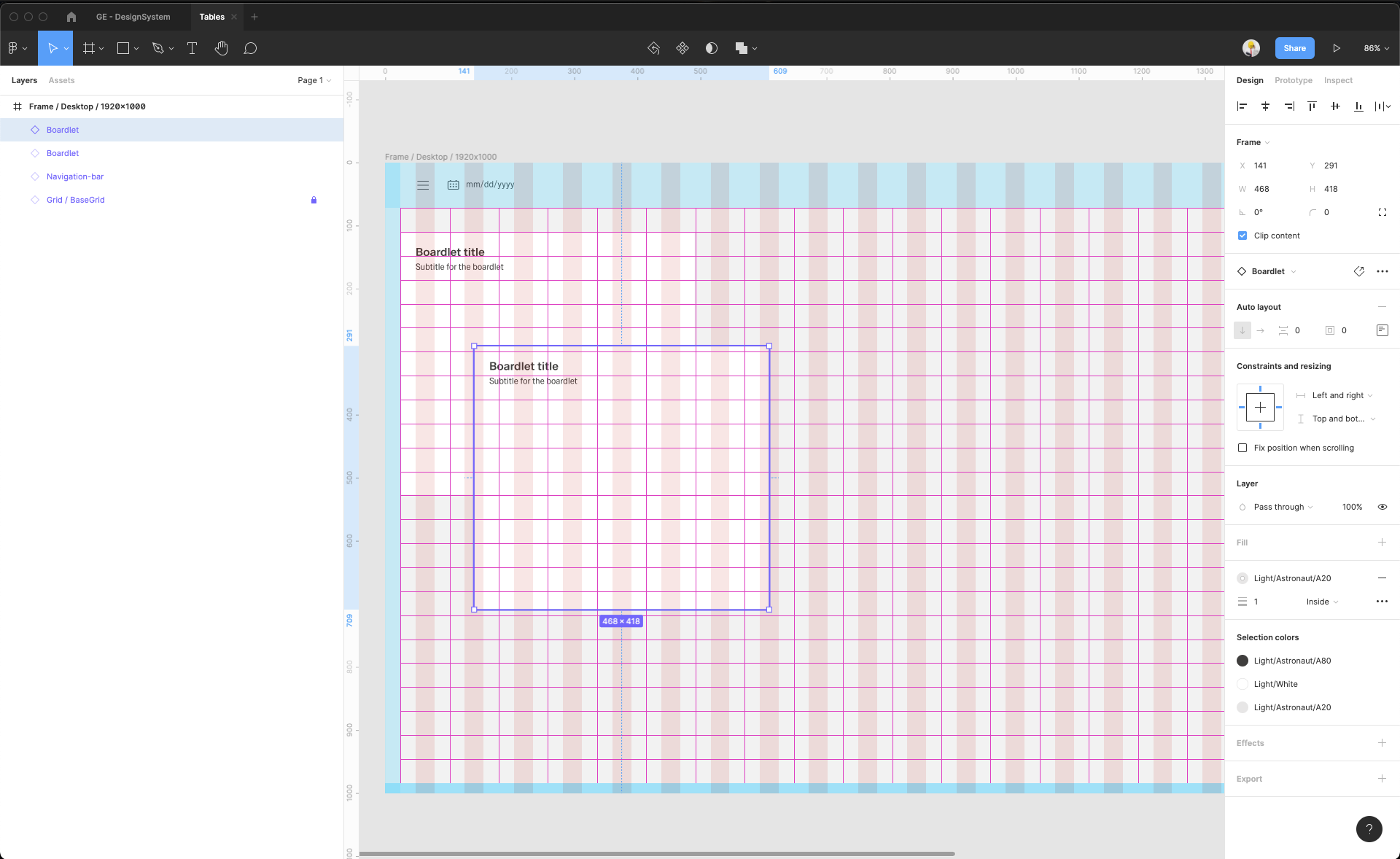
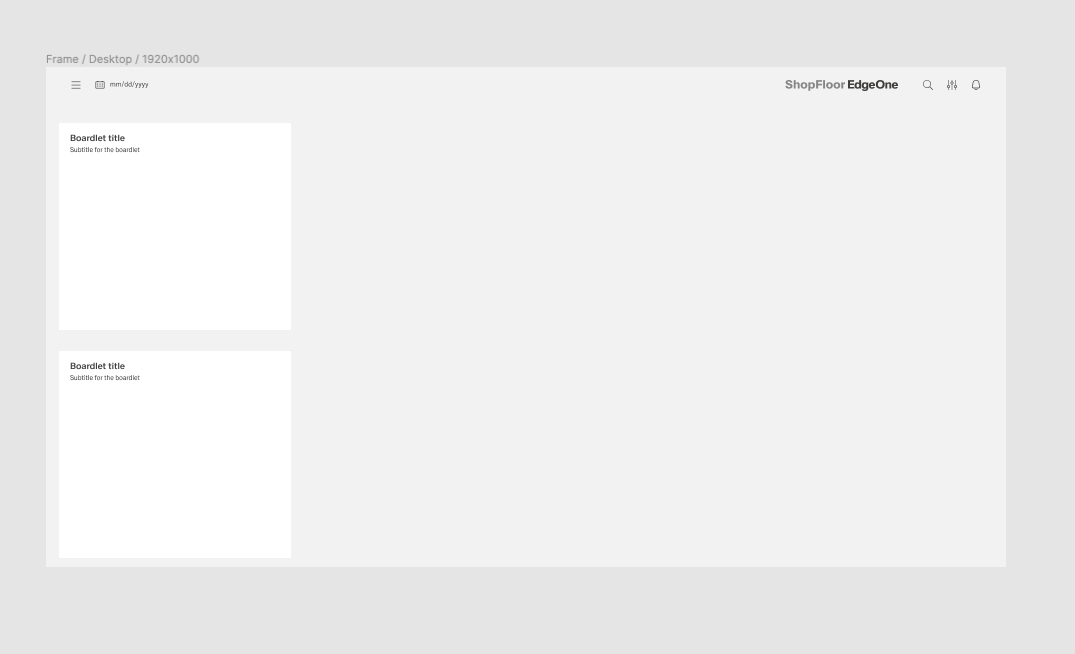
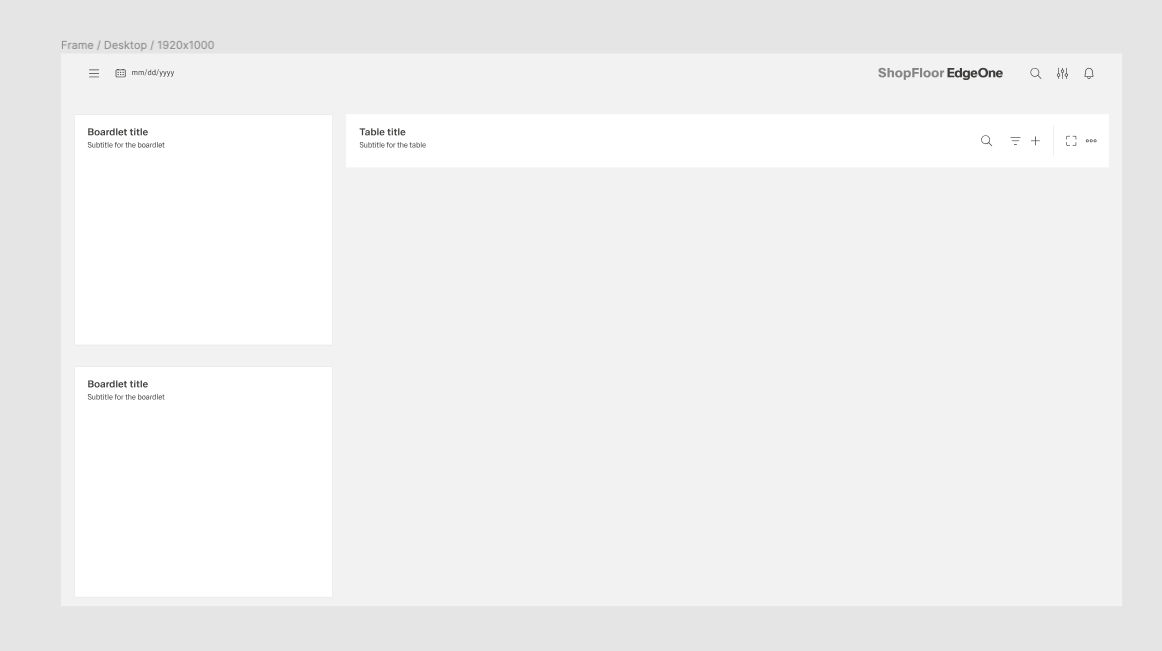
| 12 | Copy and pase / duplicate Boardlet component to add one more inside the frame. Place it, adjust the rezising and constraints and turn off the Layout grid view to preview how whole screen looks like. |
| |
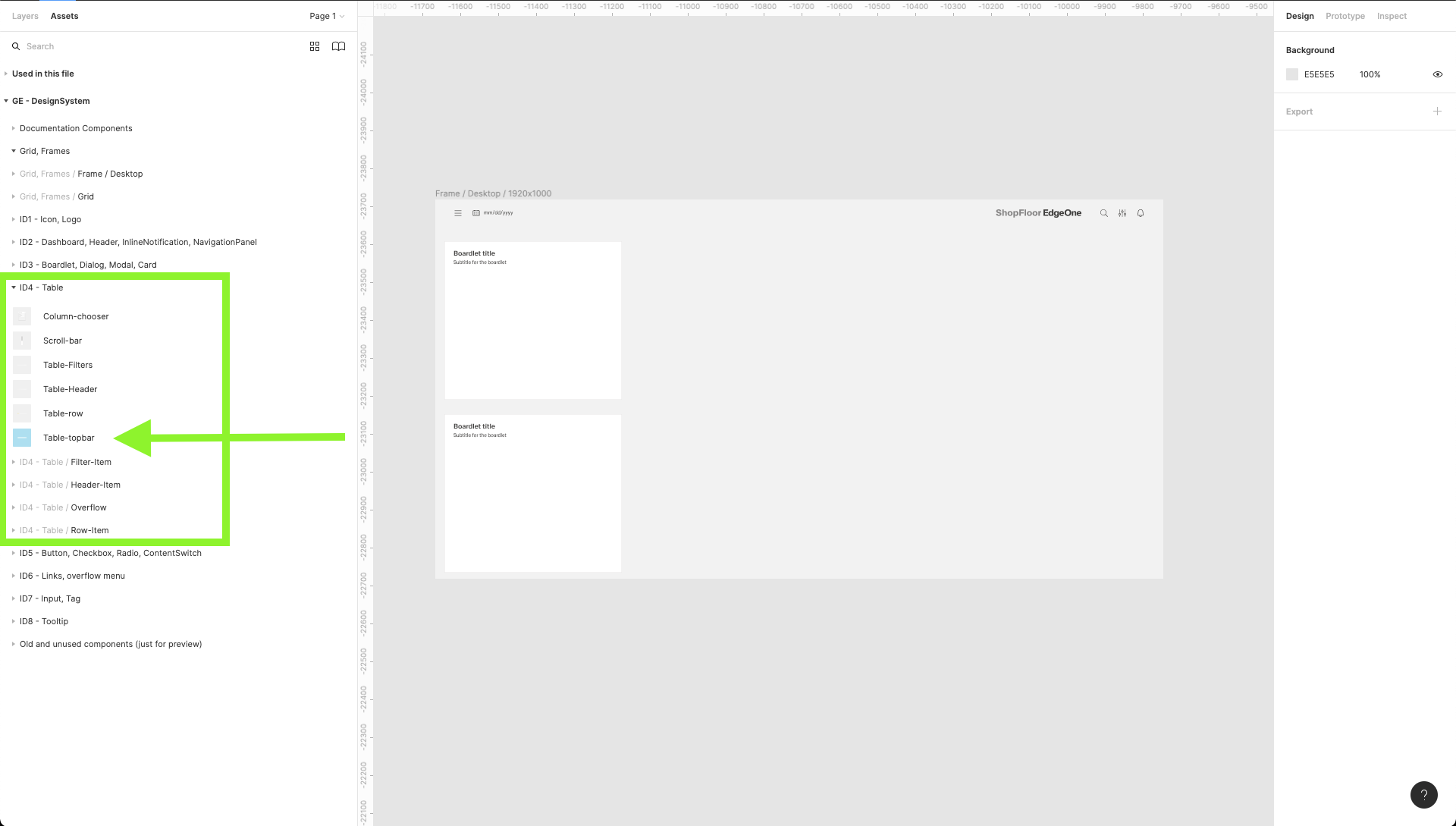
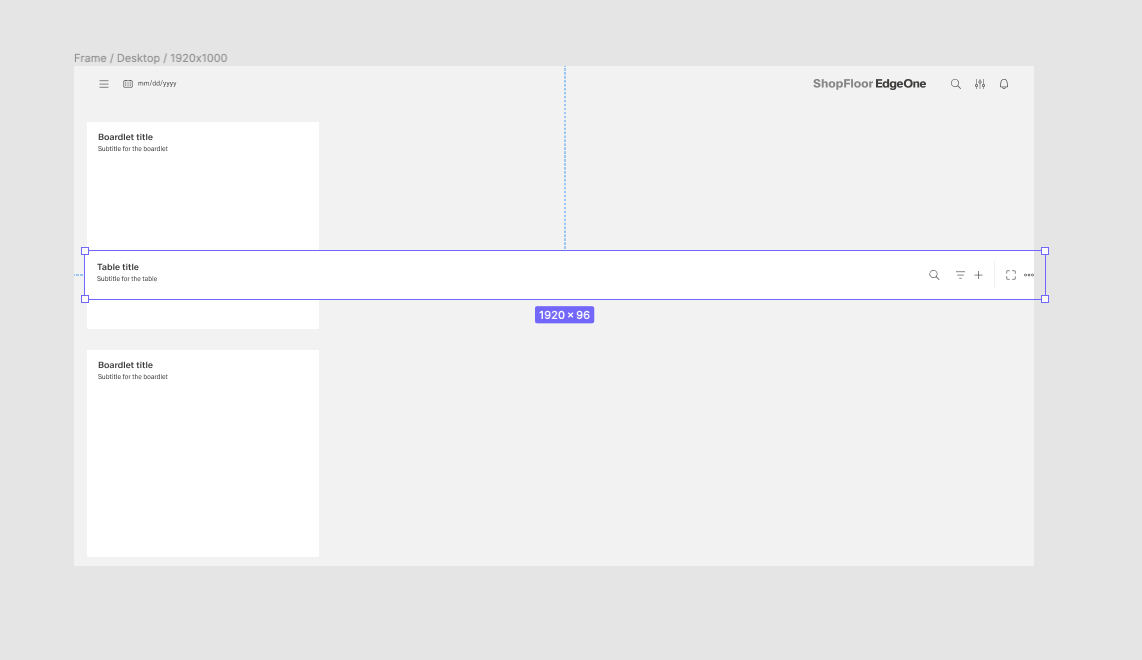
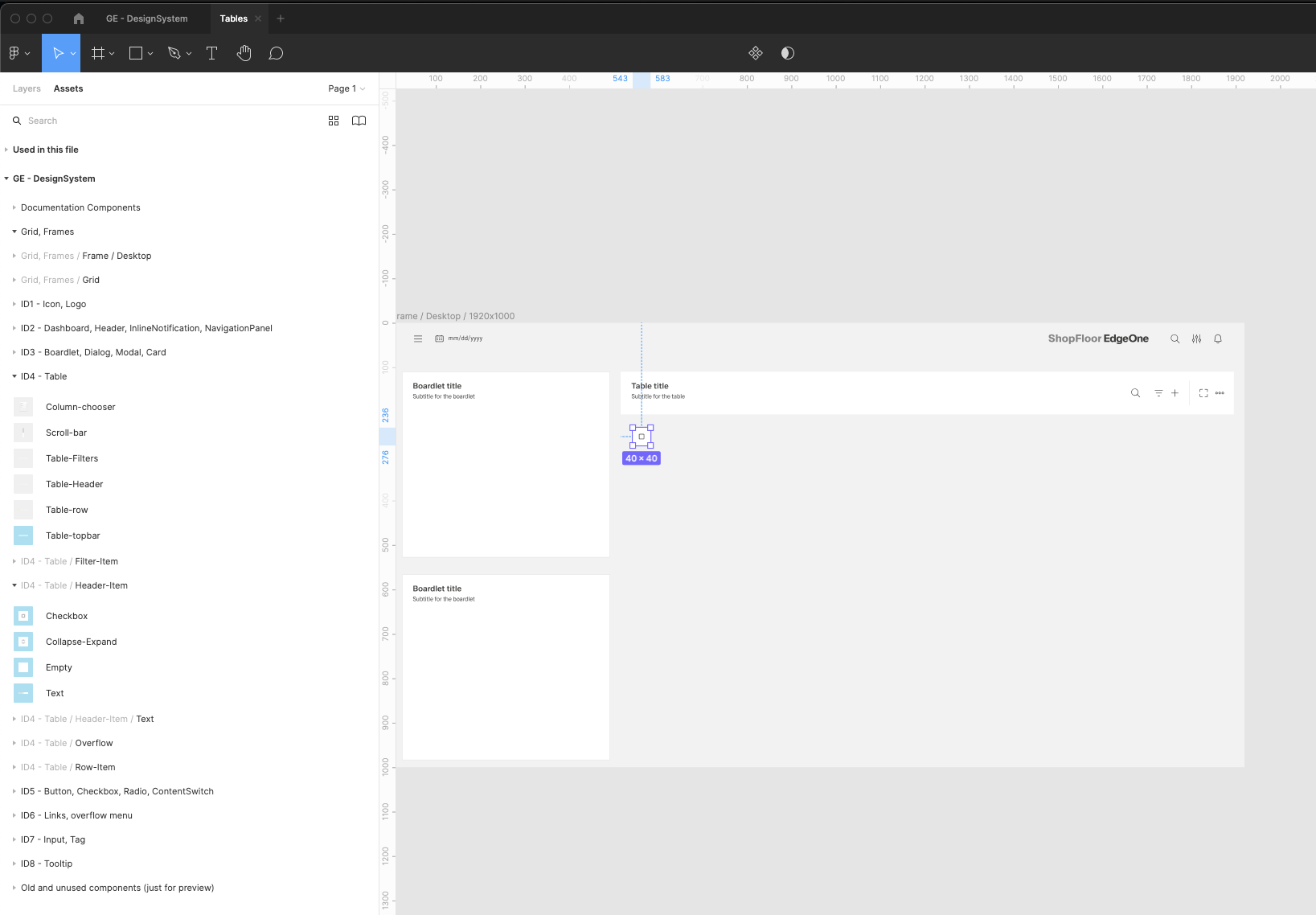
| 13 | Add table components. Find the Table-topbar component inside the ID4 components group. |
| |
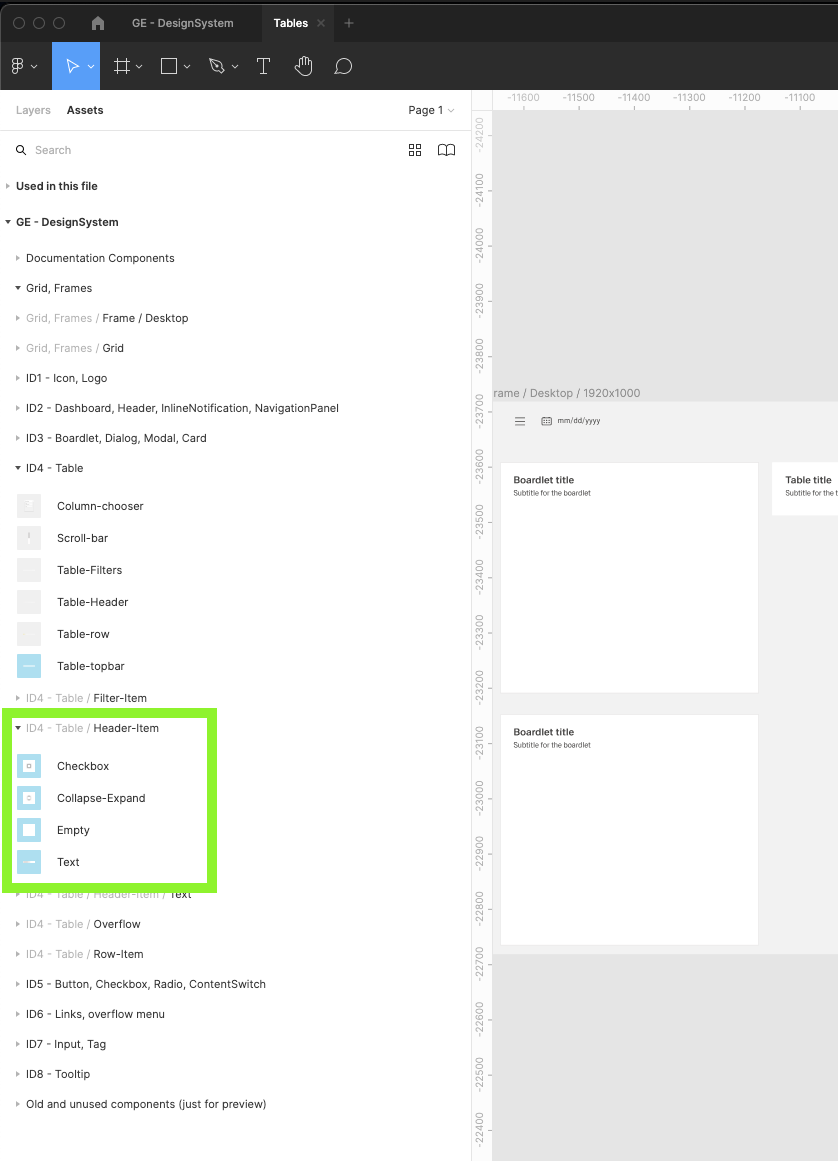
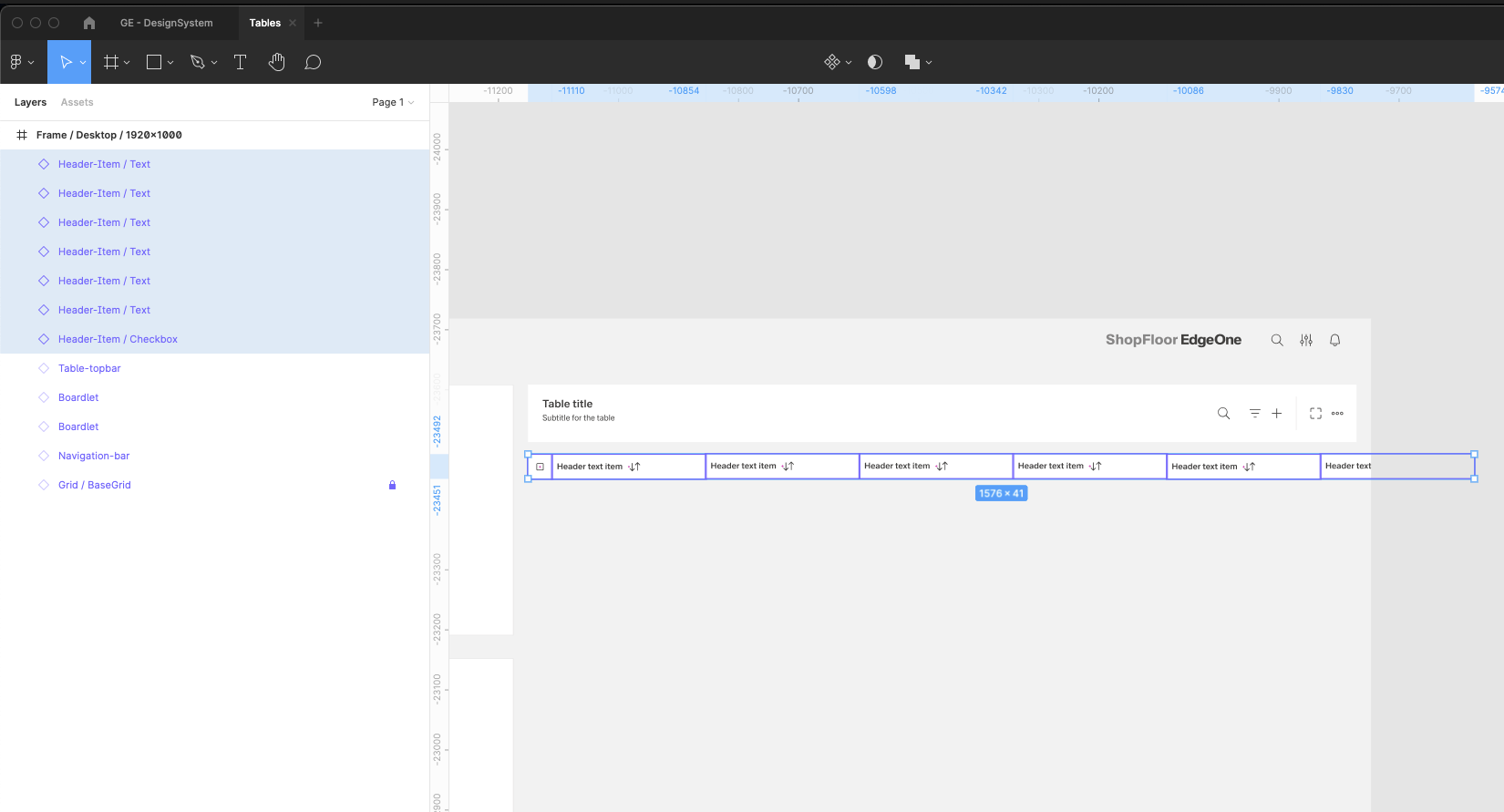
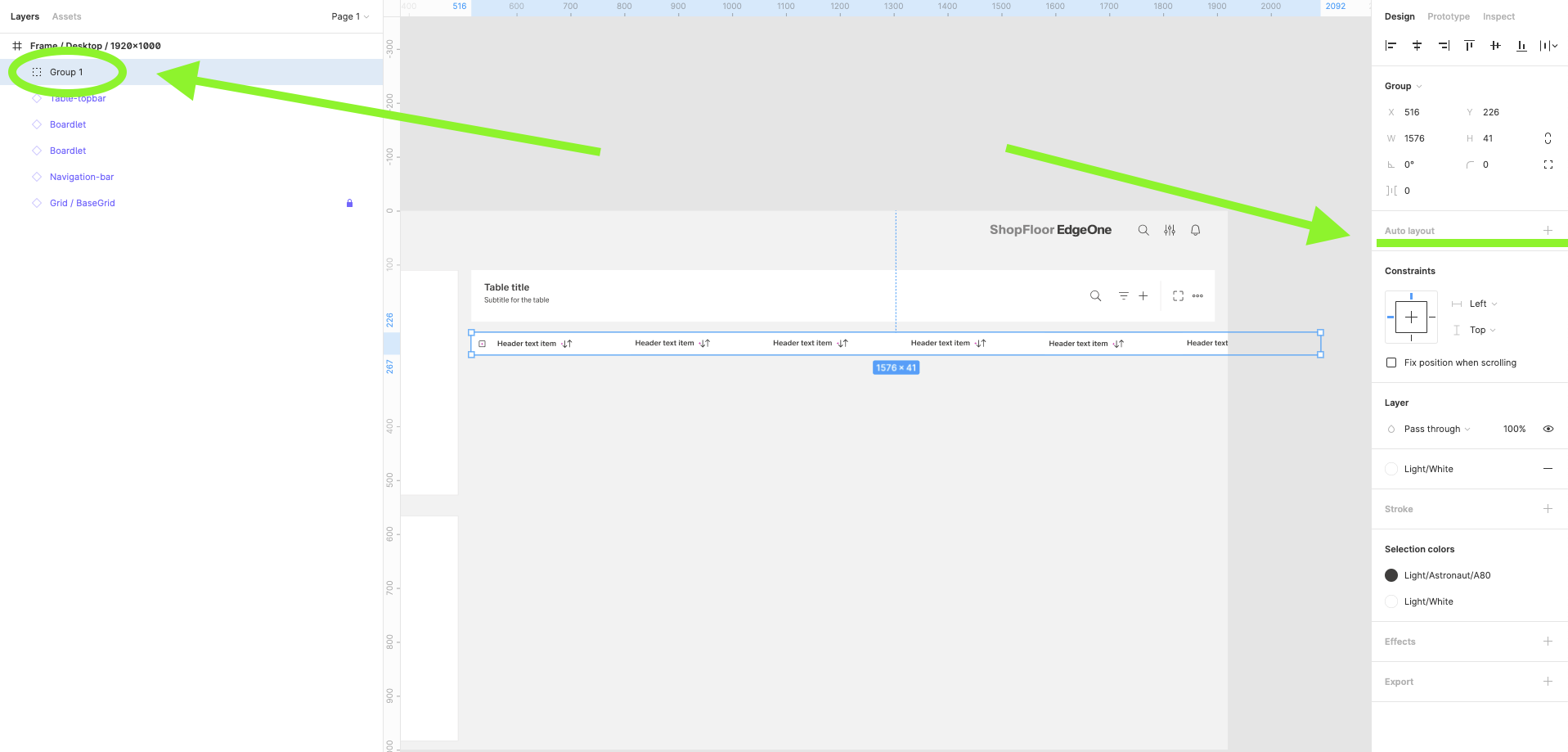
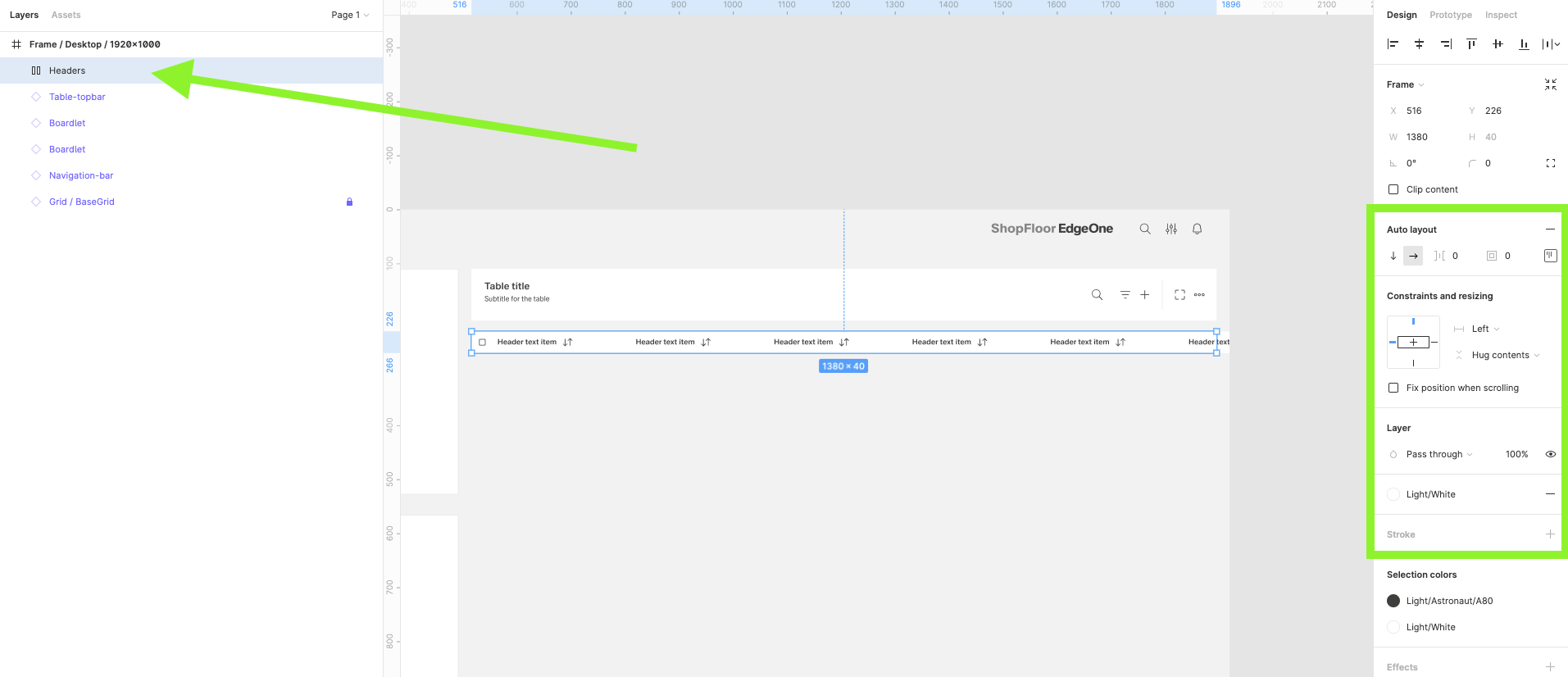
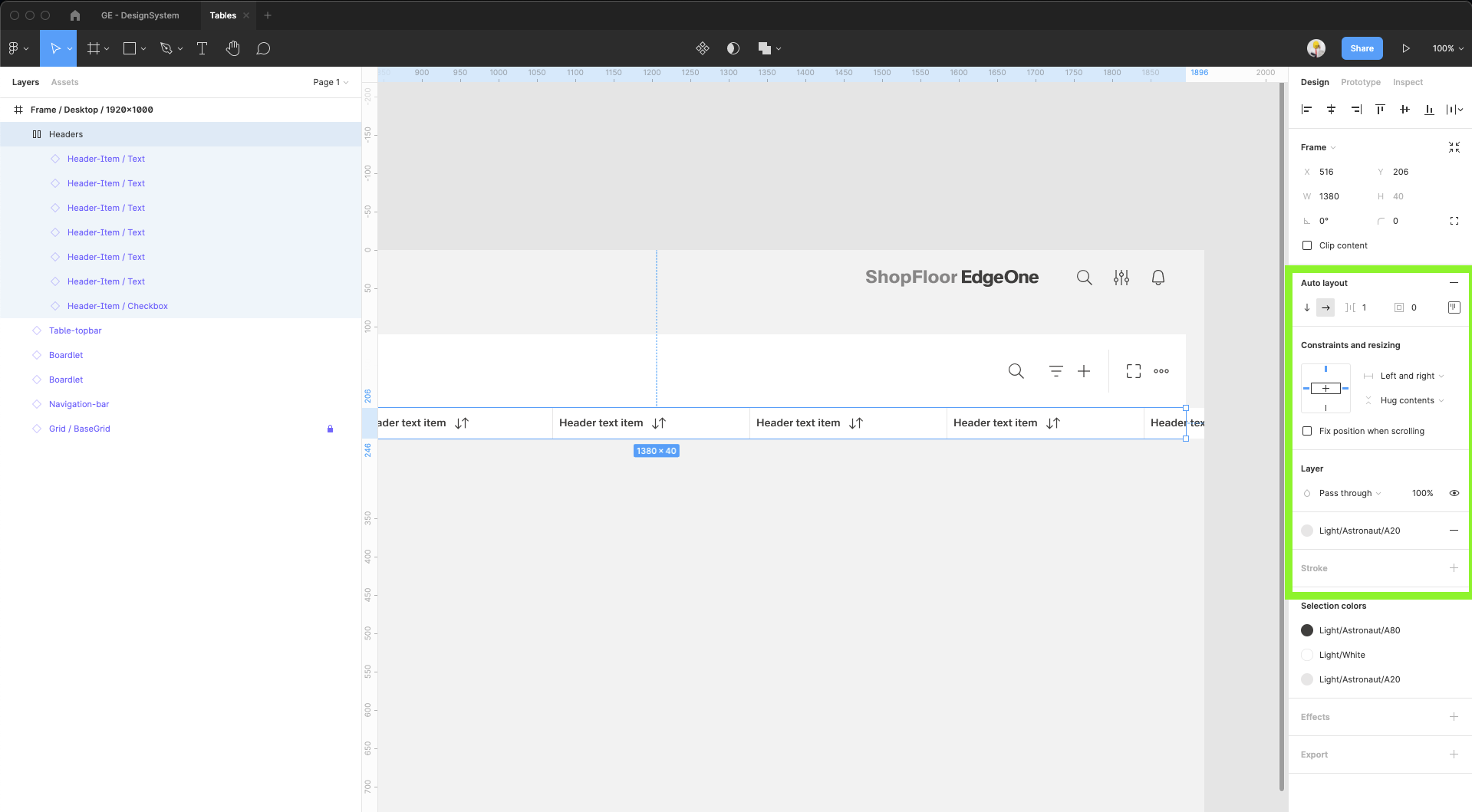
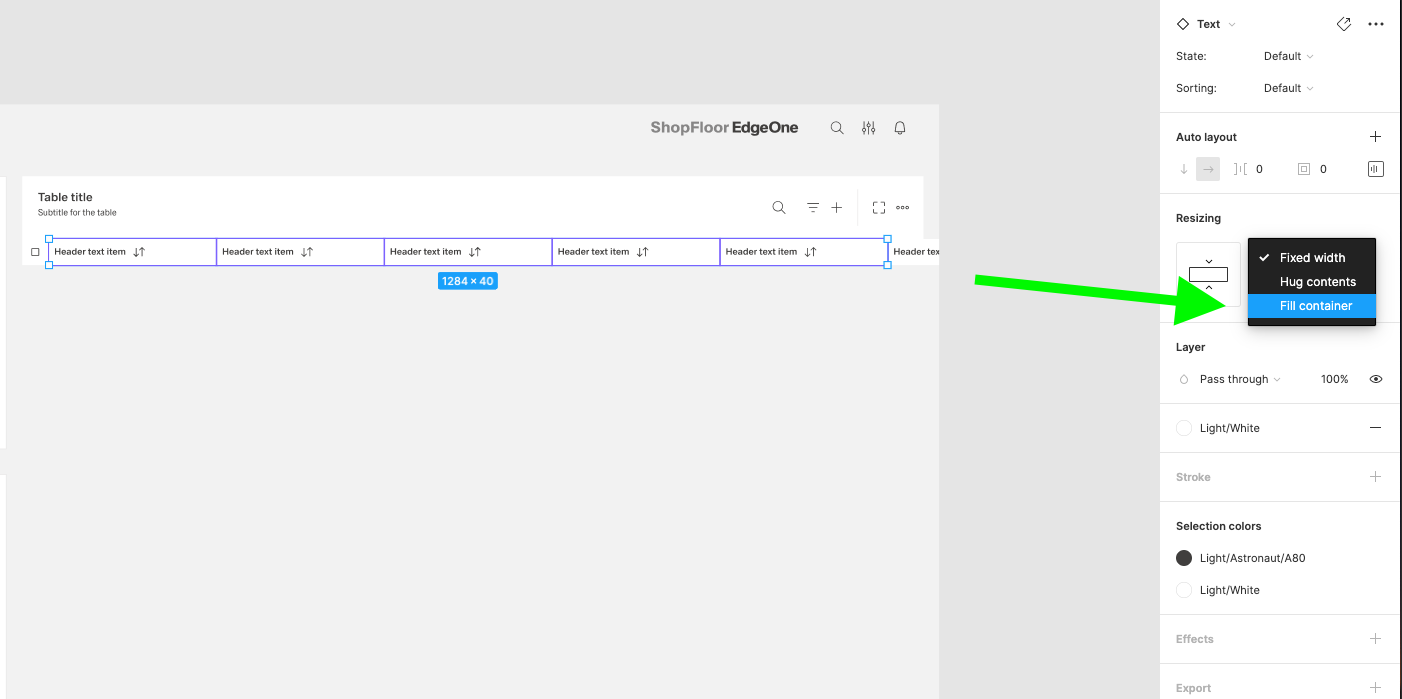
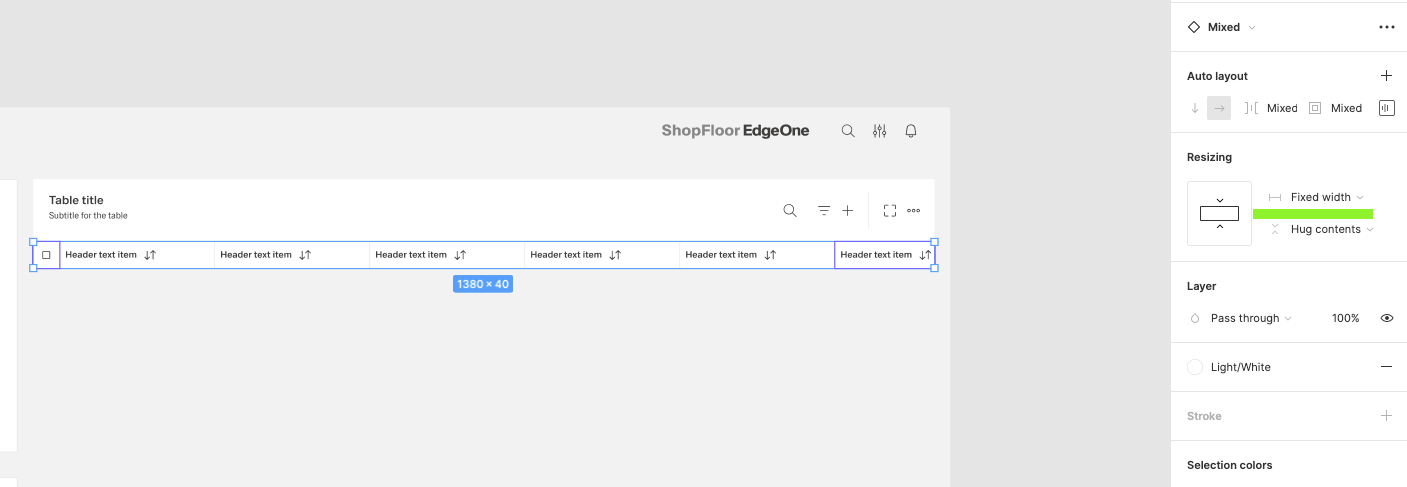
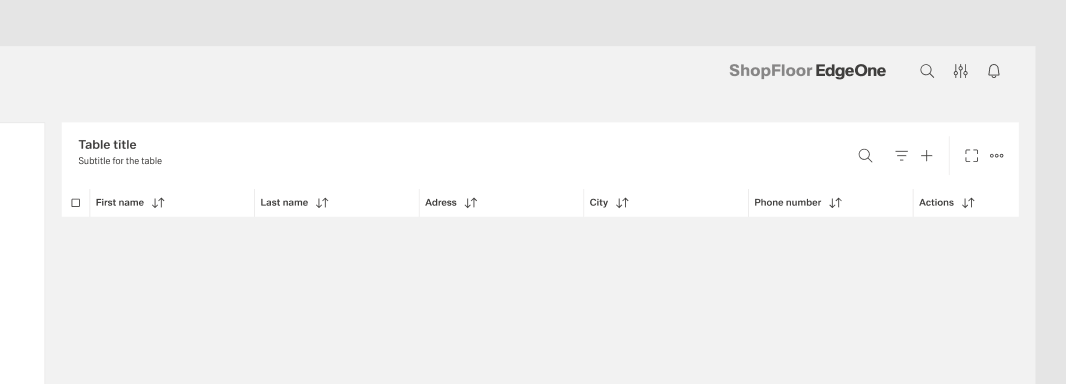
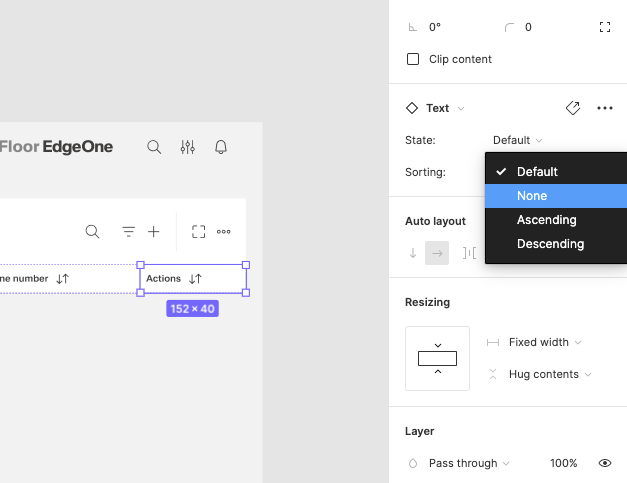
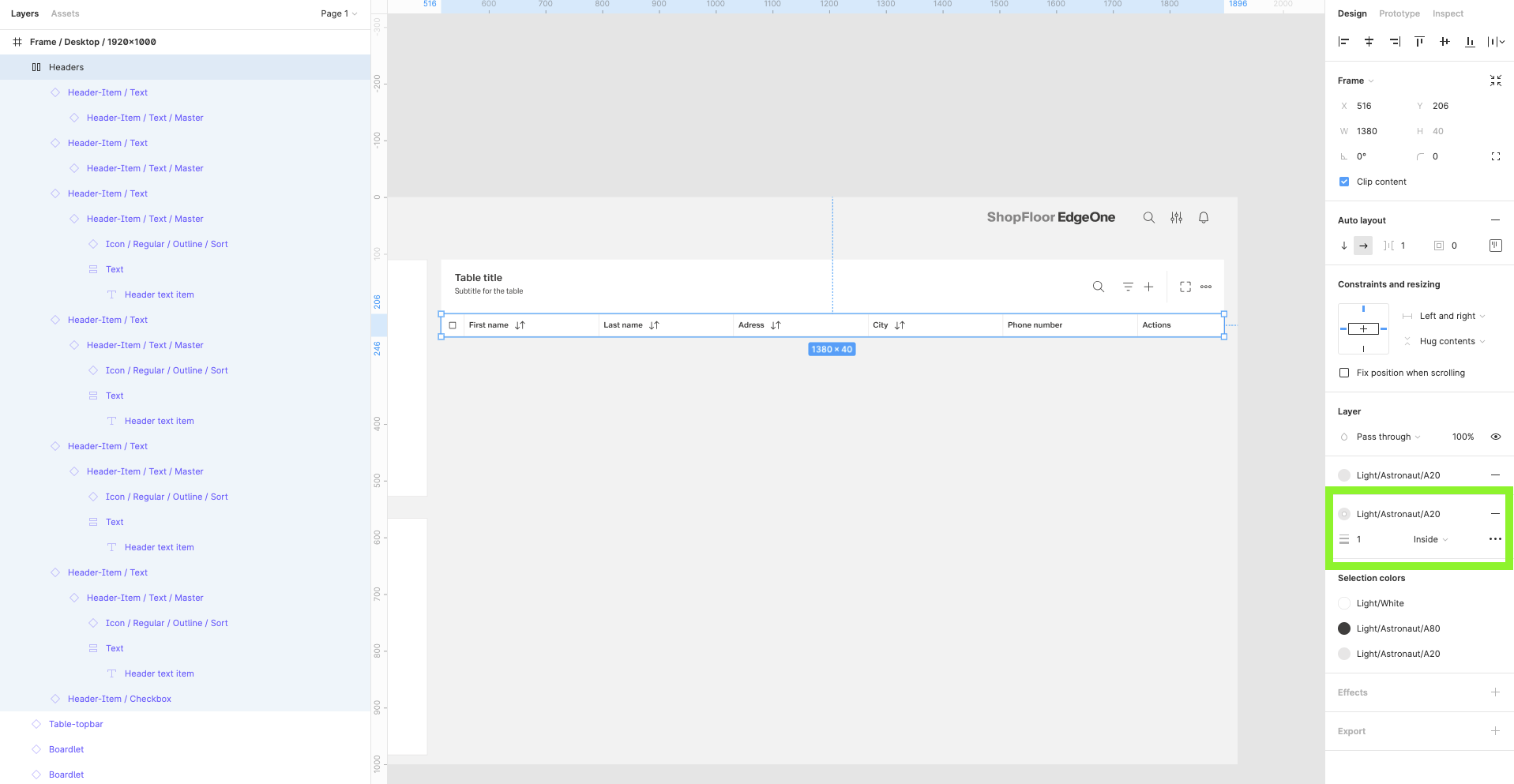
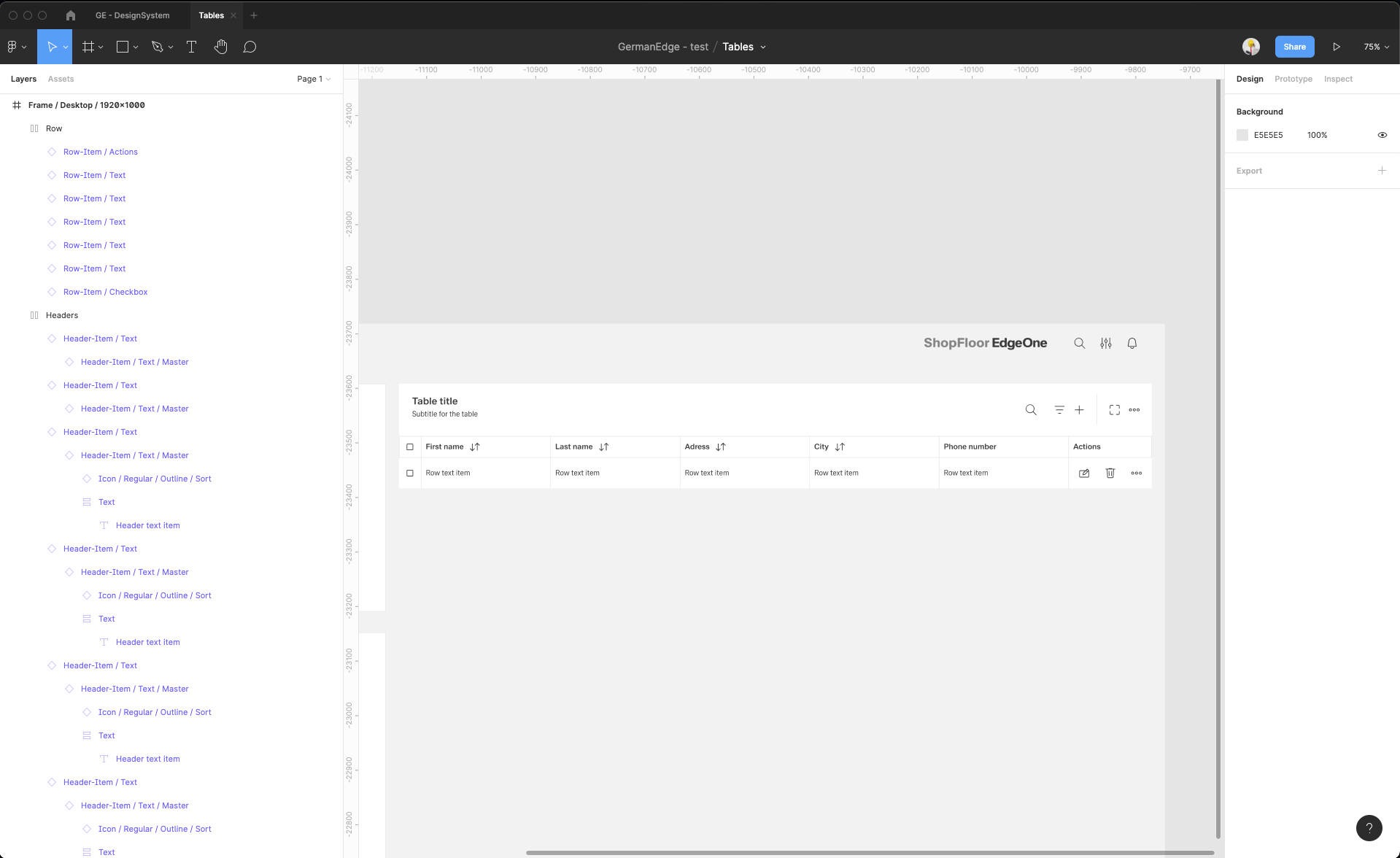
| 14 | Add the header items. Select from the components which one you prefer. Place it, then select them all and group them. Adjust the Auto layout feature, add 1px spacing, select the background fill to create the dividers. Select which header-items should have a fluid width, and which one should have a fixed width (according to the documentation). Rename the text labels inside the header-items. Choose which column should be sortable and which one not. Add the 1px border around all header items. |
| |
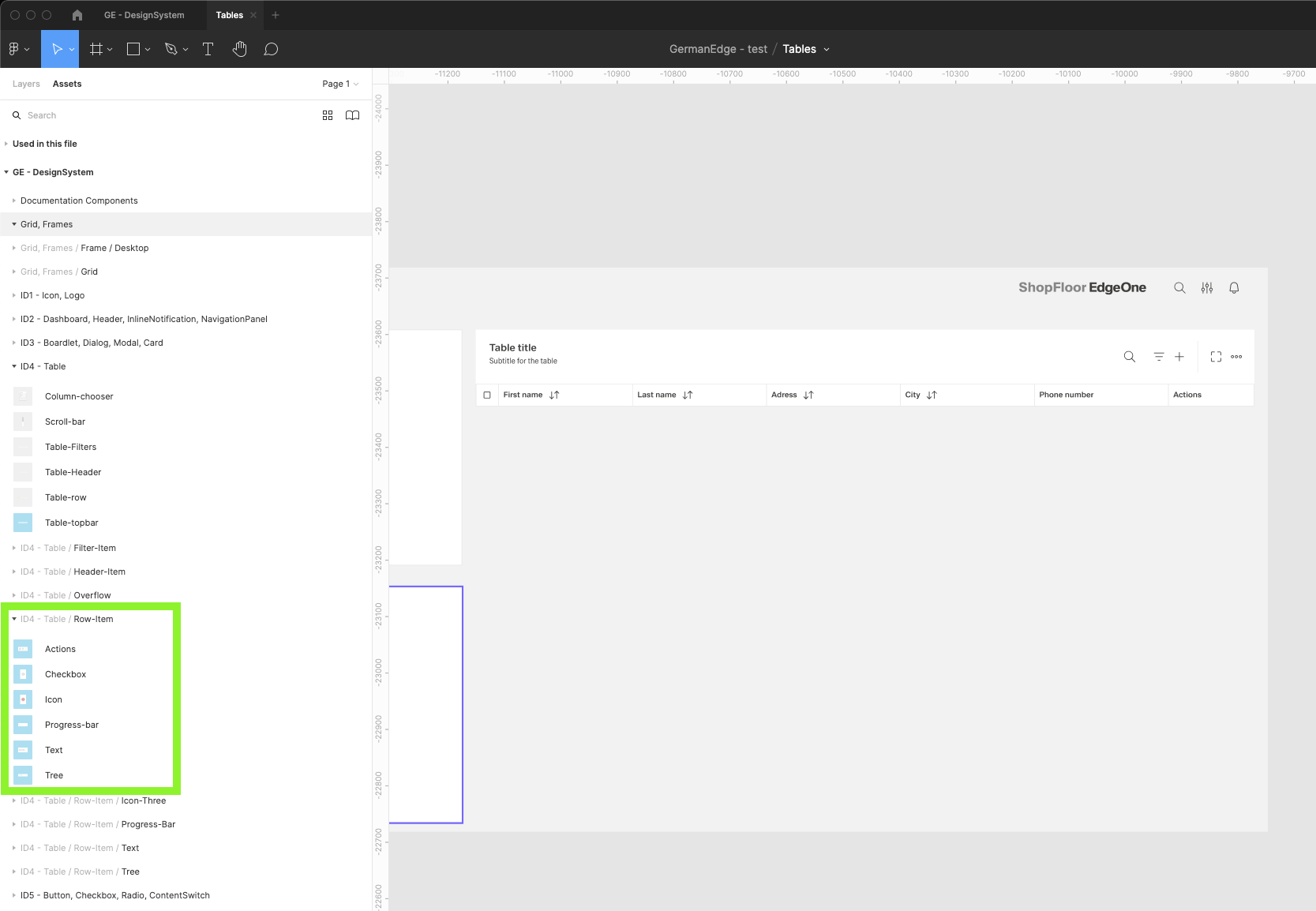
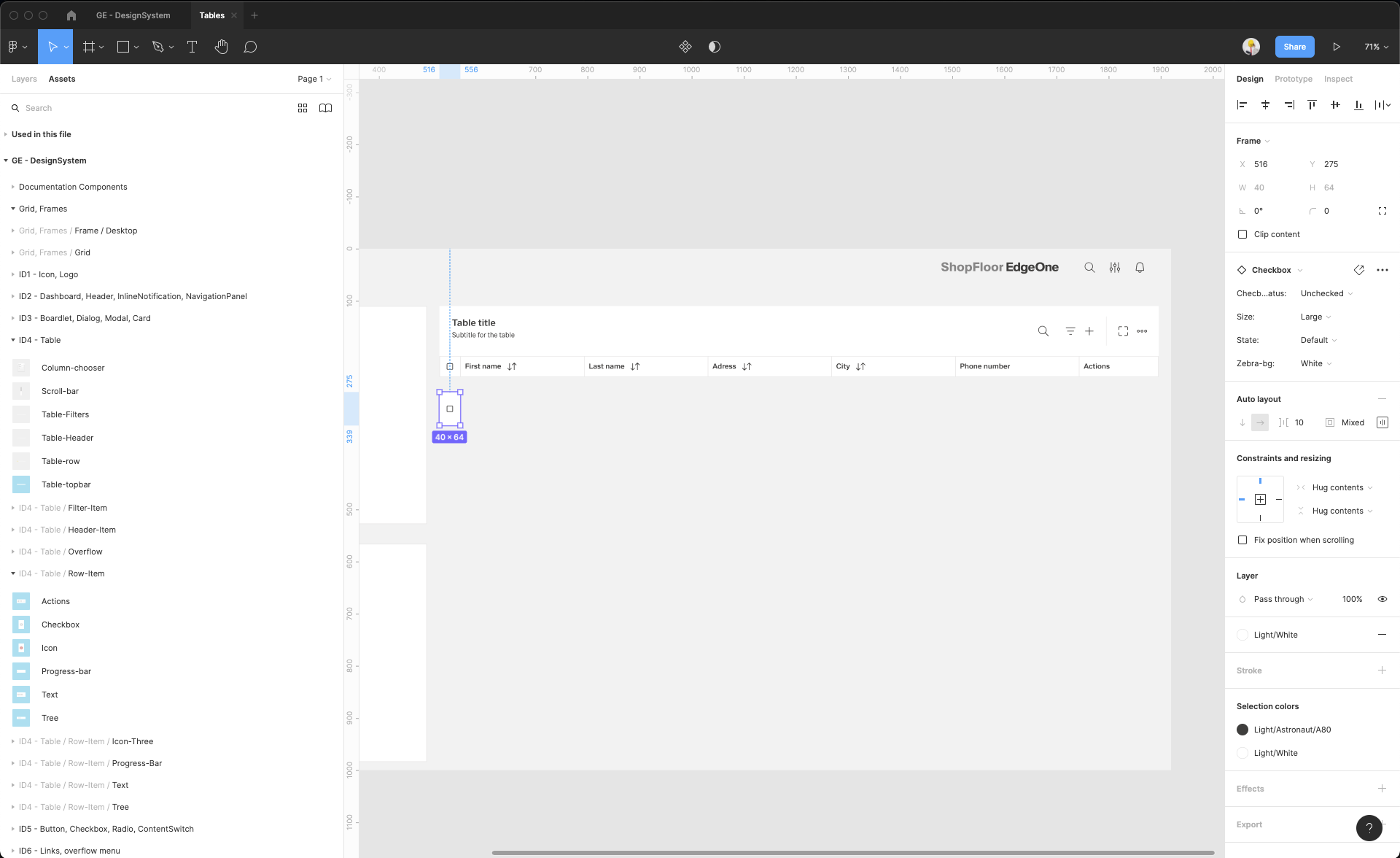
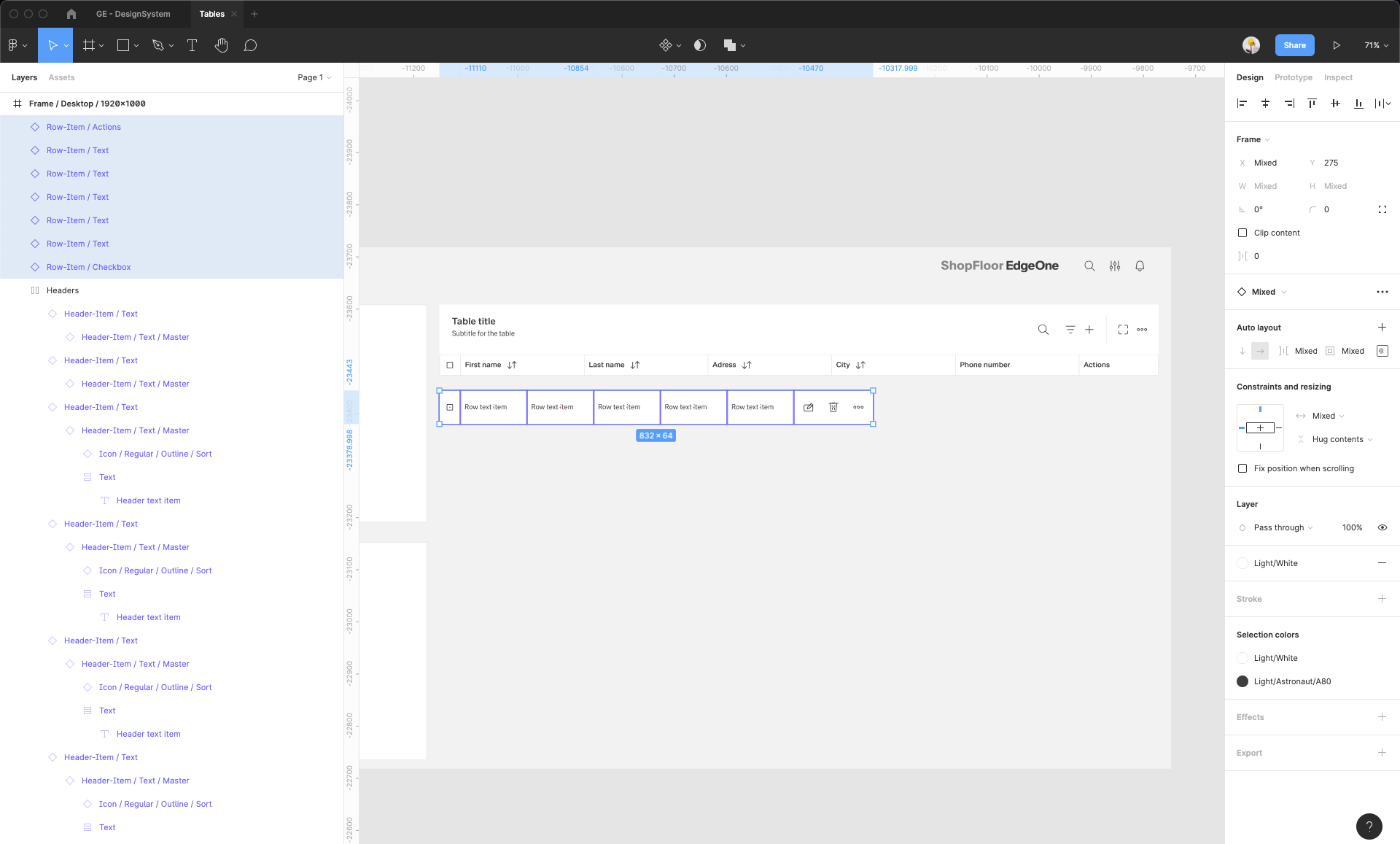
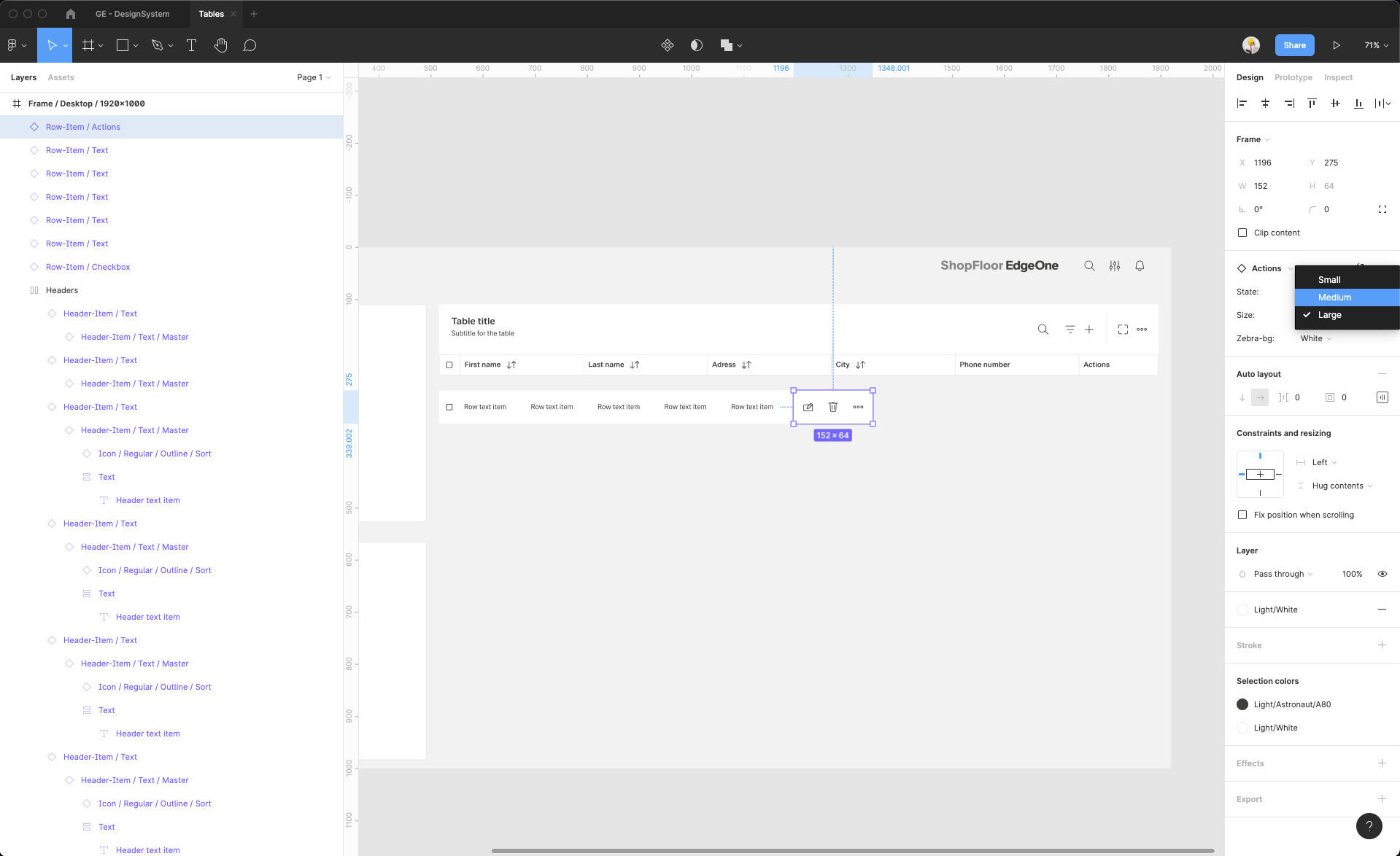
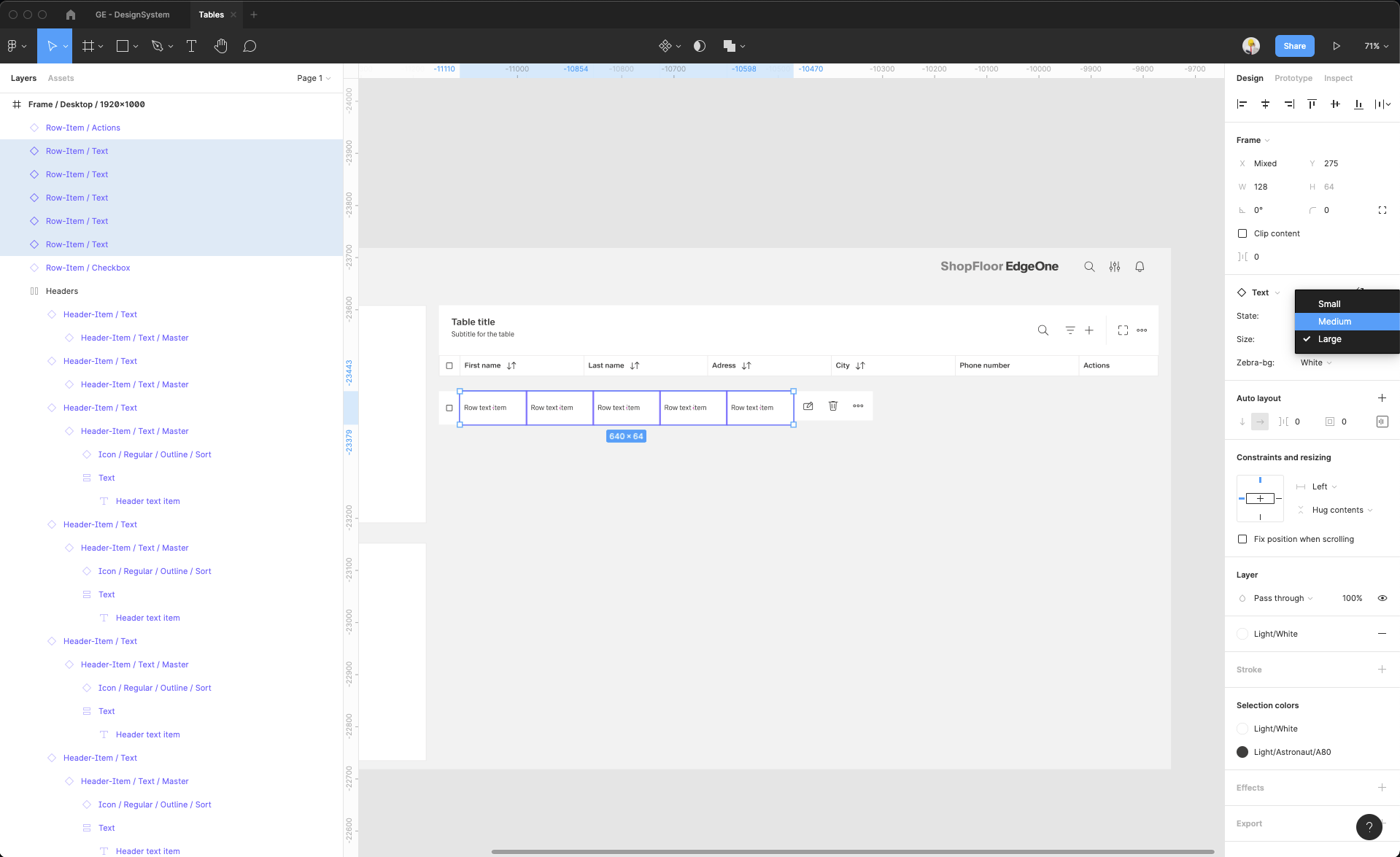
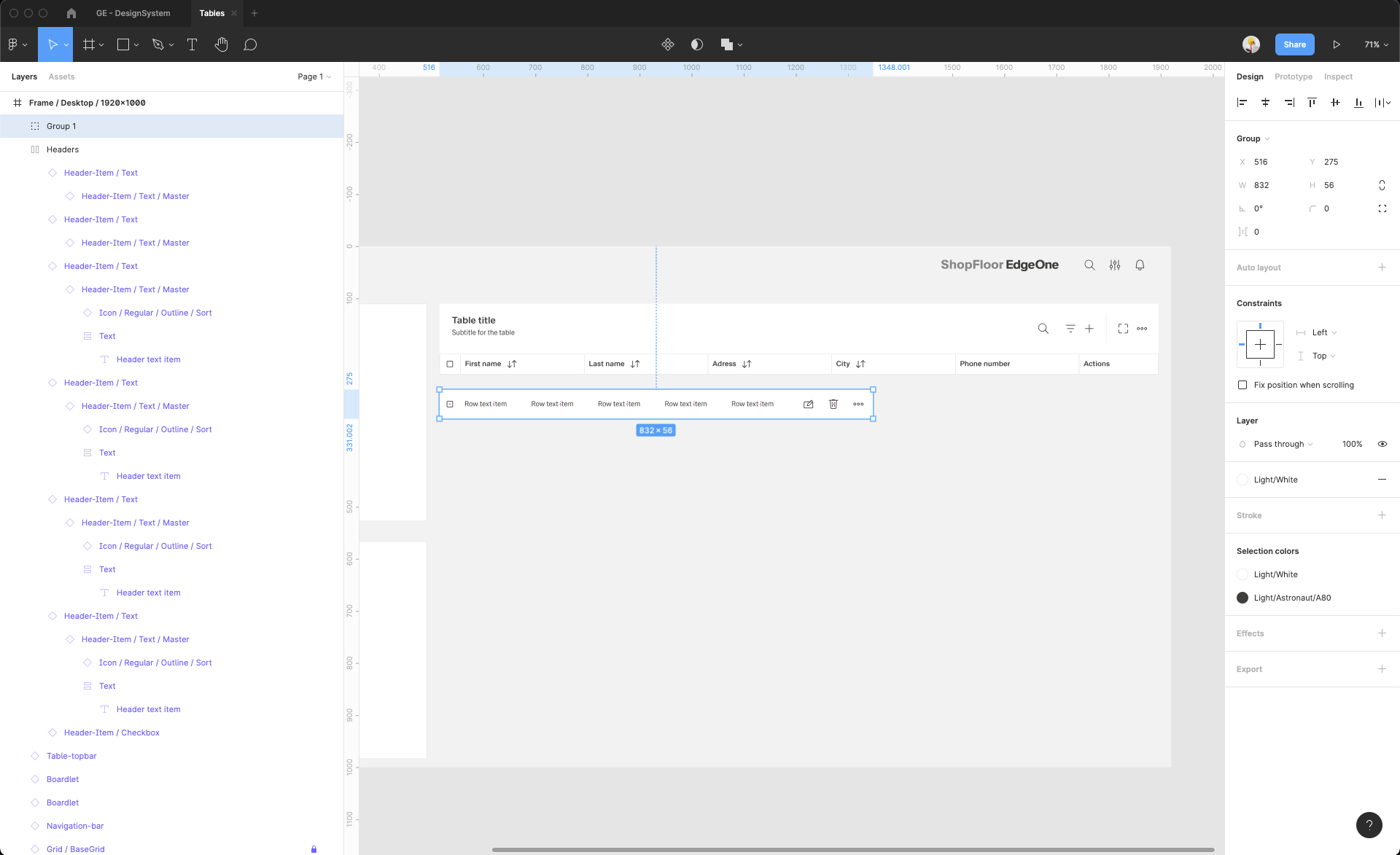
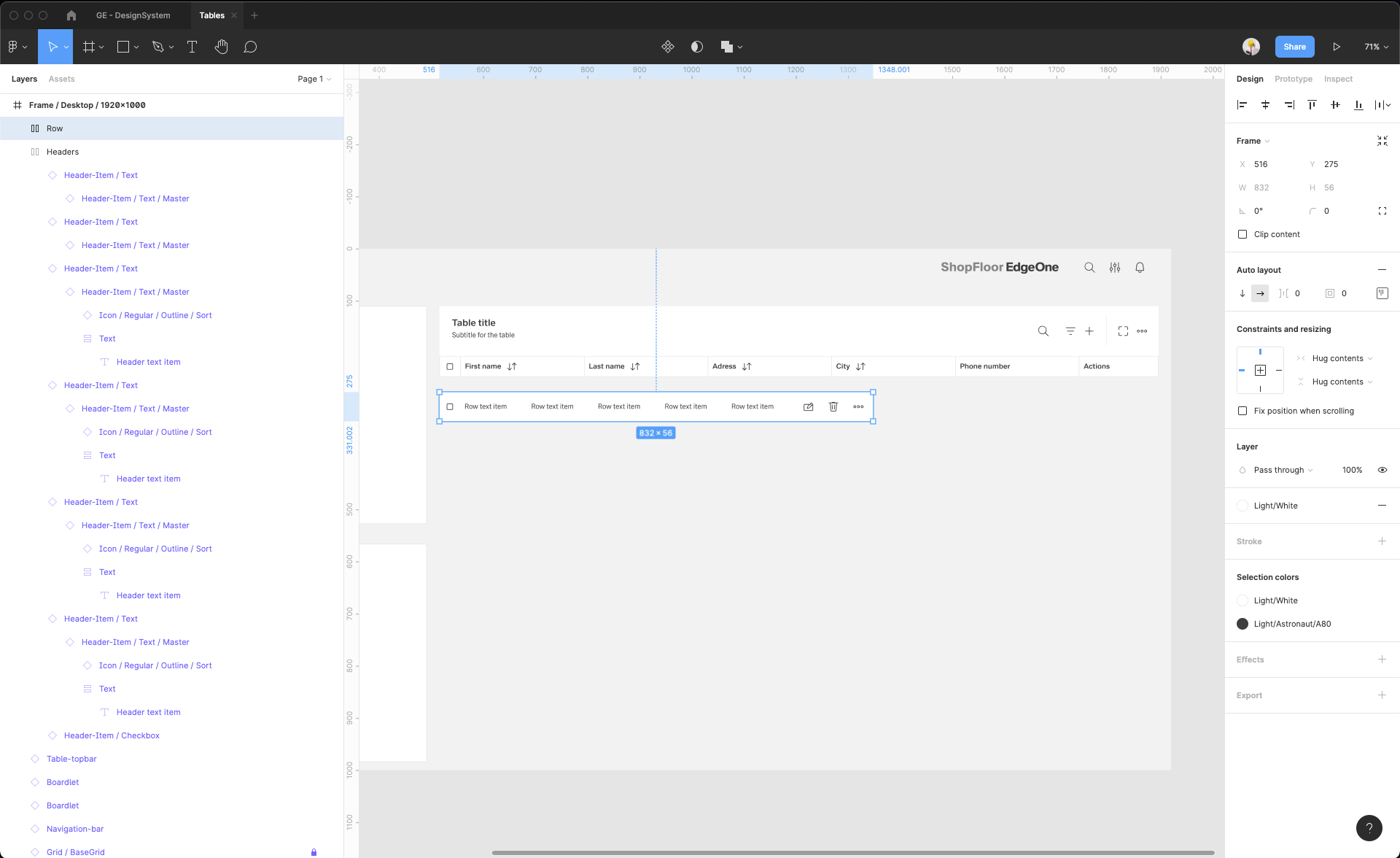
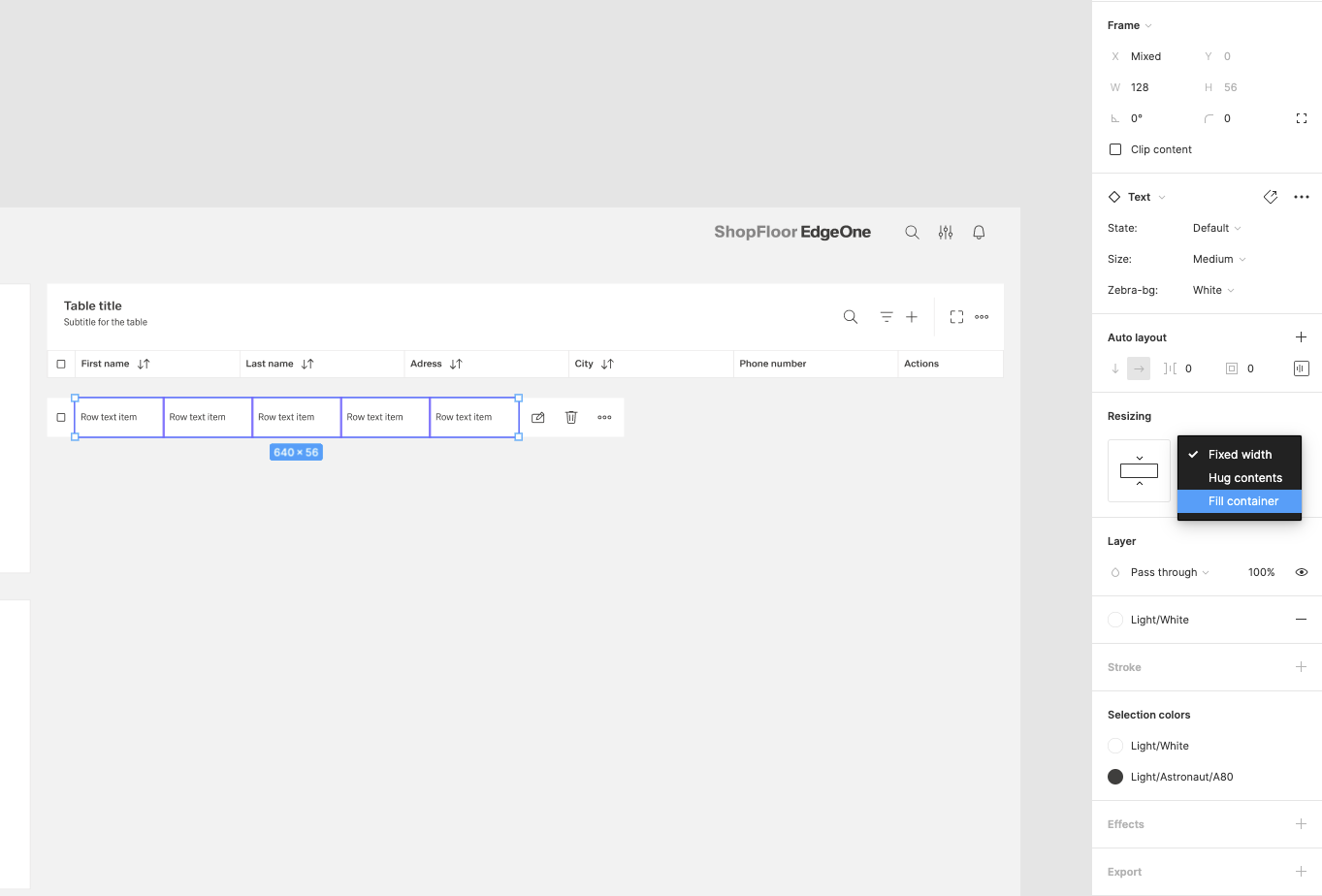
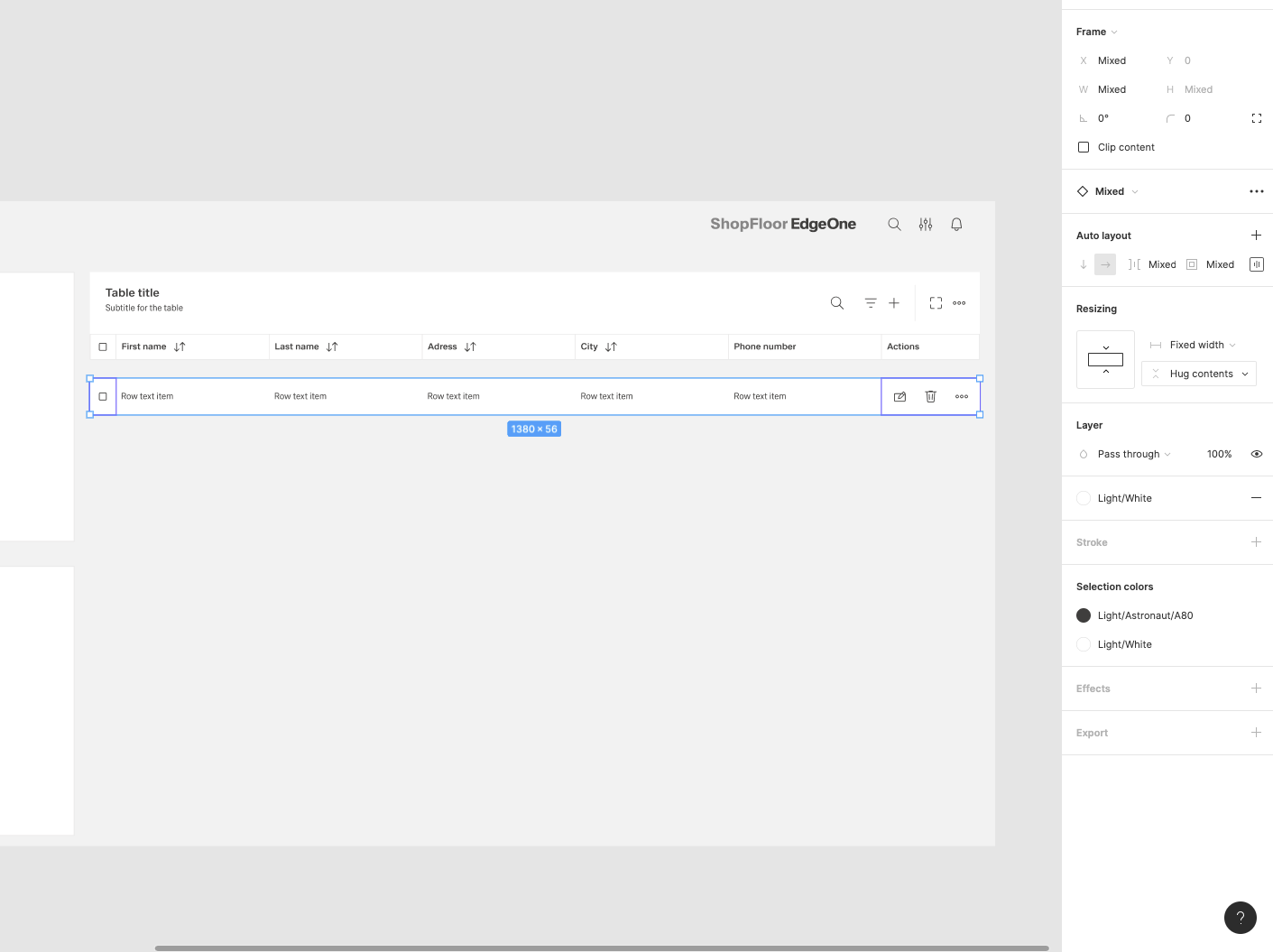
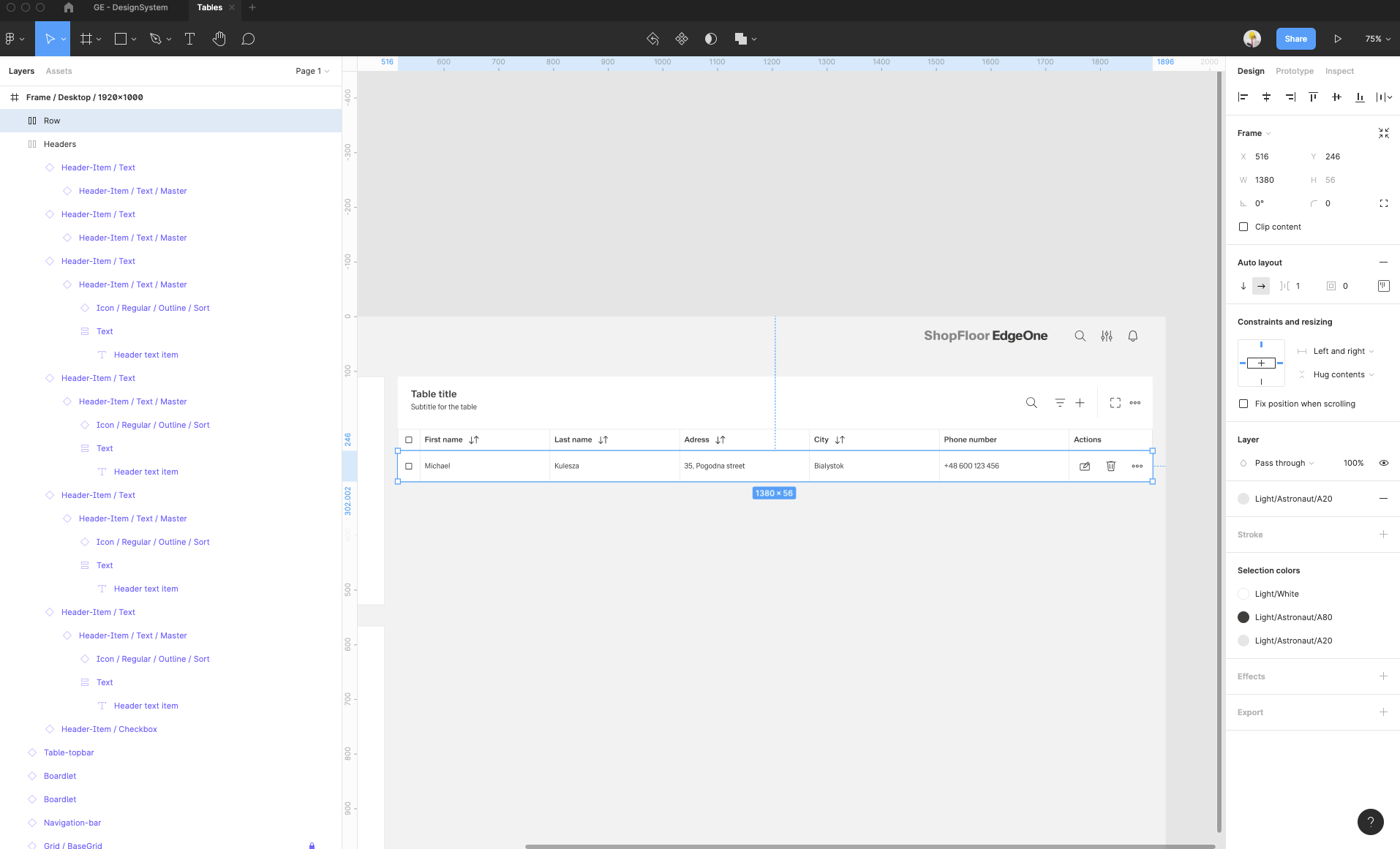
| 15 | Add the row items. Select row-items from the components to fit the header items.. Place it, change the size from Large to Medium, then select them all and group them. Adjust the Auto layout feature, add 1px spacing, select the background fill to create the dividers. Select which row-items should have a fluid width, and which one should have a fixed width (in the same way like in header-items). Rename the text labels inside the rowr-items. |
| |
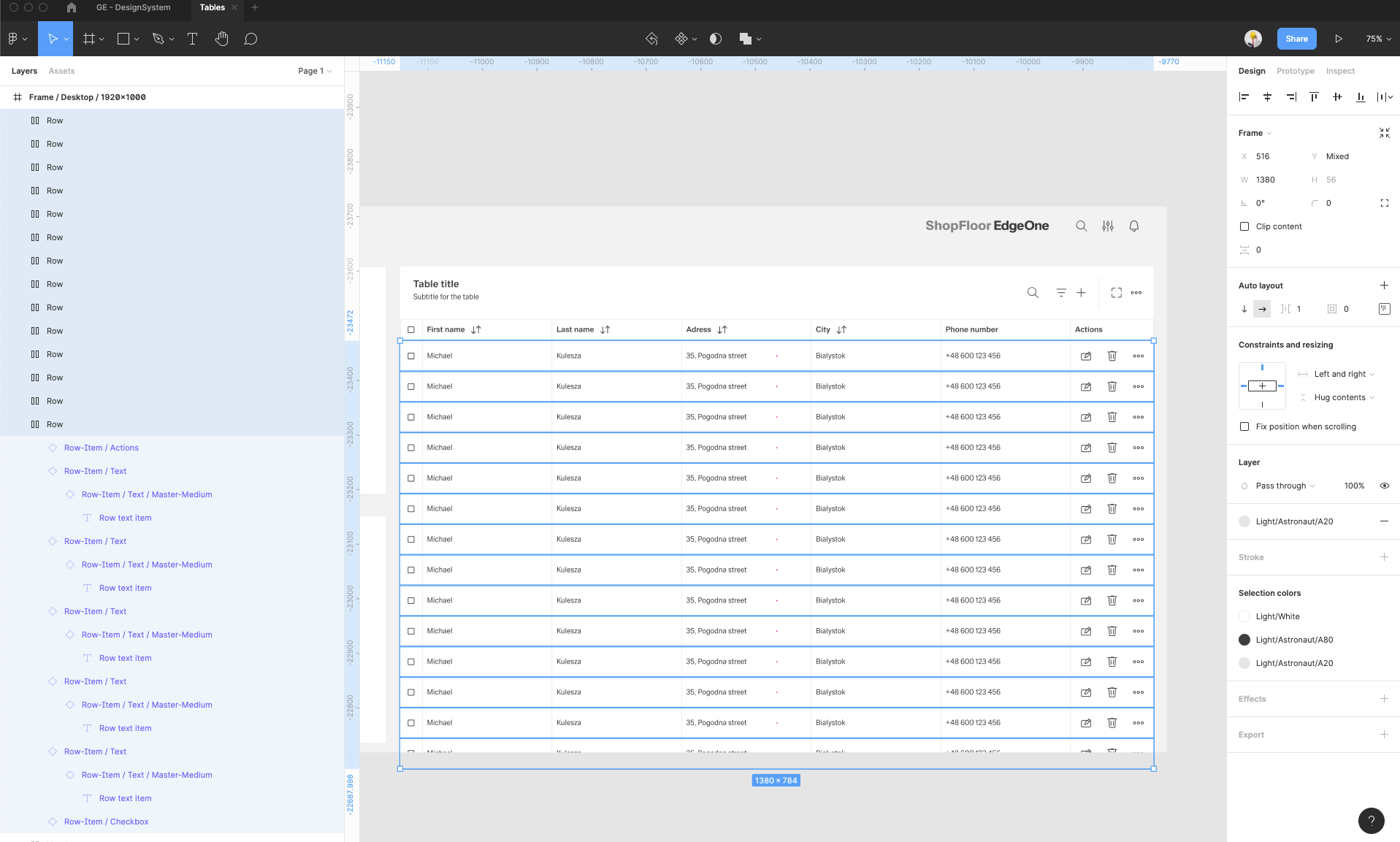
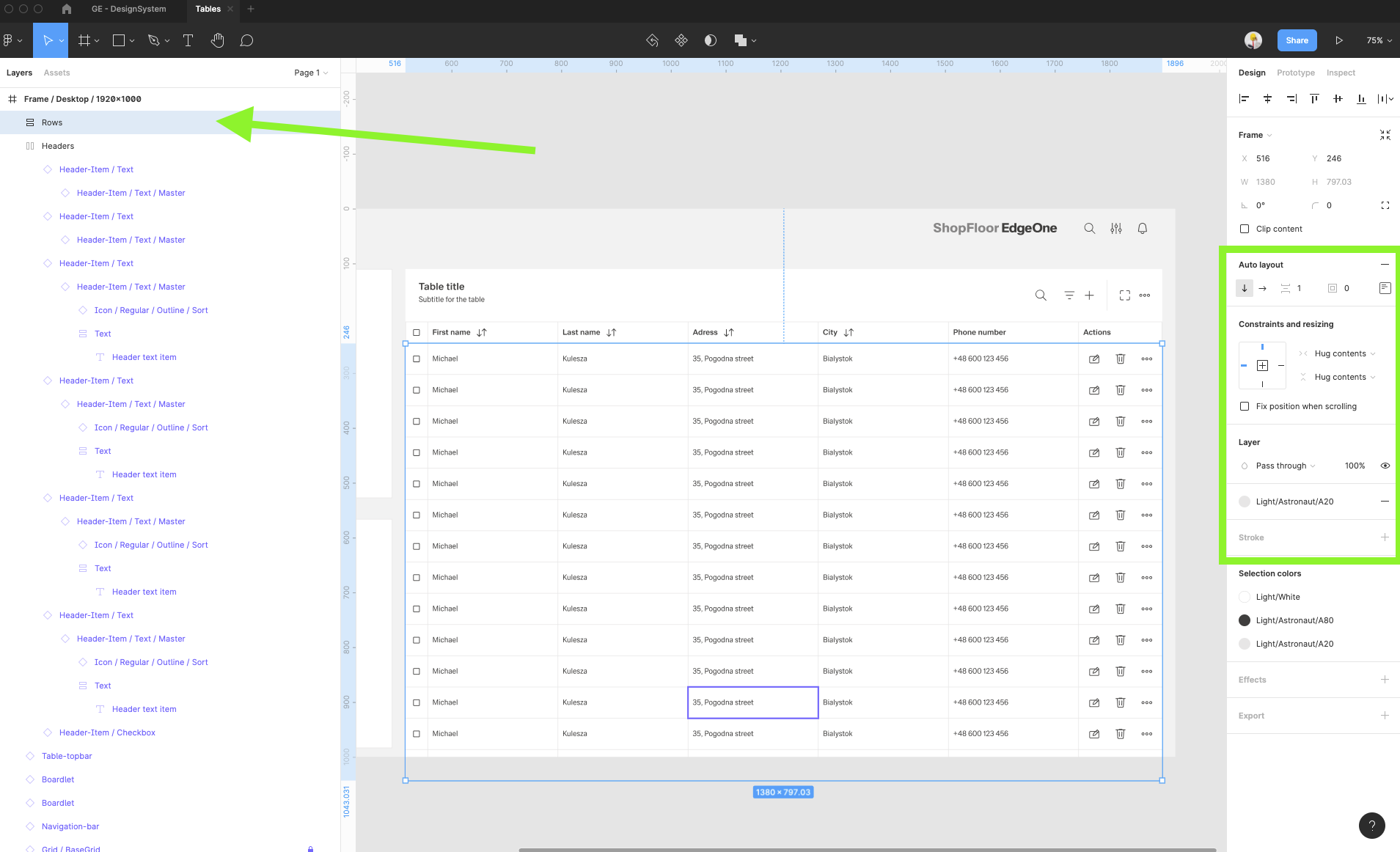
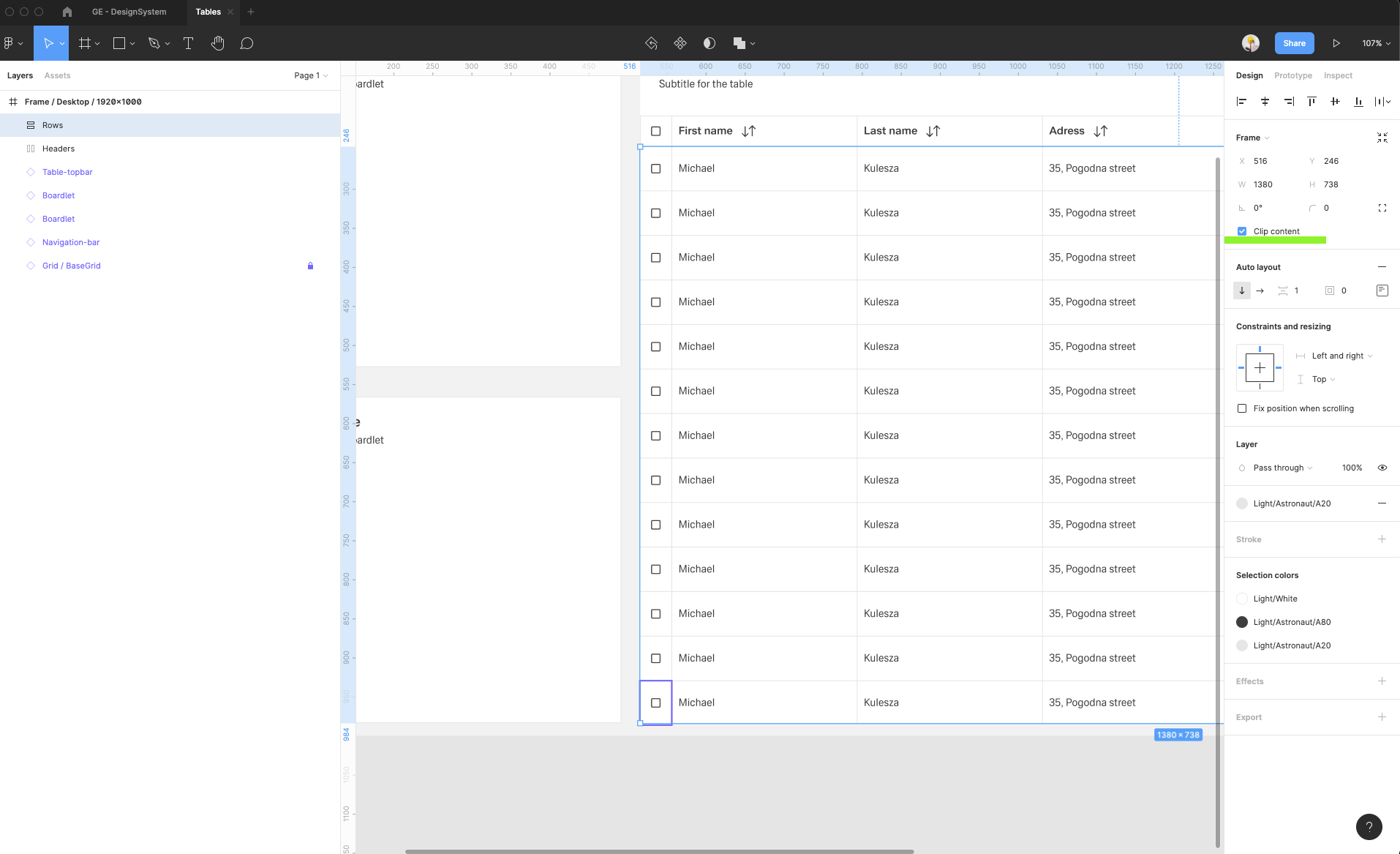
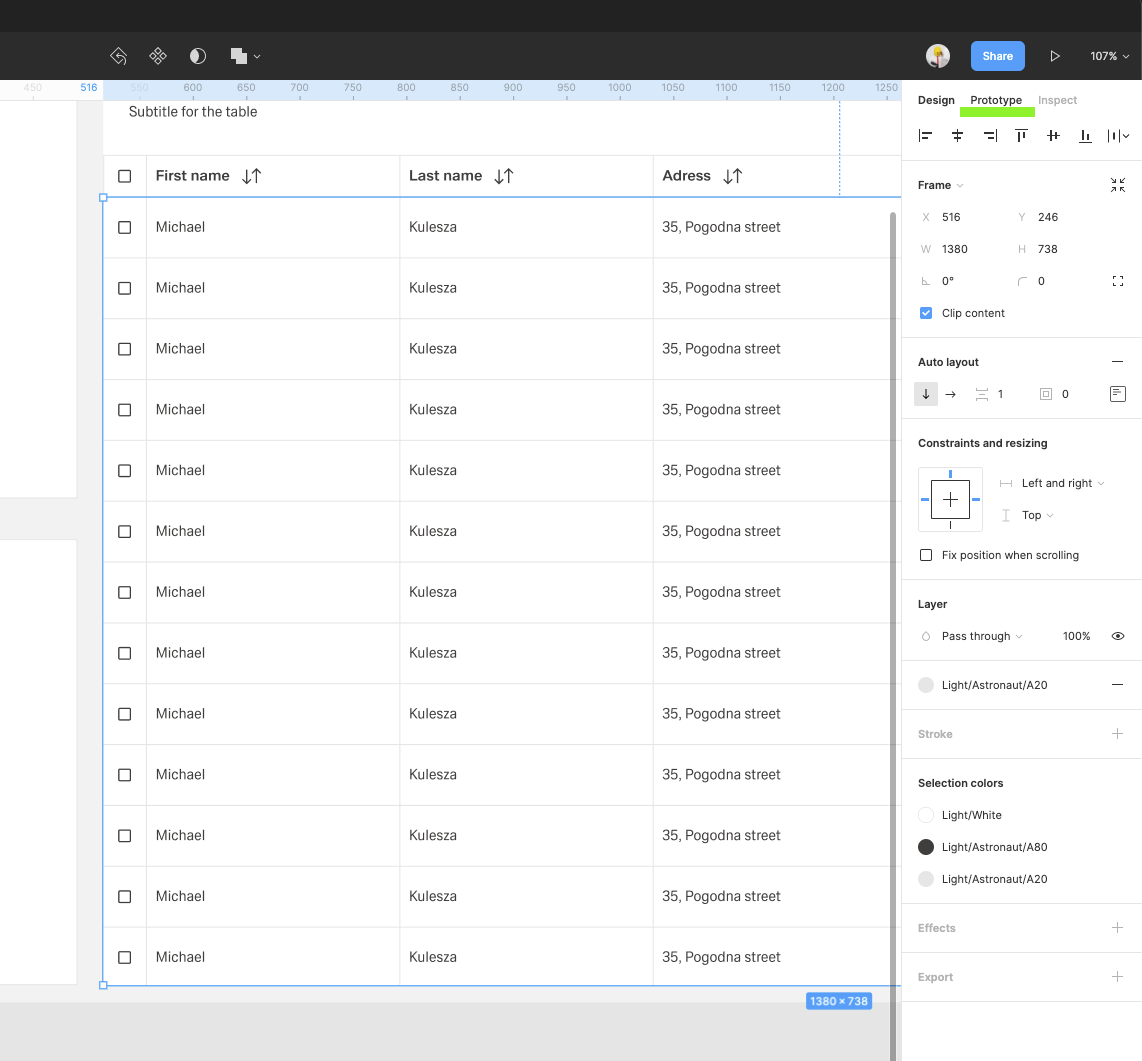
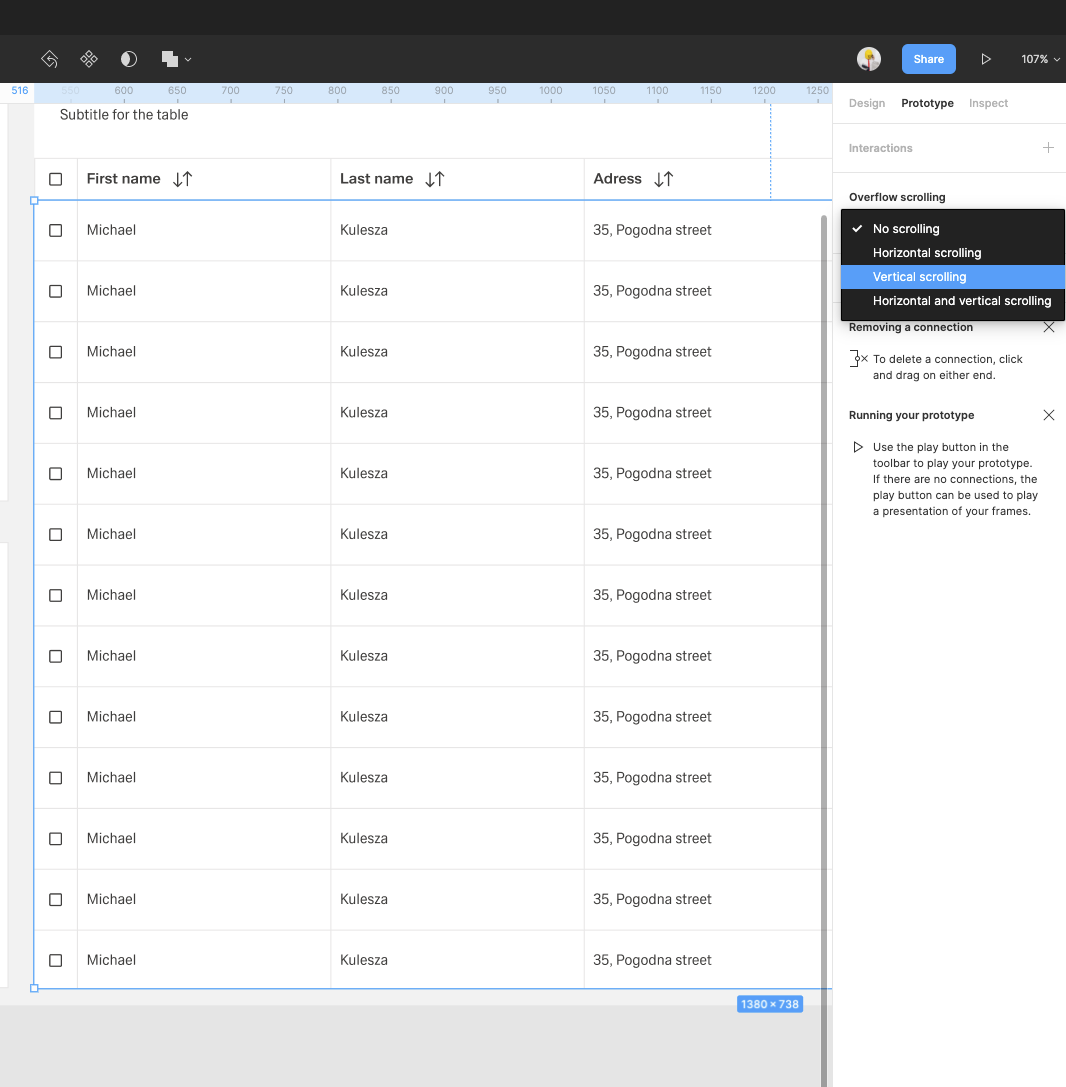
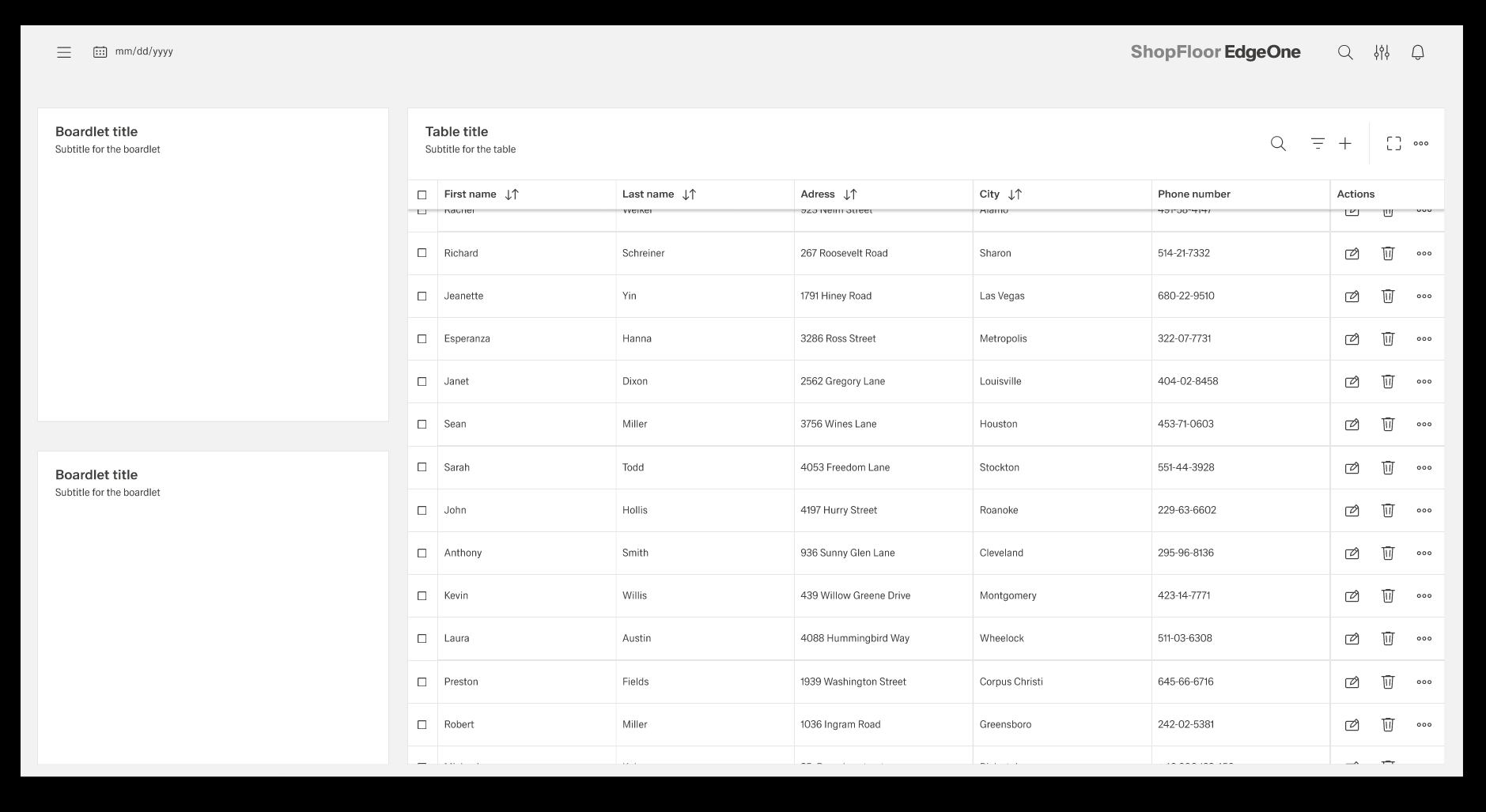
| 16 | Duplicate the row group, and group them all with auto-layout feature. Add 1px spacing between rows, add the background to create a horizontal dividers between the rows. Crop the rows group (add clip content option) to close the rows inside the screen layout. On the right sidebar switch from the Design tab to Prototype tab and Add a vertical scrolling. |
| |
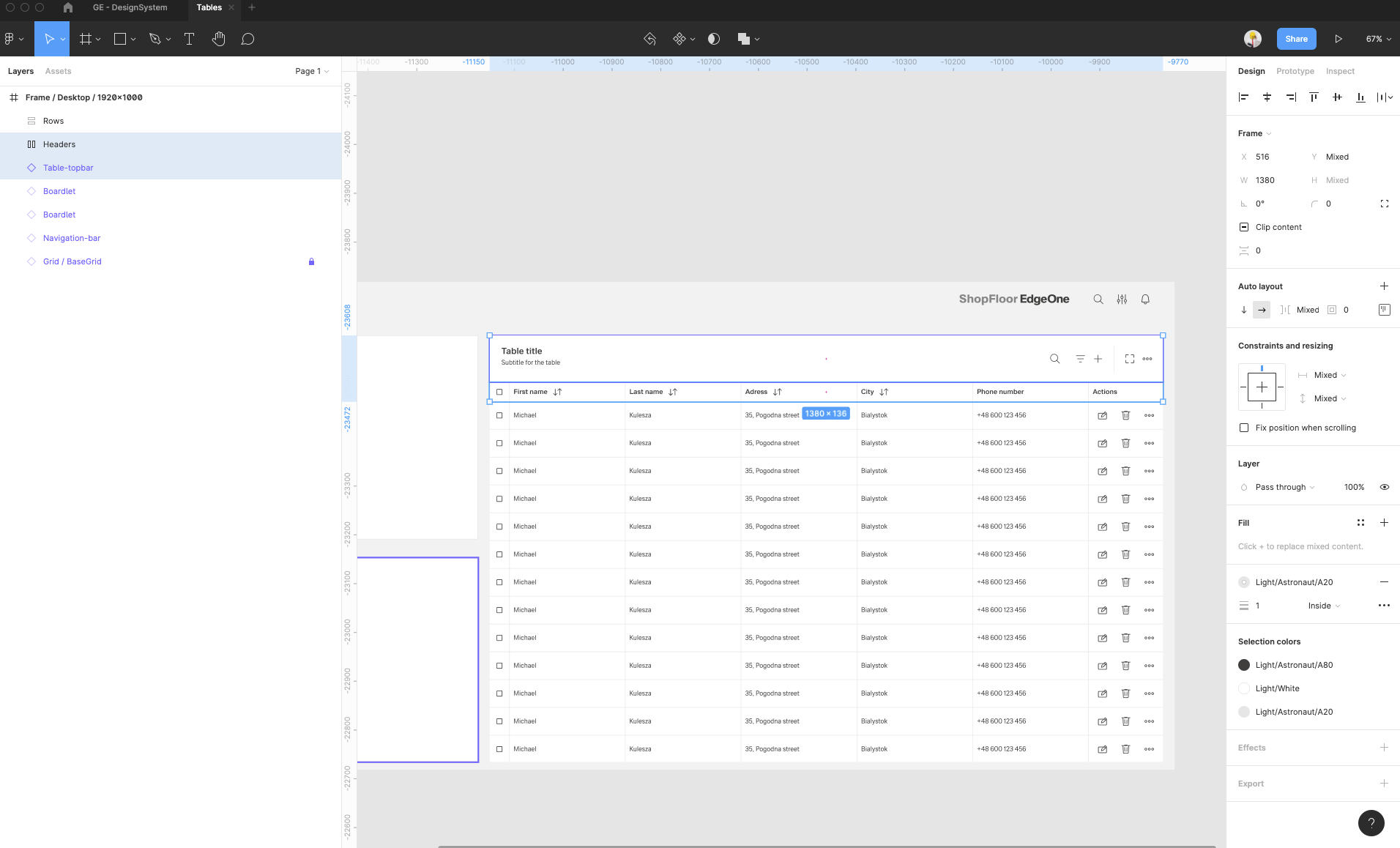
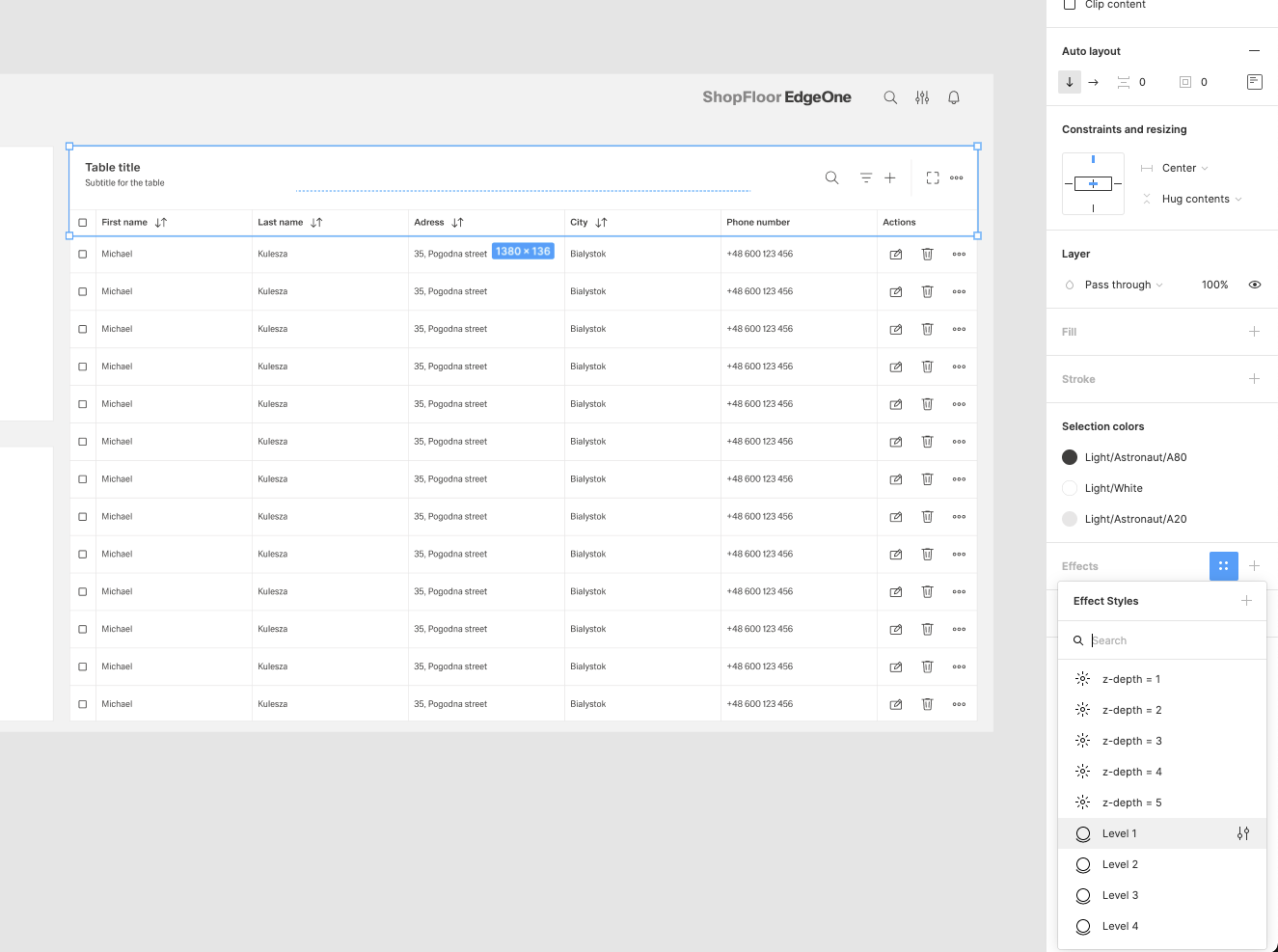
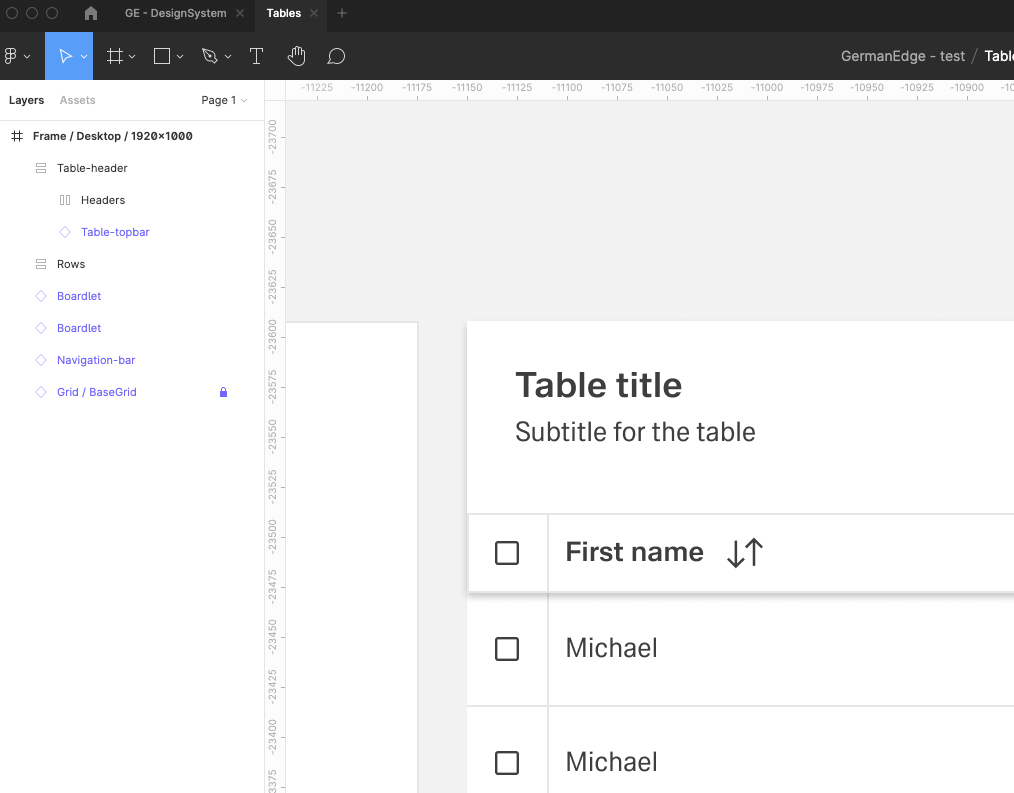
| 17 | Group the Table Top-bar and Headers group into one group and name it i.e. Table-header. Ad an effect for this group - Elevation level 1 |
| |
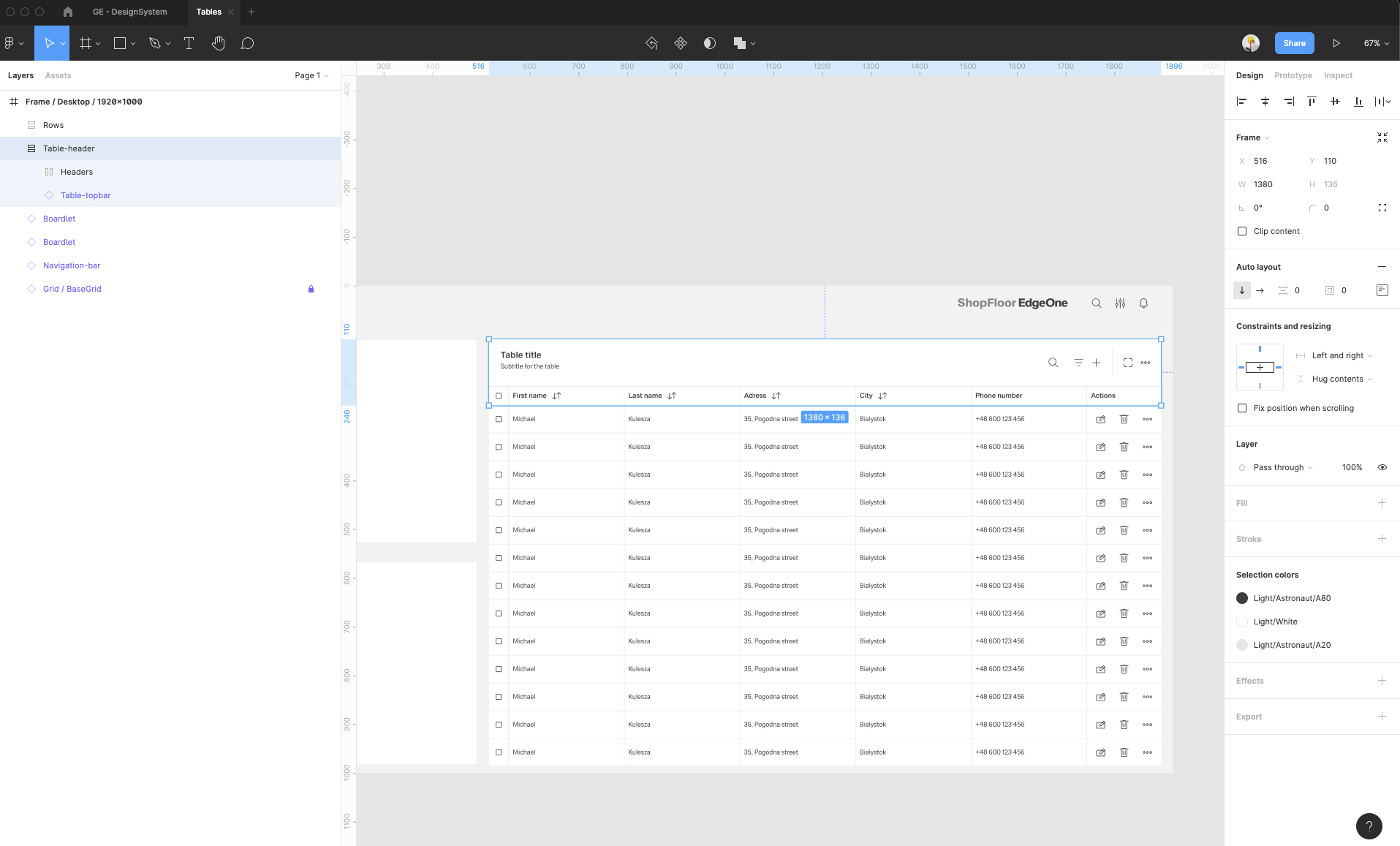
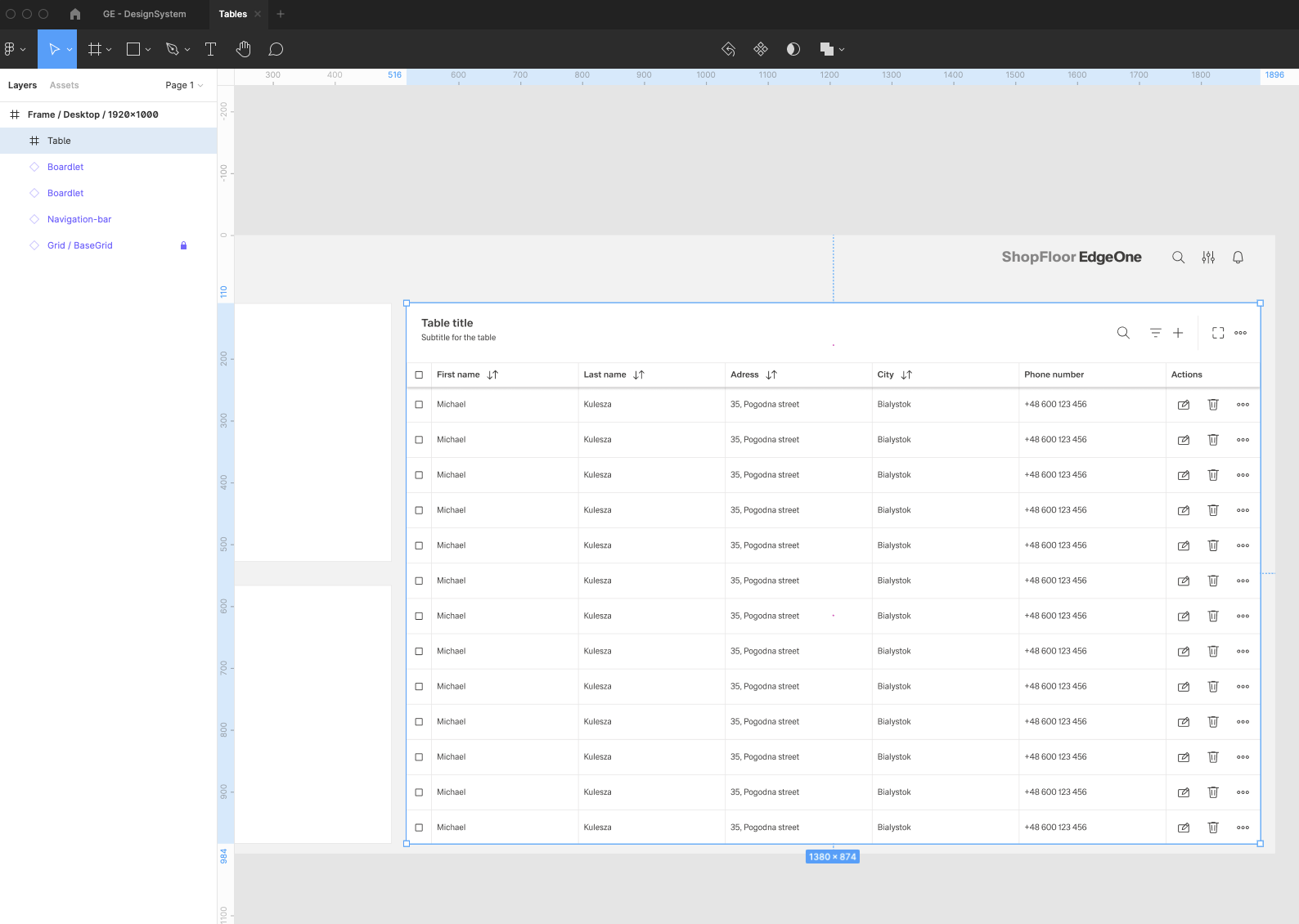
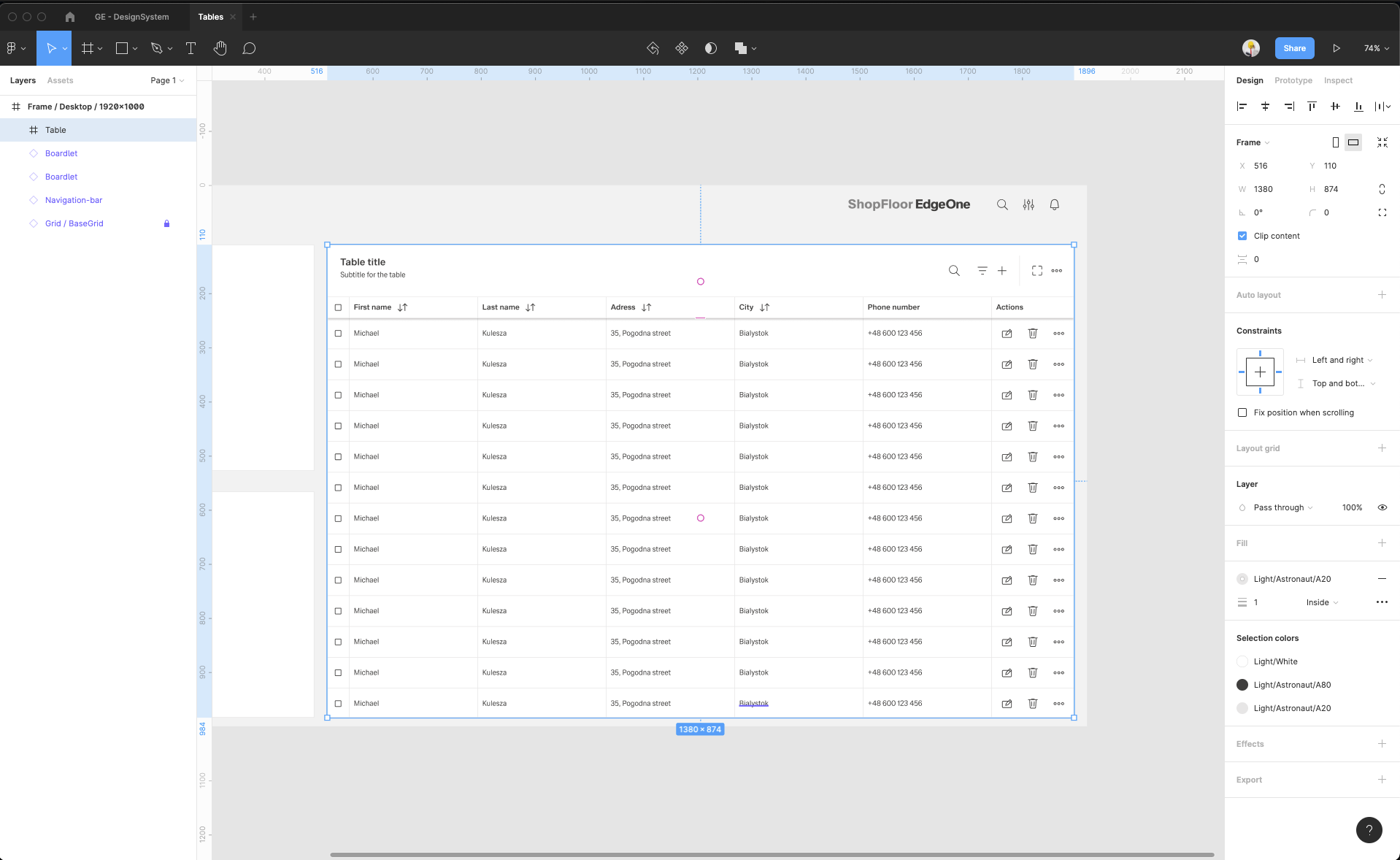
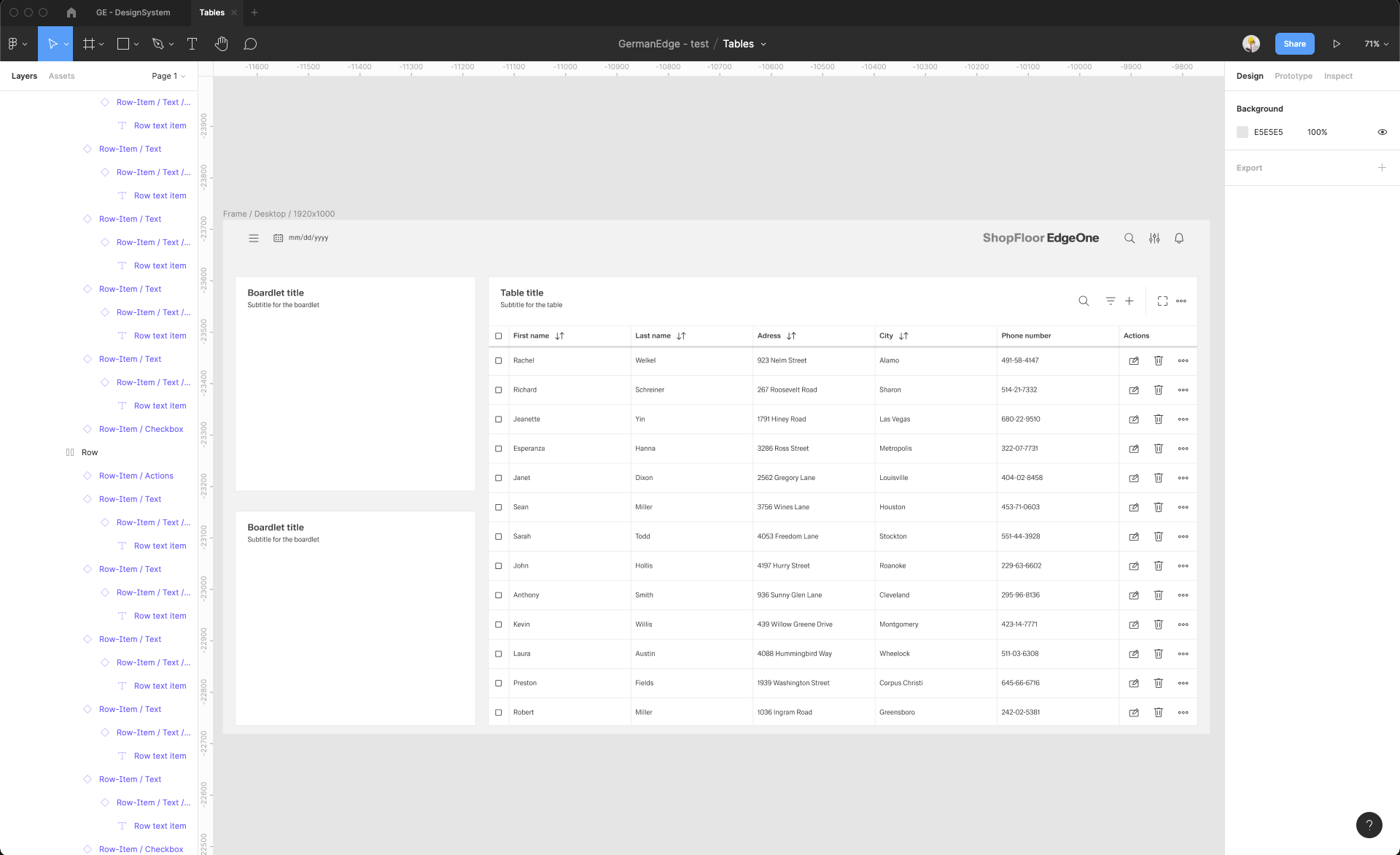
| 18 | Group the Table-header group with Rows group. Change it from Group to Frame. Name it i.e. Table and add a 1px border inside the Table. Now the overall look of the table it's done. |
| |
| 19 | Edit the data inside the table. |
| |
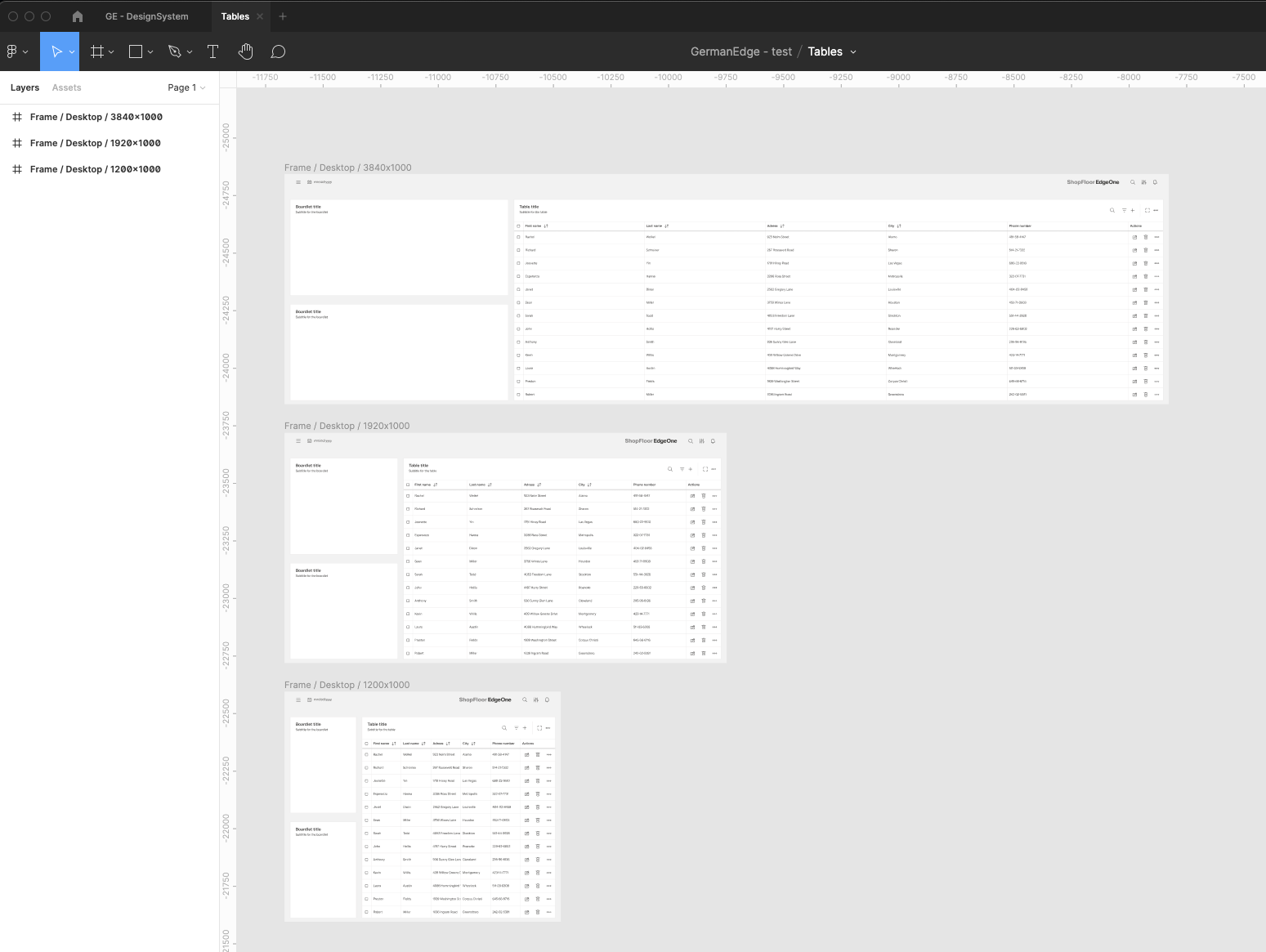
| 20 | Copy the view frame and change it width to see how the table looks on the narrower or wider resolutions. |
| |
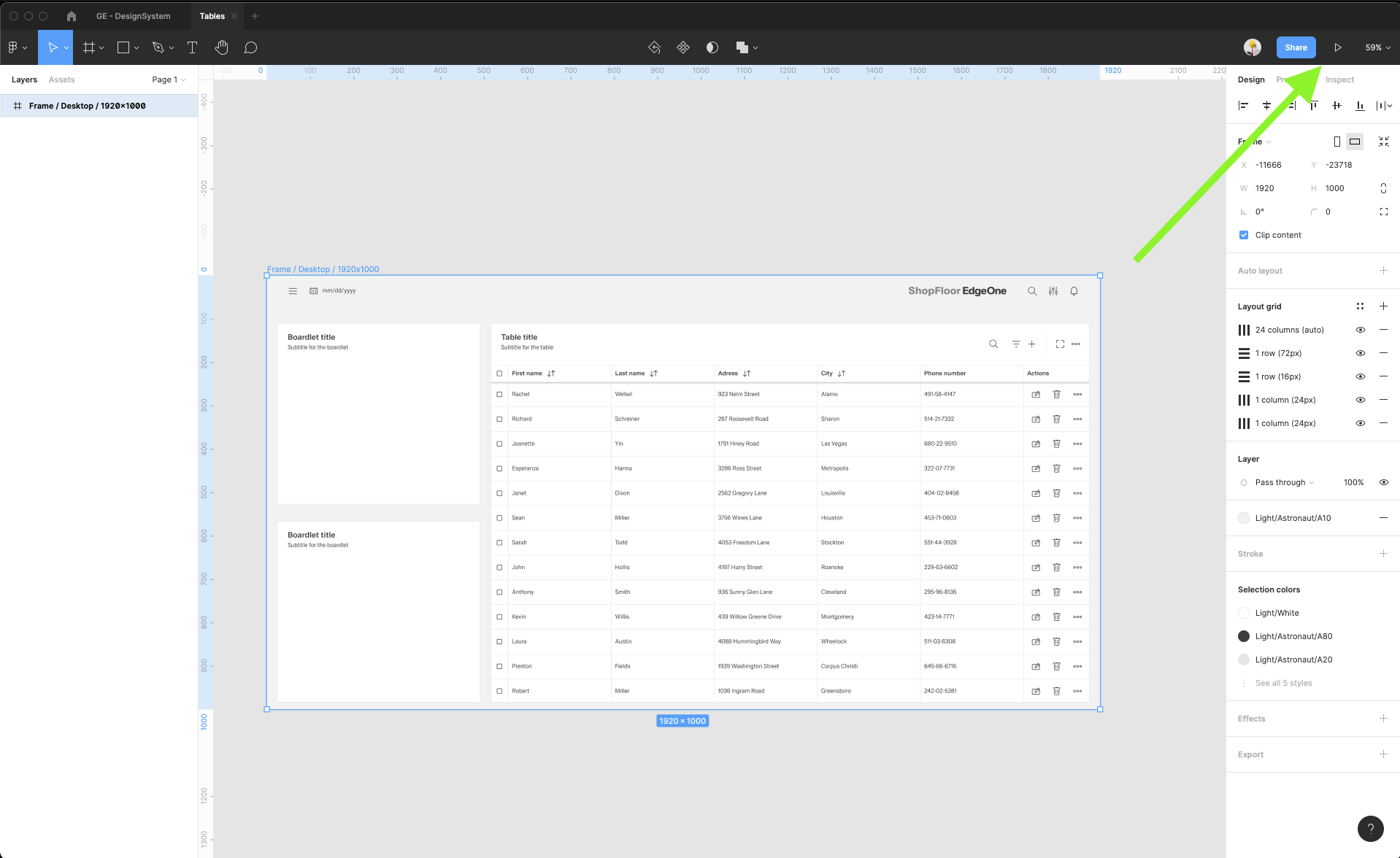
| 21 | Run the prototype to see how the content scrolling inside the table works. |
|