Page History
(this page was created automatically. In case of formatting issues, please visit the official Wiki Page)
Home Dashboard
Introduction
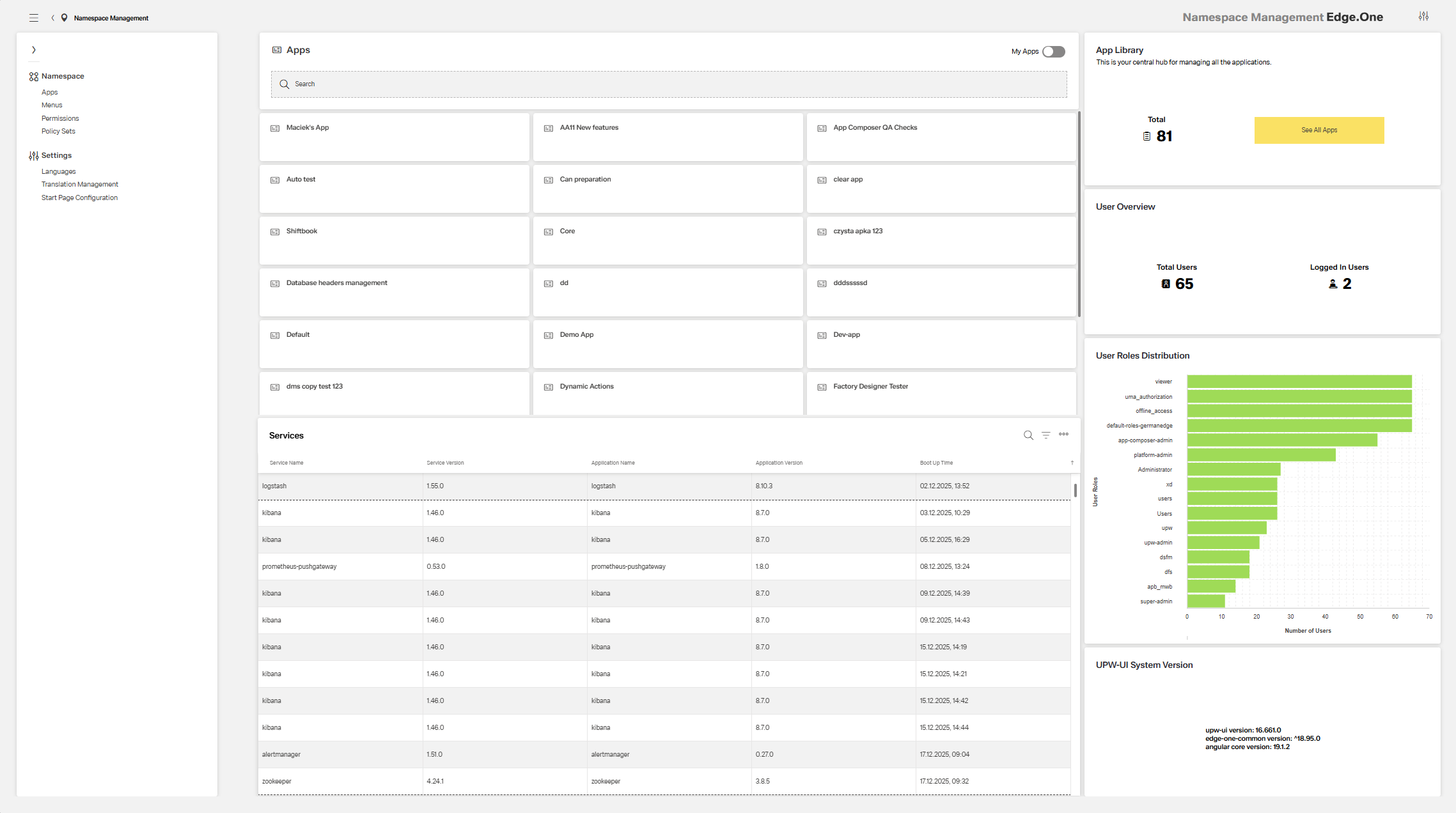
The Home Dashboard is the first page shown when opening Namespace Management. It provides an overview of the namespace, including applications, services, users, and the current version. The page also provides navigation to namespace-wide settings and the Application Library.
The Home Dashboard includes the following sections:
- Navigation Boardlet – provides navigation to applications and namespace settings.
- App Collection – lists all applications within the namespace.
- Services Table – lists all services within the namespace.
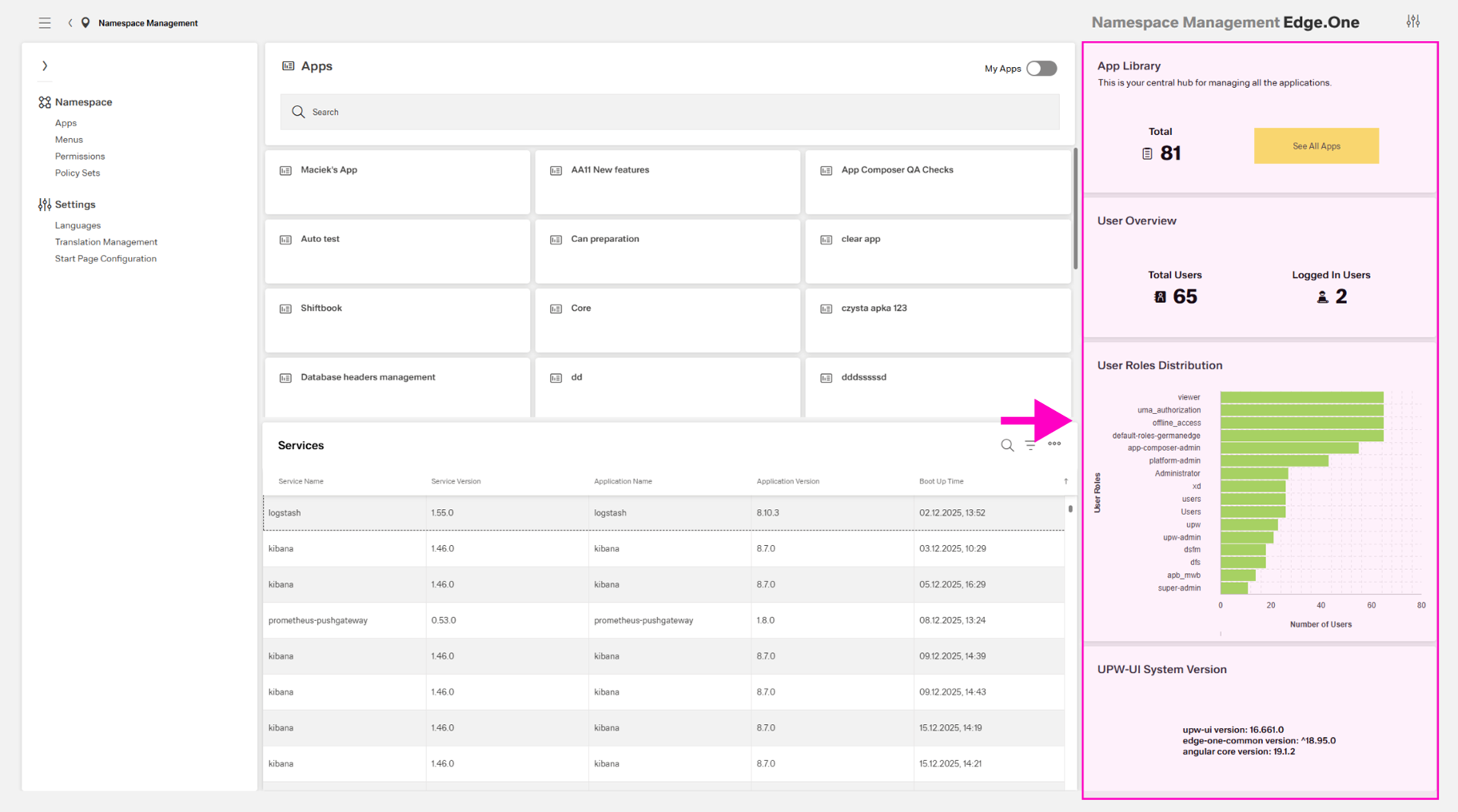
- Infographics – dashboards that provide information on applications, users, and the system version.
The Home Dashboard allows:
- Gaining essential insights into the status of the namespace.
- Navigating to the Application Library or directly to an application.
- Changing namespace-wide settings.
Navigation Boardlet
This boardlet contains links to namespace-wide settings, the Application Library, and the Menus, Permissions, and Policy Sets pages.
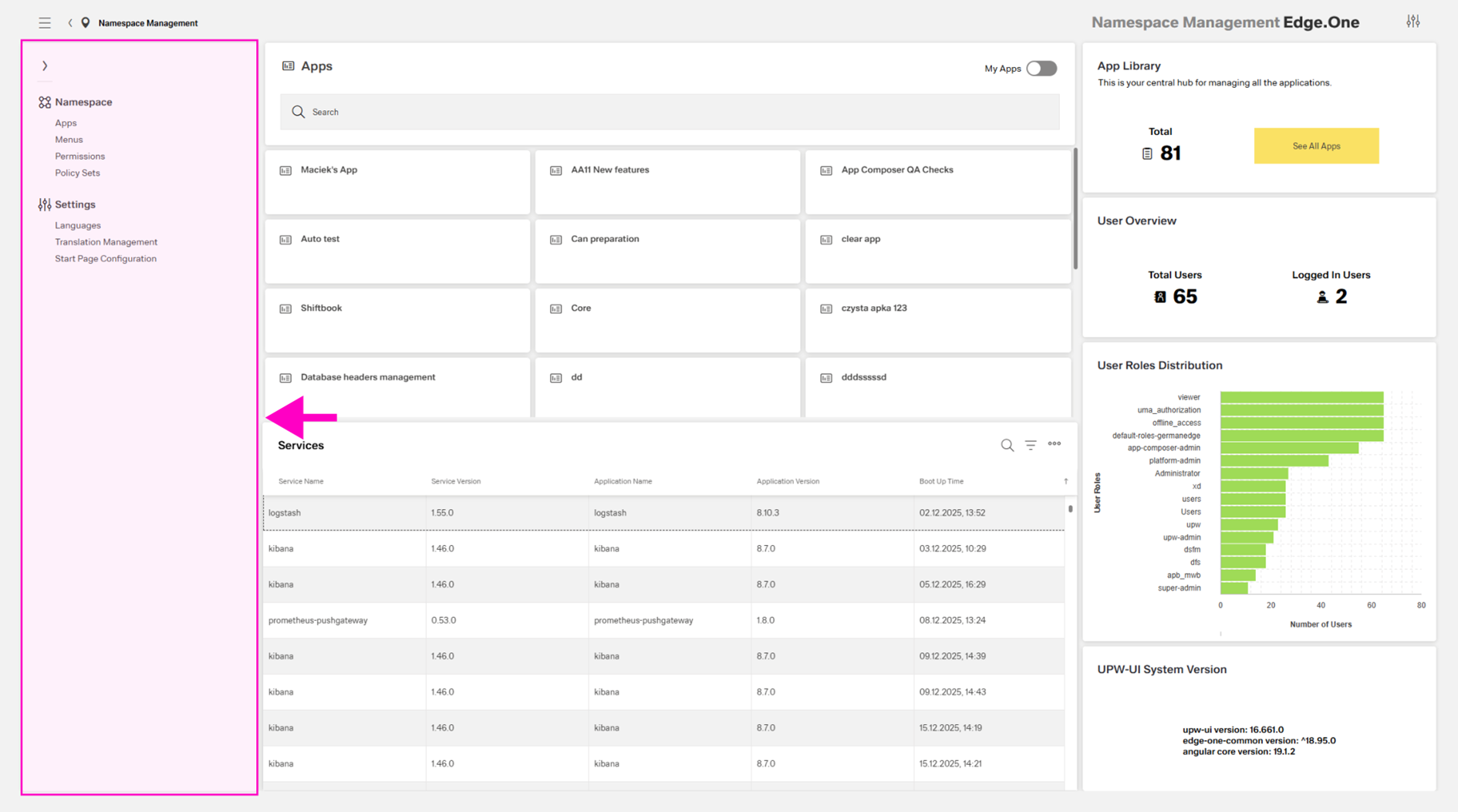
Namespace
Apps
This link opens the Application Library.
Menus
This page lists every menu from every application in the namespace.
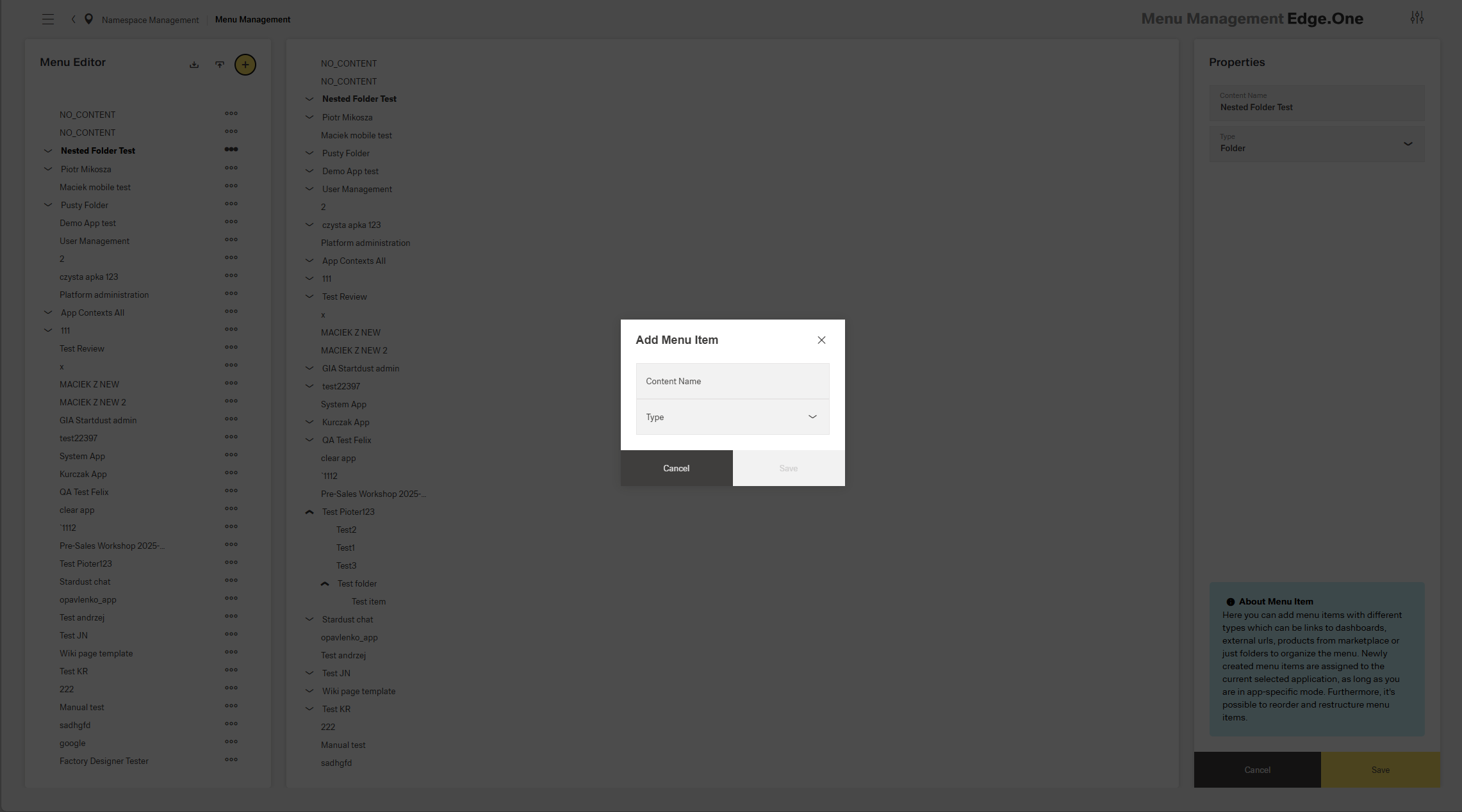
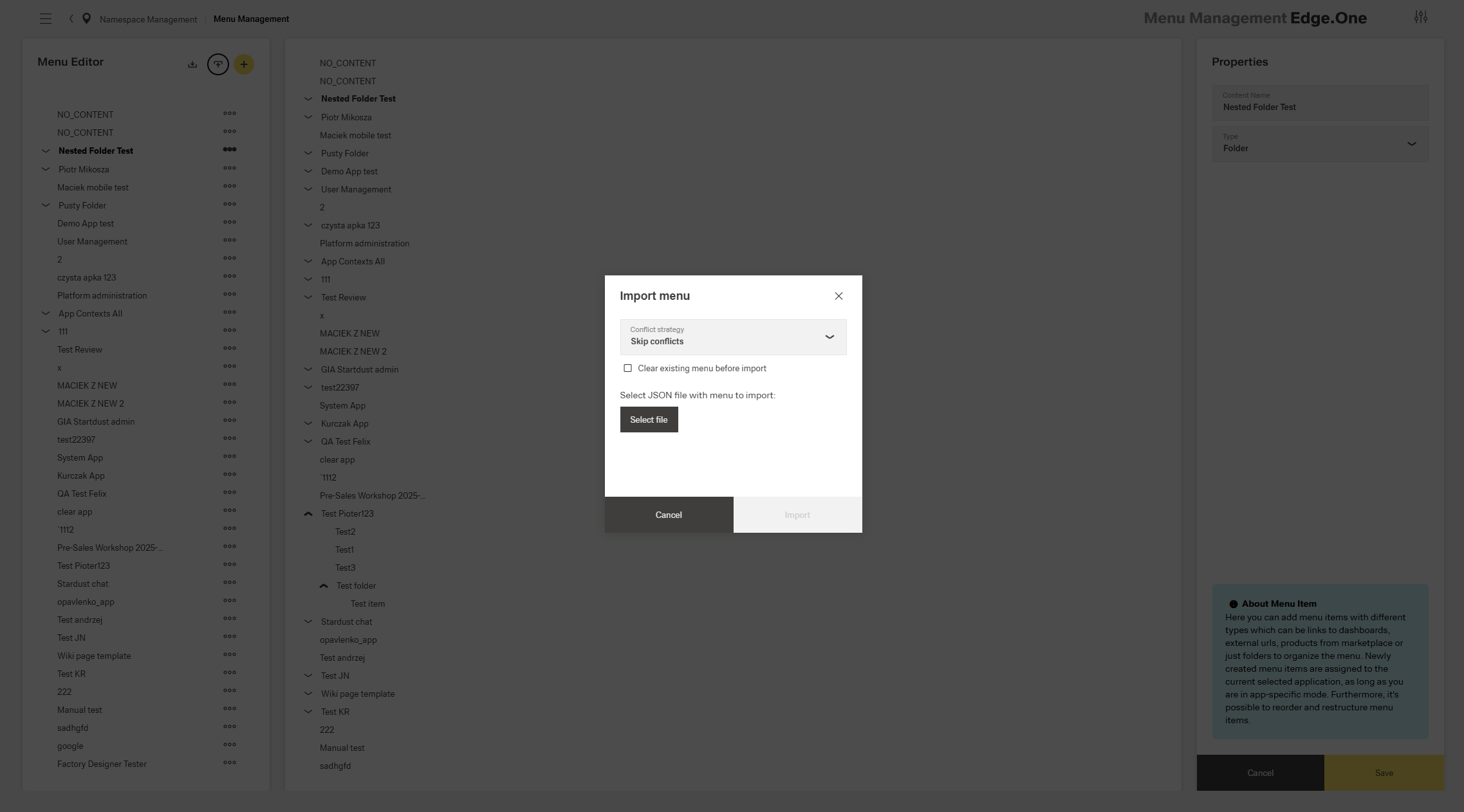
The page supports creating new menu items as described in Menu Settings. It also supports importing and exporting menus using toolbar actions in the menu list.
Exporting a menu opens a dialog. Confirming the export creates a custom JSON file that can be used in other namespaces.
Importing a menu also opens a dialog. The dialog includes:
- A conflict strategy selection.
- An option to keep or replace the existing menu after importing.
- A file selection.
The imported file is typically created by exporting a menu from another namespace.
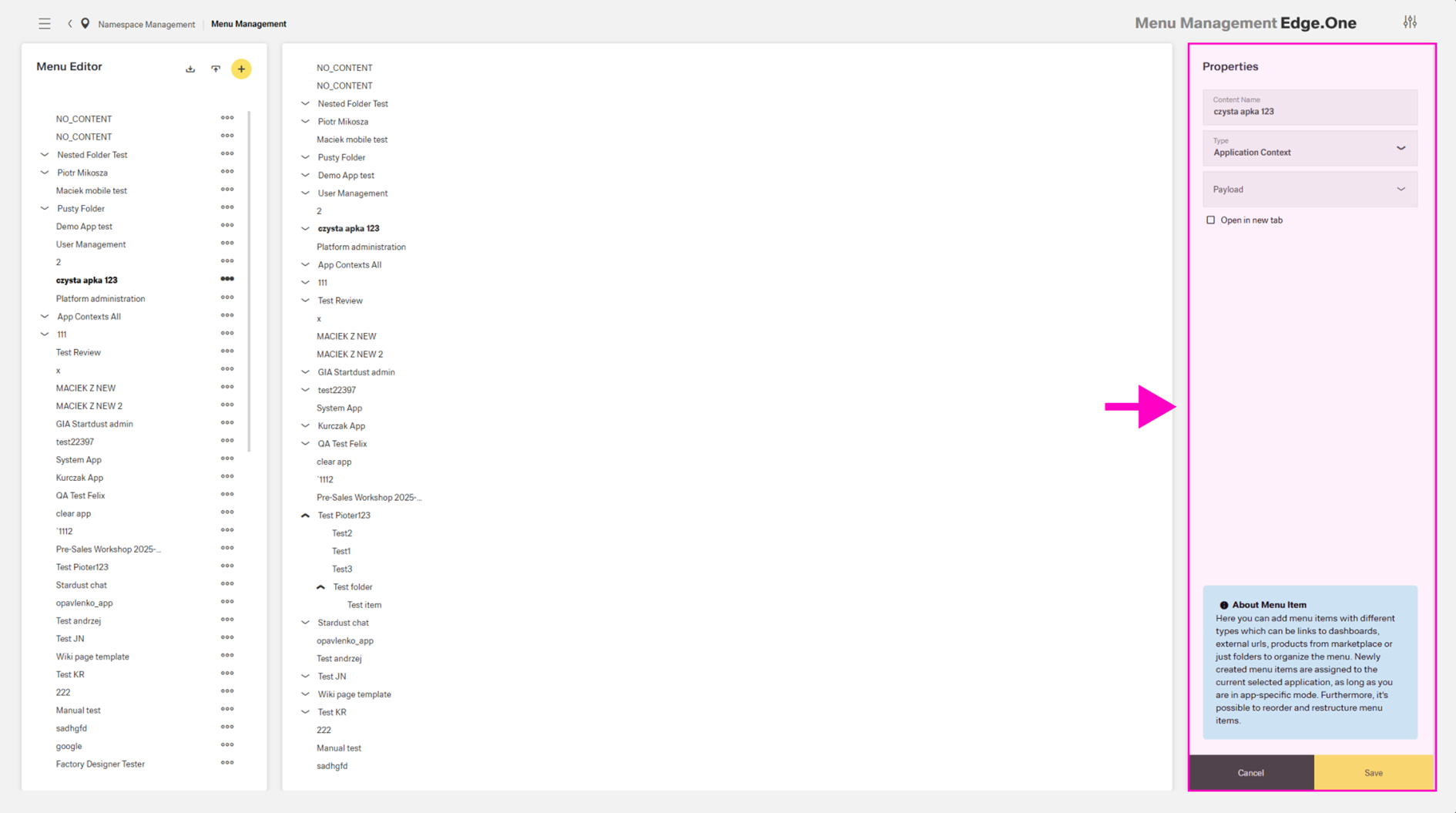
Selecting a menu item opens the menu item editor in the right boardlet, similar to Menu Settings. Deletion is available through an action in the overflow menu of the left boardlet.
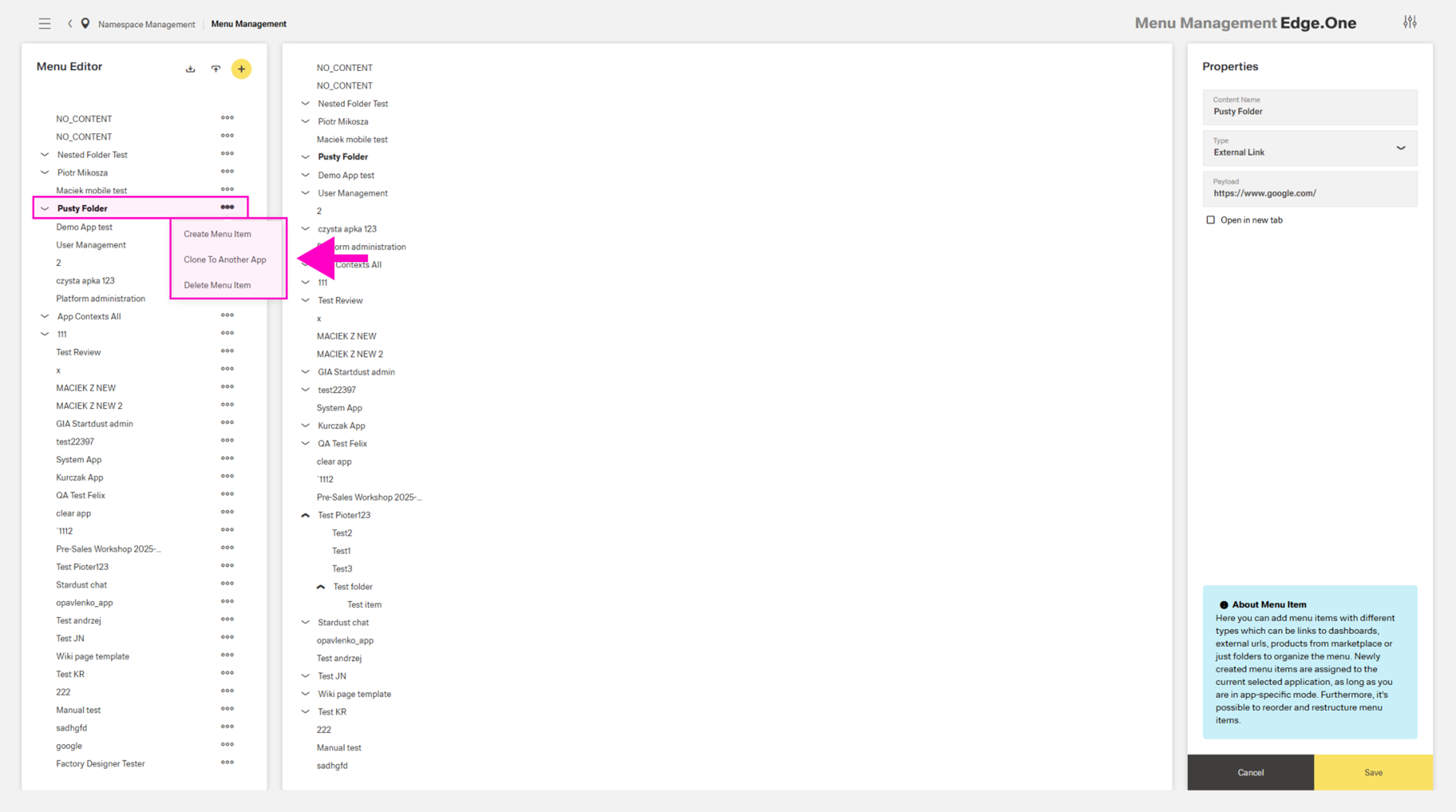
Selecting an entire application menu enables additional overflow actions, including cloning the menu to another application and creating a new menu item within the selected menu.
Permissions
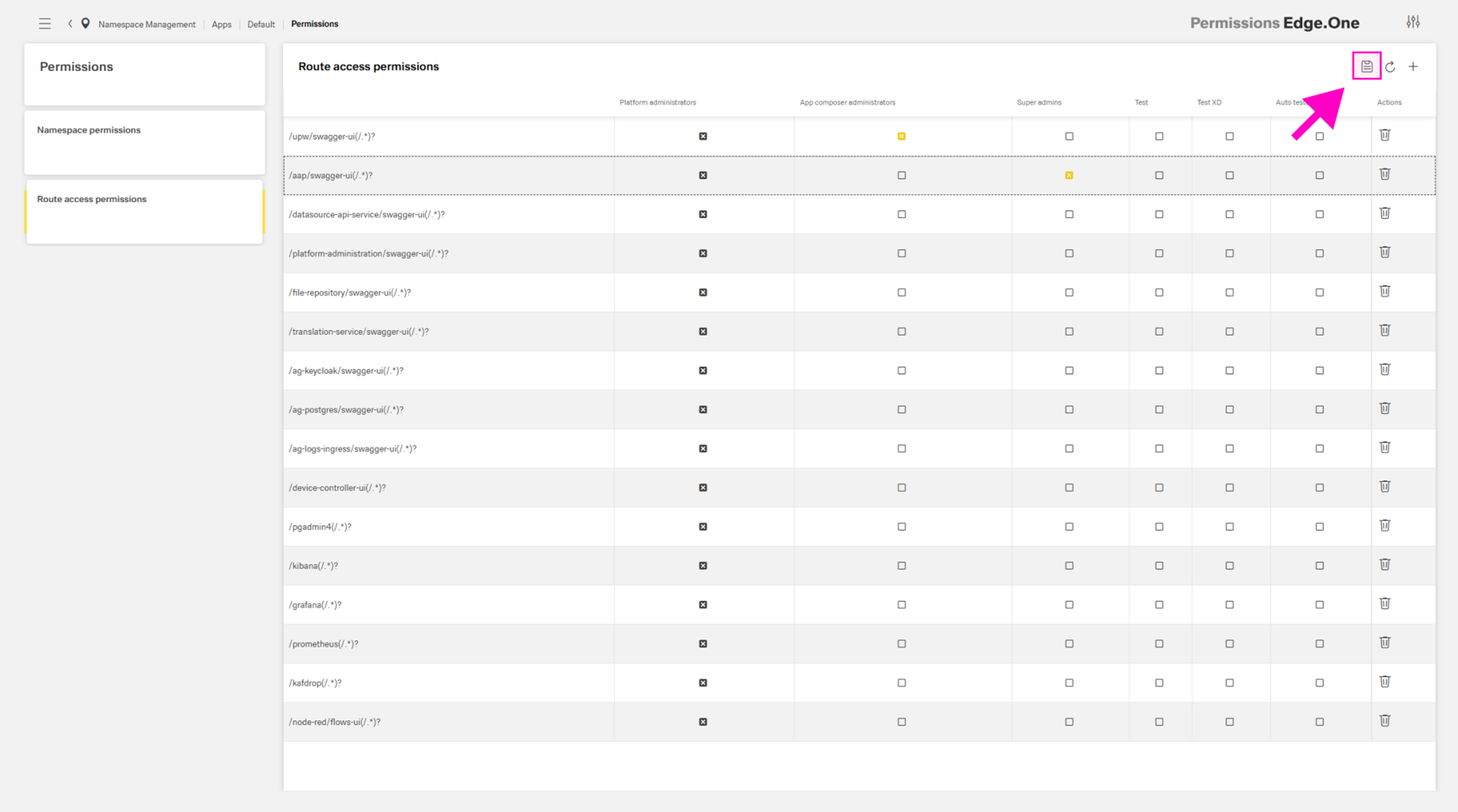
This section supports reviewing, changing, and adding namespace and route access permissions. The two permission types are shown in separate tables. Navigation between them is provided by the card collection on the left.
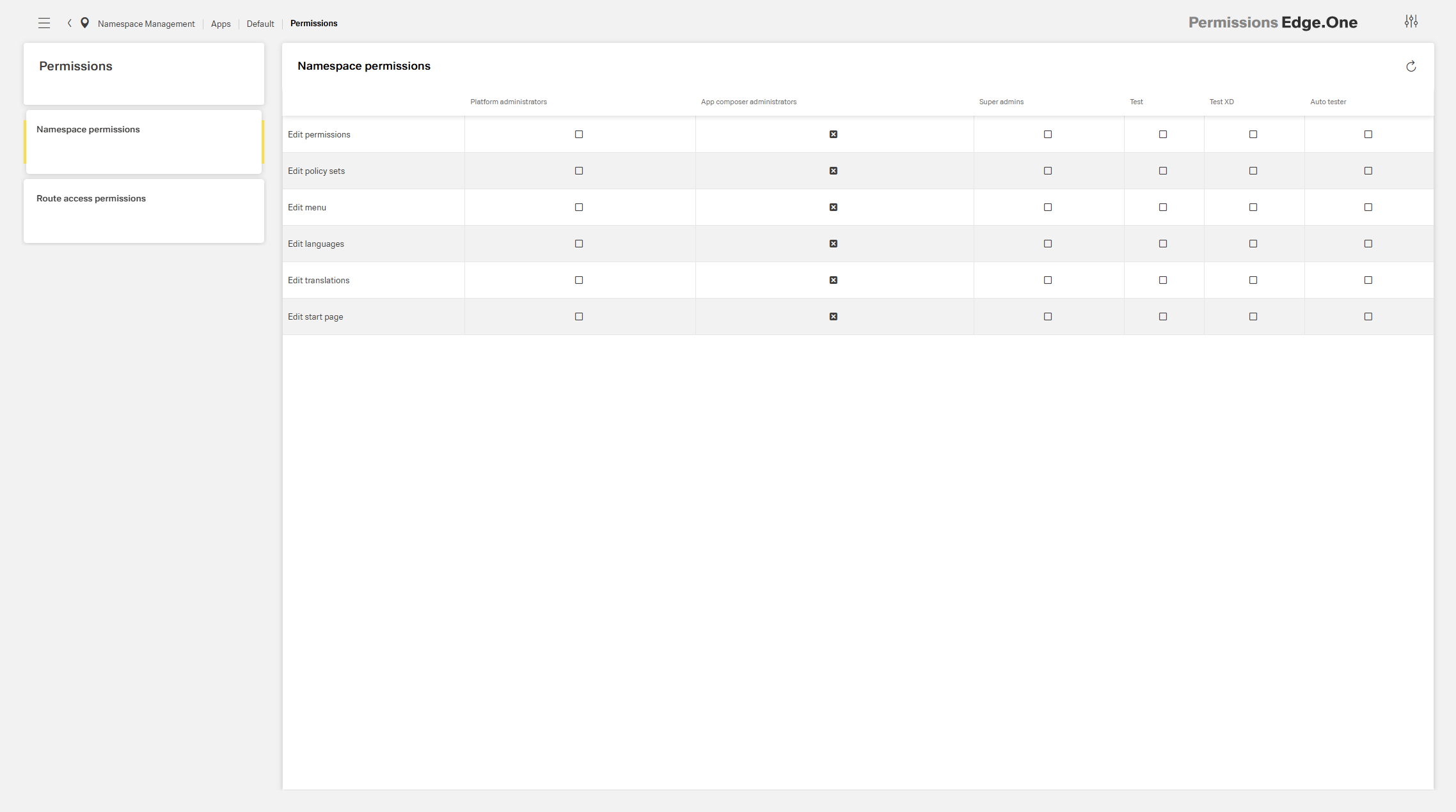
The table supports selecting permissions through checkboxes in each cell. Route access permissions also support adding a route through an action in the table header. All permission changes must be saved using the save action in the table header toolbar. The save action appears only after a change occurs.
Policy Sets
This page supports creating namespace-wide roles for policies. Roles are listed in the card collection on the left and include a name, description, and policy set model.
The model maps an attribute (either User Role or HTTP decision) to an attribute value (for example, platform admin or users) using an operator (either equals or not equals). A role can include multiple conditions and assigned user groups.
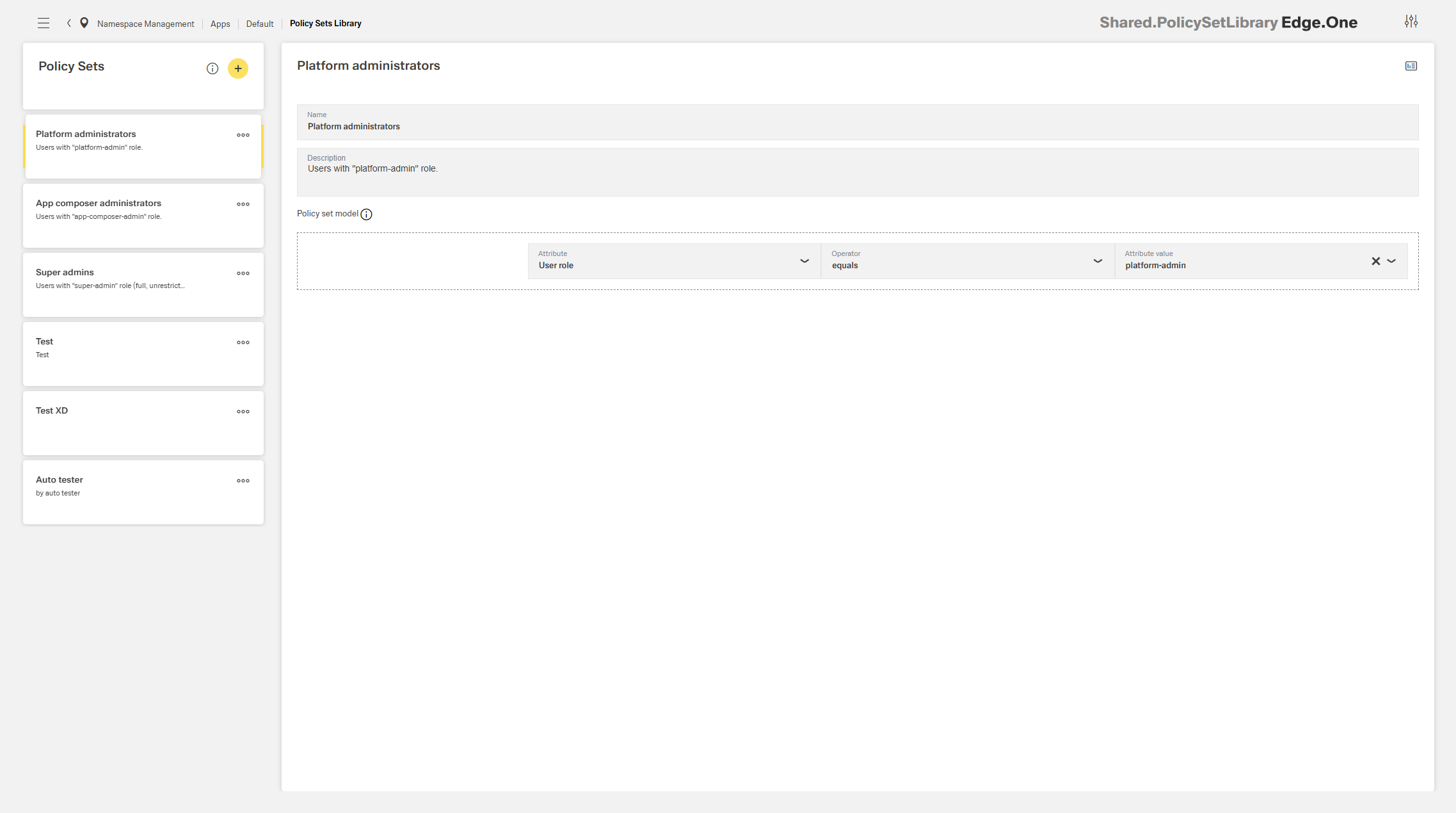
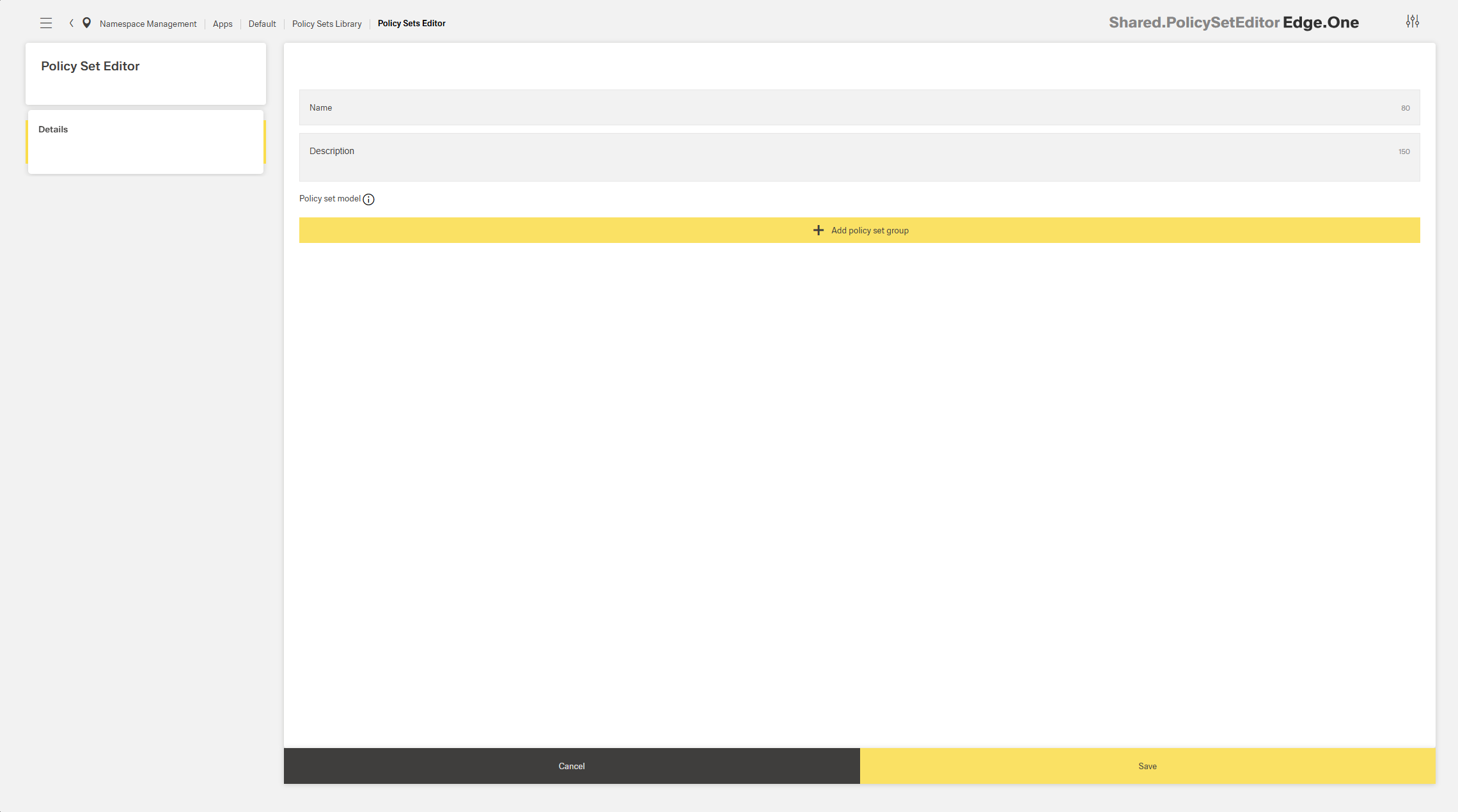
A new role can be added using the action in the card collection header. Editing and deletion are available through the overflow (“more”) menu within each card.
Settings
Languages
This setting is currently not functional.
Translation Management
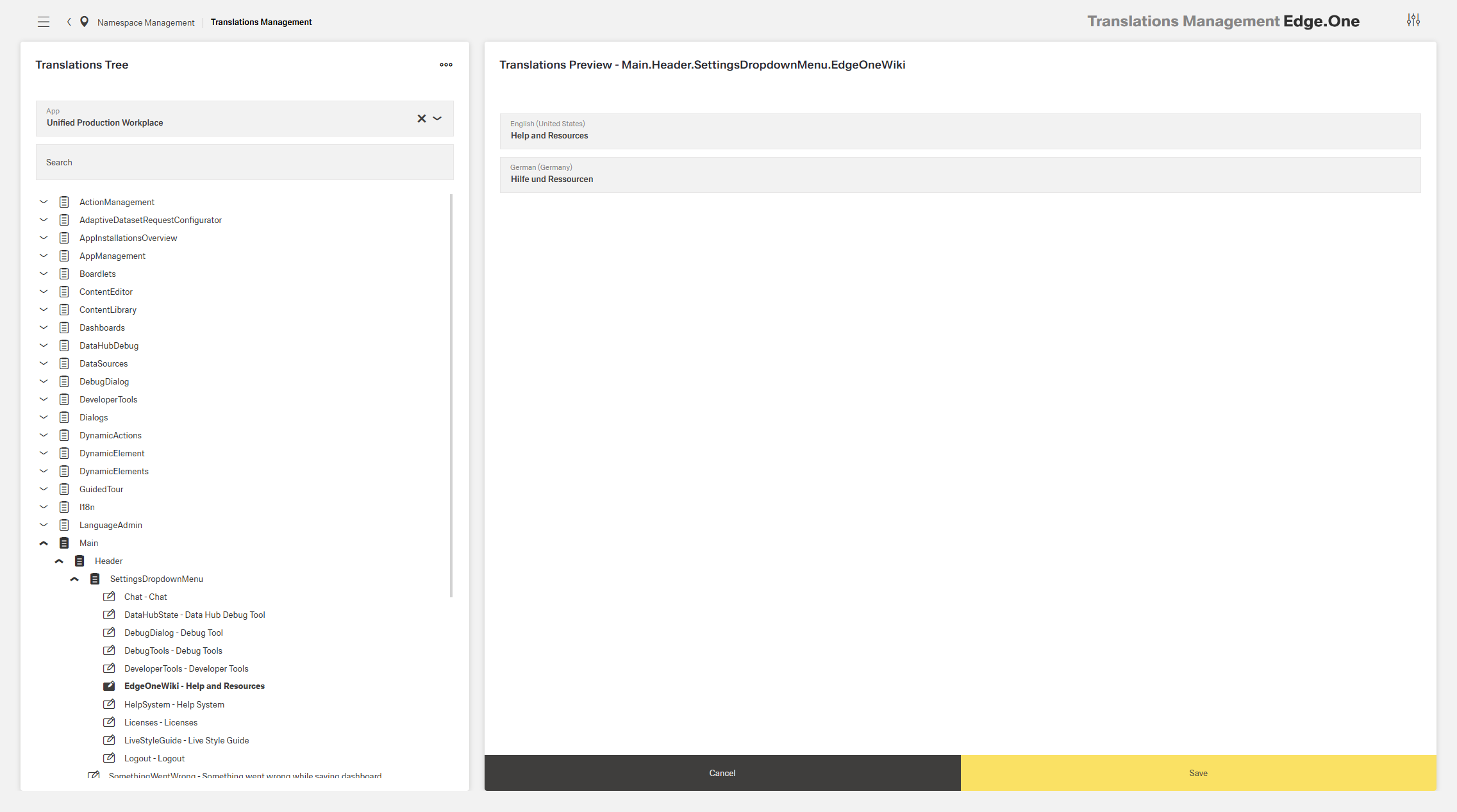
This page supports editing automatic translations within the namespace. A translation can be selected from the list on the left by navigating the tree view or searching by name. The selection opens the translation details in the right boardlet. Changes must be saved using the save button in the footer.
Start Page Configuration
The Start Page Configuration supports assigning user-specific landing pages (welcome/start pages) within the namespace.
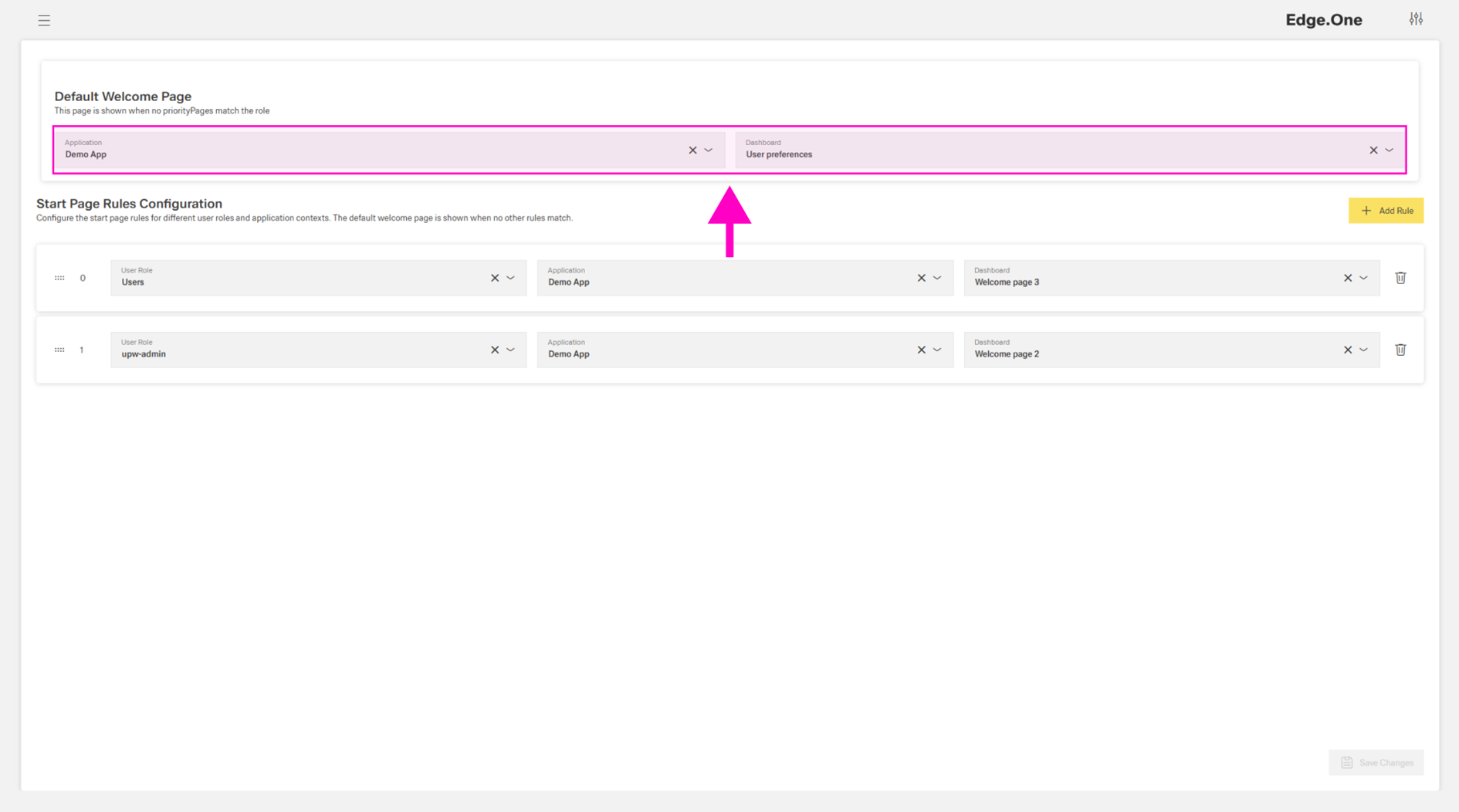
Each namespace has a default landing page. The default page can be configured in the first section of this dashboard: Select an application in the left selection input, then select a dashboard from that application in the right selection input.
In addition to the default configuration, this page supports assigning user-specific landing pages through a prioritized list of rules. Each rule includes a user group, an application, and a dashboard within that application.
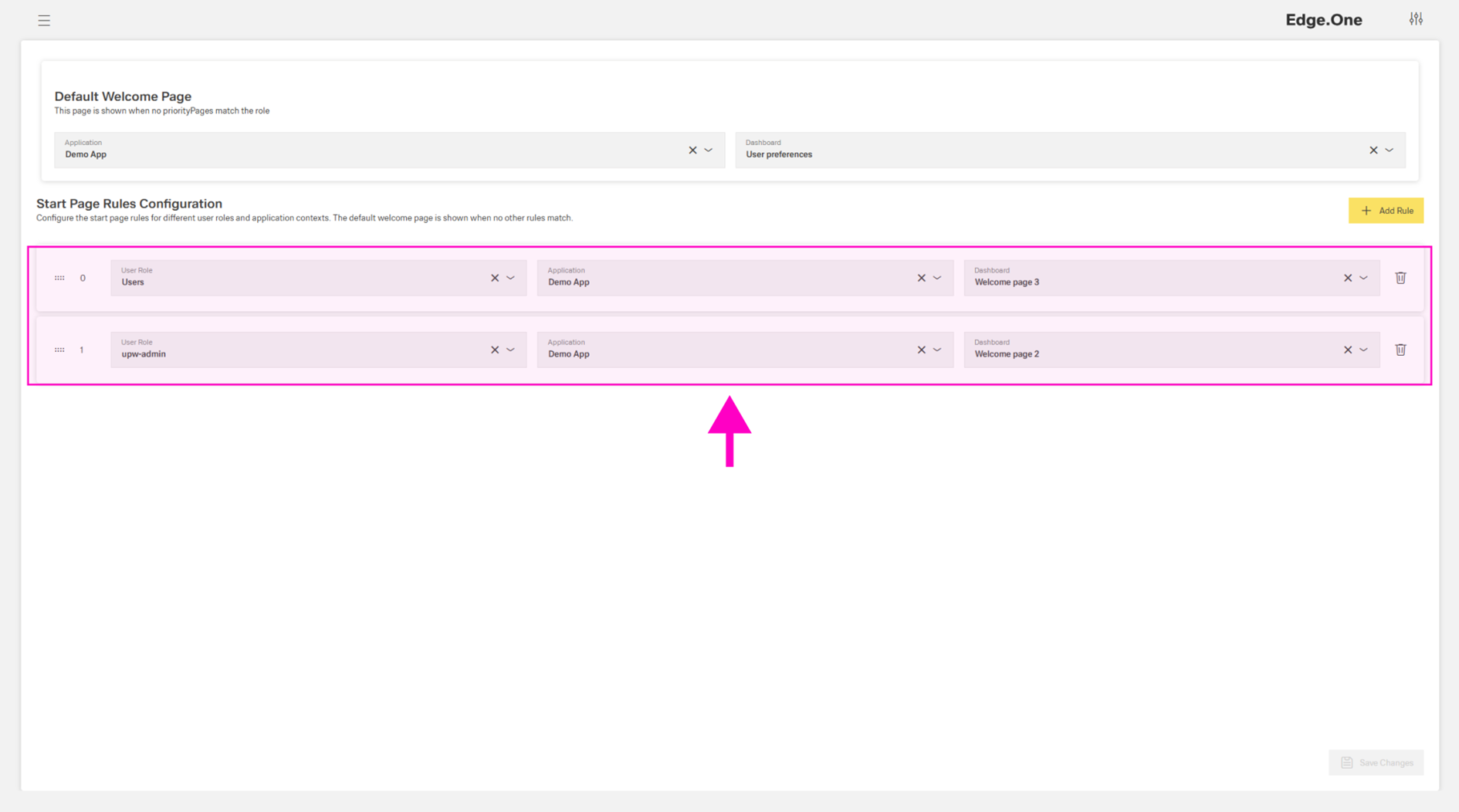
If a user belongs to multiple user groups, the rule with the highest priority applies. If no rule applies, the default page is shown. Changes must be saved using the save button in the footer.
App Collection
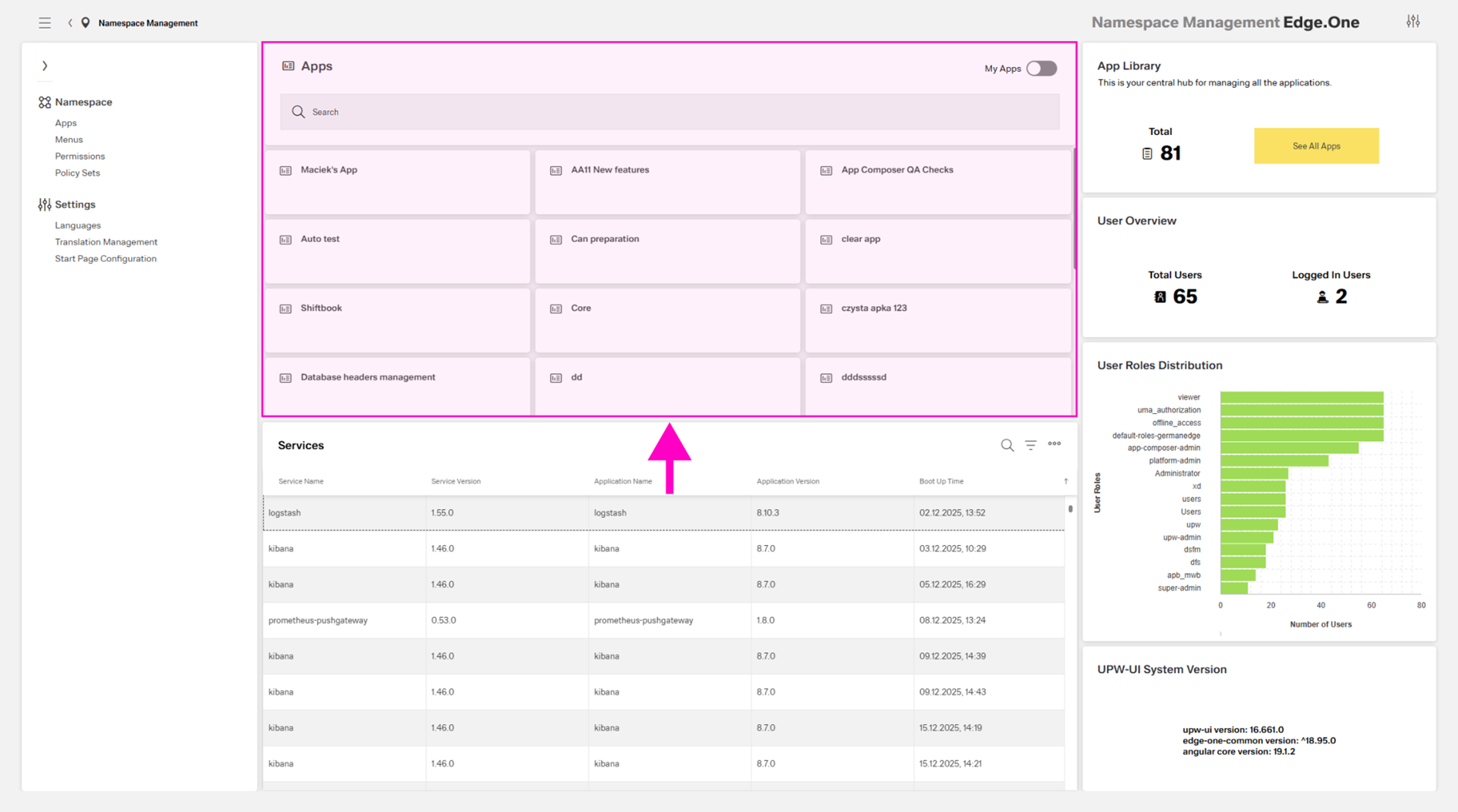
The App Collection is a Card Collection that lists every application within the namespace. The search bar at the top supports finding specific applications. A toggle at the top right filters the list to show only self-created applications. Selecting a card opens the associated application.
Services Table
The Services table lists all services connected to the namespace, including the current version and the original boot-up time. If a service is connected to an application, the table also shows the application name and current version.
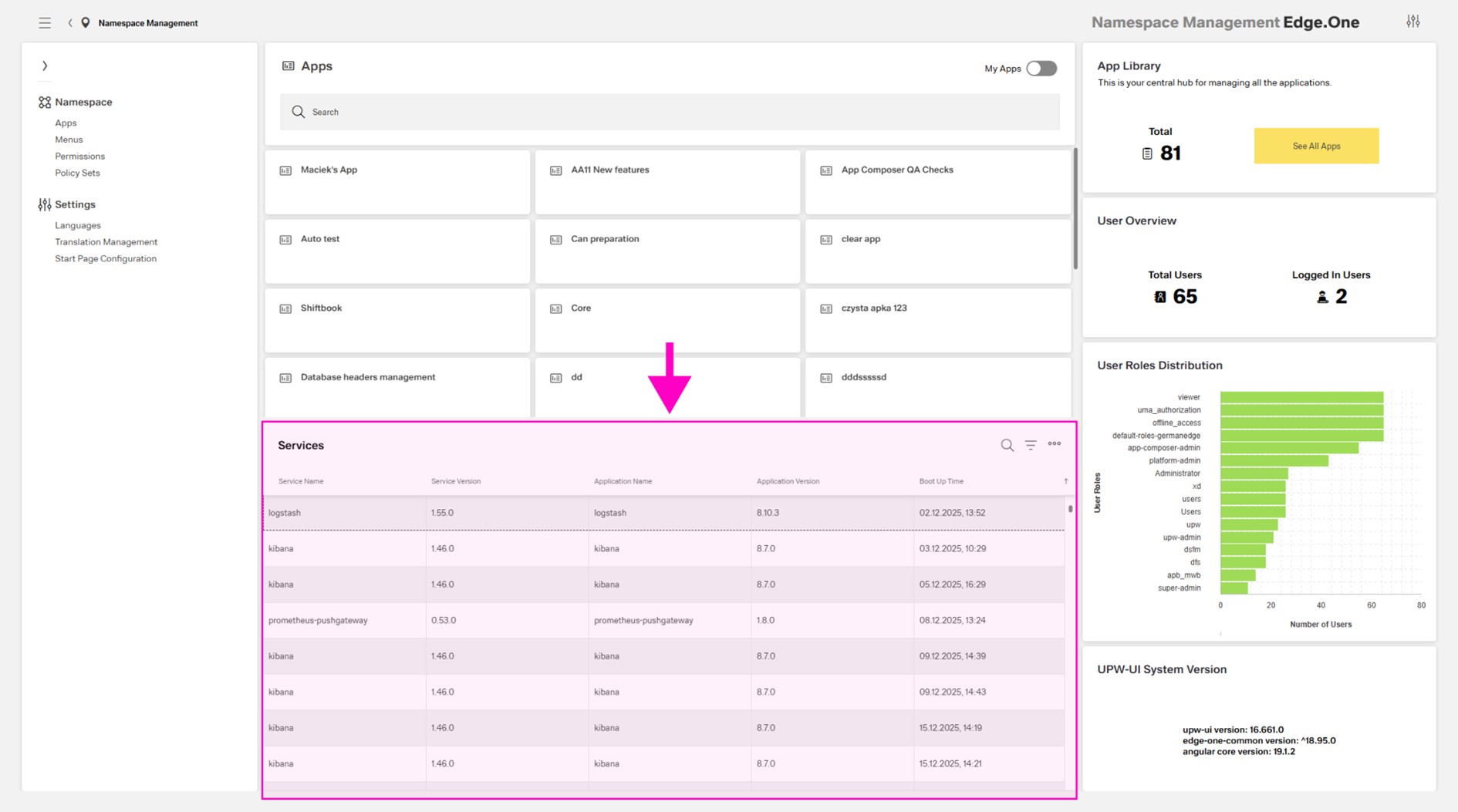
The table supports search, column-based search, and export to an Excel file.
Infographics
The Home Dashboard includes four Infographics that provide information on applications, users, user roles, and the system version:
- App Library – shows the total number of applications in the namespace and includes a primary button to the Application Library.
- User Overview – shows the total number of users and the number of currently logged-in users.
- User Roles Distribution – shows the total number of users in each role. Multiple roles per user are counted once per role.
- UPW-UI System Version – shows the current uwp-ui, edge-one-common, and Angular core versions.