
Page History
...
Its core structure consists of a Progress Indicator and a Main Content area. Depending on the needs of the workflow, the layout may also include a separate [Button Boardlet], an optional Sidebar, split main content, or nested progress bars within a stepother elements. These elements should stay aligned with the dashboard grid and support the primary flow without changing the overall structure of the Wizard.
...
- A step may open with a secondary progress indicator when that step contains its own sub-process.
- The user completes the current sub-step within that nested flow.
- When the user selects the next-step action, the Wizard advances the secondary progress instead of the main step sequence.
- The nested progress indicator updates as each sub-step is completed.
- When the nested process is finished, the Wizard returns the user to the main flow of the current step.
- The user can then continue to the next main step in the Wizard.
- Completing the nested process may trigger a simple [Modal Notification] indicating whether the sub-process was successful.
...
- While the user interacts with a step, the Wizard may show loading feedback while data is retrieved, validated, or processed.
- When an action succeeds, the Wizard updates the current state and reflects progress in the [ Progress Indicator].
- When an action fails or requires attention, the Wizard shows error feedback so the user can correct the issue.
- When the overall process is completed, the Wizard shows a final confirmation or success message.
...
Maintain a predictable layout across steps. Keep the Progress Indicator at the top and preserve a comparable Main Content footprint throughout the process. Avoid major layout shifts that force users to reorient on every step.
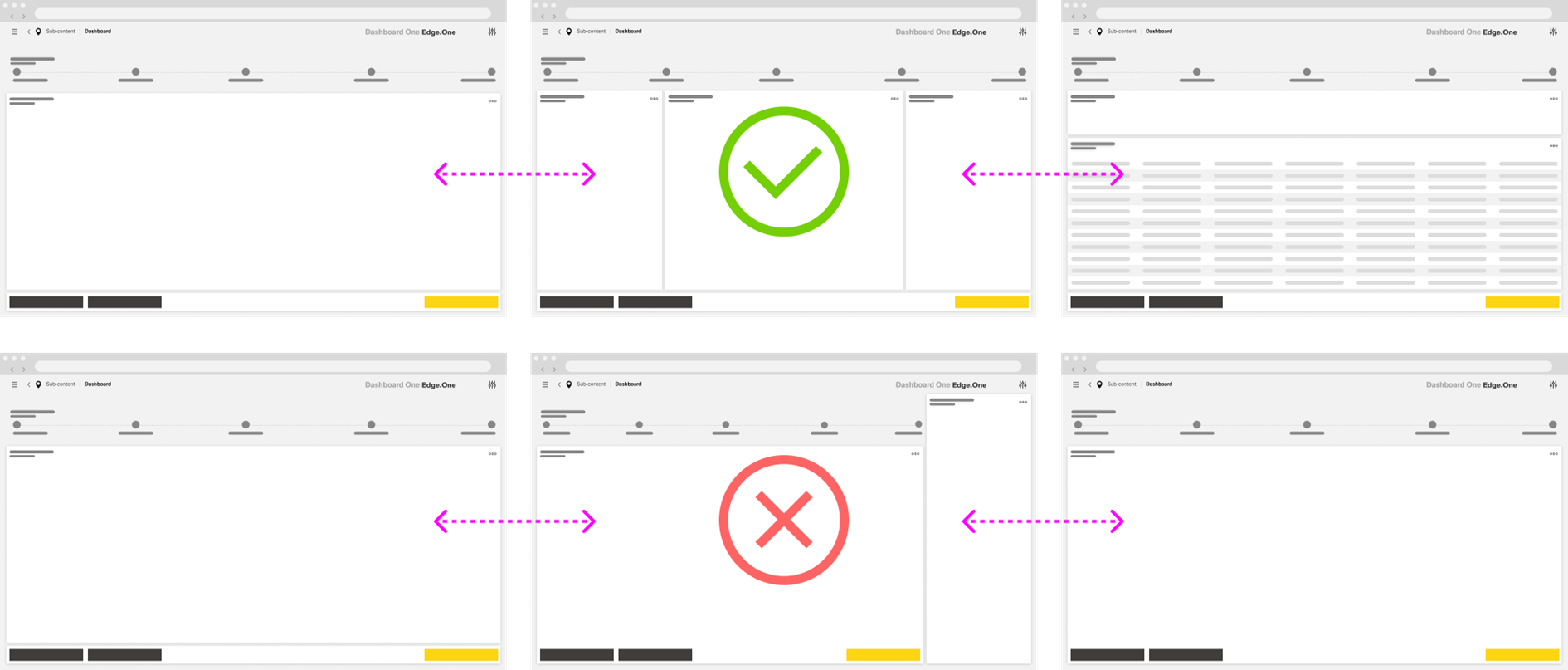
Steps
Keep each step focused on one clear objective. A step should support a single decision, input task, or confirmation task. Break up dense or unrelated content rather than combining too much into one screen.
Show one clear primary action per step. The primary action should always represent the next logical move forward, and its label should clearly reflect the result of the action.
...
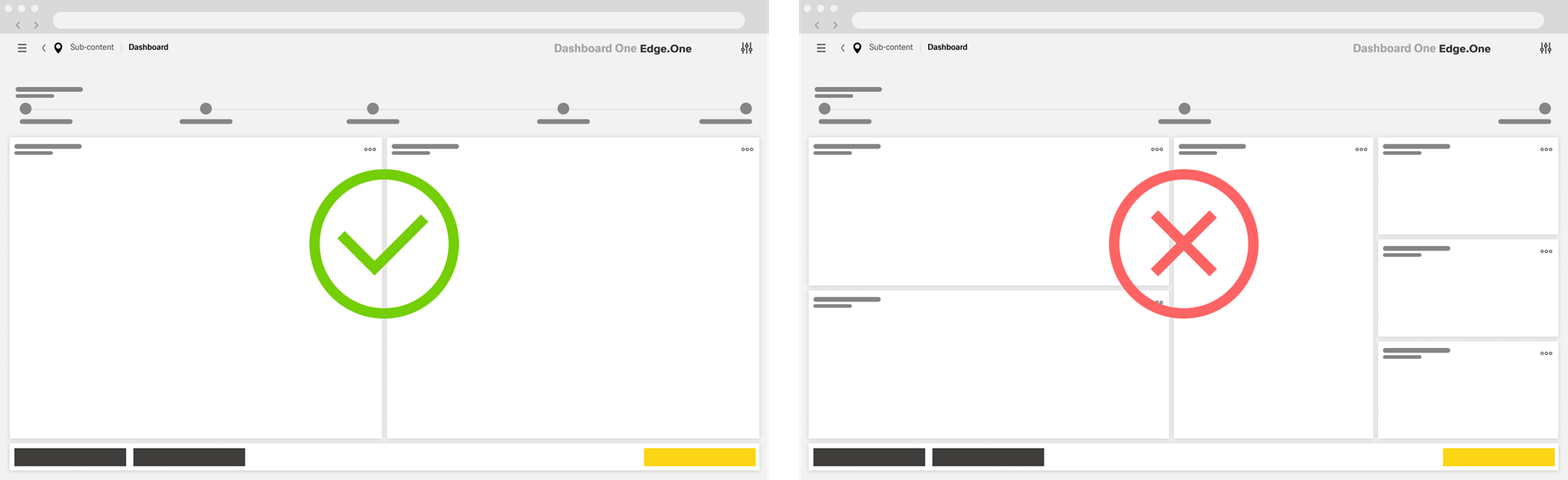
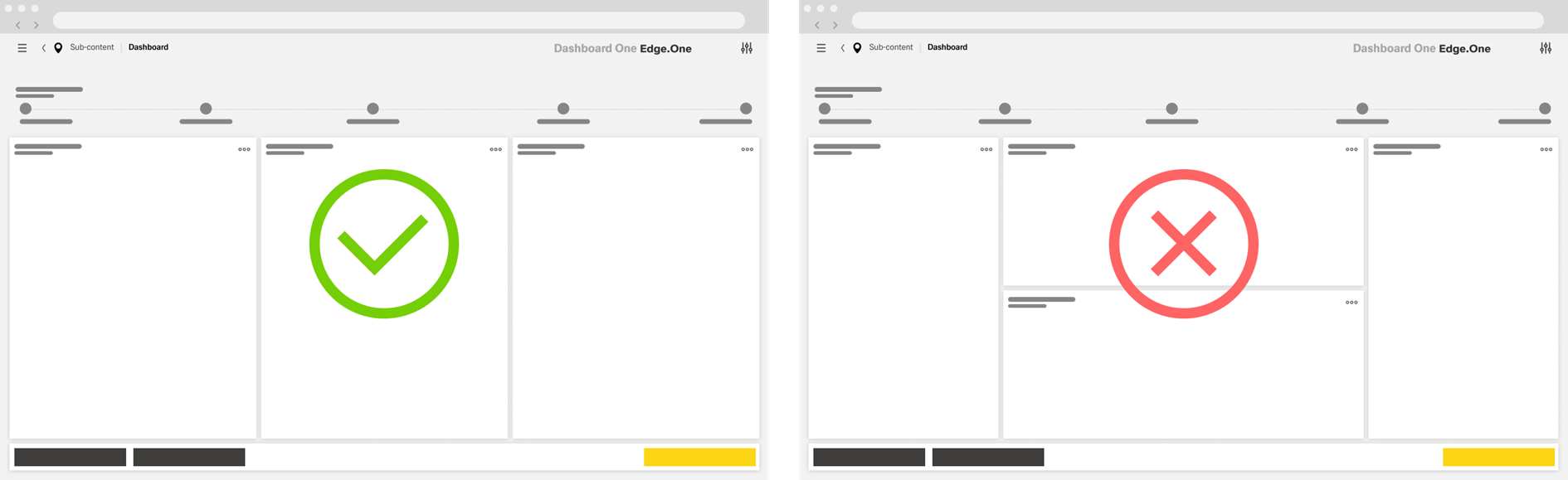
Use split layouts only when the step genuinely requires them. Split Main Content should support closely related tasks within the same step and should not exceed three coordinated sections. Avoid combining horizontal and vertical splits within the same step unless there is a clear need.
Treat the Sidebar as supporting content. A Sidebar may provide context, reference information, or related actions, but it should not compete with the main task or introduce a second primary workflow.
...
