
Page History
...
- displayName — Sets the display name of the component shown in the structure panel. For example, "Product FAQ" allows for easy identification of the accordion's purpose in the component structure.
Visual Properties
Accordion Items can be added manual through "Add Accordion Item" or a data source through a template (useTemplate).
Accordion Template (Header/Content)
General Properties
- displayName — Sets the display name of the component shown in the structure panel. For example, "Product FAQ" allows for easy identification of the accordion's purpose in the component structure.
Visual Properties
- title – Sets the title text displayed in the accordion, with support for multiple languages. For example, {"en-US": "Contract Details", "de-DE": "Vertragsdetails"} ensures proper localization of the title based on the user's language settings. This title helps users understand what document they're viewing.
- disabled – Controls whether users can interact with the accordion. When set to true, the accordion appears grayed out and cannot be changed by users.
- layout - Determines how child elements are arranged within the accordion template. Options include "vertical" (stacked elements) or "horizontal" (side-by-side elements). For example, "horizontal" places items in a row rather than stacking them.
- alignItemsClass - Controls the vertical alignment of child elements within the accordion template. For example, "align-items-center" centers all child elements vertically within the section.
- gapClass - Configures the spacing between child elements within the accordion template. For example, {"row": "row-gap-4", "column": "column-gap-2"} creates consistent spacing between elements with more vertical than horizontal spacing.
Events
Configures the events that the component can trigger and respond to:
- ON_INIT — Triggered when the accordion component is initialized. Can be used to perform setup operations like loading default data or setting initial states.
- ON_DESTROY — Triggered when the accordion component is removed from the DOM. Useful for cleanup operations and releasing resources.
Testing Hooks
- dataTestId — Sets the testing hook ID for automated testing. For example, setting it to
"faq-accordion"allows test scripts to reliably locate this component. - enableAsHotspot — Enables the component as a guided tour hotspot. When enabled, the accordion can be highlighted during guided tours of your application.
Datasource
- dataSourceId — Specifies the data source for retrieving accordion data. For example, api/featured-products connects the component to the products API endpoint.
- getEntityCollectionHttpRequestParametersMap — Configures HTTP parameters for data fetching, including query parameters, path parameters, and headers. This object maps additional parameters needed for the request.
Events
Configures the events that the component can trigger and respond to:
...
- displayConditions – Defines conditions for displaying the component based on context data or expressions. For example, configuring it to display only when "userType === 'advanced'" ensures the grid appears only for advanced users, providing a conditional layout experience.
Testing Hooks
- id - Specifies a unique identifier for the component used for programmatic access. For example, "fqa-accordion" enables targeted manipulation of this specific accordion.
- dataTestId — Sets the testing hook ID for automated testing. For example, setting it to
"faq-accordion"allows test scripts to reliably locate this component. - enableAsHotspot — Enables the component as a guided tour hotspot. When enabled, the accordion can be highlighted during guided tours of your application.
...
- Provide meaningful, unique titles for each section so context is clear even when collapsed (
elements.title). Use plain-language; avoid icon-only labels (elements.title). - Expose a stable handle for automated accessibility checks (
dataTestId). - Avoid color-only meaning; place essential cues in text (
elements.title,elements.content). - Keep expansion order predictable by establishing item order during initialization (
ON_INIT,elements).
Datasource Requirements
Accordions can be automaically created with the help of a template. This template uses the data source from the accordion in conjunction with placeholders.
Guide
Firstly, choose a datasource in the accordion in the Datasource tab. The datasource should be an array of objects with any number of elements. The keys of the value pairs inside the objects will later be used to create placeholders for the data inside the template.
Example data:
[
  {
    "name": "German (Germany)",
    "code": "de-DE"
  },
  {
    "name": "French (France)",
    "code": "fr-FR"
  },
  {
    "name": "English (United States)",
    "code": "en-US"
  },
  {
    "name": "Dutch (Netherlands)",
    "code": "nl-NL"
  },
  {
    "name": "Spanish (Spain)",
    "code": "es-ES"
  },
  {
    "name": "Chinese (China)",
    "code": "zh-CN"
  },
  {
    "name": "Polish (Poland)",
    "code": "pl-PL"
  }
]
Next, activate "useTemplate" in the Visual Properties tab of the accordion. This activates two new components in the tree view on the left: "Accordion Template Header" and "Accordion Template Content" Any formatting of the to be created accordion items will happen here.
In order to display the data as a text, select a text component like the title or label and put it into the Accordion Template Header or Content. Set the displayed text to {{$.insert key here}}. This key is dependant on the data source. One text component can have multiple placeholders and additional text can be set next to the placeholder if required.
Example placeholders 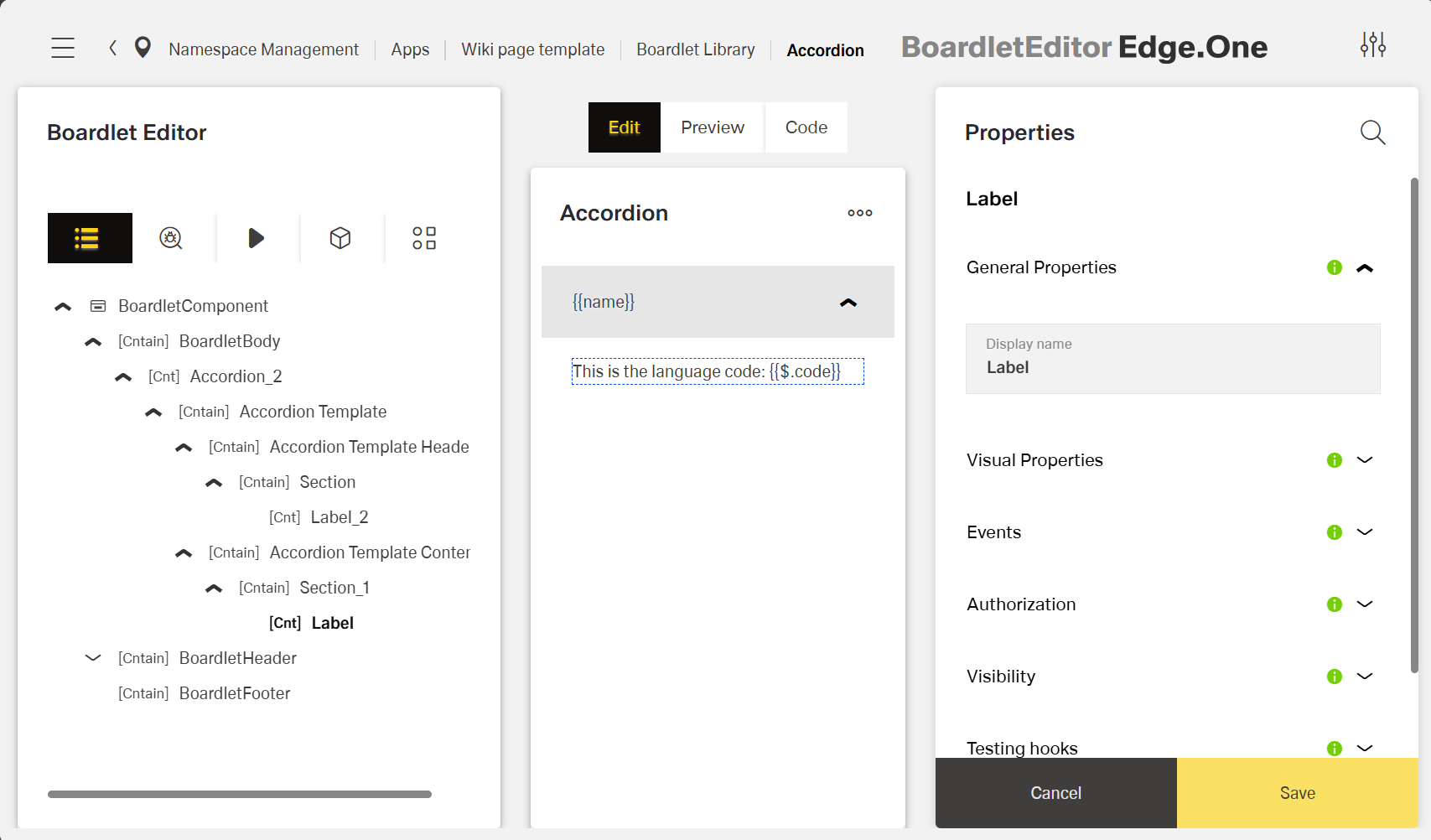
To see the rendered data, switch to the Preview tab inside the boardlet editor.
Specs - Accordion Template (Header/Content)
General Properties
- displayName — Sets the display name of the component shown in the structure panel. For example, "Product FAQ" allows for easy identification of the accordion's purpose in the component structure.
Visual Properties
- title – Sets the title text displayed in the accordion, with support for multiple languages. For example, {"en-US": "Contract Details", "de-DE": "Vertragsdetails"} ensures proper localization of the title based on the user's language settings. This title helps users understand what document they're viewing.
- disabled – Controls whether users can interact with the accordion. When set to true, the accordion appears grayed out and cannot be changed by users.
- layout - Determines how child elements are arranged within the accordion template. Options include "vertical" (stacked elements) or "horizontal" (side-by-side elements). For example, "horizontal" places items in a row rather than stacking them.
- alignItemsClass - Controls the vertical alignment of child elements within the accordion template. For example, "align-items-center" centers all child elements vertically within the section.
- gapClass - Configures the spacing between child elements within the accordion template. For example, {"row": "row-gap-4", "column": "column-gap-2"} creates consistent spacing between elements with more vertical than horizontal spacing.
Events
Configures the events that the component can trigger and respond to:
- ON_INIT — Triggered when the accordion component is initialized. Can be used to perform setup operations like loading default data or setting initial states.
- ON_DESTROY — Triggered when the accordion component is removed from the DOM. Useful for cleanup operations and releasing resources.
Testing Hooks
- dataTestId — Sets the testing hook ID for automated testing. For example, setting it to
"faq-accordion"allows test scripts to reliably locate this component. - enableAsHotspot — Enables the component as a guided tour hotspot. When enabled, the accordion can be highlighted during guided tours of your application.
