A button is an element for the user to interact with the software and to initialize an action. The action is named in the buttons labels. Commands, like e.g. the commit of a change or saving a task are typically usages of a button.
Buttons are typically found in forms, dialogs, panels, or pages.
When to use:
to inform the user that there's a functionality
to make it easier and understandable for the user to operate
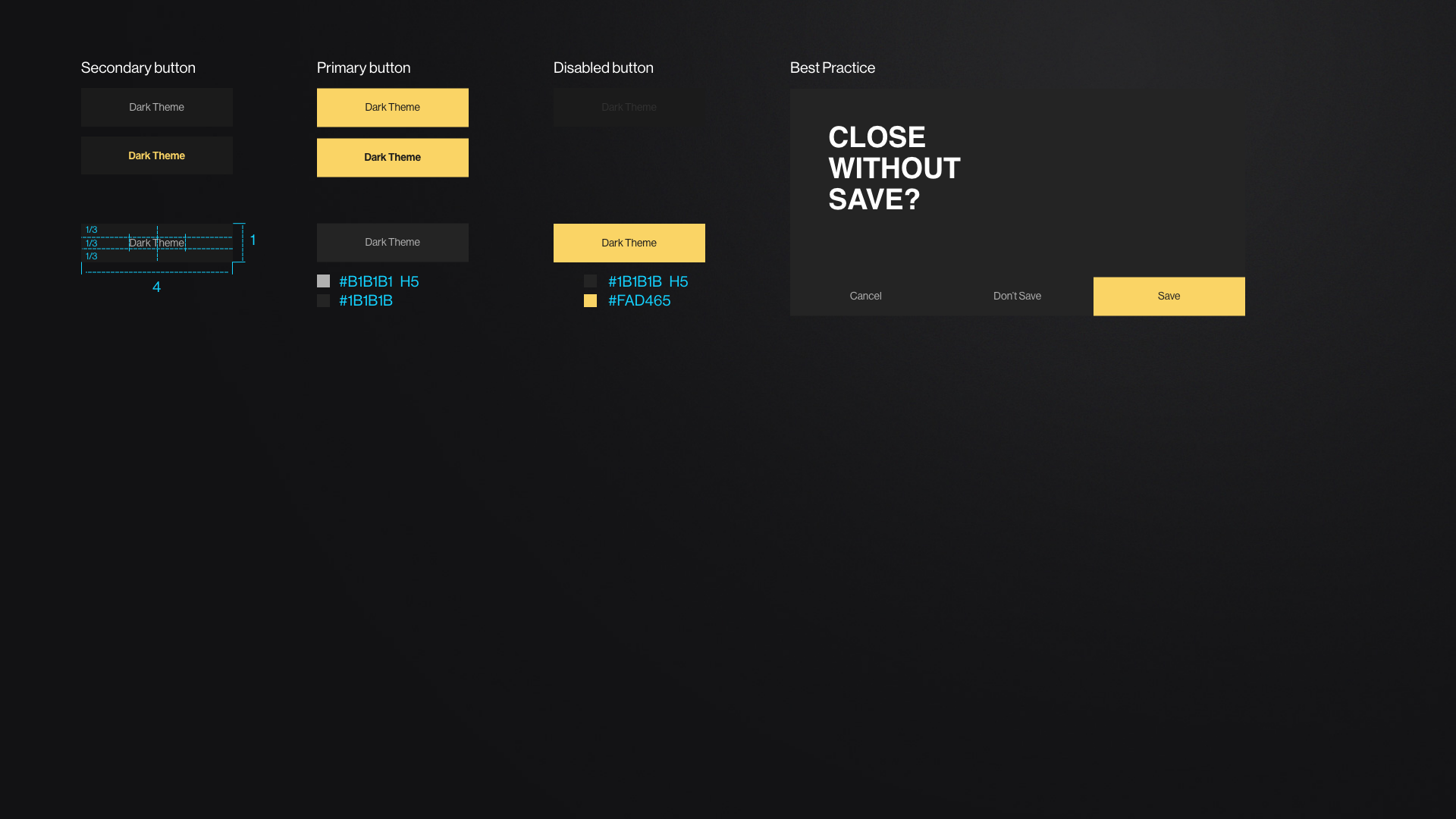
When you look at its place on a layout, you look at the order in which a user flows through the user interface. For example, in a form, the person must read and interact with the form fields before submitting the form. Therefore, the button should usually be placed at the bottom right of the UI container. Preferred actions should be focused. It is possible to place buttons next to each other and on top of each other. Special rules apply in case the buttons are placed on top of each other.
Anchor
Modifiers_Button
Modifiers_Button
Modifiers
Buttons with icons
Icons can replace text and define some buttons e.g. "play" button. Those icons have to be clearly identifiable and must be related to the action that the user is taking.
Image Added
Icon-only buttons
Icon-only buttons are clickable icons, which are e.g. part of a boardlet header or dashboard header. They are not as prominent as real buttons and are more suitable for placing functions inconspicuously. These can be for example: Refresh icon, Settings icon, Filter icon or Close icon. Icon-only buttons have a clickable area which is big as a normal button but this area is not visible.
Image Added
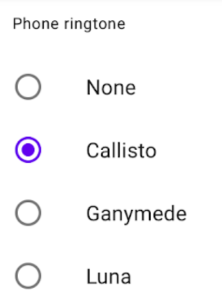
Radio button
Radio buttons are used when only one option from a set of choices may be set and the user should see all choices side by side.
Image Added
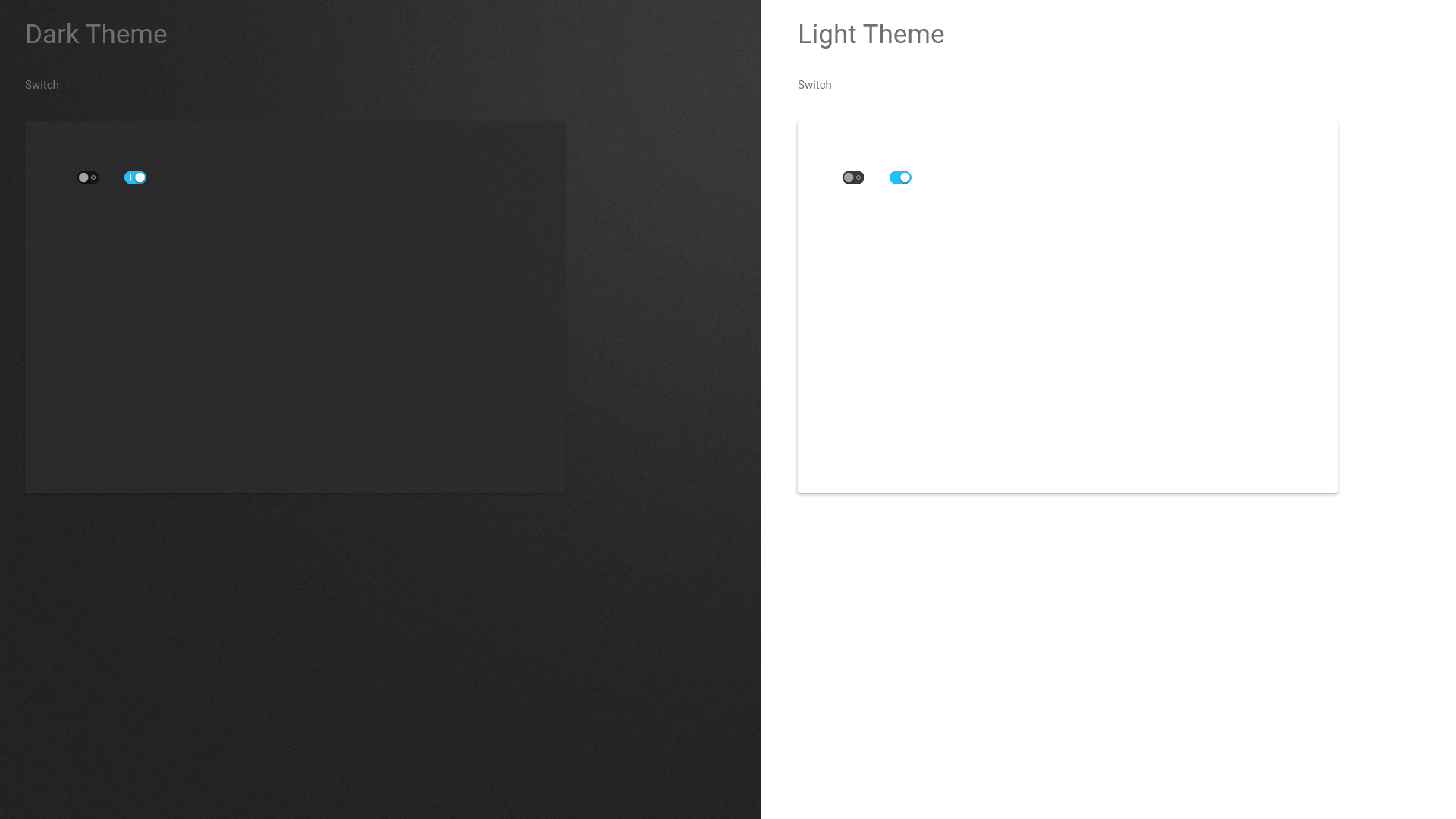
Switch button
A switch is a two-stage switch that can choose between two options. The user can select the selected option by tapping or wiping. In front of the switch there is a label describing what action can be done with the switch.
Image Added
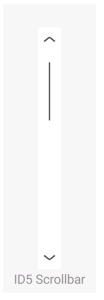
Oliver Prudlikhow is the behavior of ID 5 Scroll Control? The element seems very thin and i'm afraid that user might not see this very well. Do we have a mouseover functionality which shows a thicker line? Will it always be clearly visible and understandable, that there's something to scroll? In Sapient we have scroll bars that are always visible if there's more content below the visible line. Do we want this also in Edgeone?

 9.2.12, themed by Refined