
Page History
...
Toolbar actions are a key part of action placement. They control functions of the content and of the containera container and its content. Actions in toolbars are represented by action icons . When there are or icon-only buttons. If a toolbar contains too many actions, they are grouped into a "more" action with an overflow menu.
Toolbars appear across multiple organisms . They exist in the header, in like headers, boardlets, in ghost boardlets, in cards, in dialogs, and in table rows. Each placement follows specific rules that fit its use case.
...
The header toolbar contains actions that affect effect the entire application or the entire user environment. There is a distinction between primary and secondary actions. Primary actions are always be available, while secondary actions might not be present in some dashboards.
...
Possible actions for the right action toolbar include:
The header toolbar contains actions that affect the entire application or the entire user environment. A distinction exists between primary and secondary actions. Primary actions are always available, while secondary actions may be absent on some dashboards.
Navigation items such as the burger menu or breadcrumbs are placed on the left. More information is available in Navigation. If the inline datepicker is active in the header, it is also placed in the left toolbar at the far-right position.
Possible actions for the right action toolbar include:
| Primary Actions | Secondary Actions |
|---|---|
| Settings | Search |
| Application Name | Notifications |
| Edge.One Wordmark | Home |

This toolbar cannot be edited in the App Composer.
Boardlet Toolbar
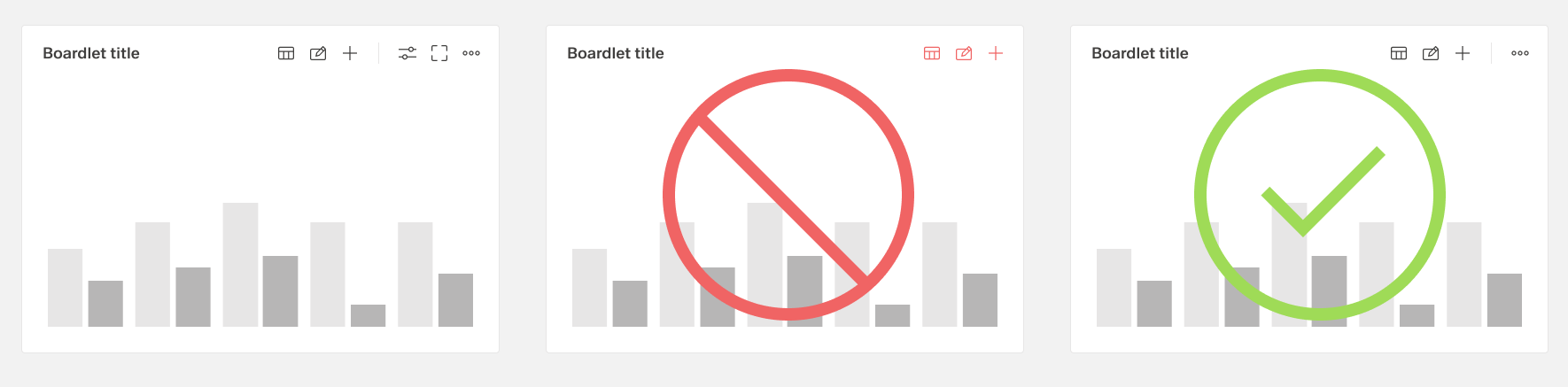
The boardlet toolbar is always on positioned at the top-right side of the boardlet header. It controls actions for the boardlet and its content.
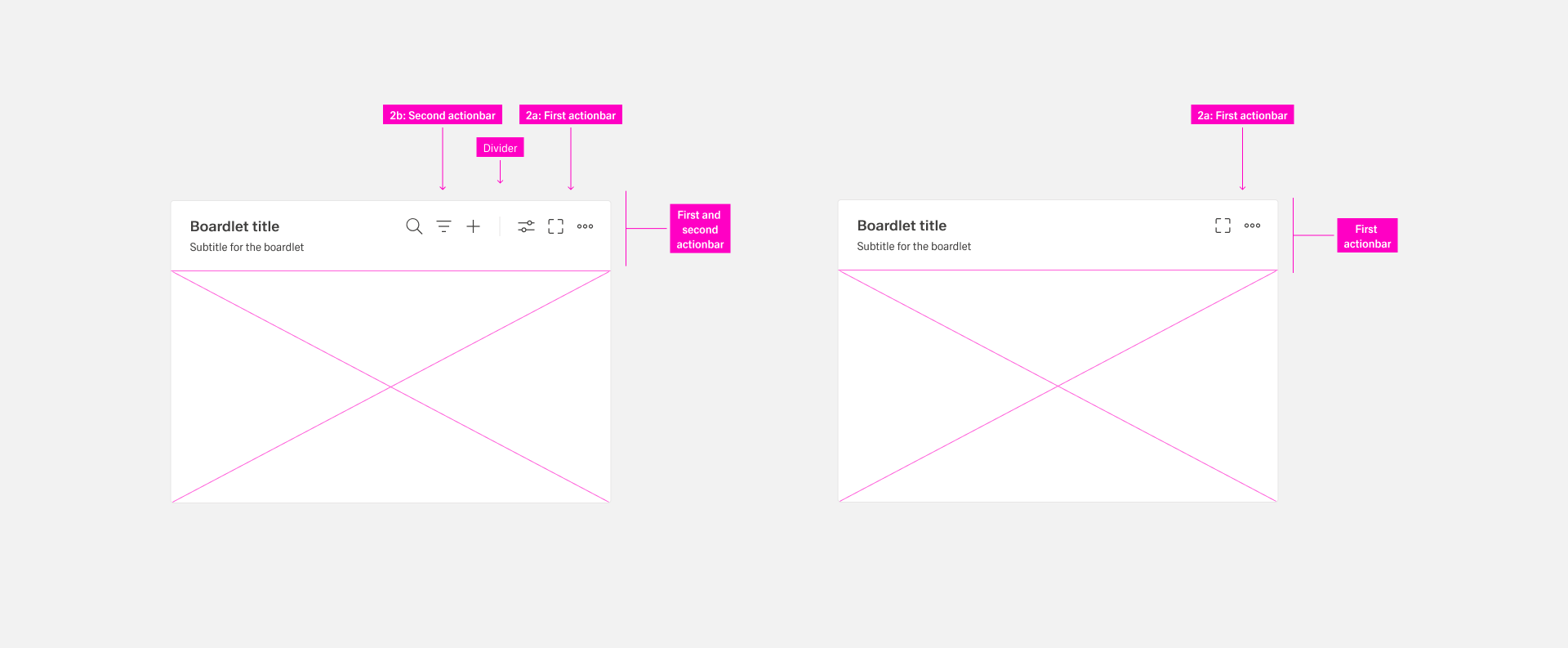
The toolbar can exist in has two variationsparts:
- The first actionbar containing actions that affect to the boardlet
- The second actionbar containing actions that affect to the content
First Actionbar
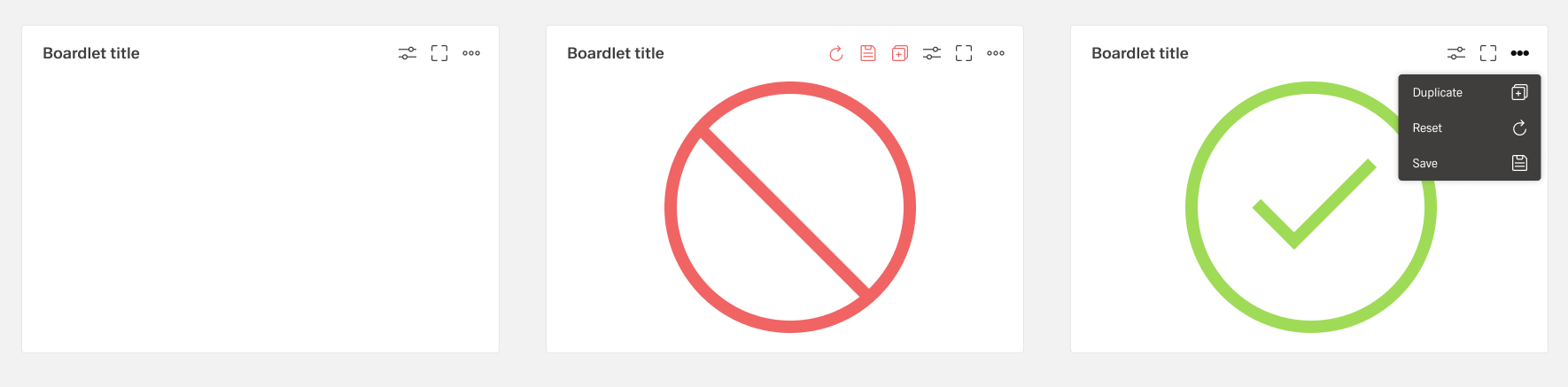
Never place more than three actions per first actionbar. If it is necessary to place more than three actions in the boardlet, they are grouped and can be found under the "more" icon. This is done with the help of an overflow menu.
The actions of the toolbar are divided into primary and secondary. Secondary actions are place inside the overflow menu. The number of secondary actions is not limited. But it is recommended not to place more than 8 actions, because otherwise the overflow menu becomes too long. This can disturb the clarity.
Second Actionbar
The second actionbar is always separated from the first actionbar by a dividing line. The second actionbar contains only actions that can be performed on the content of the boardlet, e.g. filtering and sorting the content, search, adding etc. The second actionbar never be used without the first action bar.
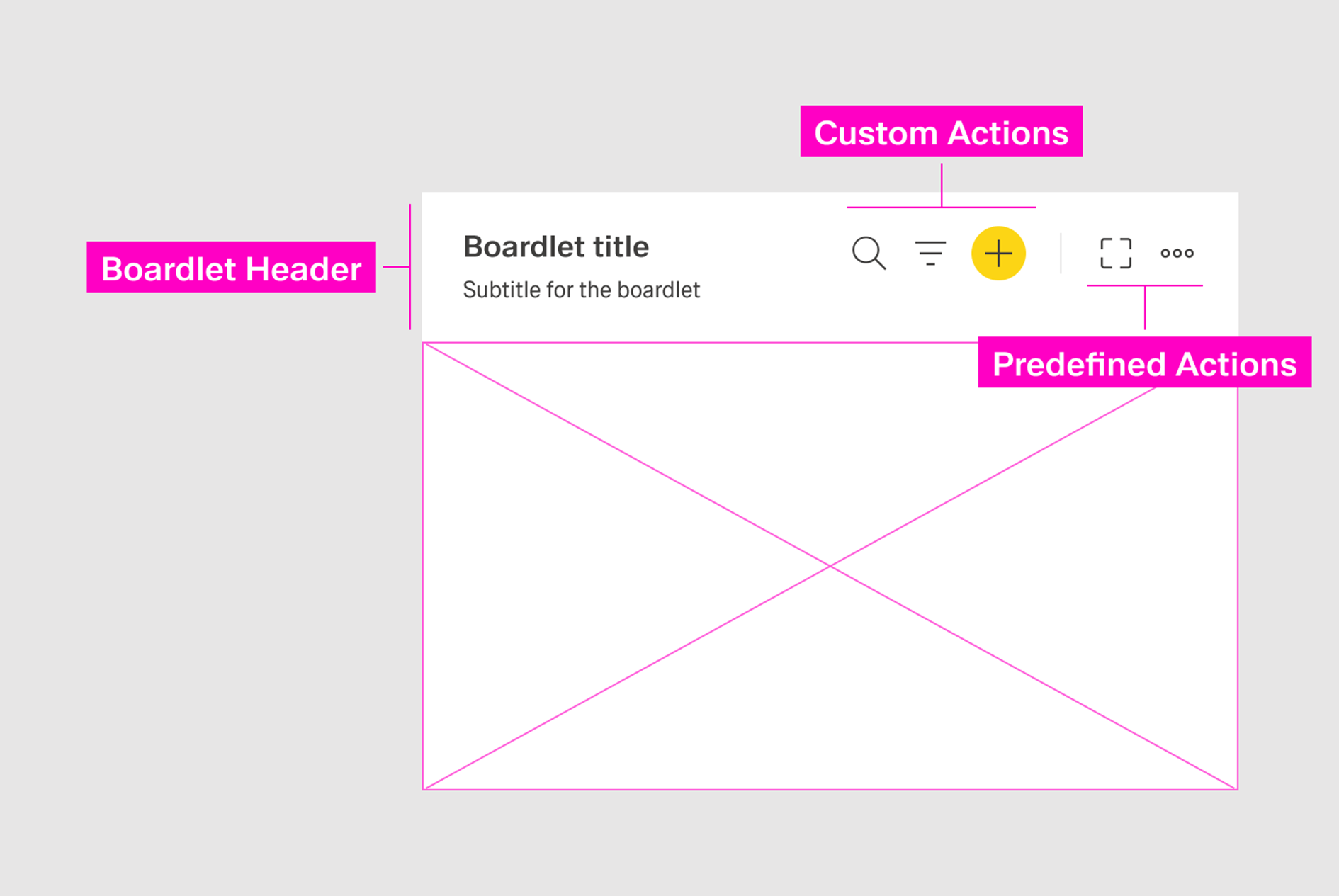
- Predefined actions cannot be edited, but can be activated or deactivated. They are consistent across boardlets.
- Custom actions can be activated or created and can vary between boardlets.
Predefined Actions
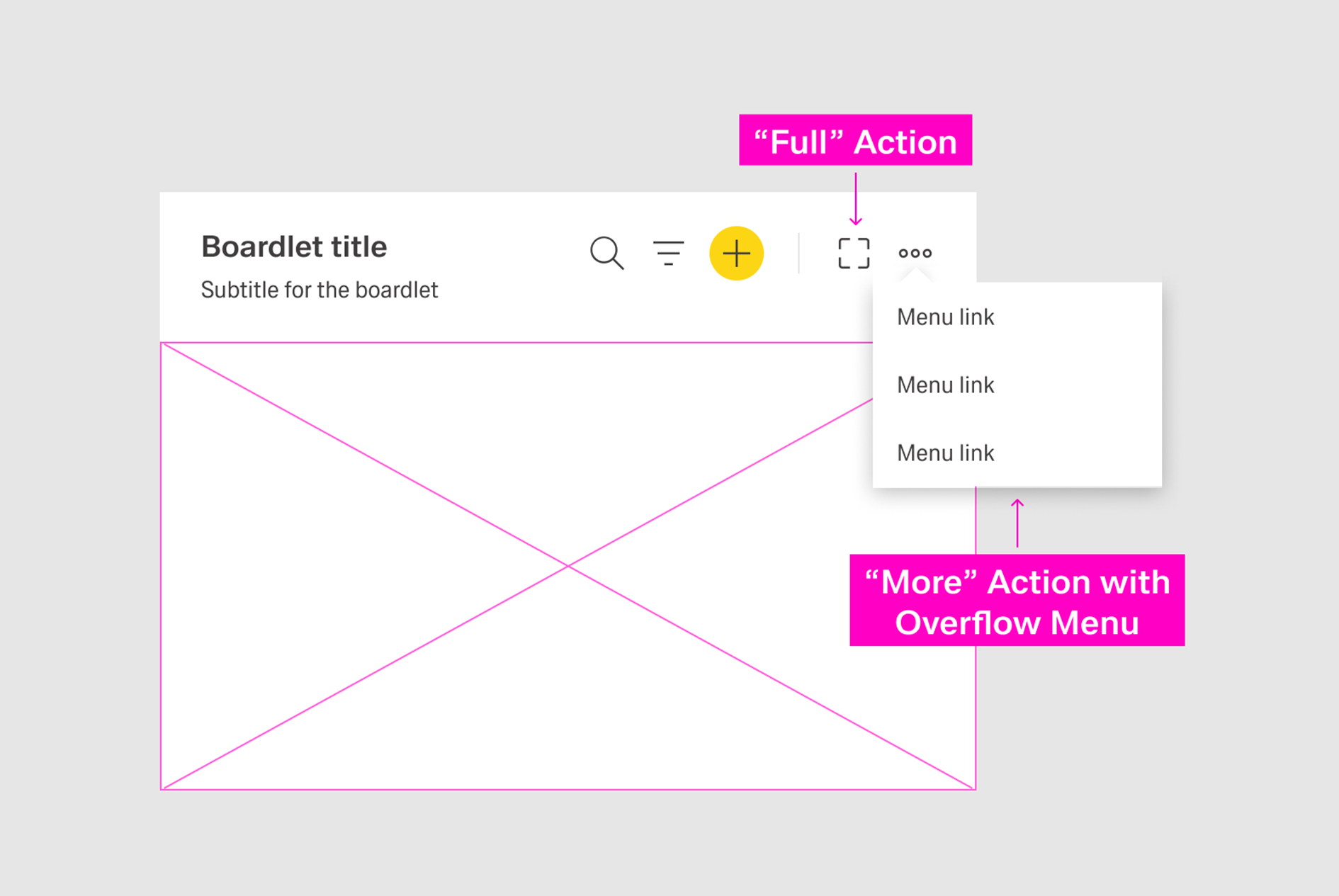
Predefined actions are the two default actions of any boardlet in the App Composer: Full screen and More. Additional predefined actions cannot be created.
Predefined actions can be activated or deactivated within a boardlet. Deactivating a predefined action makes it invisible. Some boardlets may prohibit activation of these actions by default.
A dividing line separates predefined actions from custom actions.
Custom Actions
Custom actions are boardlet-specific and can be activated or created. They appear to the left of predefined actions and are separated by a dividing line.
Custom actions have three states:
- Primary icon-only button.
- Secondary icon-only button.
- Action icon.
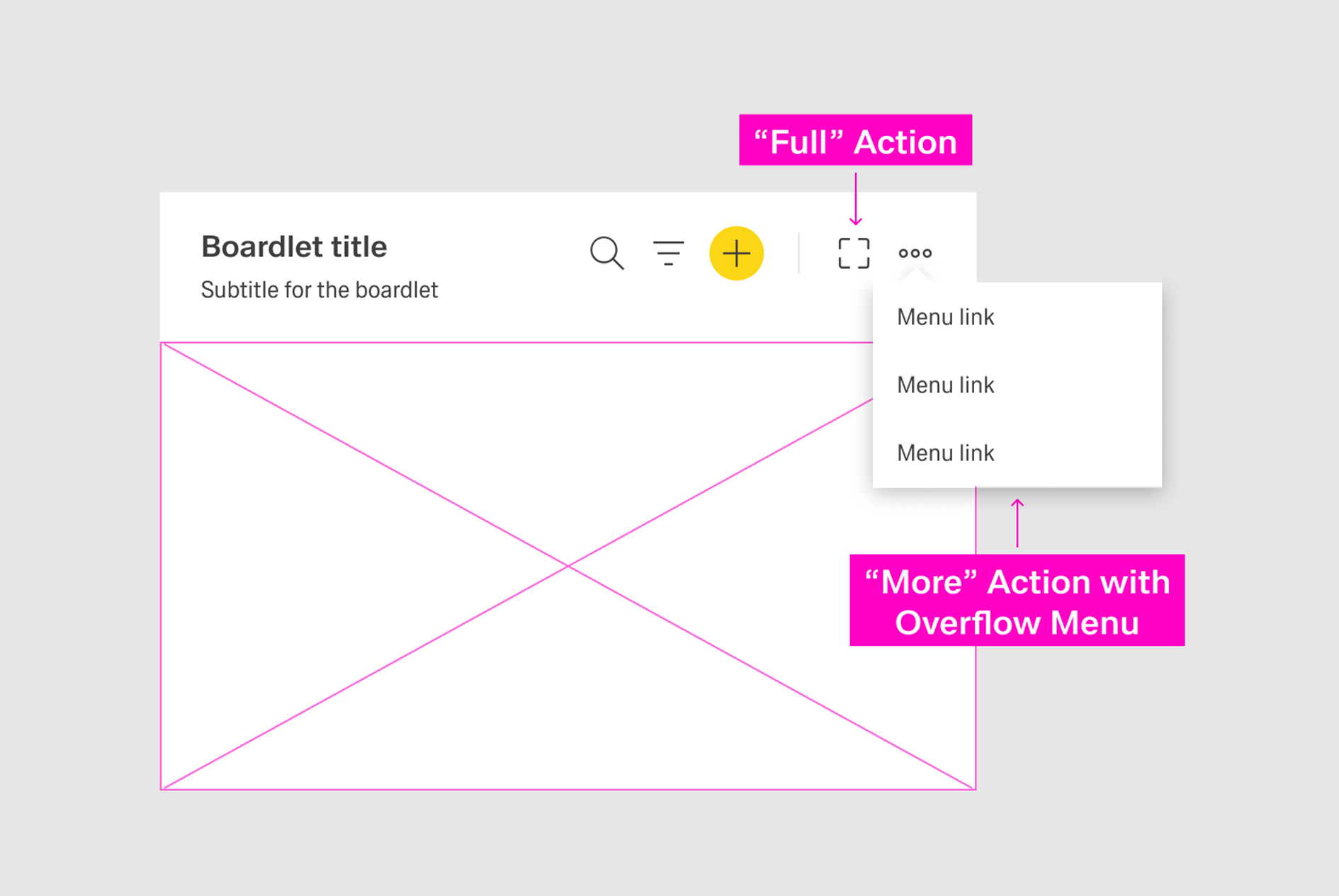
The action icon is the default state. The state can be changed manually to a primary or secondary icon-only button if the action hierarchy of the page requires it.
Icon-only buttons should be placed on the far-right side of the custom action area.
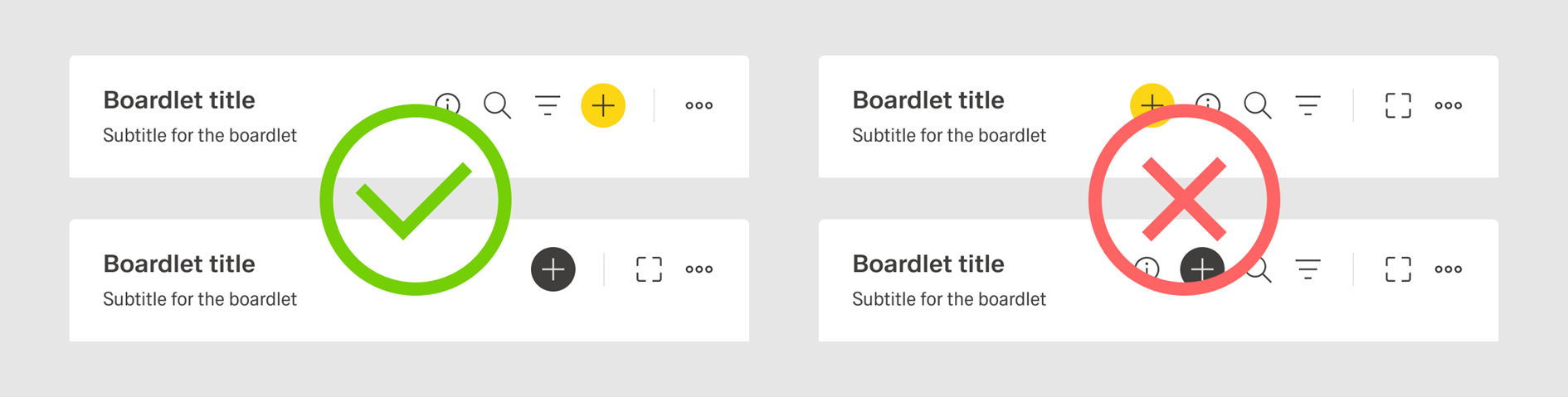
Primary actions should appear to the right of secondary actions. If possible, a single toolbar should avoid multiple buttons.
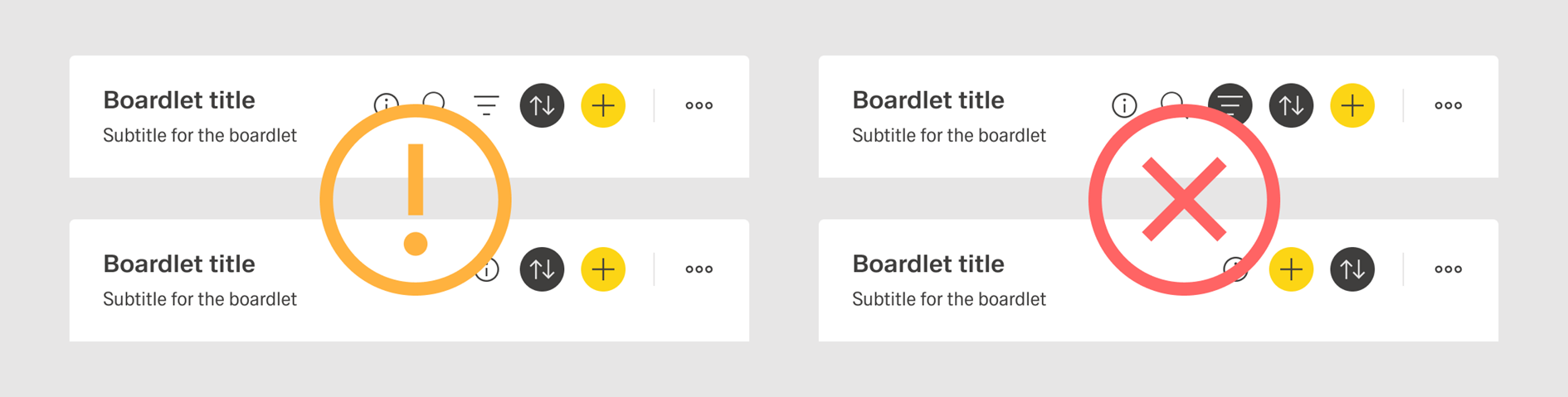
A toolbar should include a maximum of three action icons and a maximum total of four actions. Additional actions should be placed inside the More action.
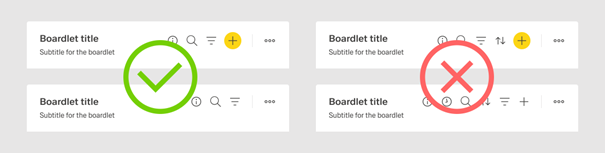
Ghost Boardlet Toolbar
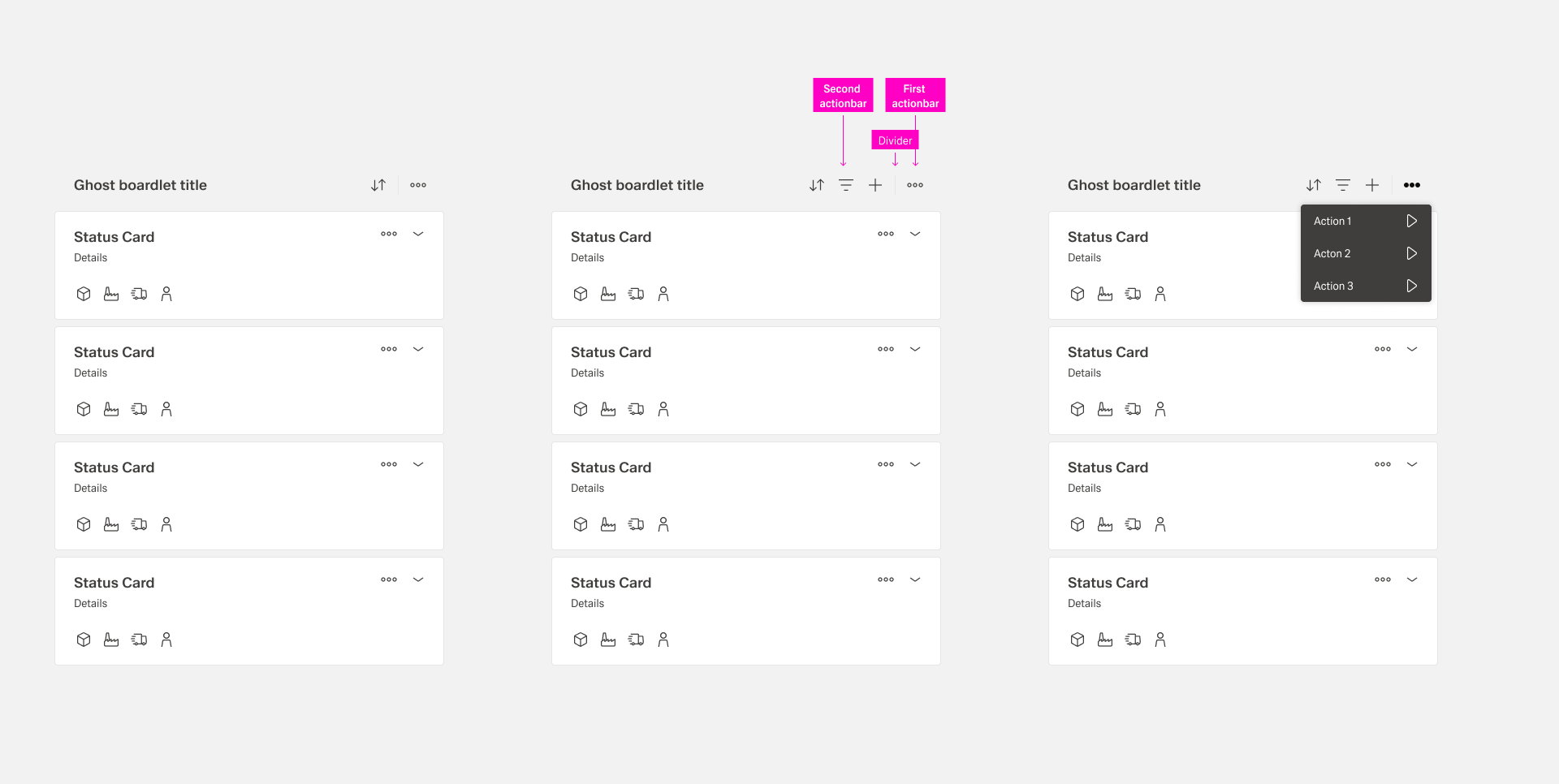
The ghost boardlet toolbar follows the boardlet rules . Alignment for alignment and grouping are the same. The only difference is the first actionbar, which contains the predefined actions: the ghost boardlet includes only the more More action with a dropdown menu.
Card Toolbar
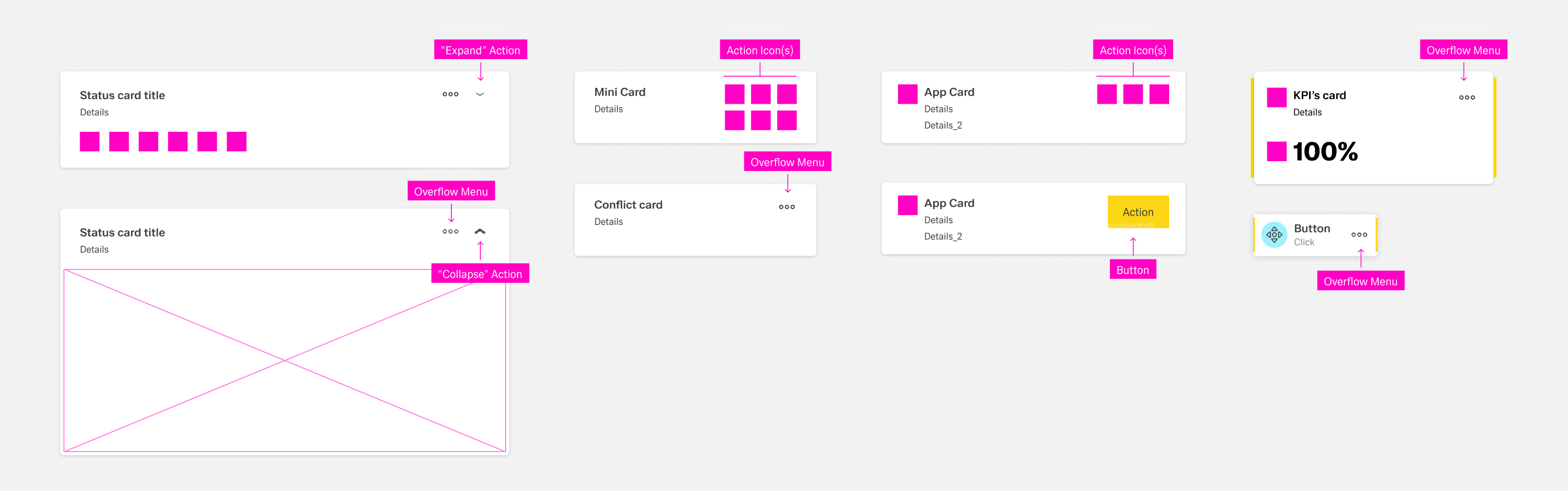
The Action placement and rules of actions inside within cards depend on the tye type of card:
| Type | Action Placement |
|---|---|
| Interactive Card (Collapsed) | The "More" and "Expand/Collapse" actions are placed in the top right. Further Additional actions might may be placed on at the bottom left. |
| Interactive Card (Expanded) | Only two actions are allowed: "More" and "Expand/Collapse", placed in the top right corner. |
| Mini Card | Up to six actions action icons, arranged in two roes rows of three, can be placed at on the right side of the card. |
| App Card | Up to three action icons ore or one action button can be placed at the top - right side. |
| Conflict Card | The only allowed action is "More"Only More is allowed, placed in the top - right corner. |
| KPI Card | The only allowed action is "More"Only More is allowed, placed in the top - right corner. |
| Action Chain Card | The only allowed action is "More"Only More is allowed, placed in the center-right corner. |
Dialog Toolbar
The Dialog Toolbar, as As a child of the Boardlet Toolbar, follows its rules. However, the variant "boardlet toolbar, the dialog toolbar follows the same rules. The Dialog with Sidebar" variant is an exception.
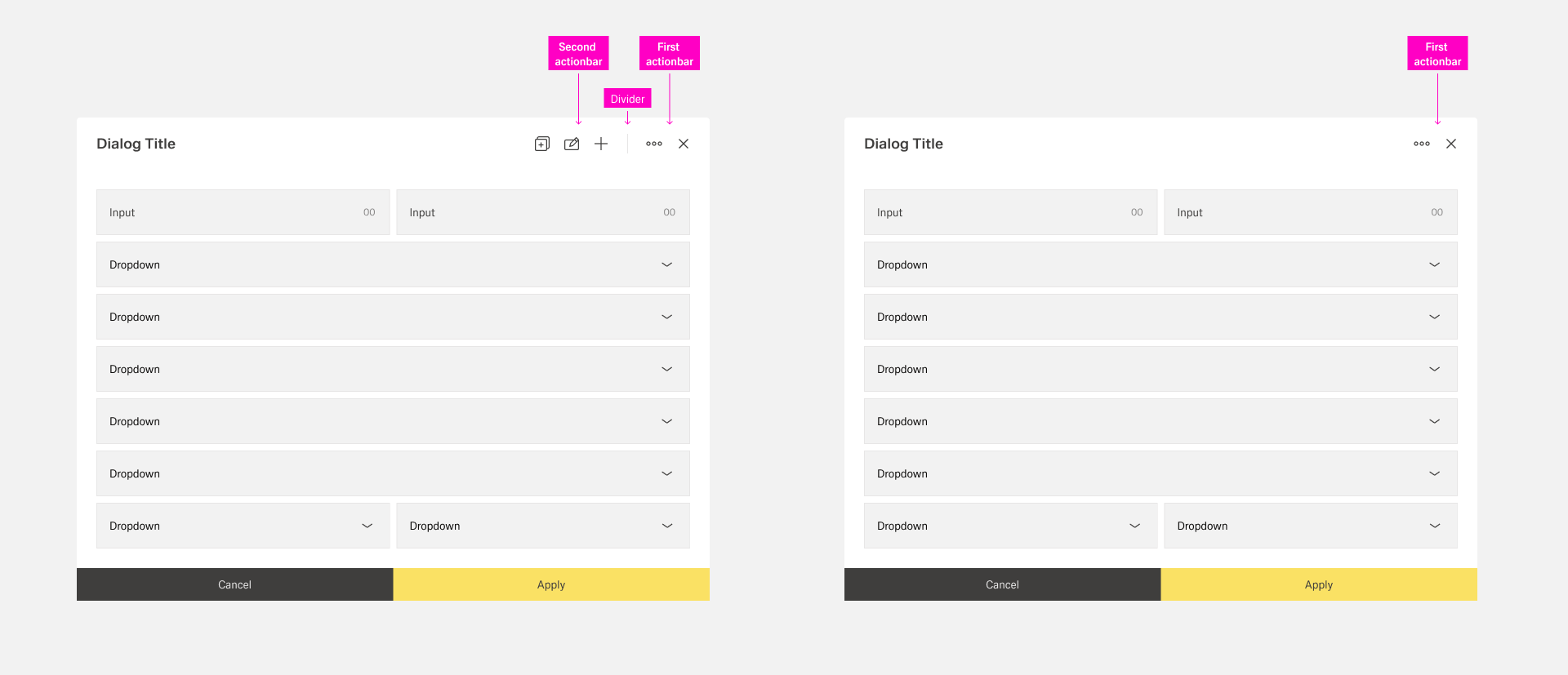
In case If a dialog has includes a sidebar, the first actionbar predefined actions must be placed in the outer right area of the sidebar. This ensures that makes the user notices the difference between dialog-level functions and content-level functions more noticeable.
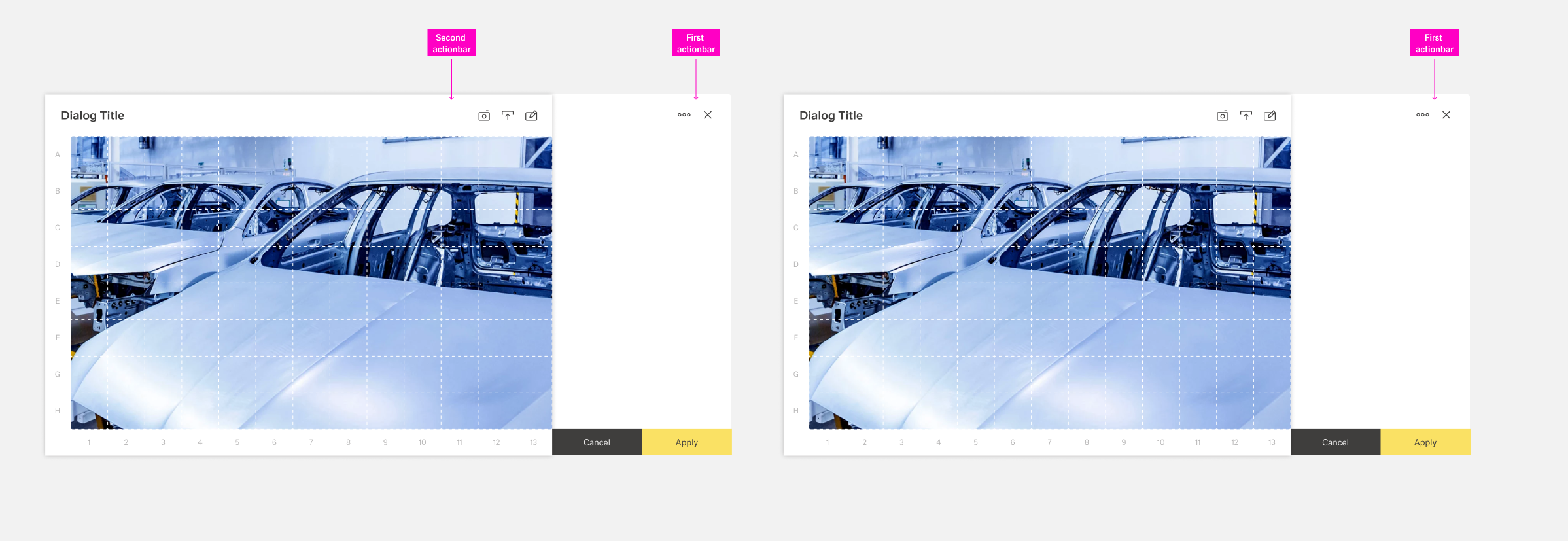
Table Row Toolbars
Actions affection a specific row of a table are placed inside a table row toolbar in the form of action icons. The toolbar is a seperat column inside the table with the title "Actions" and located at the far right side.
There are two predefined action: updating and deleting. Additional actions can be placed in the toolbar or a "more" action inside the toolbar. Custom actions inside the toolbar are placed to the right of predefined actions. They have a custom action icon, a label custom visibility and custom activation.
To enhance clarity, there should never be more than 5 items inside the action toolbar. If more actions are needed, they should be placed inside the overflow menu of the more action.
Best Practices
Placement and Alignment
Toolbars are generally right-aligned at the right , with the most important actions being placed at the faremost right. If an organism has an overflow menu, it is placed at the farmost far right.
Every toolbar action, beside except the application ame name and the Edge.One wordmark in the header toolbar, is represented by an action icon . All actions have or an icon-only button. Each action has a title that is shown in a tooltip when users on hover the icon.
Using an Overflow Menu
Keep the number of visible actions small to preserve clarity. A custom toolbar should not include more than four custom actions, with no more than three action icons.
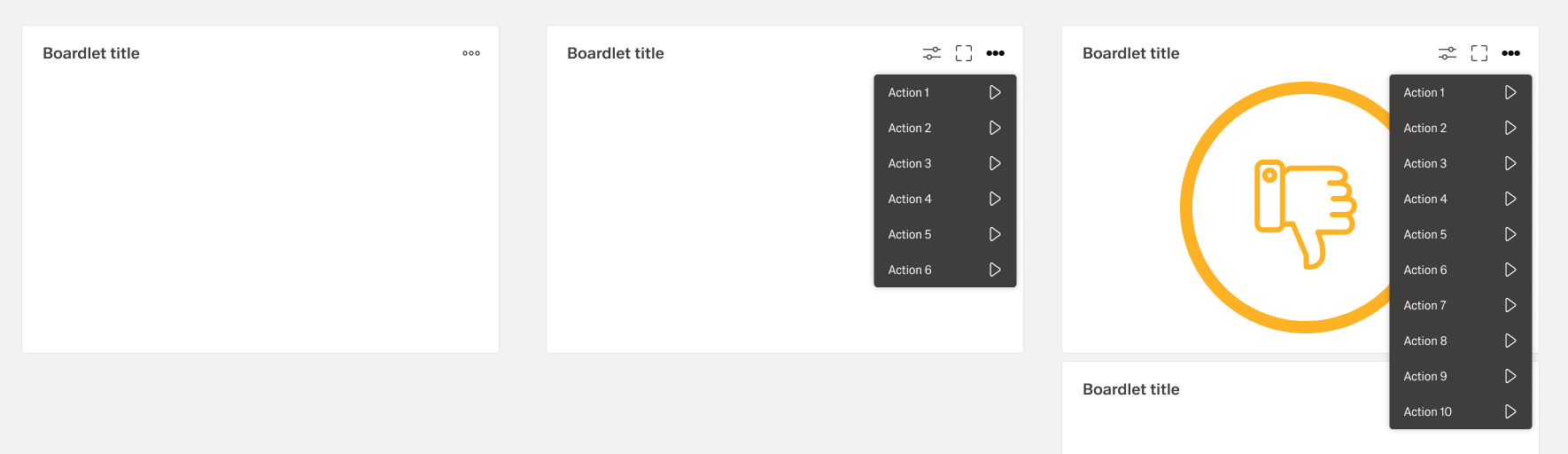
If an organism has a great number of includes many actions, less secondary important actions are should be placed inside in an overflow menu with using the "more" More icon. Avoid more than eight secondary actions in a single overflow menu to maintain clarity.
Extension of Action Hierarchy
Primary Actions
A page should not include more than one primary action. If the primary action is placed in a toolbar, no other button on the dashboard should be primary. If another button on the dashboard is already primary, no action in the toolbar should be primary.
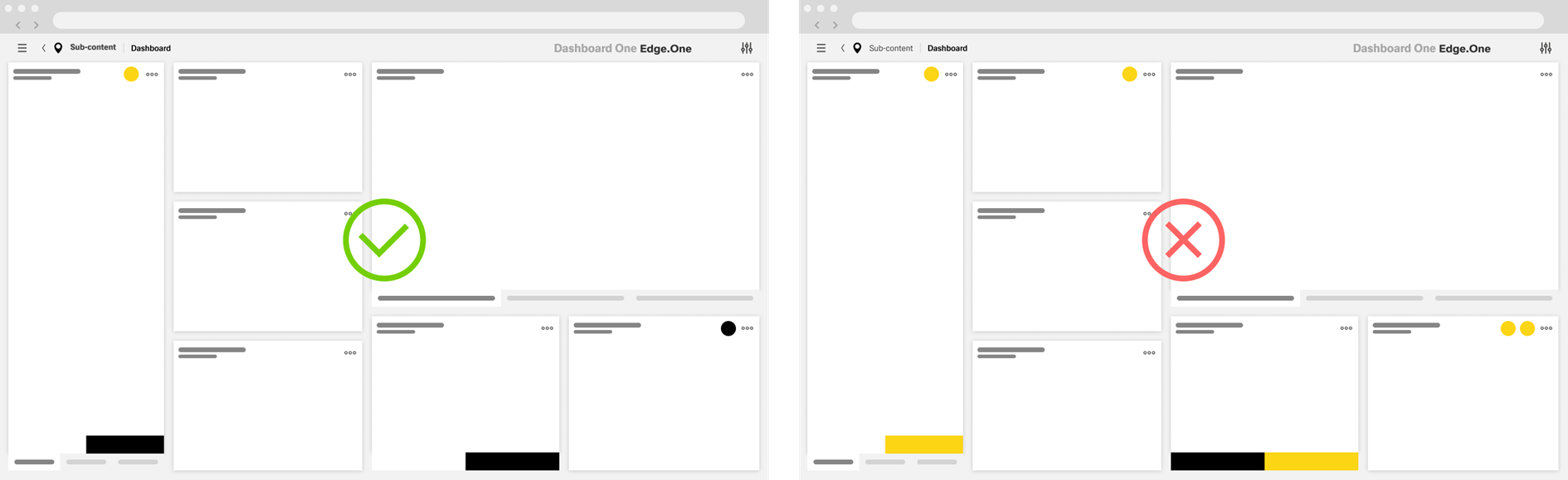
The primary action of a page should drive the user forward in the current user flow. For more information, consult action placement.
Secondary Actions
Reserve secondary actions for secondary user flows on the current dashboard. If unsure, set the action to tertiary rather than secondary.

A toolbar can include only one secondary icon-only button.
Ghost Actions
Reduce visible actions to the most important to avoid overwhelming the user with choices. Less important or less common actions should be placed inside the More action.
If an action is difficult to represent with an icon, placing it in the More menu can help, since the action can be described in text there.
