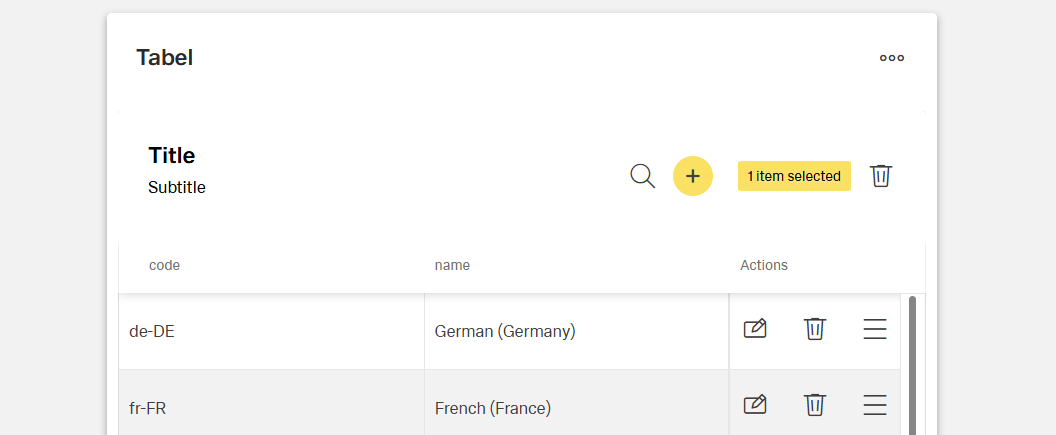
Common actions frequently appear across different components and workflows. For platform consistency, these actions should only be applied in the ways described below.
This actions adds a new object to a list, set, or system. The most common accurance for this actions are tables and card collections.
Depending on the importance of the add action on the page, the emphasis can be high, medium, or low. In case of a high importance, the add action presents as an icon-only button in the toolbar of the component. If the add action has lower priority, it may be placed in an overflow menu.
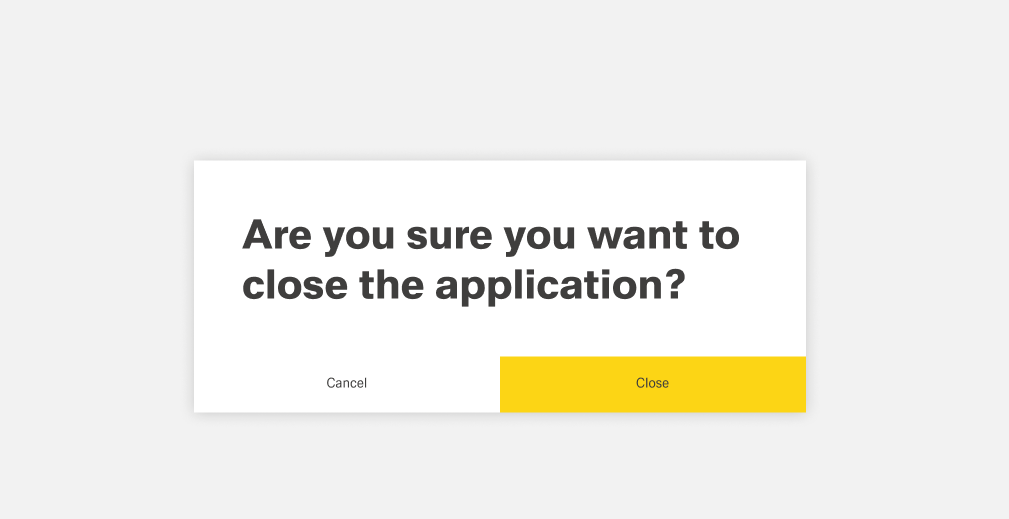
Cancel stops the current action and closes the component or item. Warn the user of any negative consequences if the process doesn't progress, such as data corruption or data loss.
The cancel action is usually placed inside the footerbar. Use a secondary button or a link for cancel actions.
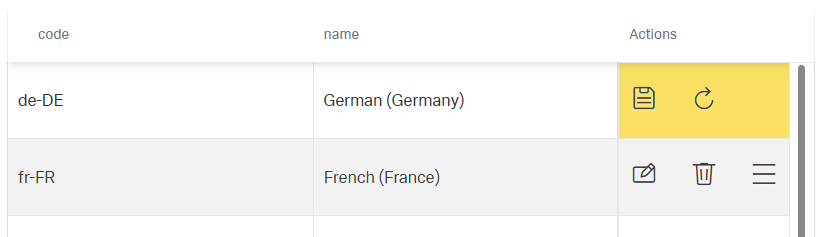
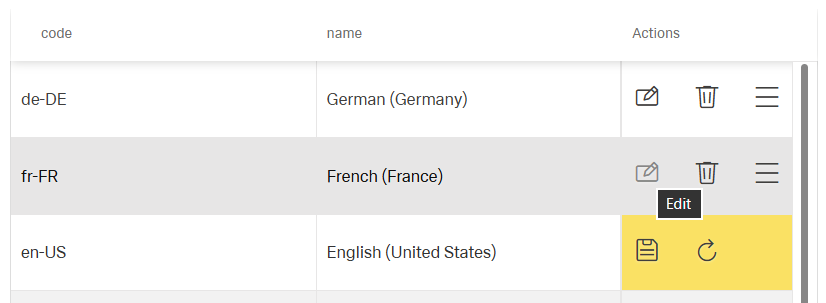
When not in form of a button, avoid using only an action icon for this action. One exception to that rule is the table component. When editing the table, the user can cancel the changes with an action icon.
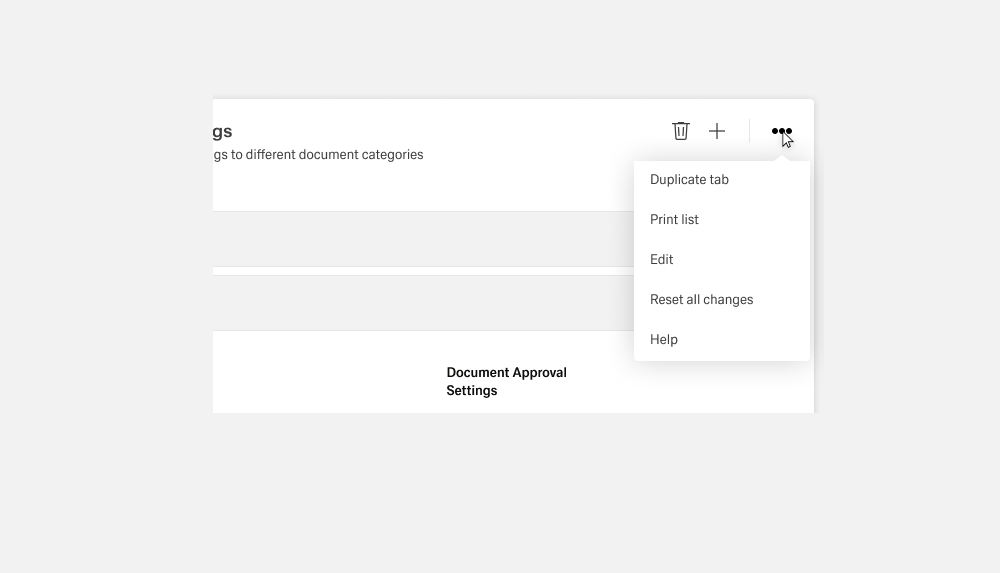
The more action contains secondary functions for the content displayed within the asset. It can also be used as a grouping object of primary and secondary functions in case of a lack of space. One example for this would be the ghost boardlet toolbar.
While the more actions act as a primary action, it only ever contains secondary actions. It only exists in the form of an action icon with the form of three dots. The functions or objects bundled in the more action must always be listed in an overflow menu.
The clear action removes data from a field or removes selections. Clear can also delete the contents of a document, such as a log. For controls that have a default selection or value, such as radio buttons, the default selection or value is reset.
Use only as a clear icon or placed in an overflow menu.
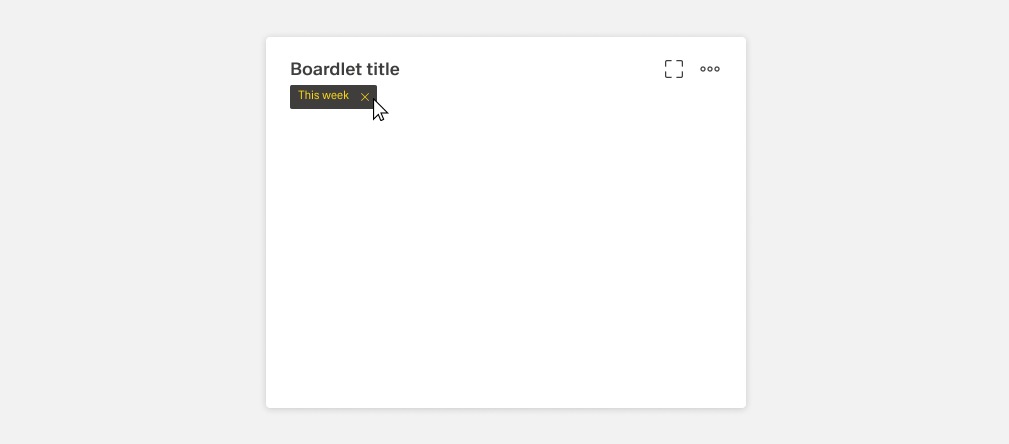
Close terminates the current page, window, or menu. It is also used to dismiss information, such as notifications.
Use the close icon, which is typically placed on the upper right side of the element. Do not use close in a button.
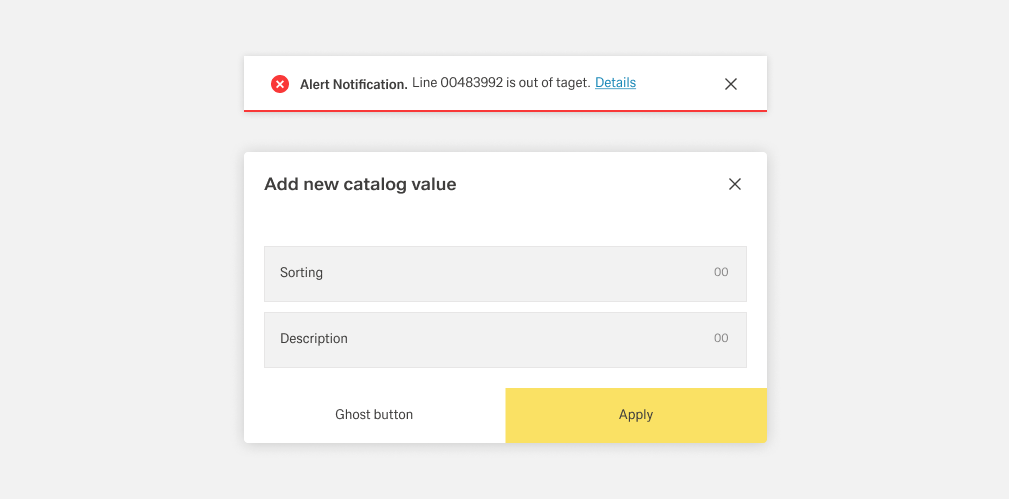
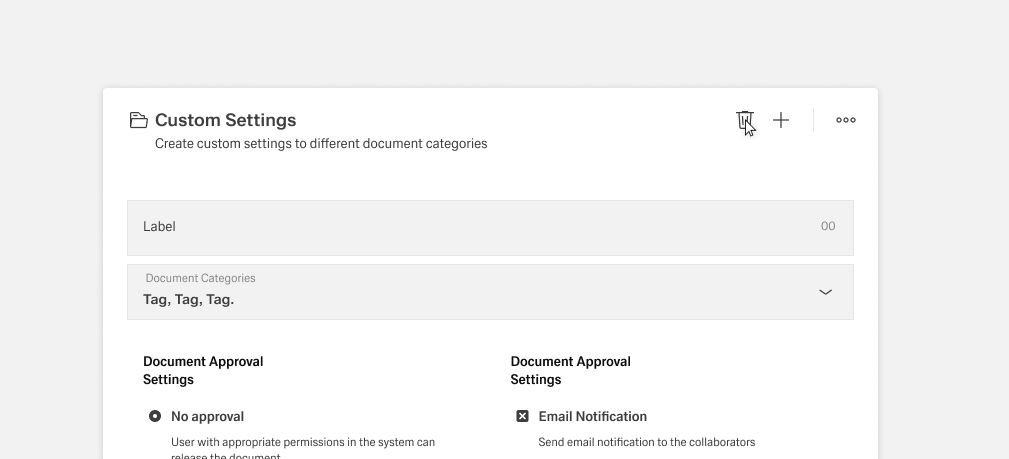
Deletion destroys an object. Deletions cannot be easily undone and are usually permanent. Warn the user about the negative consequences of destroying an object, such as data loss.
Use either a primary delete button or the trash can icon. A hazard modal is used when a warning is required to confirm an action.
With Edit, data or values can be changed. Editing usually triggers a change of state of the object or input element concerned.
In the current version, this action is exclusive to the table component. Editing is activated for an entire record/table. After editing, the user must save or cancel the changes.
Use only in the form of the edit icon or inside an overflow menu.
This action removes an object from a list or item. Remove is distinct from delete, as a removed item is not destroyed. Multiple objects can be removed at once. It is important that the user is always informed about the removal of the object within the list. Some situations also require the use of a danger modal.
This action is only used with a remove icon or inside an overflow menu.
The save action confirms an input or change of a process inside the application. This can lead to a change in data. There might also be requirements that the new or changed input needs to adhere to, like a required input field. Warn the user if critical information will be changed with this action.
Save is a primary action and usually part of footerbar actions. It can also appear in the form of the save icon.