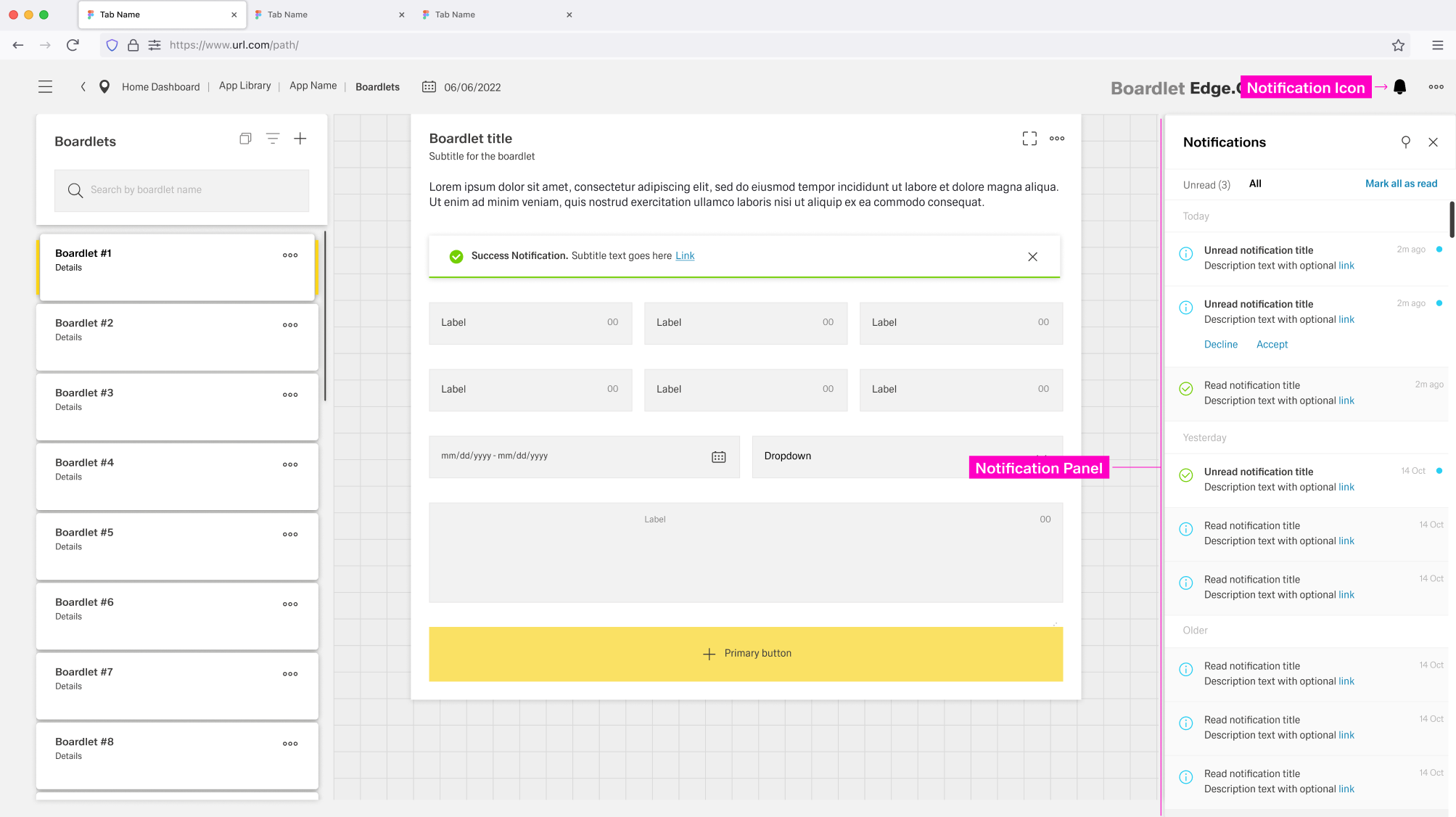
Notifications within Inspire Design have four major elements:
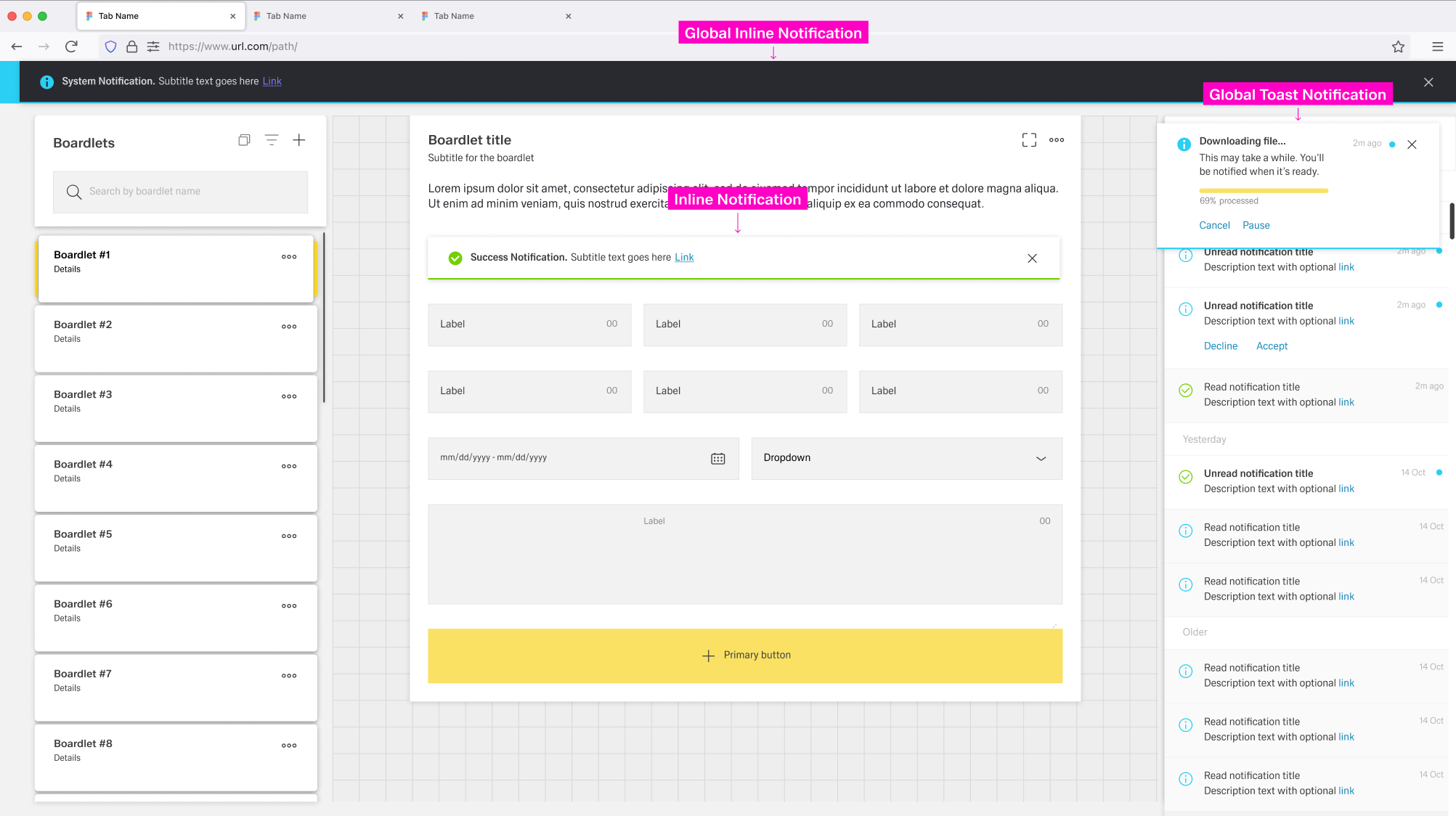
Global Notifications are independant of any dashboard and appear across the entrire application. The Notification Icon, Notification Panel and Global Notifications build a global notification flow that activates when a user receives a global notification.
Local Notifications are tied to the dashboard, and sometimes boardlet, they appere in. They are not connected to the global notification flow and vanish when the user leaves the dashboard.
The apperance of notification elements may vary between different types of notifications.
Inspire Design differentiates between the following types of notifications:

The Notification Icon is part of the header toolbar at the right side of the dashboard header. It is always present independent of the current dashboard. The icon is located at the far right, only left to the overflow menu, if one is present.
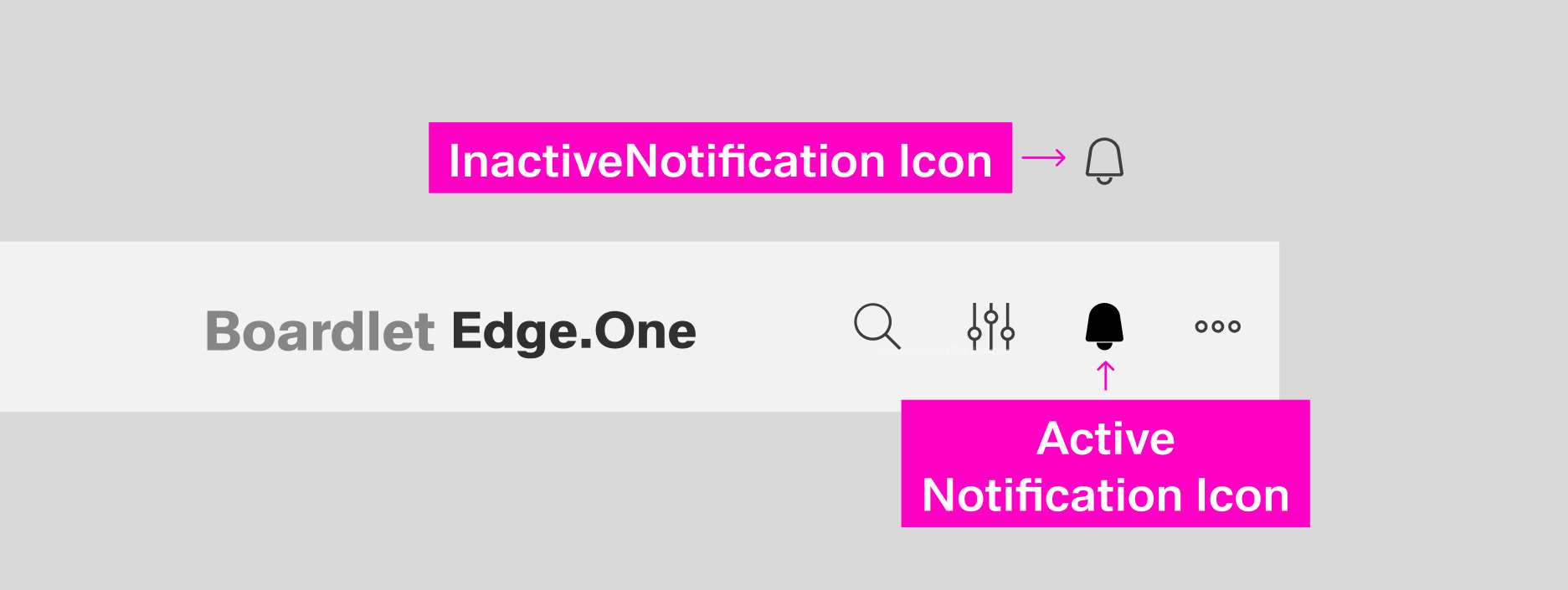
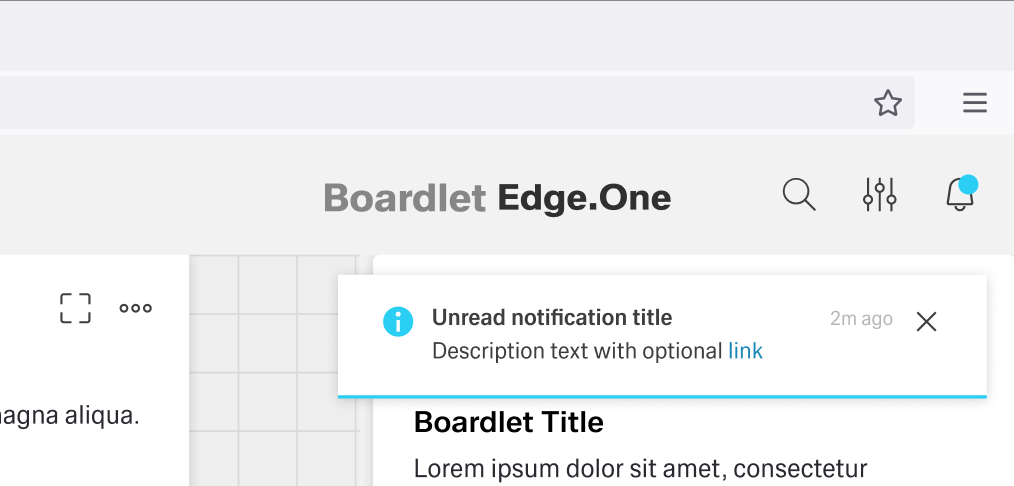
When a new and unread notification appears, the notification icon gains a small blue indicator at the top-right. The indicator disappears when the user has no unread notifications or opens the notification panel.
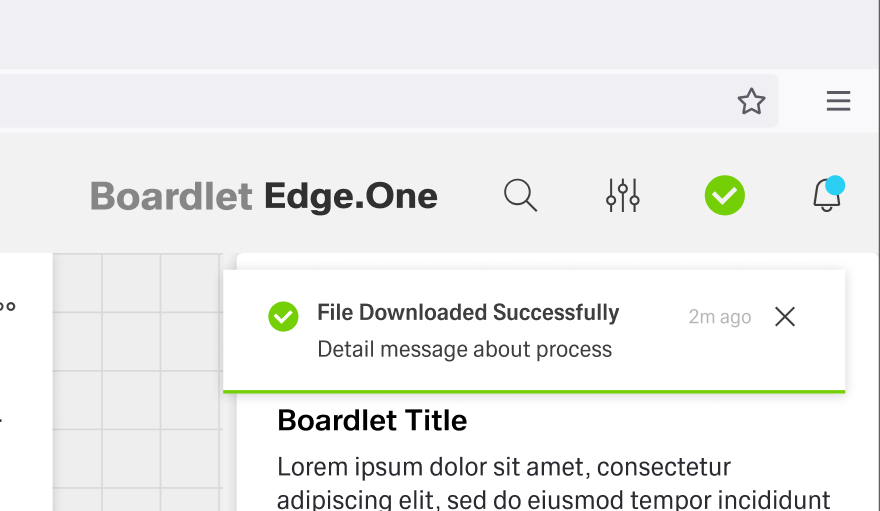
If the notification is an error, warning or success notification, a special secondary icon appears to the left of the notification icon inside the header. This icon matches the type of notification in appearance and vanishes when the user interacts with the notification.
A progress notification adds a progress indicator to the left of the notification icon. It is circular and actively shows the progress instead of being a static icon.

Users can open the Notification Panel by clicking the notification icon in the header or on a global notification. It opens on the right side of the dashboard and has a fixed width.
The notification panel can be closed by clicking the close action in the toolbar or by clicking outside the panel. Users can anchor the panel like the navigation panel. An anchored panel can only be closed by clicking the close action.
The notification panel has two tabs: unread and all.
[IMAGE PLACEHOLDER: Notification Panel]
Unread notifications have a small blue status indicator at the top-right and a bold title. By clicking the status indicator, users can set a notification as read. Read notifications are greyed out and have a non-bold title. Both tabs have an action to set all notifications as "read" to the left of the content switch.
Notifications are ordered and grouped by their date of appearance, regardless of the active tab.
The Toast Notification appears in the top-right corner and visually floats above the dashboard.
Only one toast notification can be visible at a time.
The color of the toast notification depends on the type of notification it contains. The general layout stays the same between notifications, with the progress notification as the only exception. Progress notifications include a progress bar under the description.
[IMAGE PLACEHOLDER: Labeled anatomy notification without progress]
[IMAGE PLACEHOLDER: Labeled anatomy notification with progress]
tba
This flow starts with a static toast notification. The user can interact with the notification by clicking the close action or the notification itself. If the user does not interact with the notification, it disappears after a set duration.
By clicking the close action, the notification closes and [tba].
By clicking the notification itself, it opens the [tba].
This flow starts with a progress toast notification. The progress is displayed in the header to the left of the notification icon and in the toast notification. During the process, the user may be able to cancel or stop the process using actions inside the toast notification.
If the notification is successful, it turns into a static success notification on completion. If an error occurs during the process, the notification turns into an error notification.
The user can interact with the success or error notification, for example by clicking it and turning it into a read notification.