Overview
A form is a group of related input controls that allows users to provide data or configure options. Forms can be simple or complex, and may be presented as dedicated pages, side panels, or dialogs depending on the use case and the situation.
When to use
Respect the user
Forms are incredibly common in user interfaces and their design and usage continues to evolve as input methods get smarter and more and more people use mobile and tablet devices. You might design a form for a user to:
- Sign up for / log into an account
- Register for a service
- Reconfigure settings, (e.g. enabling notifications)
- Take a survey
- Purchase a product
- Provide feedback
Forms are meant to gather information and guide people with as little fuss as possible. To allow users to scan and complete the form quickly, forms should:
- Respect the user’s GDPR and other privacy regulations by only asking for information that is absolutely necessary.
- Group related tasks under section titles to provide more context and make the interface easier to scan.
- Follow a logical, predictable order—e.g first name first, last name second.
- Allow users to stay with a single interaction method for as long as possible (i.e. do not make users shift from keyboard to mouse numerous times in a single form).
- When designing be mindful of password managers and browser capabilities that populate data for users.
- Progressively disclose additional inputs only as they become relevant; see the Designing for longer forms section below.
Anatomy of a form
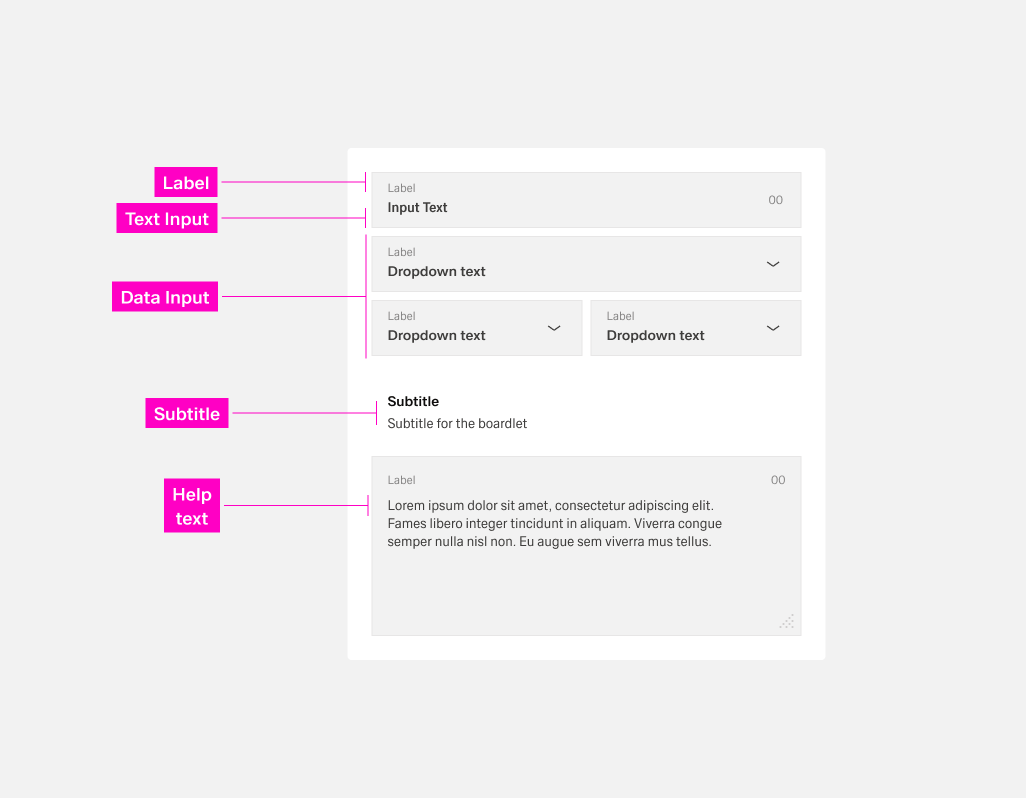
- Labels: Input labels helps users understand what the corresponding inputs mean.
- Text inputs: Enable users to input free-form text.
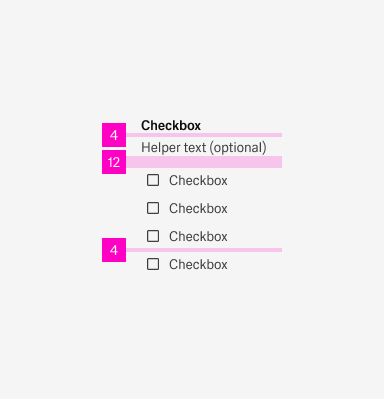
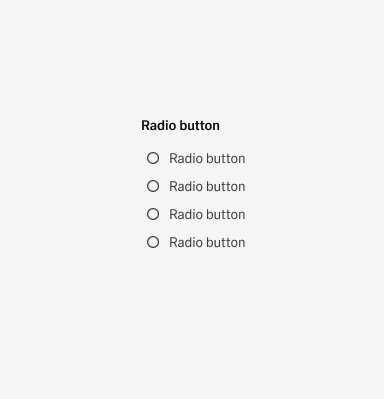
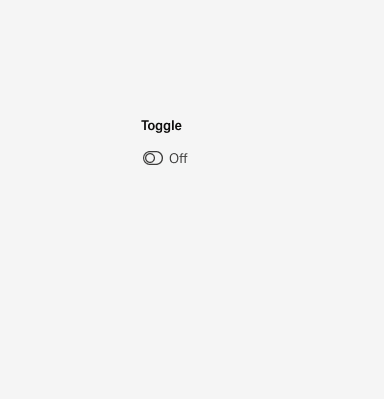
- Data inputs: Information can be entered through a variety of non-free form input fields as well, (e.g. checkboxes, radio buttons, dropdowns and selects, file uploader, date pickers, toggles, etc.) Visit the individual component pages for in depth details of their specific states and visuals.
- Help: Provides in-context guidance like tooltips, placeholder text, or helper text, to assist the user in providing the right information.
Alignment of a form
Building a form
Labels
Concise labels for text and data inputs help users understand what information is being requested of them.
- Use sentence-style capitalization for all text elements, except for product names and proper nouns. Sentence-style means only the first word of each sentence is capitalized.
- Although they may be formatted differently, all input components need labels.
- Labels should clearly state the required input.
- Do not use colons after label names.
- Labels are not helper text; be succinct. Use one to two words only.
Inputs and other fields
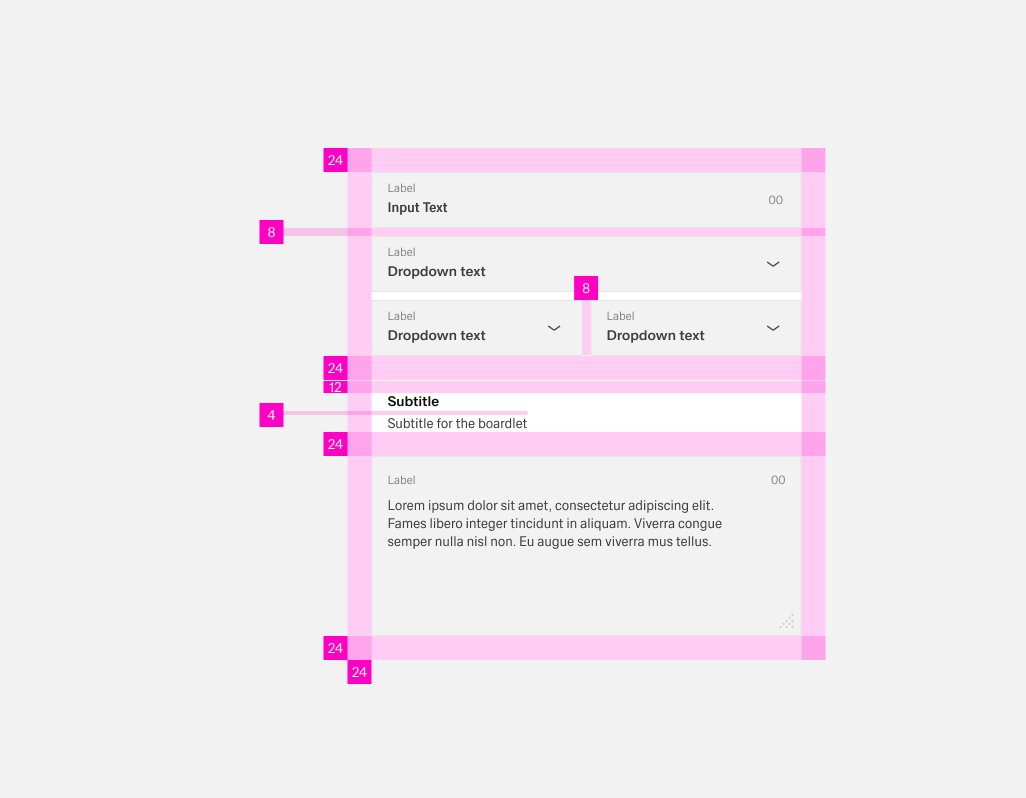
Forms have a circumferential spacing of 24px. If inputs, datafields etc. are arranged directly next to each other, they always have a spacing of 8px.
Sublines
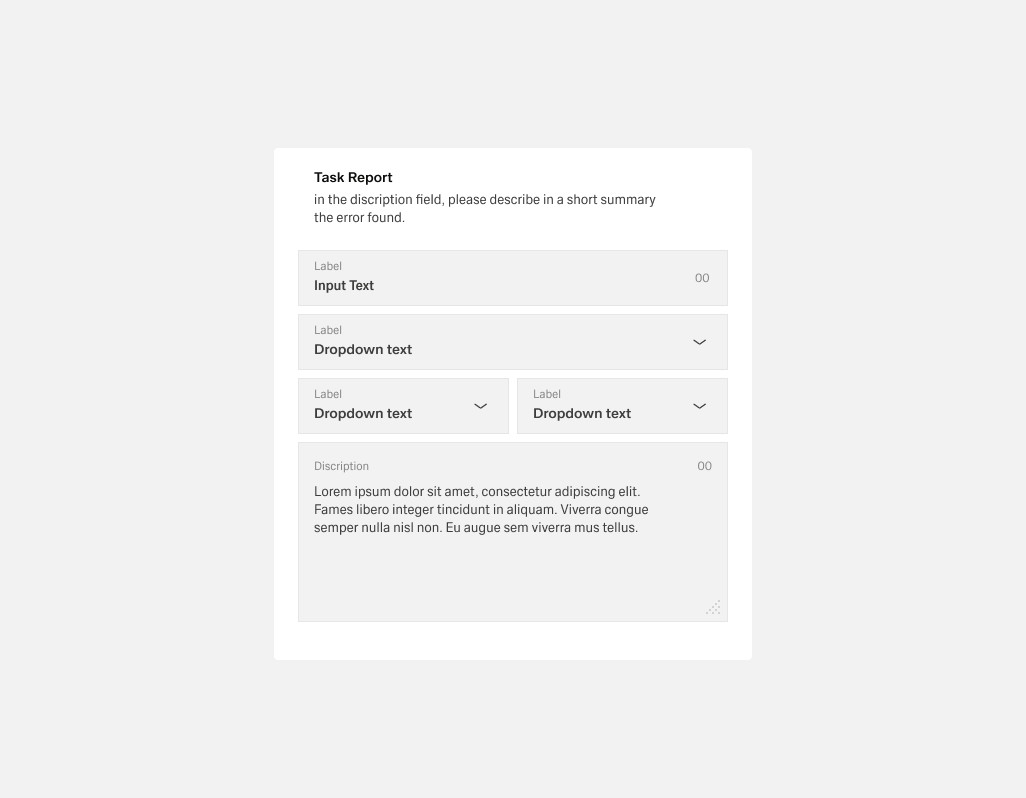
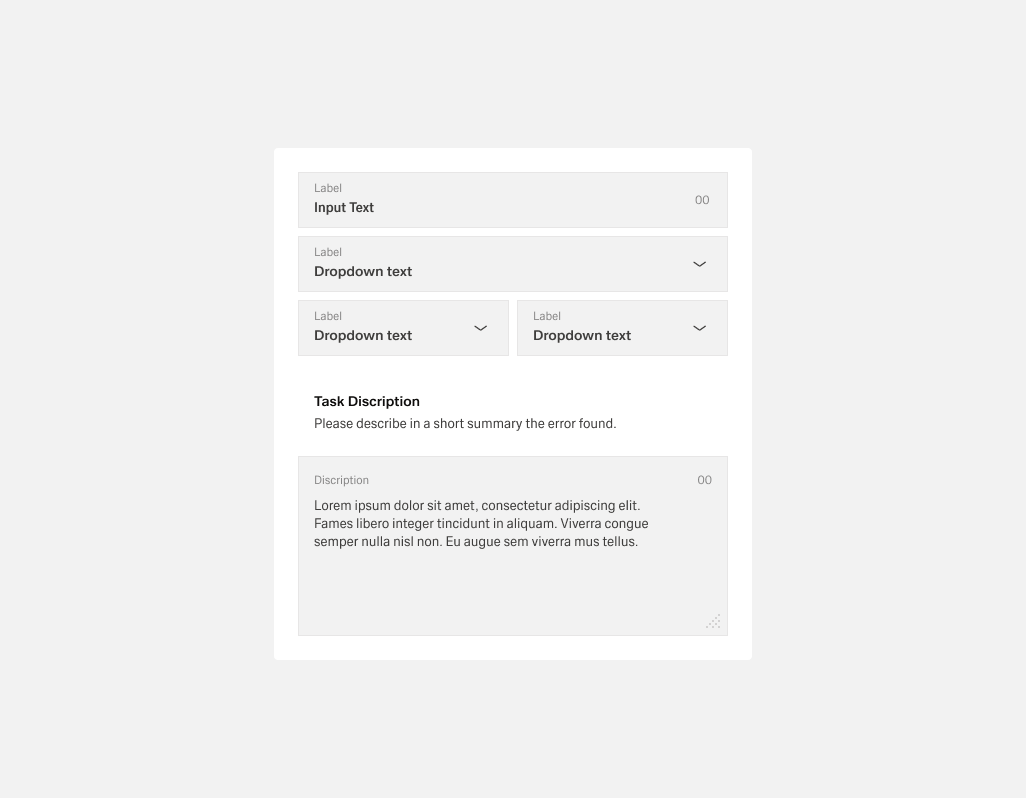
In case input groups are separated from each other, they must always be separated from each other with sunlines. An introductory text below the subline is optional.
Examples
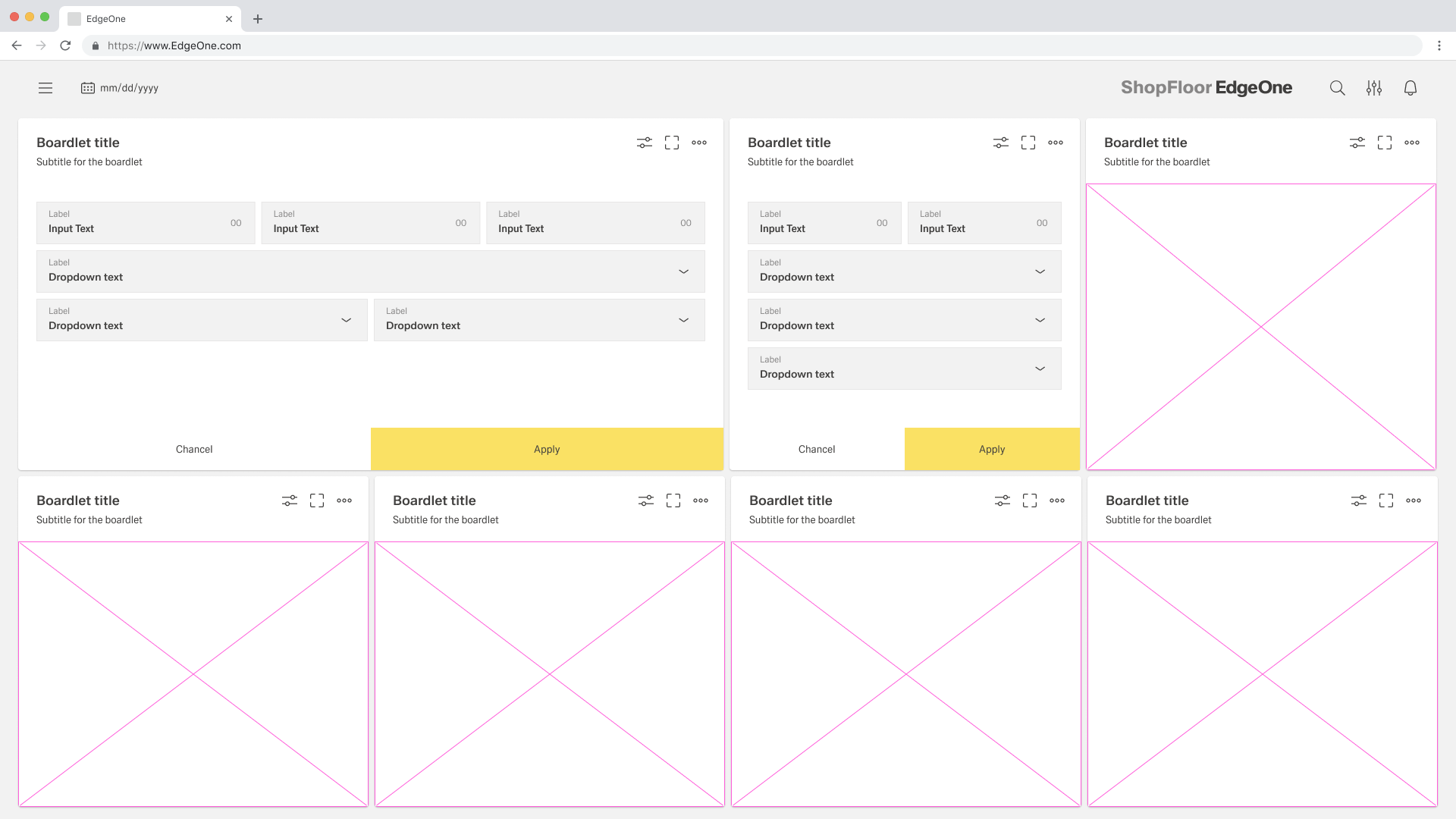 Foms inside of a Boardlet
Data Inputs
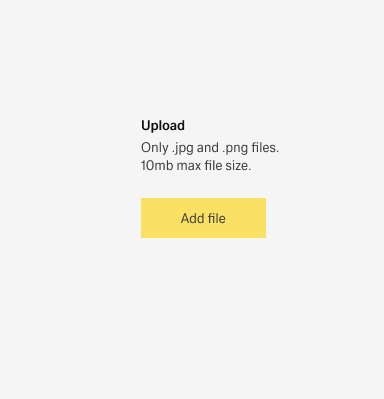
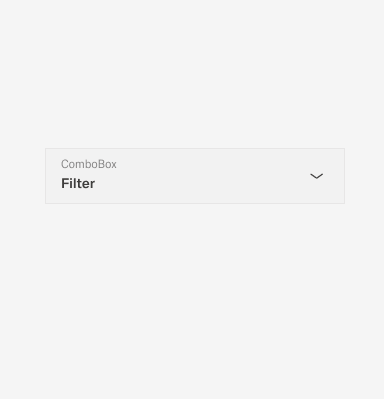
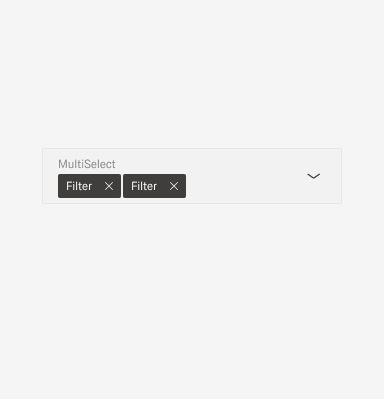
These controls enable users to provide input on forms by selecting from a set of pre-determined options or a limited range of values. Each component was created to serve a specific use case.
Selection controls offer users a selection from pre-determined options. When designing, consider how many options you need to present as well as how many items the user may need to select. These considerations will determine which component to use.
Inputs
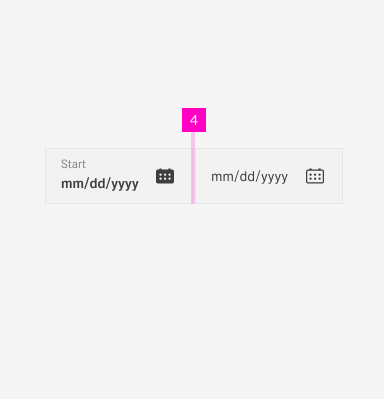
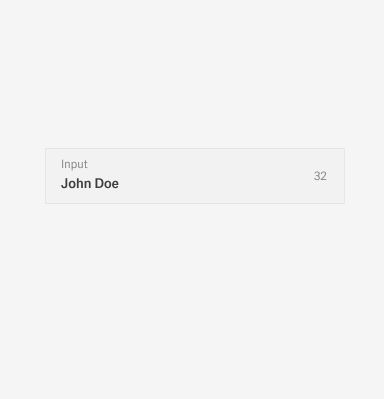
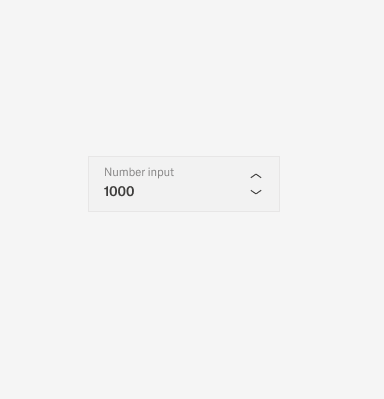
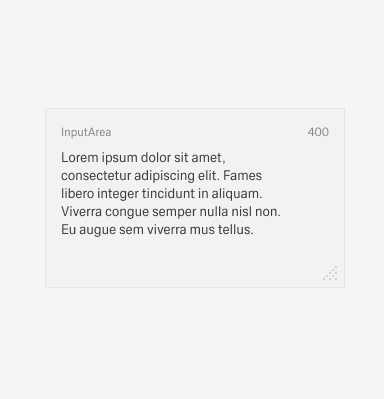
this Inputs allow users to input numeric data, like dates and times (e.g. number input, date picker, and slider components). They restrict user input and rely equally on keyboard and mouse interactions. They only allow valid entries, so field validation isn’t needed

Tooltips
Tooltips can be very useful for providing additional explanation to users that may be unfamiliar with a particular form field. They can also offer rationale for what may seem like an unusual request.
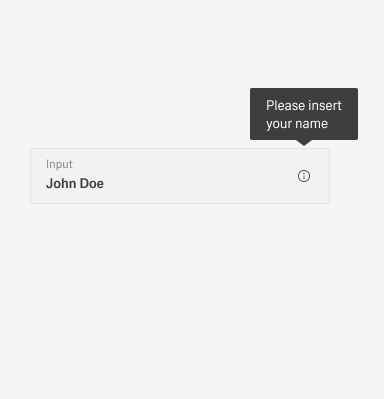
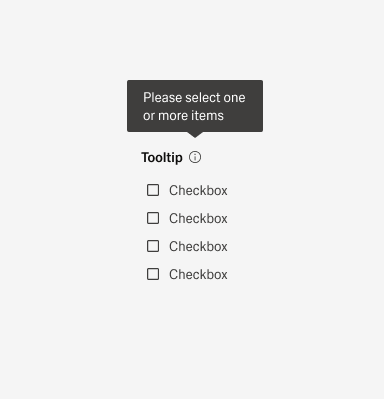
Do:
- Use tooltips with the outlined “i” (info) icon.
- Use tooltips for explanatory or added information.
- Tooltips are microcontent; keep them concise.
Don’t:
- Tooltips are not catchalls for content that doesn’t fit elsewhere; they must be used intentionally and very sparingly.
- Never house essential information in a tooltip.
Helpertext
Help text always appears below the form title and assists the user in entering the correct information. The help text can refer to the entire form or only to individual parts of the form. Help text is always available, even if the field is focused. Therefore, it is the right choice for information you need to know. For context or background information that is "nice to have", use placeholder text or a tooltip.
Error and Vaidation
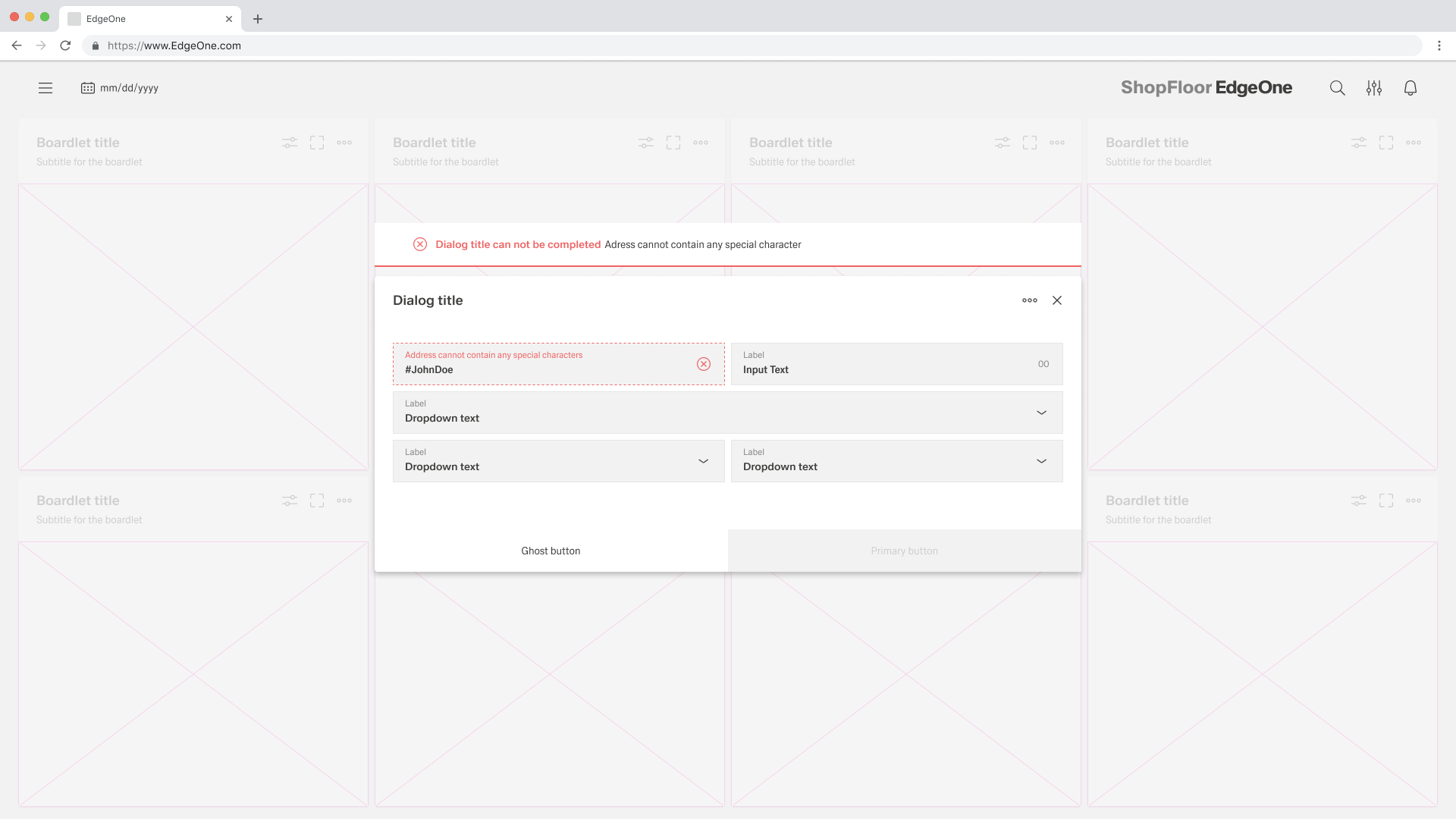
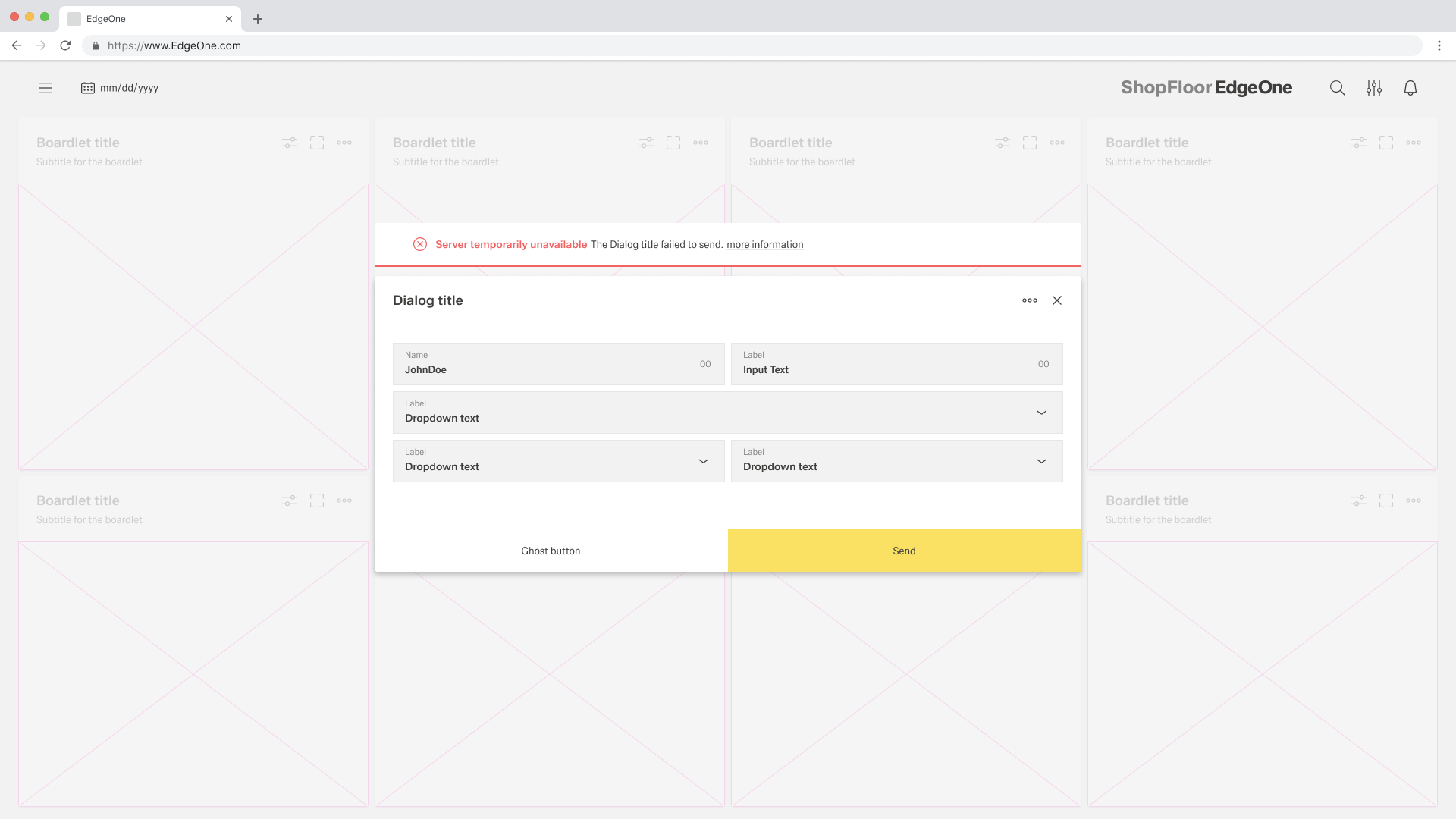
Effective and immediate error messaging can help the user to understand the problem and how to fix it. First, inform the user what has happened, then provide guidance on next steps or possible resolutions. Always present error states on the form, and use inline errors whenever possible.
The form cannot be closed until the error is fixed. This is visualized by the disabled primarbutton. We recommend to use an additional inline notification.
Server-side validation
Longer Forms
Interactive Forms
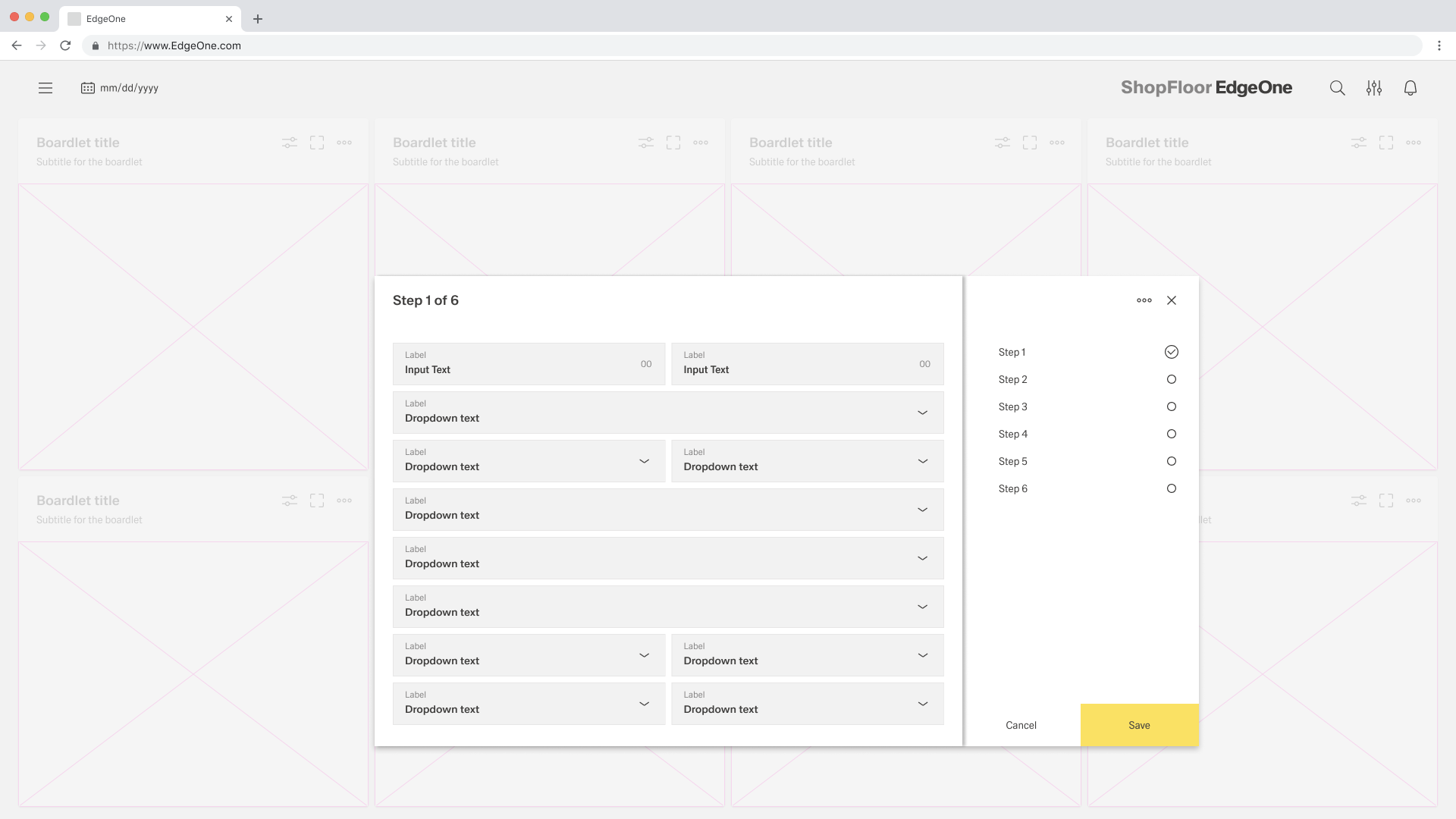
Forms are variable, even in length. So it happens that product owners often ask about the appropriate length for web forms. Unfortunately, there is no universal answer. Your target audience and their intentions, as well as the context of your product, will determine the best solution for you. For this reason we have separated forms into steps and content.
The Process inside the Sidebar is not final. |
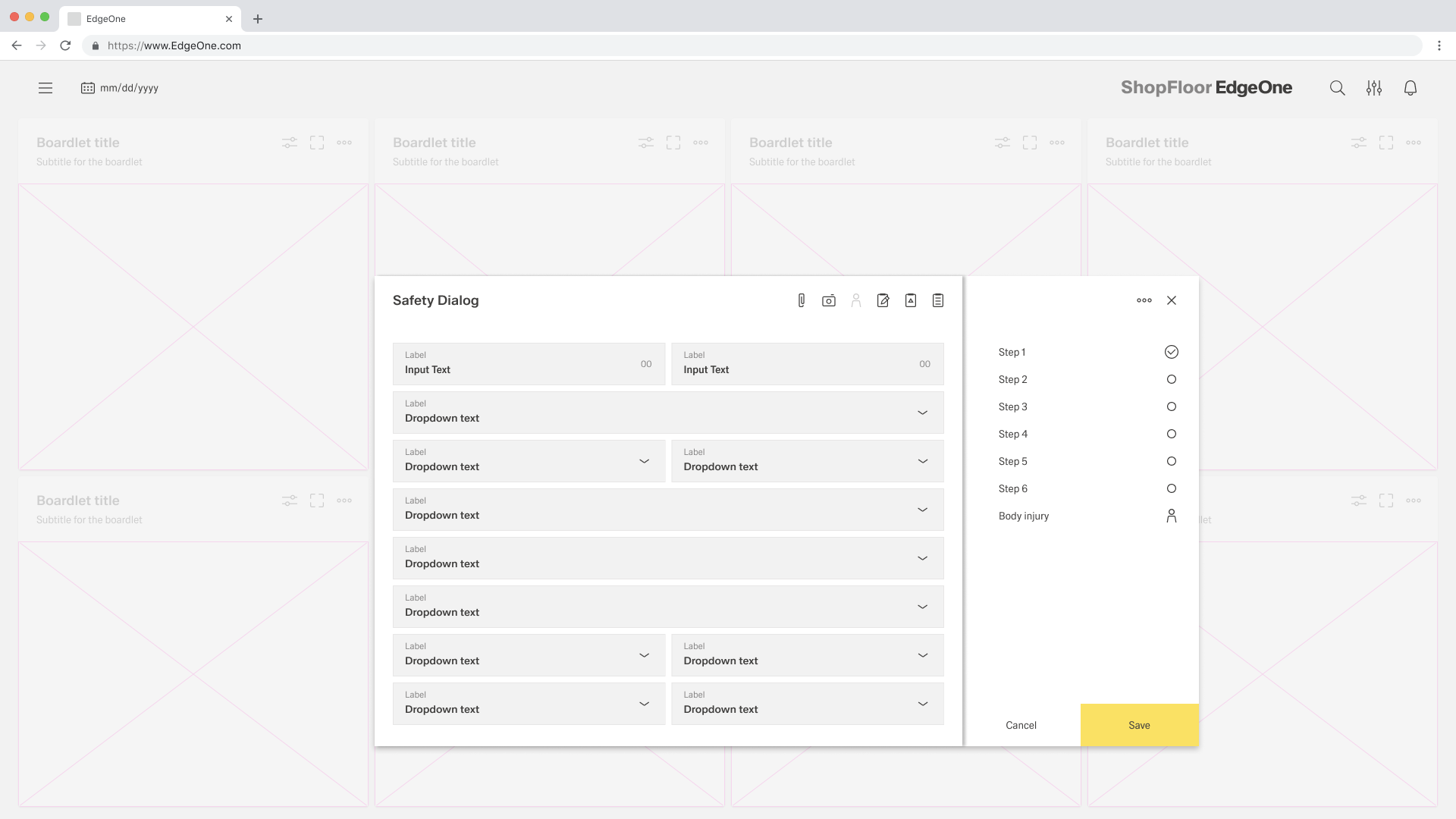
Inspire allows interactive forms, i.e. the user can add useful segments to the form in different scenarios. this is important when aggregating data.The user selects the necessary segment from the toolbar. depending on the scenario, this can be the following additional segments: add task, add incident, add body injury, add note, add attachment, etc.
This is a Beta-Version |