
Overview
Sidebar panel is a solid organism of the Inspire UI Kit. An organism is a collection of molecules shared by all products within a platform. It provides a common set of interactions that exist between and across products.
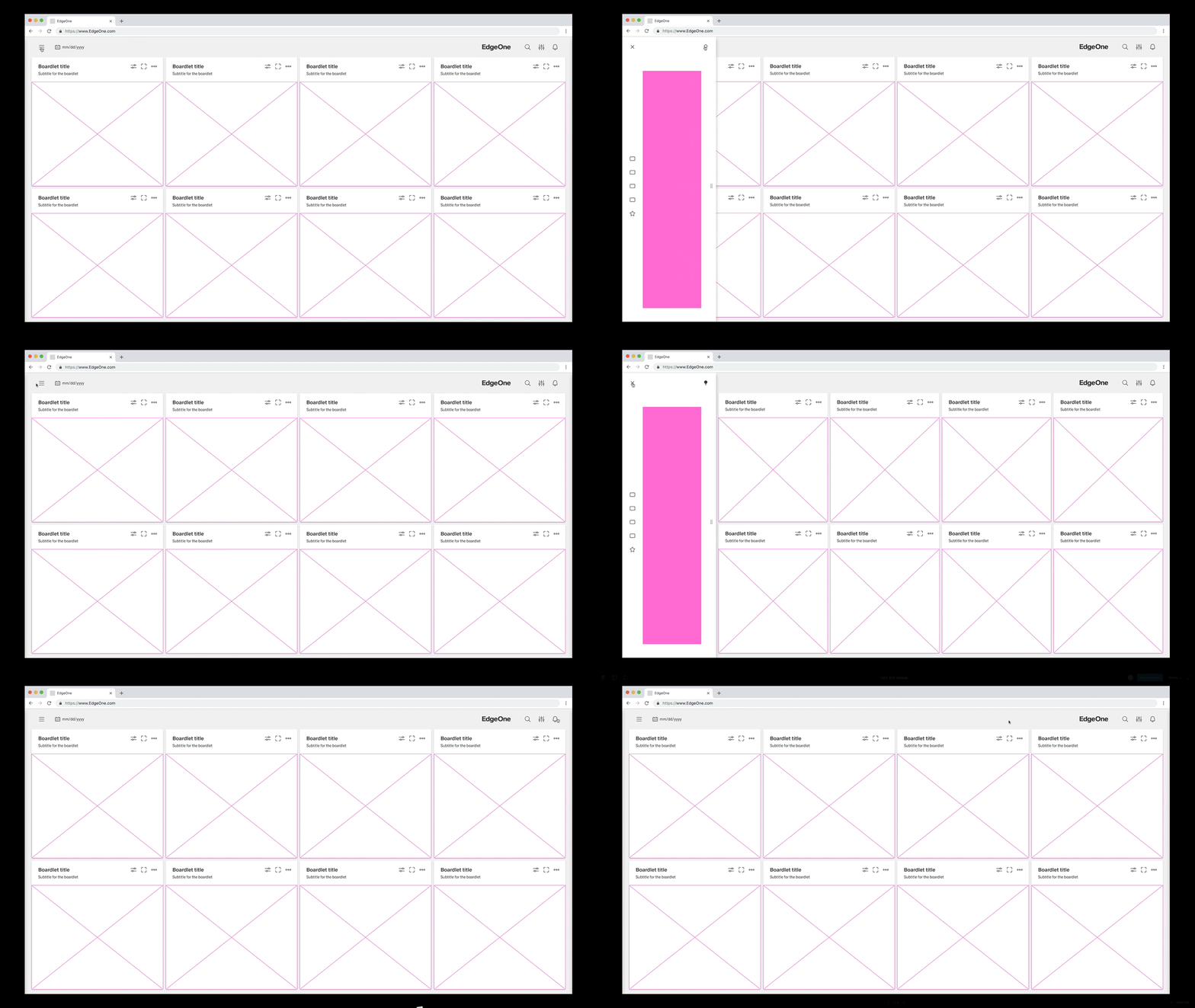
Overview
Only navigation molecules may be used within the left sidebar. It doesn't matter if they are links within the application, i.e. from dashboard to dashboard or from application to application. Also 3rd party links are allowed.
Anatomy
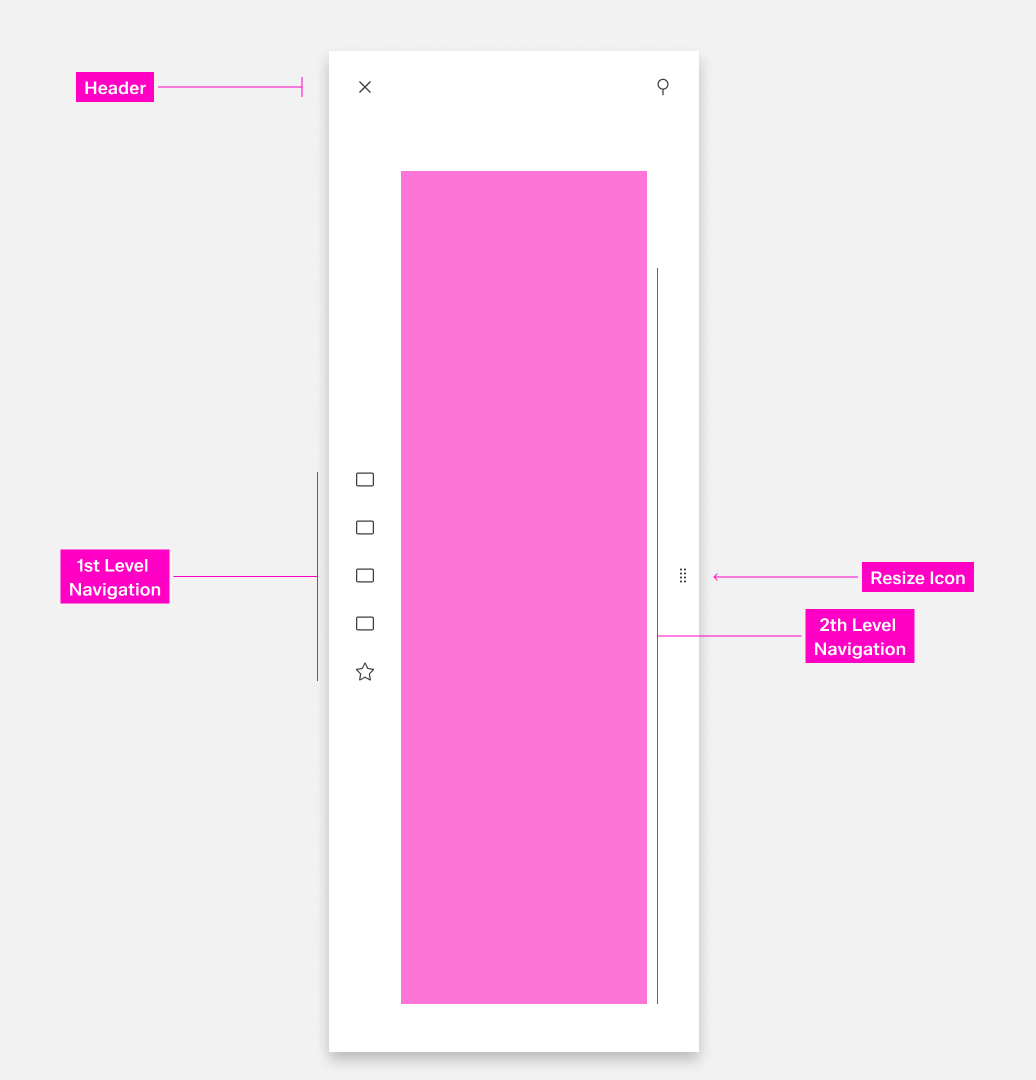
The left sidebar consists of fixed molecules, so we make sure that the sidebar as a general Ui-organism always looks the same. Even if the content varies from application to application or from user to user. The content of the 1st level and 2nd level can vary.
Header
The header always consists of 2 action icons, the close and the anchoring(pin).
With the "anchor" function, the sidebar is anchored on the dashboard for a user-defined period of time
and does not close automatically after selection. the content on the dashboard is displaced by the sidebar
and its width is adjusted.
1st Level Navigation
In the first level navigation are all possible first navigation points of the navigation that is available to the user. The content of the first level navigation is freely selectable. This can be different applications, different dashboards or customized structures. All first level navigation points must have an underlying structure. The only important thing is that they are icons, so the navigation points must be self-explanatory. e.g. Icon for | Home | APB | Dashboards | Favorits |
2st Level Navigation
All second level navigations are displayed in the form of links or a tree. The second level navigation can have freely selectable underprints.
Resize Icon
With the resize icon the sidebar can be varied in width.
Alignment
Dismissing Left Sidebar
There are several possible ways to exit the basic left Sidebar.
- x: Clicking the close
xicon in the upper left will close the Sidebar. - Esc: Press
ESCon the keyboard - Click: Click into the non-sidebar content
There are only one possible way to exit the anchored left Sidebar.
- x: Clicking the close
xicon in the upper left will close the Sidebar.
Anatomy

Header
A content switch may be placed within the header. This allows the content to be divided into different sections. It is also allowed to use a blank header if no subdivision is required.
Content Area
All communication and add-on content can be placed in the content area.
