
Page History
...
Local Navigation is dynamic and flexible and doesn’t need to exist everywhere in Edge.One. Simple applications may not require it. It becomes relevant when dashboards have dependencies (for example, favorites, nodes, or multi-dashboard processes). Because it is limited to the current dashboard context, it can vary between dashboards and should match the local structure and needs of the area.
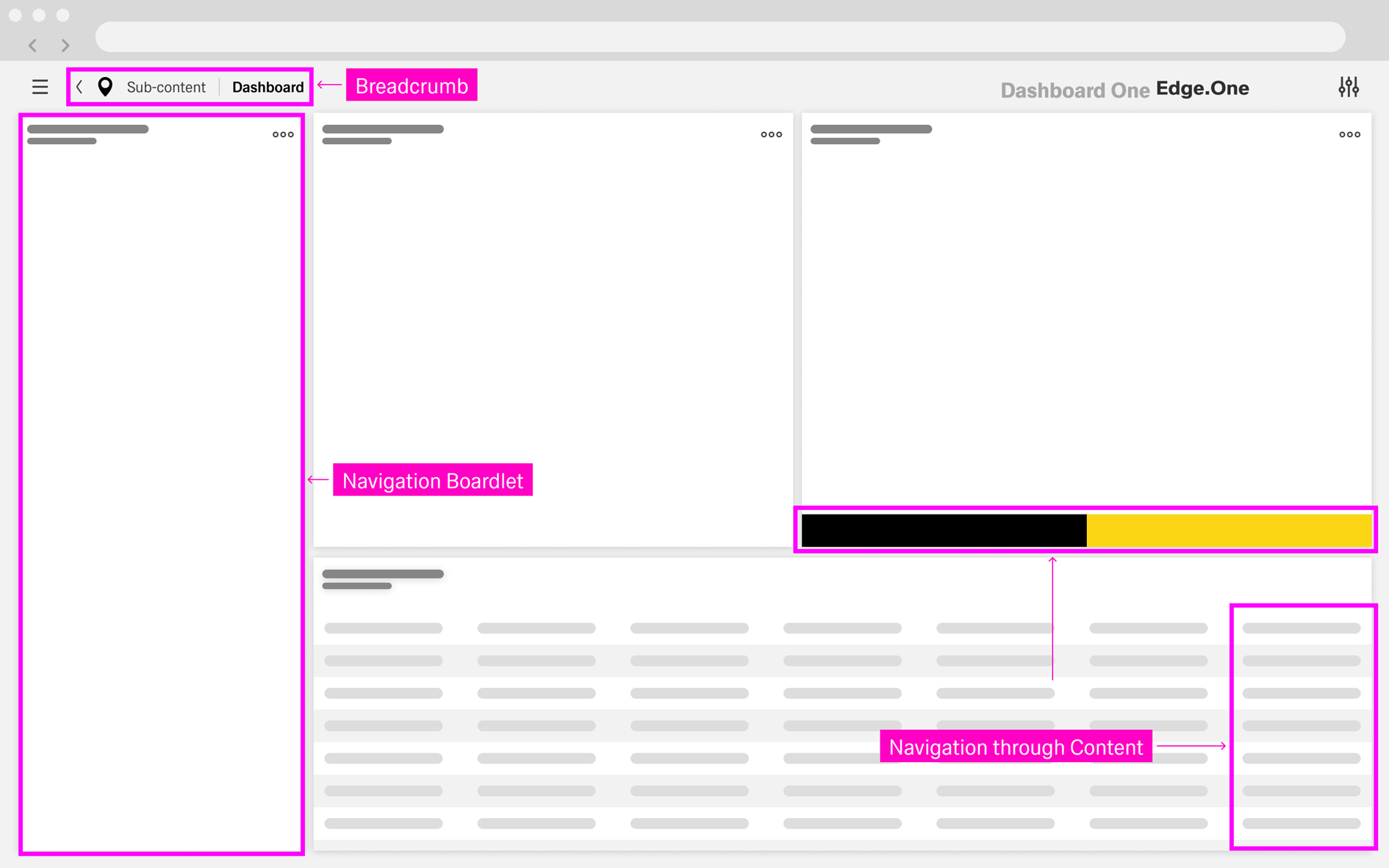
Anatomy
Local Navigation is composed of reusable navigation surfaces that appear within a dashboard. The set of surfaces depends on the complexity of the area: some dashboards only need lightweight navigation, while others benefit from a persistent structure such as a Navigation Boardlet. Together, these surfaces should support both vertical navigation (drilldowns) and horizontal navigation (step-based flows).
Navigation Boardlet
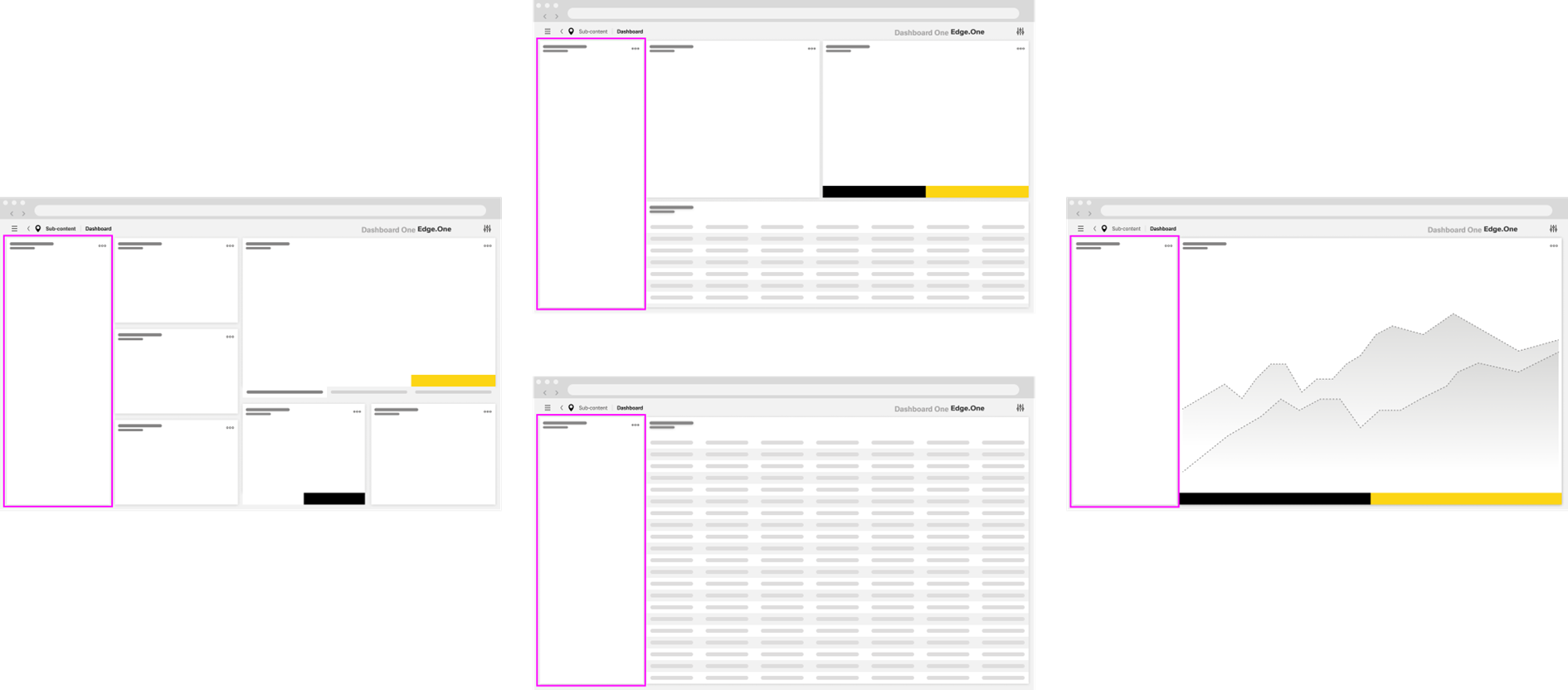
The Navigation Boardlet is an expandable and collapsible navigation element. It sits on the far left of the dashboard and spans from top to bottom. It provides links and tools for navigating within the current product area, typically presented as a list or a tree.
...
Click here for more information on the Navigation Boardlet.
Breadcrumbs
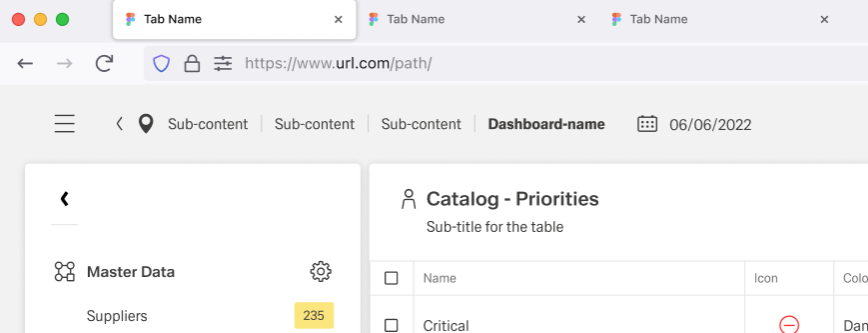
Breadcrumbs show users their current location relative to the information architecture. They enable users to quickly move up to a parent level or return to a previous step.
Breadcrumbs are always located in the left part of the header. All page items in the breadcrumb component are interactive and link to the corresponding pages. The go-back icon moves back one step at a time within the page structure.
...
Navigation actions are elements placed inside the dashboard content. They allow users to continue a task directly from where they are working, instead of relying only on side navigation structures. These actions are most useful when navigation is a consequence of an interaction, such as opening details, progressing through steps, or confirming a decision.
Common placements include:
- Buttons in toolbars
- Actions inside tables
- Actions from dialogs
Tables
...

For more information on how to use these action, refere to Creating a User Flow.
Tables
Table navigation is commonly provided as part of row actions, placed in the last column. It typically routes users to a drilldown page (for example, a details view). This represents vertical navigation to the next layer in the breadcrumb structure.
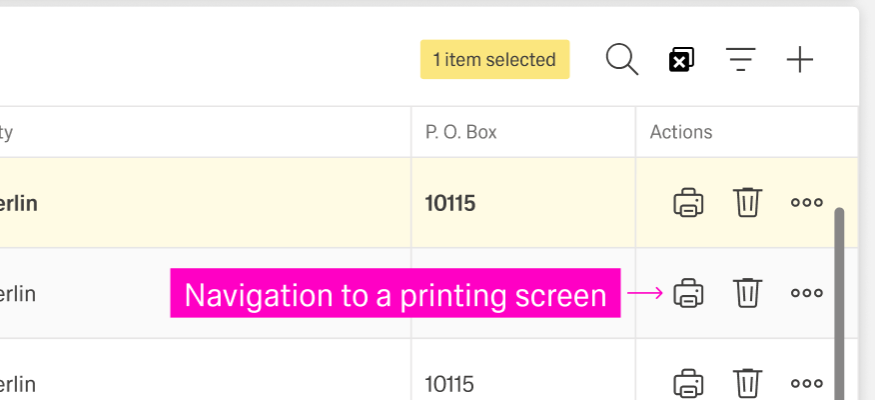
The destination screen should provide a clear “Back” option. Users should be able to return to the table with minimal loss of context (for example, preserving filters or selection where feasible).
...
Buttons and links inside the dashboard content often support process flows. They are commonly used for horizontal navigation through a sequence of steps, such as “Next” and “Back.” They can also allow vertical navigation, like "View Table" and "Edit Data".
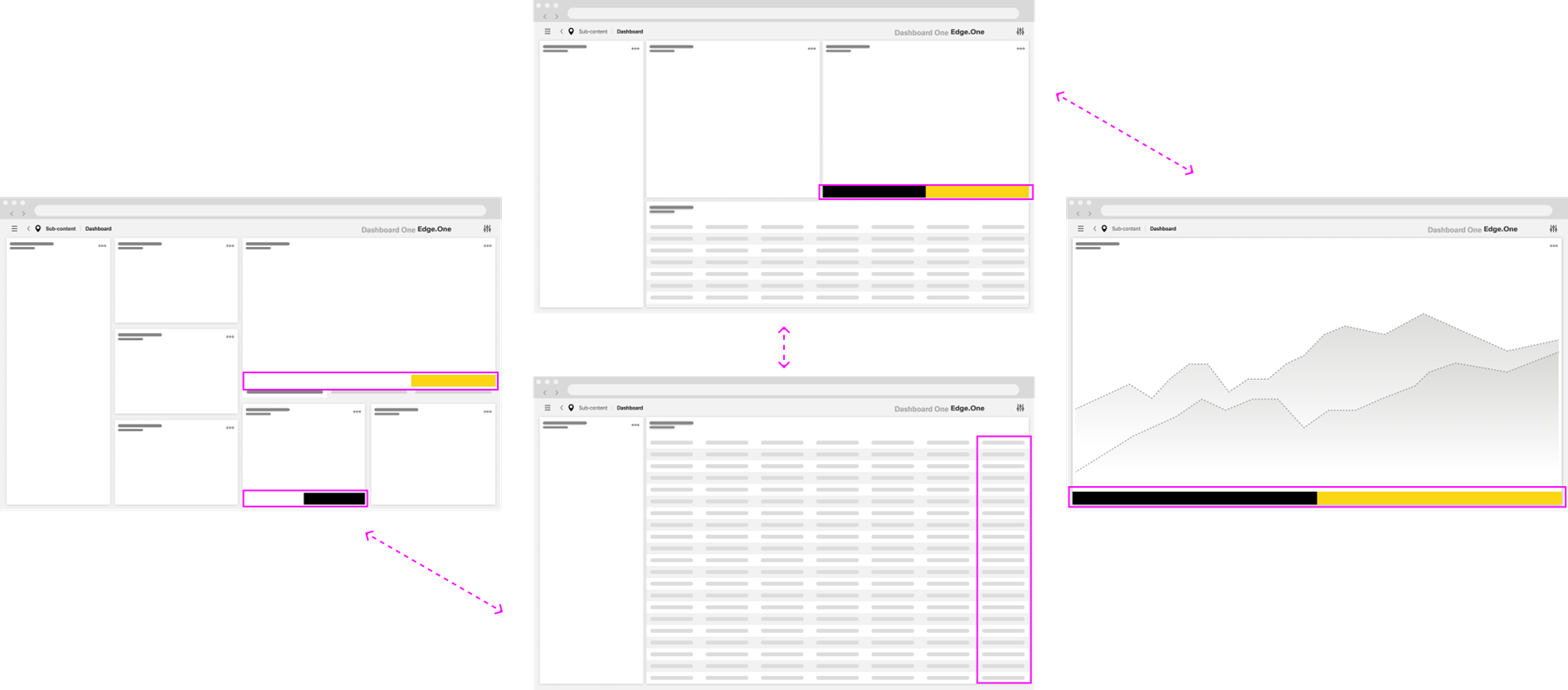
These actions usually appear in toolbars, footer bars, or at the bottom of the content. Use them sparingly to avoid clutter and conflicting navigation paths.For more information, please go to the Wizard pattern.
Dialogs
Dialog navigation is usually implemented through footer actions. It typically includes two directions:
- An option to return to the current page (“Back” or cancel/close).
- An option to move forward by confirming an action (for example, accept, submit, or continue), which often leads to a new page.
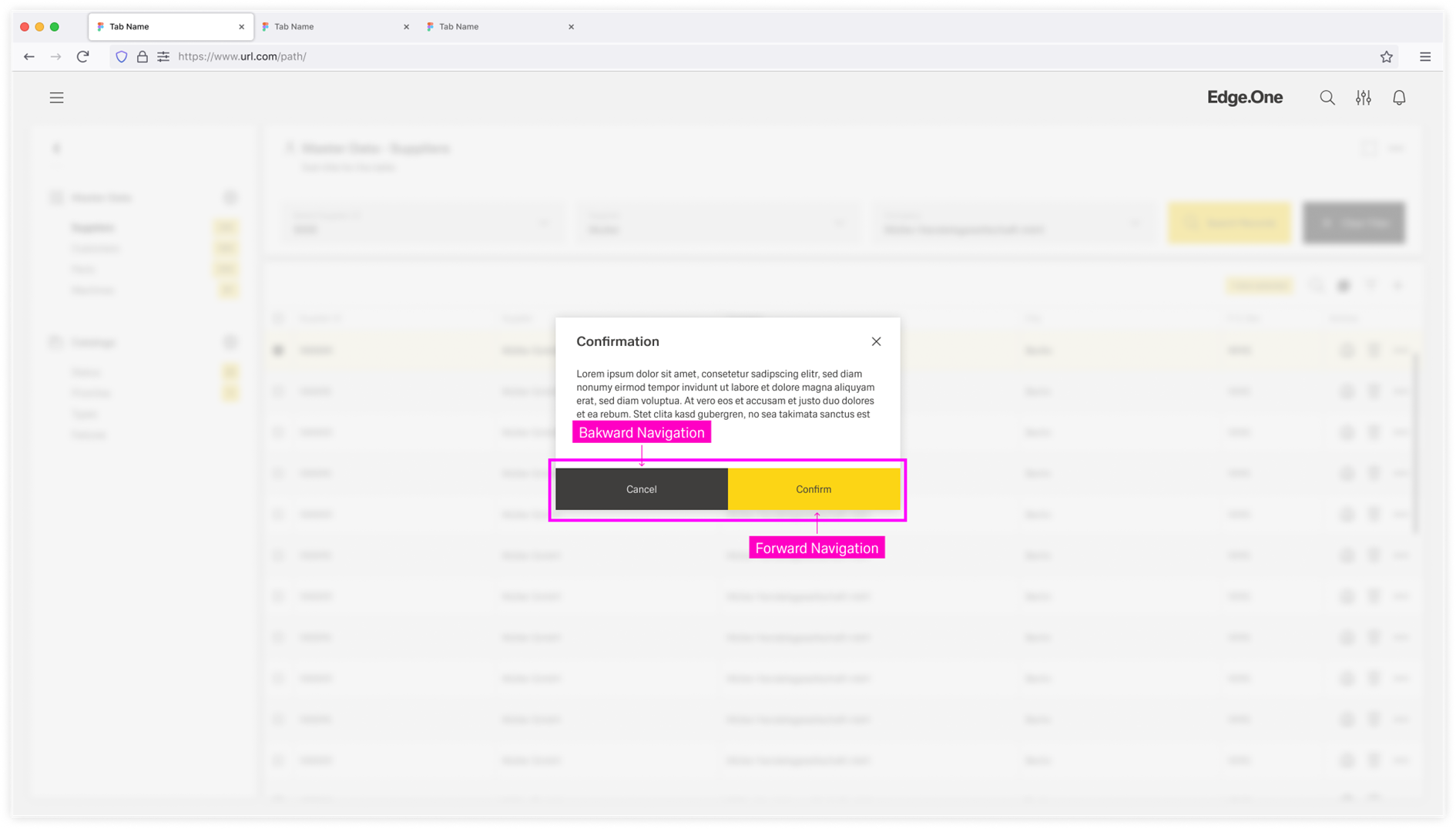
Depending on the action performed, dialog navigation can represent vertical navigation (to a deeper level) or horizontal navigation (to the next step in a flow).
...
