Page History
(this page was created automatically. In case of formatting issues, please visit the official Wiki Page)
Notifications
Overview
Overview
Notifications in Inspire Design give users clear, visual feedback about their actions and the state of the system. They show whether a process has been completed successfully, whether a problem has occurred, or how an ongoing process is progressing.
Notifications appear as Local, Global, and Toast Notifications. Together with the Notification Icon in the header and the Notification Panel on the right side of the dashboard, they form a connected notification experience across the application.
Anatomy
Notifications within Inspire Design have five major elements:
...
Users can open the Notification Panel by clicking the Notification Icon in the header or on a Toast NotifiactionNotification.
It opens on the right side of the dashboard and has a fixed width.
...
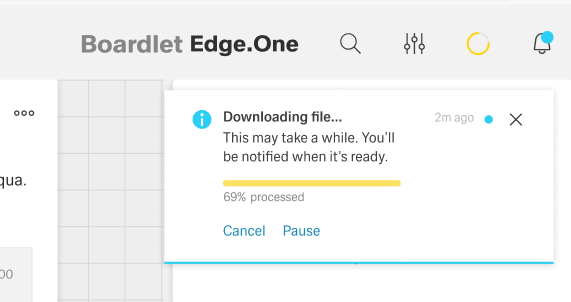
The Toast Notification appears in the top-right corner and visually floats above the dashboard.
Only one Toast Notification can be visible at a time. They do not diappear automitcallydisappear automatically.
The color of the Toast Notification depends on the type of notification it contains.
The general layout stays the same between notifications, with the Progress Noti
...
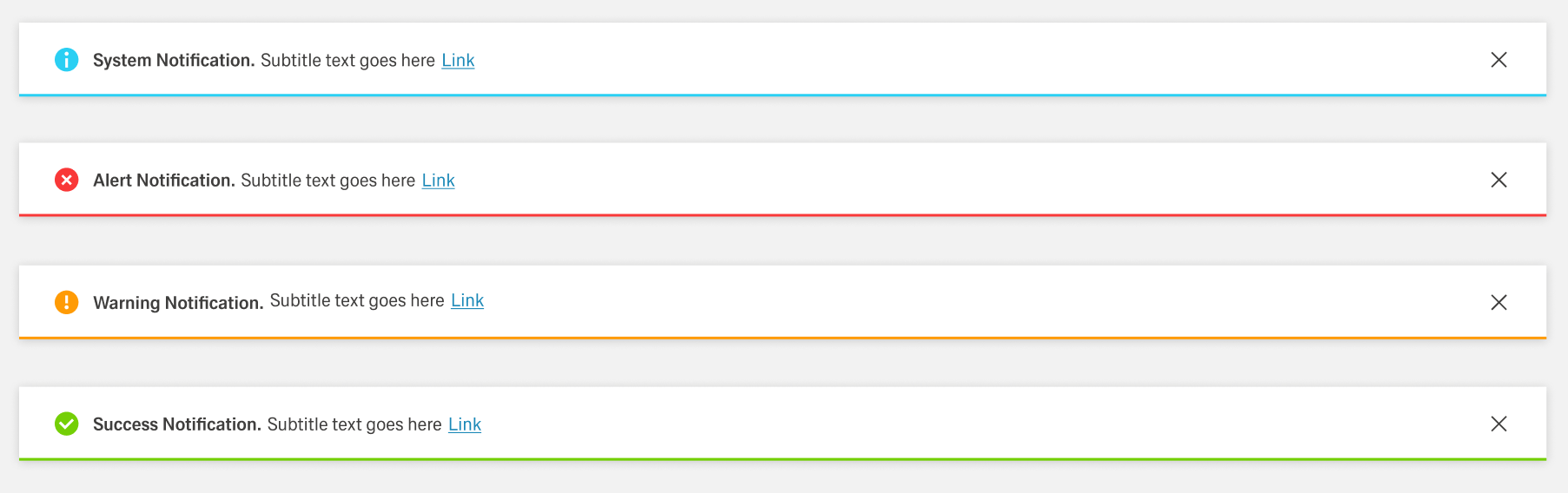
Global Notifications appear as a bar at the top of the dashboard as a pop-up. Up to two Global Notifiactions Notifications can be visible at any time. They disappear after a set amount of time or if the user clicks the "close" button, if one is present.
Global notifications do not support the progress variant.
[TODO: Image]
- 01 Notification Icon - Signals the type of notification and matches the icon in the header.
- 02 Title - Few words describing the notification message.
- 03 Subtitle - Additional information clarifying the intend of the message.
- 04 Close Action - Optional close button for the notification
...
- Error Notification — Colored red; signals critical errors.
- Warning Notification — Colored orange; announces problems that may result in errors.
- Success Notification — Colored green; signals a successful process.
- System Notification — Colored blue; reports system information.
Modal Notification
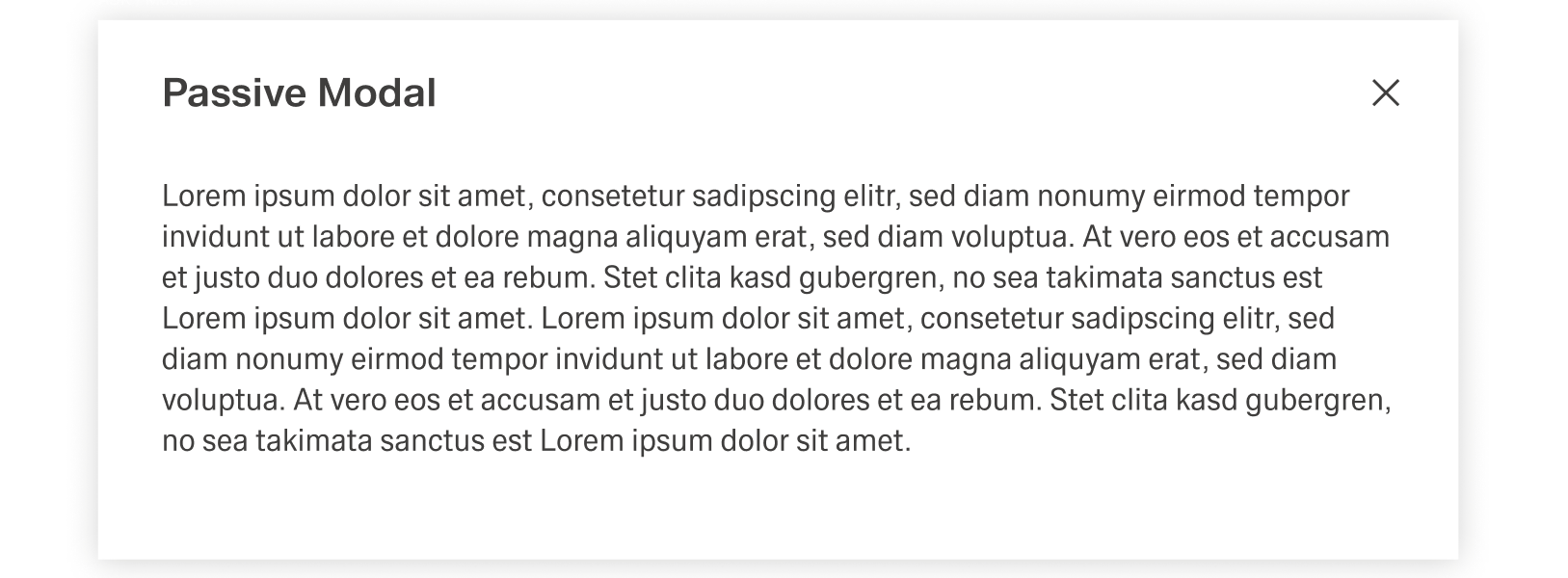
The Modal Notification is a varriation of the Dialog and appears as a centered passive modal above a dimmed background. It contains a critical message and can only be closed with the close action in the header toolba. It blocks interaction with the dashboard until it is closed.
Best Practices
- Use toast notifications for brief, non-critical feedback. Don’t use them for critical information users must act on immediately.
- Be brief and easy to scan. Prefer a single sentence where possible.
- Timeouts must give users enough time to read. Prefer longer durations for accessibility, and pause timers on hover/focus where supported.
- Don’t stack multiple transient notifications. Show them one at a time, or replace outdated ones.
- Include a clear close/dismiss action when the notification covers content or interrupts attention.
- If a notification can disappear, provide another place where users can find it again (for example a notification center/panel).
- Keep notifications relevant to the user’s current goal. Don’t surface messages that aren’t actionable or useful in context.
Usage
| Notification type | What it’s for | When to use |
|---|---|---|
| Global Notification | Feedback on major user actions with system impact (e.g., data changes). | At the end of a process after a user action (or when a user can’t perform an action). |
| Inline Notification | Immediate feedback on small, in-process actions (e.g., input valid/invalid). | During sub-steps in a larger flow where the single action has low impact. |
| Toast Notification | Updates about system/background processes (e.g., download progress + completion). | When informing about system status not primarily tied to a user action’s feedback. |
| Modal Notification | Highly disruptive message for critical information triggered by a user action. | Only when information is critical and blocking interaction is justified. |
Global Notification
Global Notifications Global Notifiactions give feedback on major user actions, for example saving a change inside a table. They appreare appear at the end of a process and usually have an impact on the system, like changing data. They are always tied to user interaction or the inability for a user to perform an action.
Global Notification disappear ofter after a set amount of time. This time should tailored tailor to the notification length, so that users of all reading speeds can comprehend the message.
At the same time, it should only be as long as if absolutely required, since the Global Notification is intrusive, blocking the header bar. In addition, the user should be able to close the Global Notification unless it's its presence is absolutely required.
Inline Notification
Inline Notifications deliver a direct response to a user action inside a larger process. One example for an Inline Action would be filling out an a text field inside a form. The feedback, i.e. the notification, would be that the input is valid or invalid.
As shown in the example, Inline Notifications are used for immediat immediate feedback on small scale user actions. They usually focus on sub-steps in a series and are tied to actions that on their own do not have a large impact.
Inline Notifications are not permanent, being deleated deleted when the user abandones abandons the process by for example switching dashboard. In addition, they are not displayed inside the notification panel.
These notification notifications usually change the layout of the boardlet they appeare appear in, making them quite disruptive. Thereby they should only be used sparingly. For example, if a form has multiple text fields with specific requirements, they all might only need one Inline Notification. This notification could than then cover the message for all text fields, instead of every text field having their own notification.
It is also recomended recommended to include the close button unless the presence of the notification is absolutely required.
Toast Notification
In contrast to Global and Inline Notifications, Tosat Toast Notifications are not focues focus of feedback of user actions. They inform the user about the system and background processes, for example downloading a file and the completion message afterwards. They can also include action beyond "closing" to influence the topic of the notifdicationnotification.
In contrast to Inline and Global Notifications, these Notifications are dynamic and live. They can replace each other, for exampe example a success notification replacing a progress notification.
Toast Notifications are the only permanent form of notifications, being stored inside the Notification Panel. To not clutter the Notification Panel, the number of Toast Notifications sent should be no more than absolutely nessissarynecessary.
Modal Notification
Modal notification is a consequence of direct user action. The trigger for the Modal Notification should be communicated clearly to the user with the use of the title or text. It is highly disruptive and therefore should only be used for critical information.
The text inside the modal notification can be longer than in other forms of notification. Despite this, it should be concise and to the point, since any type of user interaction is blocked by the overlay.
Text
Texts inside should be consize concrete, using active verbs and simple language whenever possibleNotifications in Inspire Design should be easy to scan and actionable.
Users should understand what happened, why it matters, and what to do next in a few seconds. They should avoid complicated or foreign words and abreviationabbreviation. Inline and Global Notifications should never have a message with multiple rows and Toast Notifications should avoid messages longer than three rows.
General Rules
- Use sentence case for notification titles and descriptions.
- Be brief. Keep the content to 1–2 short sentences where possible.
- Don’t repeat yourself. The description should add meaning, not paraphrase the title.
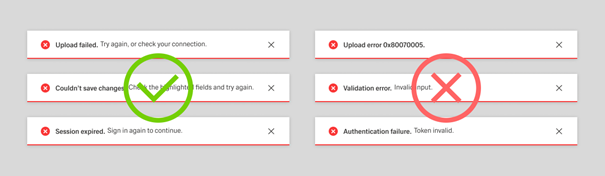
- Avoid technical language (error codes, stack traces) in the message text. If technical detail is needed, move it to details/help or provide a link.
- Add a period only for complete sentences; omit it for short, implicit messages.
Titles
The title is the “headline” of the notification.
It should communicate the main outcome in a few words. Keep titles short and descriptive and use simple language whenever possible. Do not place periods at the end of the titles.
Descriptions
Descriptions add context and next steps.
Keep them short enough that users can skim them. Include only what users need: reason + next step (and consequence only if it changes what they should do). Prefer one sentence for toast notifications. Use plain language and focus on what users can observe or do.
Notification Type Messages
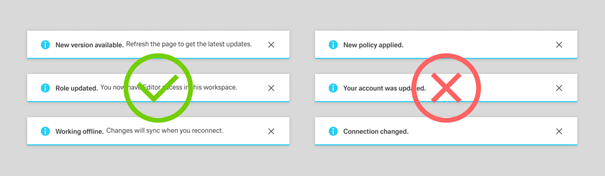
System Notification
System notifications communicate system-generated updates such as connection changes, maintenance, or session expiry.
Keep the text relevant and informative, and include only the context needed to understand impact.
Write a concise title in sentence case. Add a description only when extra meaning is needed (timing, impact, or where to find something).
When shown as a toast, keep title and description especially brief.
Success Notification
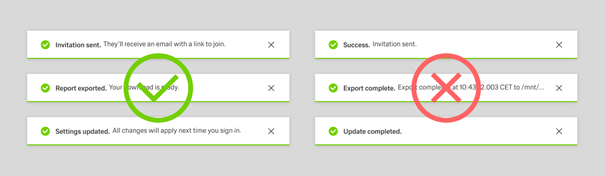
Success notifications confirm that an action has been completed.
Keep the text short and scannable, and use consistent patterns like “[object] [action taken]” (“Sales order created”) or “[count] [objects] [action taken]” (“2 sales orders were deleted.”).
Include names/IDs only when they are needed.
Place the main message in the title and add a brief description only when it clarifies what happens next.
Warning Notification
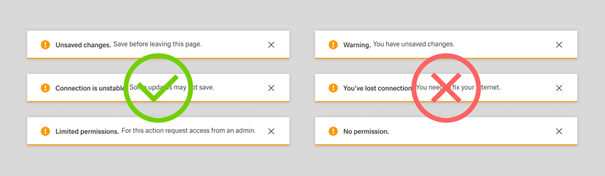
Warning notifications give advance notice when data loss or an error state could occur.
Use factual, actionable wording and structure the message as risk + consequence + preventive action (for example, “Unsaved changes” + “Save before leaving this page.”).
Include only the context needed to act.
Error Notification
Error notifications are used when a problem has occurred and progress may be blocked.
Explain what went wrong in plain language and make recovery clear (for example, “Couldn’t save changes” + “Check required fields and try again.”).
Avoid technical codes unless a user-facing explanation is also provided.