
(this page was created automatically. In case of formatting issues, please visit the official Wiki Page)
Notifications
Overview
Anatomy
Notifications within Inspire Design have five major elements:
- The Notification Icon inside the header.
- The Notification Panel that opens on the right side of the dashboard.
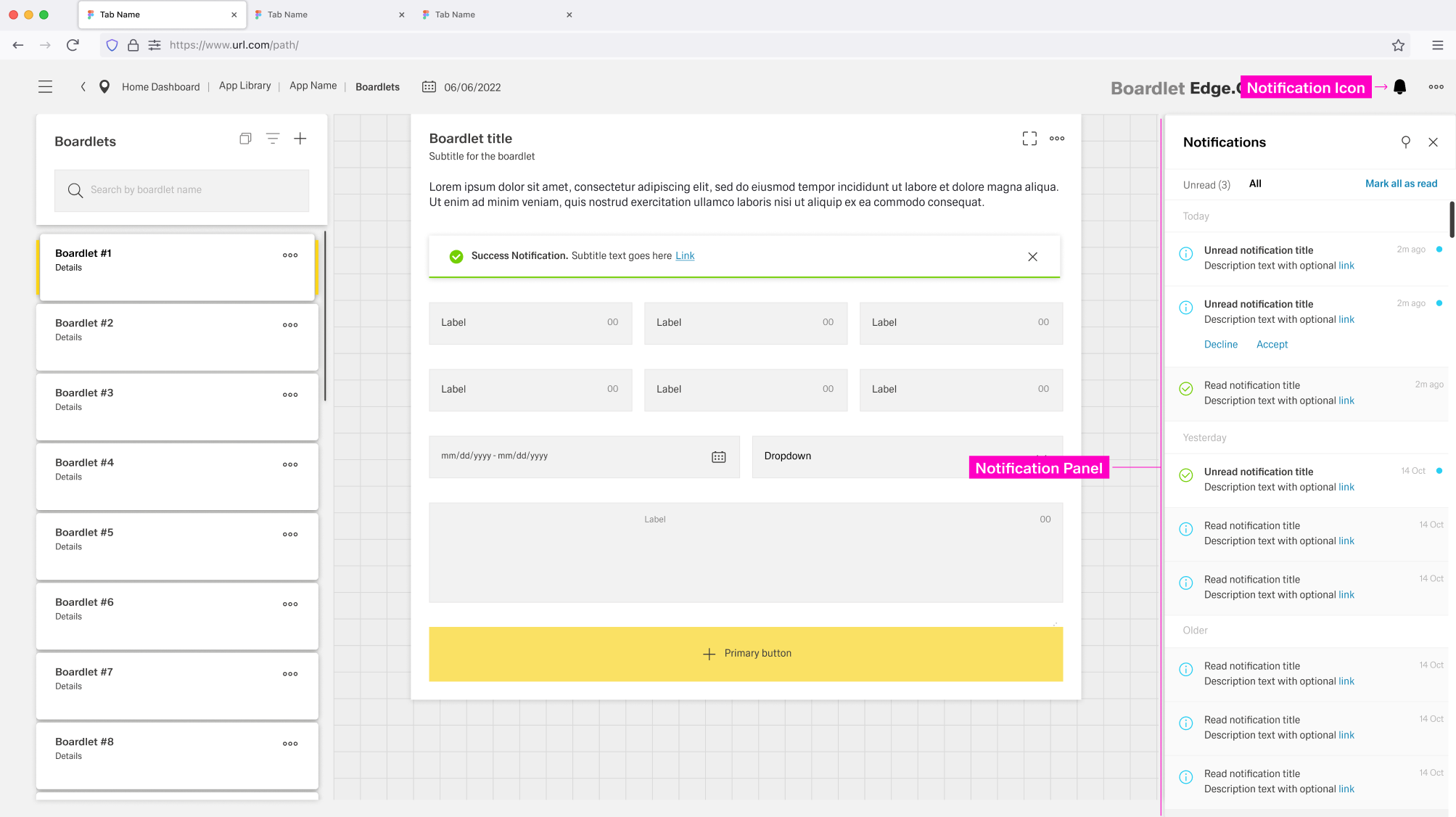
- Local Notifications in the form of Inline Notifications that are part of boardlets.
- Global Notifications as a pop-up at the top of the dashboard.
- Toast Notifications as a pop-up at the to-right of the dashboard.
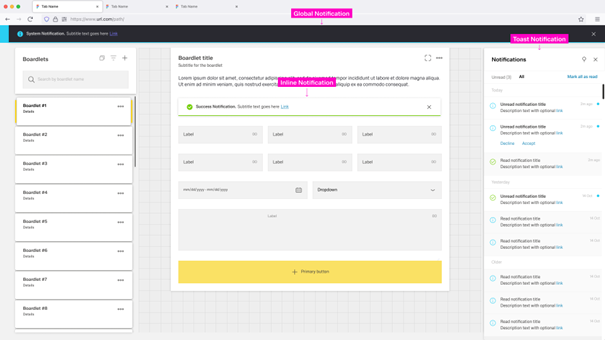
Global Notifications and Toast Notifications are independent of any dashboard and appear across the entire application.
The Notification Icon, Notification Panel, Toast Notification and Global Notifications build a global notification flow that activates when a user receives a Global or Toast Notification.
Local Notifications are tied to the dashboard and, in some cases, to the boardlet where they appear.
They are not connected to the Global Notification flow and vanish when the user leaves the dashboard.
The appearance of notification elements may vary between different types of notifications.
Inspire Design differentiates between the following types of notifications:
- Error Notification – Colored red, signals critical errors.
- Warning Notification – Colored orange, announces problems that may result in errors.
- Success Notification – Colored green, signals a successful process.
- System Notification – Colored blue, reports system information.
- Progress Notification – Colored blue with a progress bar, updates the user on an ongoing process.

Notification Icon
The Notification Icon is part of the header toolbar on the right side of the dashboard header.
The icon is located at the far right, immediately to the left of the overflow menu, if one is present.
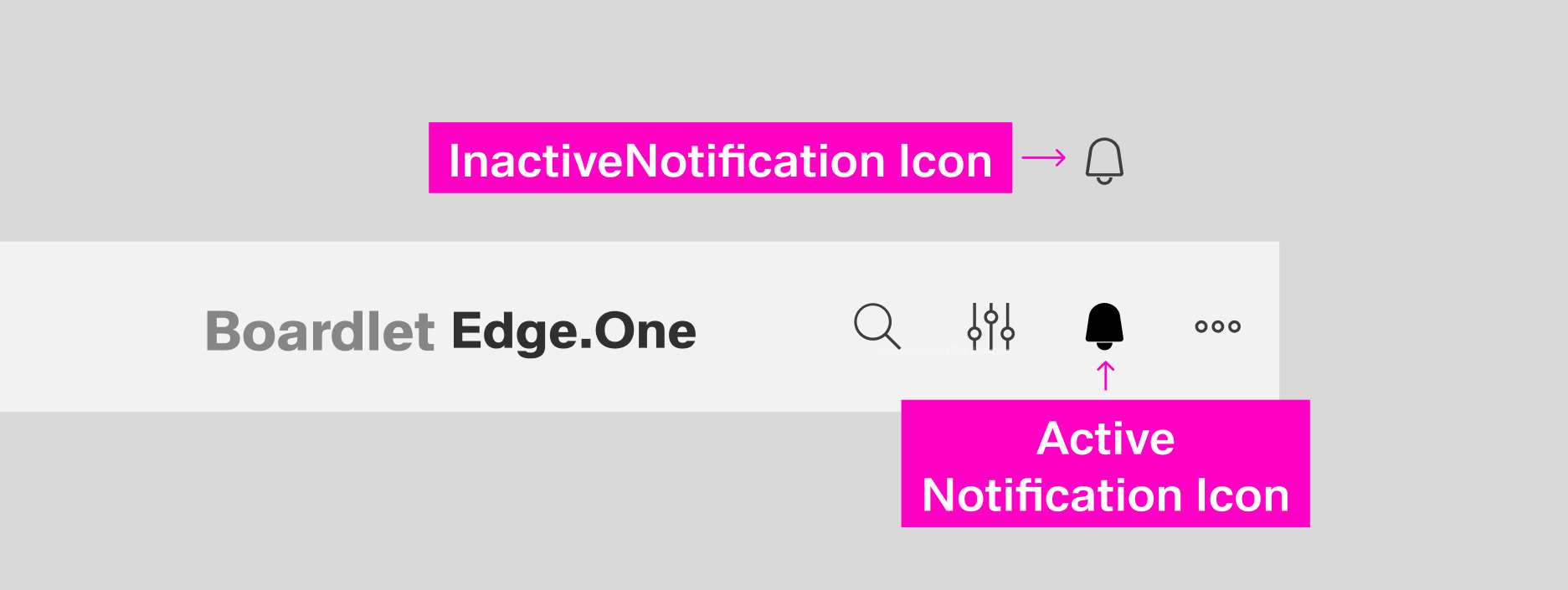
When a new and unread notification appears, the Notification Icon gains a small blue indicator at the top-right.
The indicator disappears when the user has no unread notifications or opens the Notification Panel.
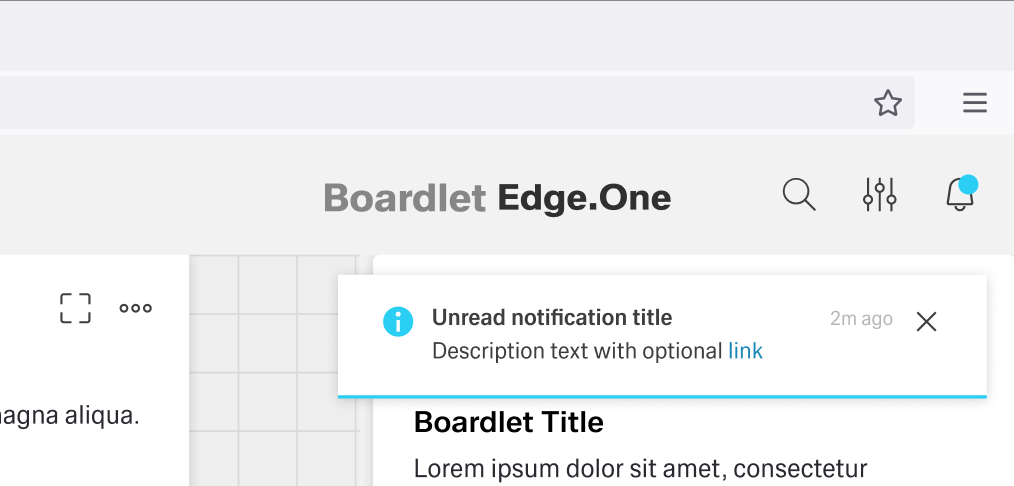
If the notification is an error, warning, or success notification, a special secondary icon appears to the left of the Notification Icon inside the header.
This icon matches the type of notification in appearance and vanishes when the user interacts with the notification.
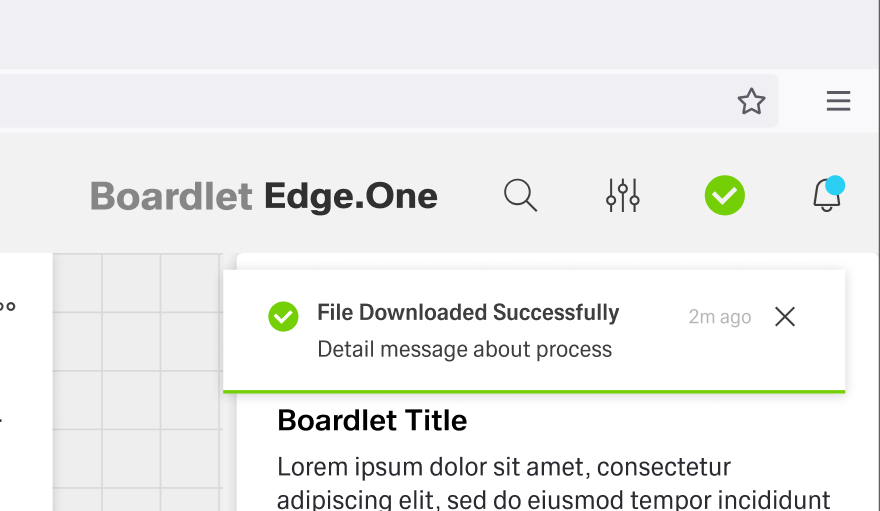
A Progress Notification adds a progress indicator to the left of the Notification Icon.
It is circular and actively shows progress instead of being a static icon.

Notification Panel
Users can open the Notification Panel by clicking the Notification Icon in the header, on a Global Notification, or on a Toast Notifiaction.
It opens on the right side of the dashboard and has a fixed width.
The Notification Panel can be closed by clicking the close action in the toolbar or by clicking outside the panel.
Users can anchor the panel like the navigation panel.
An anchored panel can only be closed by clicking the close action.
The Notification Panel has two tabs: Unread and All.
- Unread – This tab displays all notifications the user has not interacted with. This is the default tab.
- All – This tab shows all information the user has received so far.
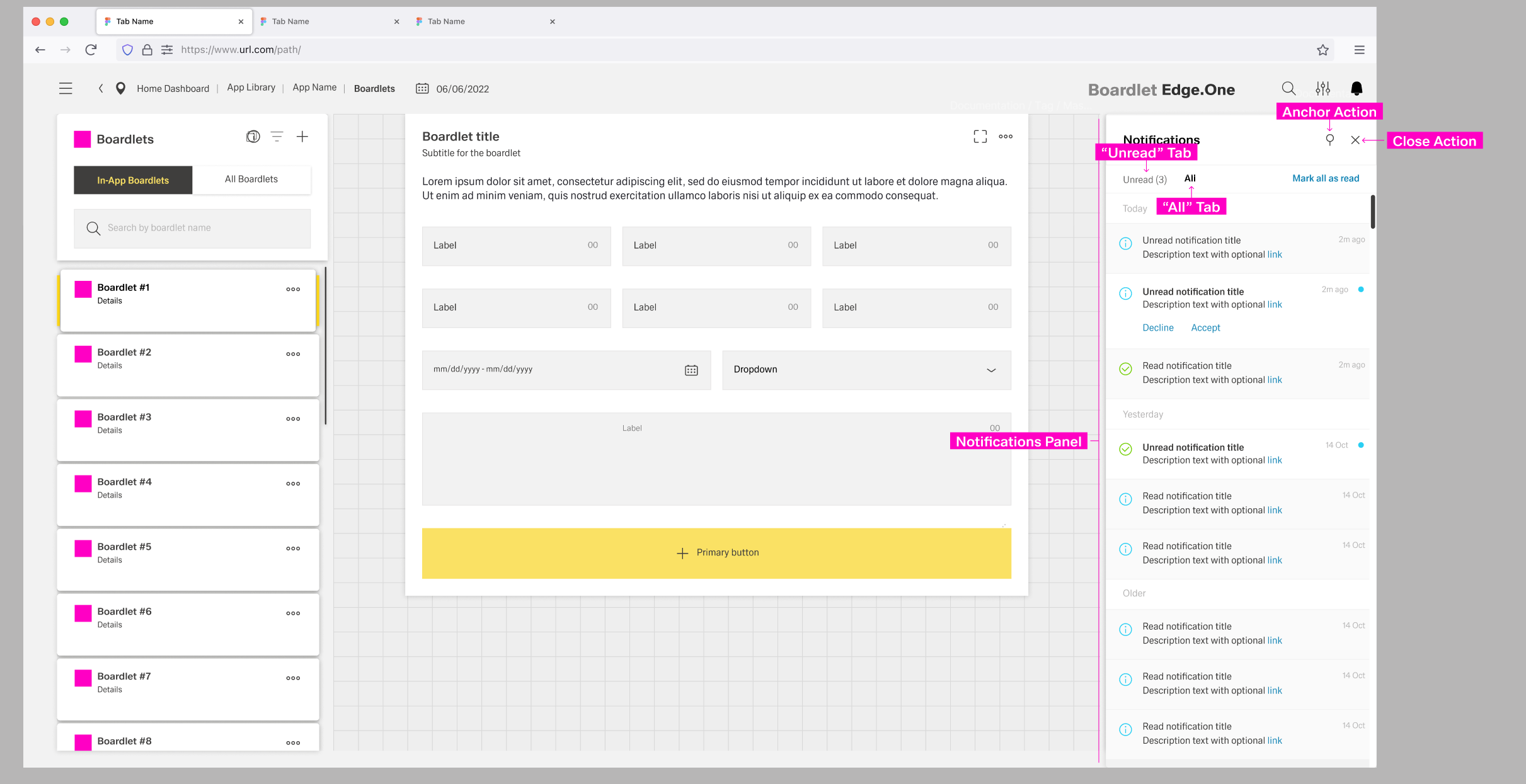
Unread notifications have a small blue status indicator at the top-right and a bold title.
By clicking the status indicator, users can set a notification as read.
Read notifications are grayed out and have a non-bold title.
Both tabs have an action to set all notifications as "read" to the left of the content switch.
Notifications are ordered and grouped by their date of appearance, regardless of the active tab.
Toast Notification
The Toast Notification appears in the top-right corner and visually floats above the dashboard.
Only one Toast Notification can be visible at a time.
They do not diappear automitcally.
The color of the Toast Notification depends on the type of notification it contains.
The general layout stays the same between notifications, with the Progress Noti
- 01 Notification Icon – Signals the type of notification and matches the icon in the header, except for the progress notification.
- 02 Title
- 03 Time Stamp – Shows when the notification popped up.
- 04 Close Action – Allows the user to close the toast notification.
- 05 Description – A short text explaining the notification.
- 06 Actions – Influence the process in progress.

- 01 Notification Icon - Signals the type of notification and matches the icon in the header, except for the progress notification.
- 02 Title
- 03 Time Stamp - Shows when the notification popped up.
- 04 Close Action - Allows the user to close the toast notification.
- 05 Description - A short text explaining the notification.
- 06 Actions - Influence the process in progress.
- 07 Progress Bar - Actively shows updates on the progress.
Global Notification
Global Notifications appear as a bar at the top of the dashboard as a pop-up. Up to two Global Notifiactions can be visible at any time. They disappear after a set amount of time or if the user clicks the "close" button, if one is present.
Global notifications do not support the progress variant.
[TODO: Image]
- 01 Notification Icon - Signals the type of notification and matches the icon in the header.
- 02 Title - Few words describing the notification message.
- 03 Subtitle - Additional information clarifying the intend of the message.
- 04 Close Action - Optional close button for the notification
Inline Notifications
For more information on the component of the same name: Inline Notification
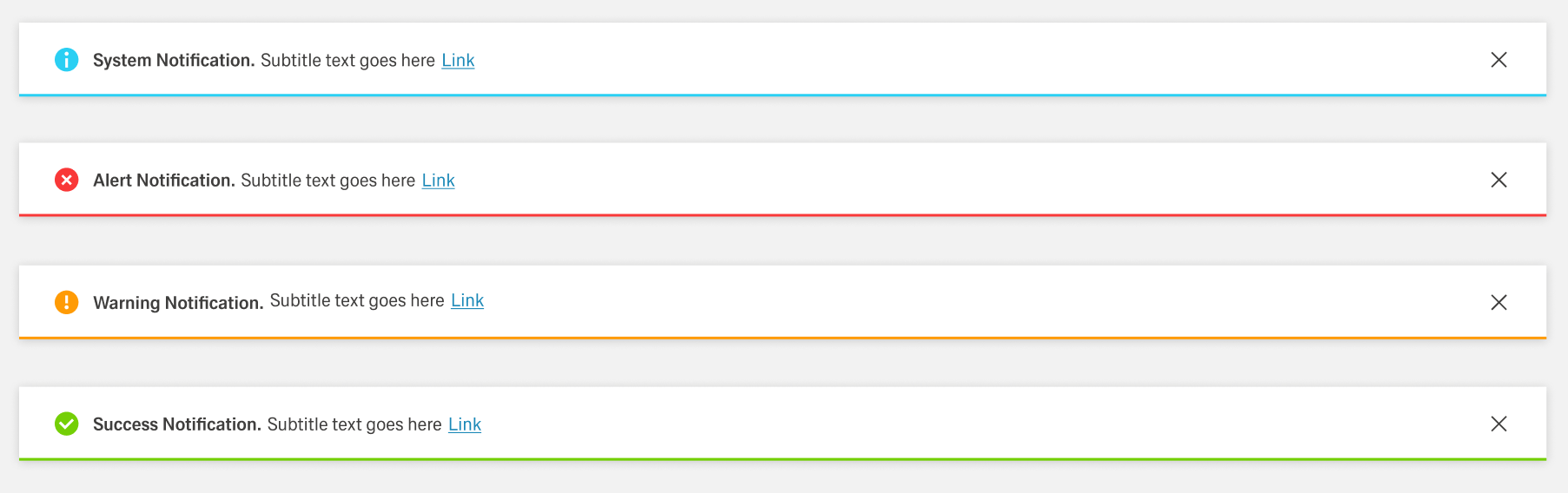
Inline Notifications are part of Local Notifications and appear inside components or boardlets in general. Their realm of influence is limited to the space they appear in and they are not listed in the Notification Panel. Inline Notifications have four states, determined by the type of notification. The content can vary by use case.
- Error Notification — Colored red; signals critical errors.
- Warning Notification — Colored orange; announces problems that may result in errors.
- Success Notification — Colored green; signals a successful process.
- System Notification — Colored blue; reports system information.
Best Practices
Usage
Local Notifications
Local Notifications are used for direct feedback on an user action inside a dashboard. They are none permanent, disappearing when the user leaves the dashboard. Compared to Global and Toast Notifications, they are comparably non intrisive.
Local Notifications should be used, if
- The Notification is repetitive and would clutter the Notification Panel.
- The Notification is tied to a specific element inside a dashboard.
- The message is irrelevant on any other dashboard.
Local Notifications should not be used, if
- The message of the notification is relevant at a later point in time.
- The Notification is not tied to to any specific part of a dashboard.
- The notification is part of an ongoing background process.
- They are not directly activated by a user action.
Toast Notifications
Toast Notifications give global and onging feedback on background processes not related to a specific user action. They are intrusive, only disapprearing if the user interacts with them or changes dashboard. Can include interactions beyond closing, enforcing their focus on manageing background or ongoing processes.
They should not be used for static feedback or information directly related to user actions inside a boardlet.
Global Notifications
Global Notifications pertain information not directly related to user actions, but the system itself. They are intrusive and should thereby be resereved for crutial information.
Gobal Notifications should be used, if
- The message is of high importance, even outside the current dashboard.
- The notification is not directly triggered by a user interaction.
- Placing the notification inside the dashboard is not possible or would disrupt the content greatly.
Gobal Notifications should not be used, if
- The content is related to an ongoing background process.
- The notification is repetitive.
