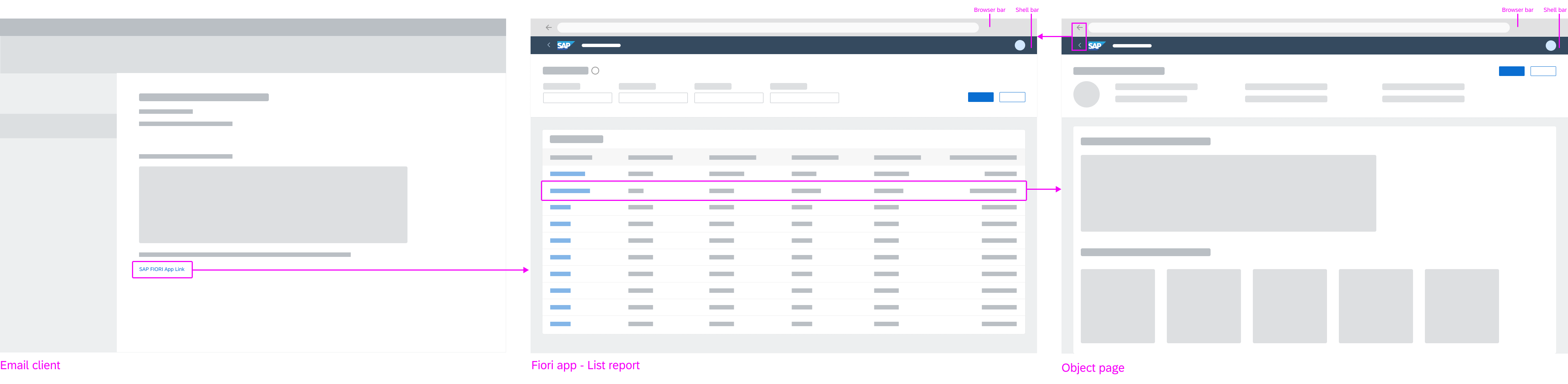
Intro
Navigation in Inspire applications follows standard navigation paradigms of various web applications. When a user navigates to a new dashboard, the user’s system default navigation is in place.
EdgeOne Inspire combines the hub-and-spoke navigation model with an application network model. A central dashboard in UPW (unified production workplace) is the center of all navigation paths. The user starts from the home dashboard and navigates forward into the apps through multiple dashboards. Multiple apps can form a process. The ubiquitous back navigation function allows the user to go back to the previous dashboard. The user can always navigate back to the home dashboard via logo.
EdgeOne X-series applications are also linked in the home dashboard. They open per default in a new web browser tab.
- Ron Oemus insert a screen which looks like this.
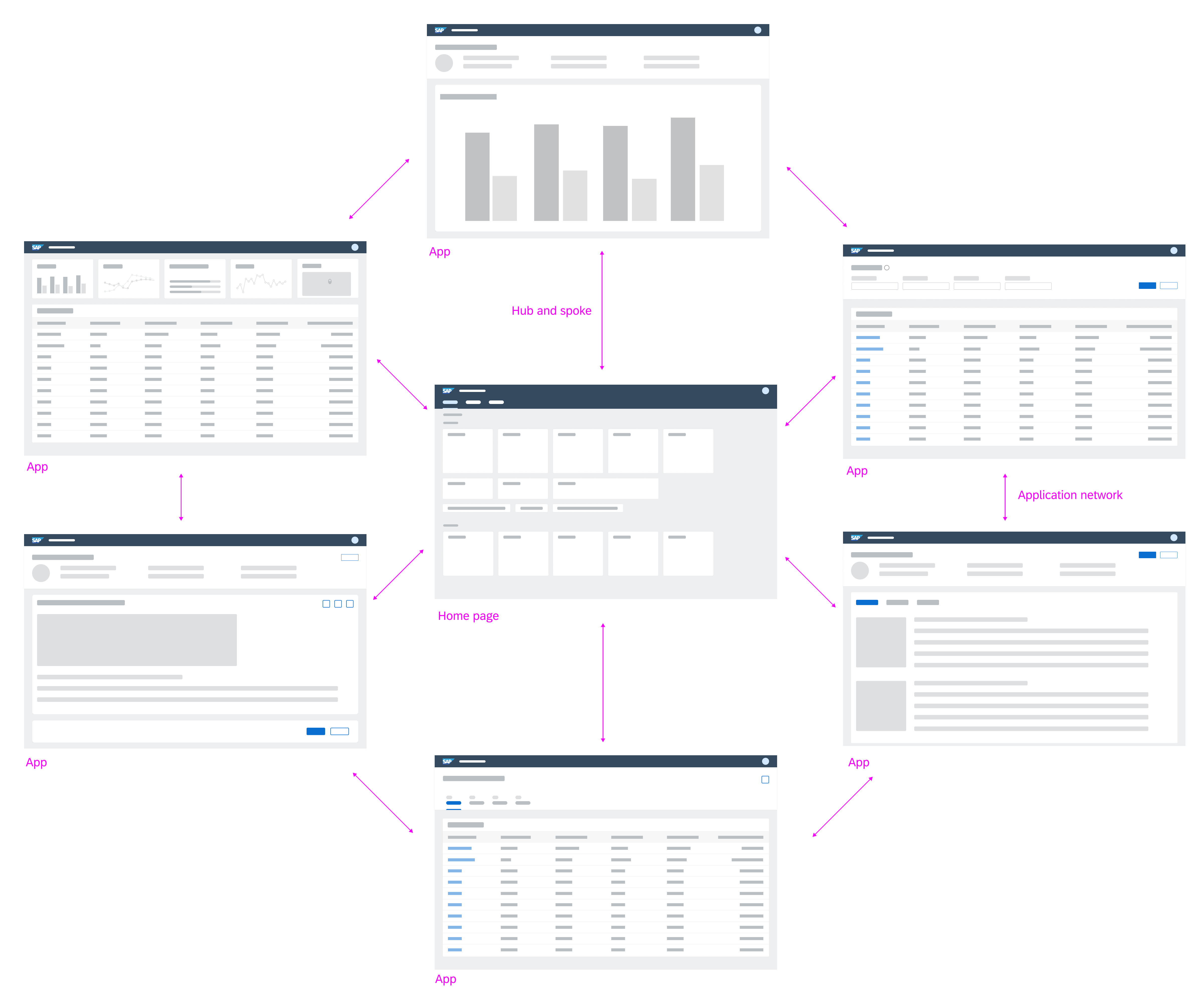
Application navigation model
Navigation Between Apps
The cards (insert link) on the home dashboard represent navigation anchors to the individual apps/ dashboards. By selecting a card, the user navigates to the corresponding app/ dashboard. It is also possible to integrate legacy UI technology through these cards. EdgeOne X-Series technologies open in a new tab or window (for supported desktop operating systems only).
- Ron Oemus insert a screen which looks like this.
Version 1:
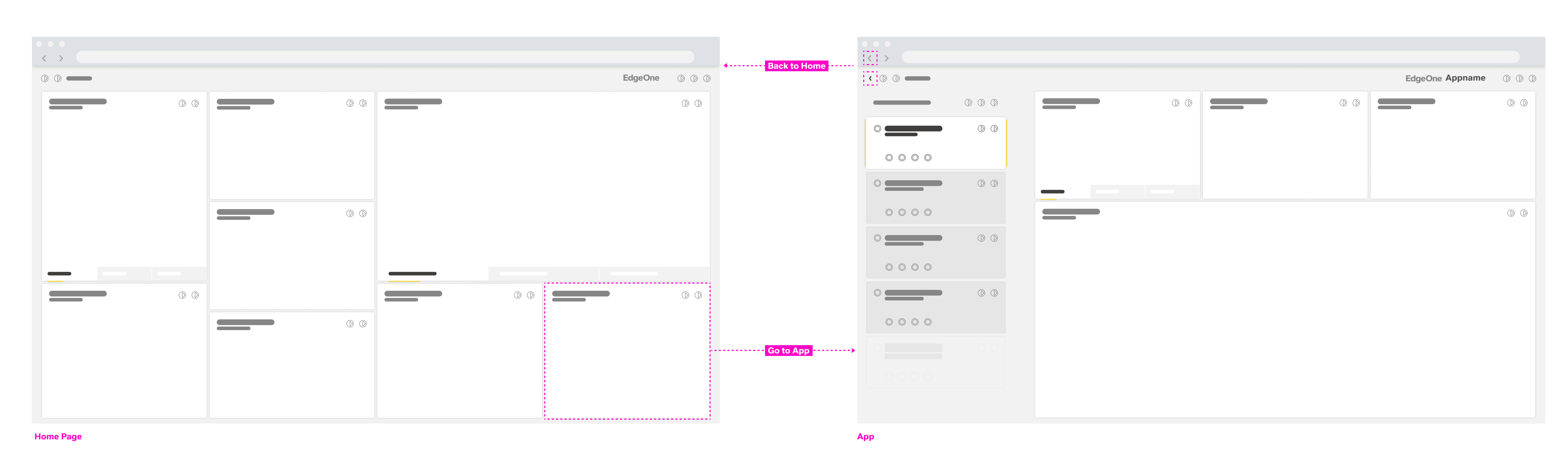
Version 2:
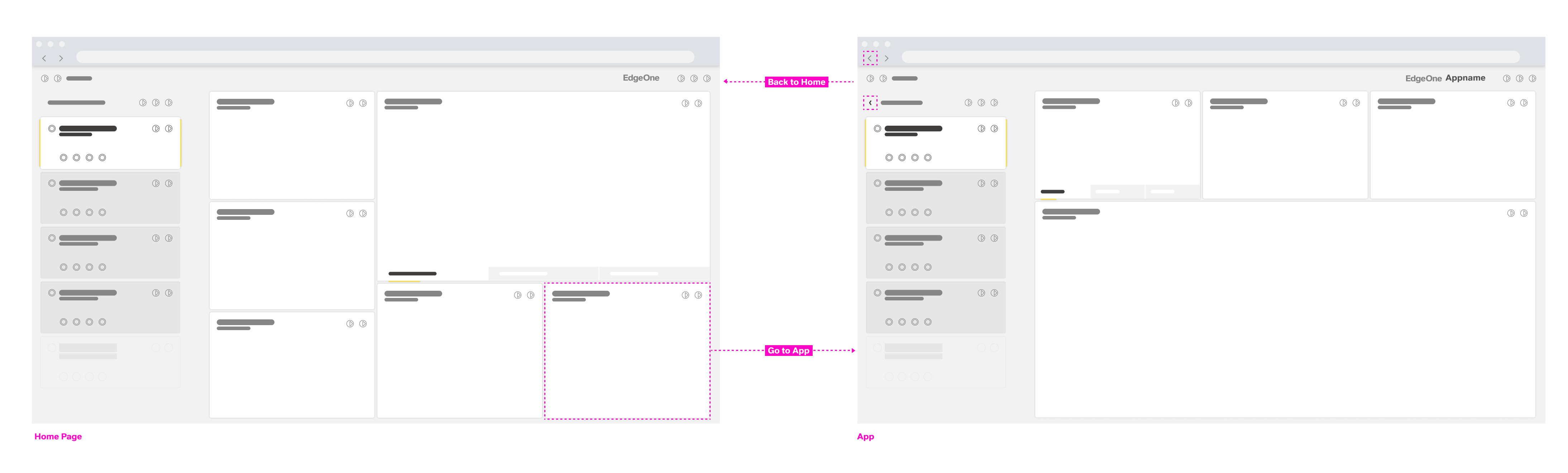
Version 3:
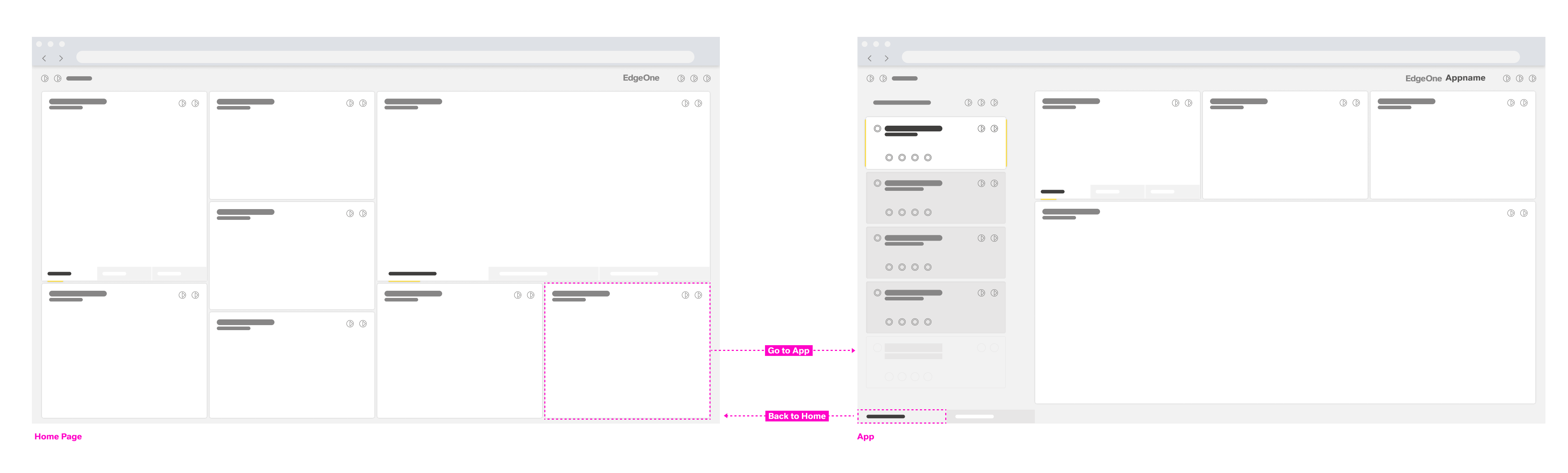
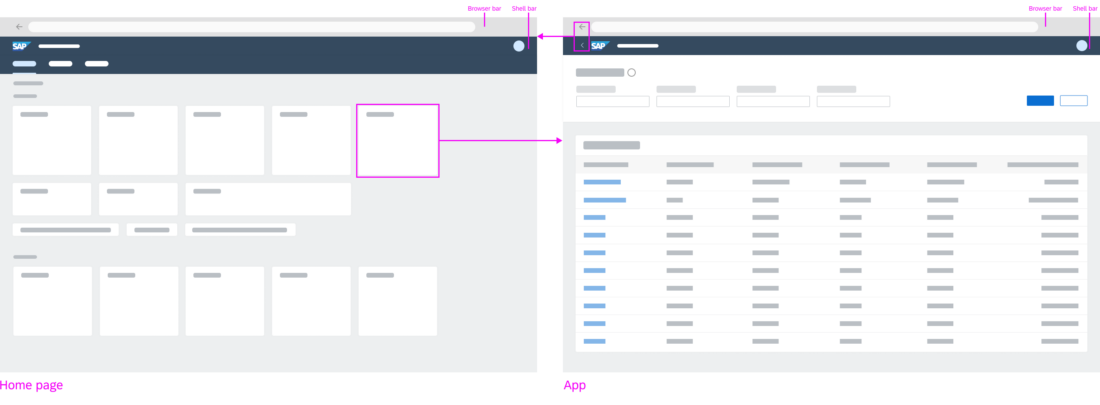
The home dashboard features cards as navigation anchors to the individual apps
Individual apps can be connected to build up navigation flows. There are different ways to build a connection:
- Navigation via links (to open other objects or lists)
- Navigation via line items in a list or table (to display more details about the item in the list/table)
- Navigation via other UI elements
- Actions on buttons (to trigger transactional tasks)
By transferring context between apps, one modular app can build on the input of the previous app(s). This way, individual apps can be reused in different contexts. More complex functionality can be combined using individual modules or apps. After each navigation step, the user can always navigate back using the browser’s back button or the back arrow icon in the header bar (insert link).
- Ron Oemus insert a screen which looks like this.
Version 1:

Version 2:

Version 3:

Forward navigation flow
Back and Home
The ID2 header is always located at the top of each app. It displays the logo, which triggers navigation to the home dashboard, and back button, which triggers navigation to the previously visited page. An exception is made when a deep link to an application is called and there are no EdgeOne Inspire entries in the browser history. No back button should be displayed.
- Ron Oemus insert a screen which looks like this. (ID2 Header)

Navigation Within Apps
Forward Navigation
Forward navigation to other dashboards of the app or other apps is triggered by links, line items, buttons, or other UI elements. No distinction is made between navigation targets located within the same app or those located in other apps.
Clicking a link can either trigger direct navigation, or open a popover. With the popover, further navigation targets can be reached. This behavior should be consistent within an app. For example, links in a table should consistently either open a popover or navigate to another dashboard.
Example: Navigation from legacy to EdgeOne Inspire
EdgeOne X-Series apps are always opened in a new tab/window from the EdgeOne Inspire home dashboard. The same applies to any URL that opens a X-Series app.
- Ron Oemus insert a screen which looks like this.
- Rename SAP Fiori → EdgeOne Inspire
- Rename Legacy UI → X-Series app
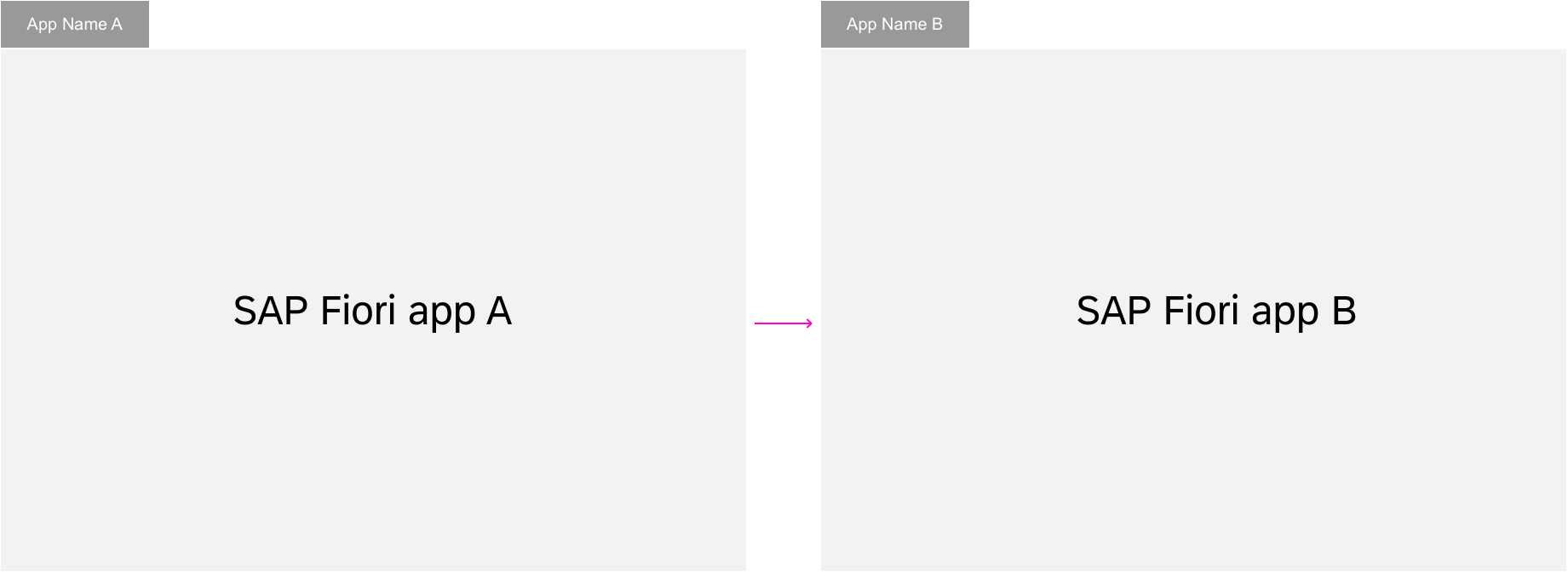
In-place navigation
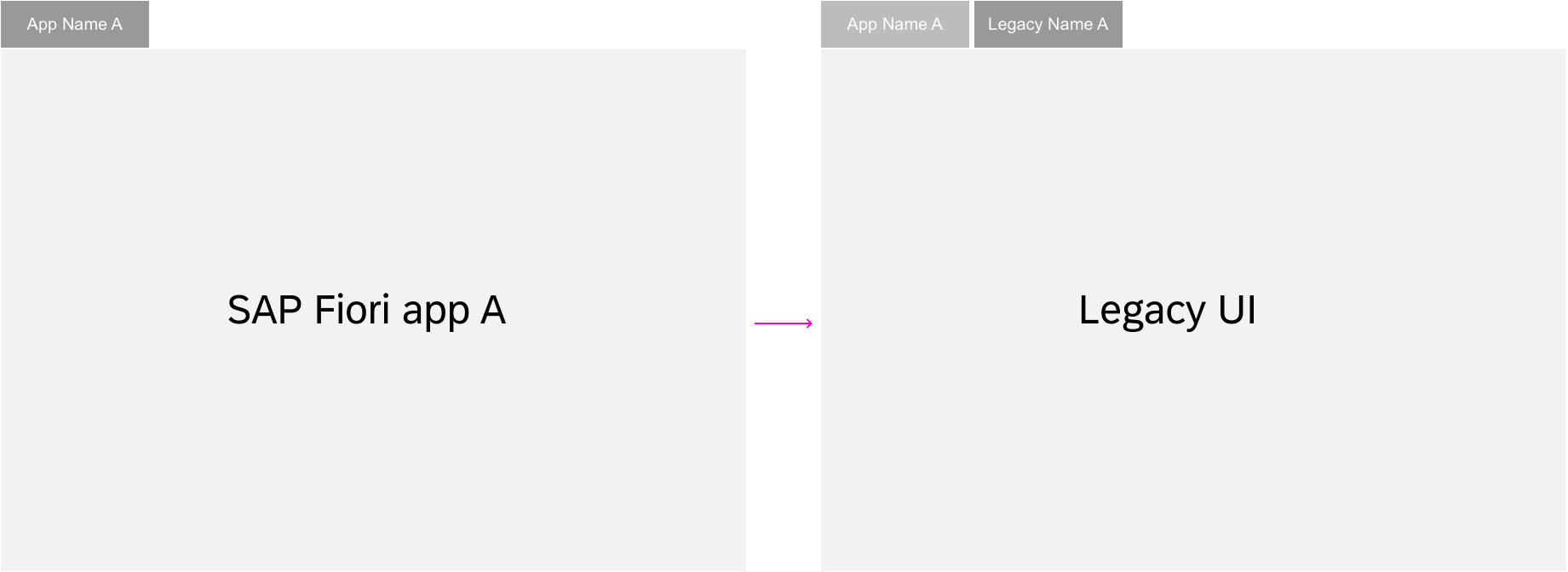
Pop-out navigation
Back Navigation
The user can always navigate back to the previous dashboard with the back button in the upper left corner of the ID2 Header. In addition, the browser’s back arrow icon (<) offers the same function. The browser history can be used to go back to previous steps. All dashboards can be bookmarked and the URL can be forwarded to give other users access to the same page.
Exceptions
Switching between display and edit mode is not a navigation step and therefore does not result in a new URL. An exception is made for the draft. Here, a unique number is added to the URL to distinguish drafts from active documents.
More information:
- Behavior in edit scenarios: (add link)
- Deep linking and bookmarking: (add link)
- Ron Oemus insert a screen which looks like this.

Navigation for full screen apps
Edit and Display
Switching from display mode to edit mode is not a navigation step and the URL itself should therefore not change, except for the GUID which is added to the URL. Hence, no new entry is made in the browser history.
Bookmarking draft version
After switching to edit mode, a GUID is added to the URL to identify the current draft version. The user may bookmark the current changes as a draft version. If the user switches back to display mode via Save, the object will be shown with the saved changes. If the user switches back to display mode via Cancel, the object will be shown without the changes.
Navigating to draft version
When the user navigates to a bookmarked draft version, a dialog pops up prompting the user to decide whether the application should continue in edit mode with changes of the draft version, or whether the active version should be shown in display mode.
- If no draft version exists, the active version is shown in display mode.
- If the user rejects the edit mode, the draft version is deleted and the active version is shown in display mode.
- If the bookmarked draft version does not contain any changes, no dialog (popup) is shown. The active version is shown in edit mode.
Exceptions
- If another user is locking the object, the active version is shown with the status Locked by… in display mode.
- If another user’s lock on an object has expired, the active version is shown with status Unsaved Changes in display mode.
Entries in Browser History
The state of an app is reflected in its URL. This allows the user to bookmark or send a link to the app in this specific state. But when does a new URL need to be created?
In general, there are three cases:
- Always create a new entry in the browser history when the user opens a new app. When the user navigates to a different dashboard within the same app, create a new entry to allow back navigation to the previous dashboard. In these cases, users can return to the previous dashboard using the back button or the browser’s back arrow icon.
- Replace the URL in the browser history if only parts of the dashboard are changed. This is important to avoid unnecessarily long back chains when navigating back in the browser history. You will need to replace the URL when the user navigates through a list of items using the up/down arrows, or applies a filter to a list.
- Keep the same URL if you don’t need to mark a new state for the app. This could be the case after choosing a selection. The URL also stays the same when switching between display and edit modes (see exception below).
Exception
There is an exception when working on a draft version. In this case, the URL stays unchanged and a GUID is added to identify the draft version.
(Link to the draft handling article)
Deep Links
A dashboard of an application that is not its home dashboard can be bookmarked or shared as a deep link. Ideally, the full UI state of the dashboard is retrieved. Technically, this includes every part that is represented in the URL.
For example, a master-detail app gets a new URL when another entry is selected in the master list and shown in the details area. This state with the new item can be used as a deep link.
If a deep link to an application is called and there are no EdgeOne Inspire entries in the browser history, do not display a back button.
Apps with draft handling functionality allow deep linking to a dashboard in edit mode. Apps without draft handling allow deep linking only to the display mode of an object. In the latter case, the deep link always navigates to the display mode. For more information about deep linking and bookmarking for drafts, see (link to draft handling).
Calling a Deep Link
Navigation to a deep link ideally restores every detail of the dashboard. Technically, this includes all parts reflected in the URL. The use case and feasibility determine which changes are reflected in the URL, but the rules mentioned in this section must be fulfilled. If a deep link leads the user to an object that no longer exists or can’t be accessed, an empty dashboard is shown. If a user calls a deep link that has been forwarded by another user, the results displayed may vary due depending on authorization levels.
- Ron Oemus insert a screen which looks like this.