
(this page was created automatically. In case of formatting issues, please visit the official Wiki Page)
Navigation Concept
Navigation helps users understand where they are, what’s available, and how to move through an application. It reduces friction and supports confidence. Good navigation also protects context, so users can switch views without feeling lost.
In Inspire, navigation is organized into two layers. Global Navigation is always present and stays stable across the application. Local Navigation is context-specific and adapts to the current product area, dashboard, or workflow.
Anatomy
Navigation anatomy describes the main building blocks users interact with. In Inspire, those blocks are split into Global and Local Navigation. The split reflects scope: Global Navigation covers the whole application, while Local Navigation covers the current area.
Global Navigation
Global Navigation provides persistent access to cross-cutting destinations and utilities. It enables switching dashboards or products from anywhere. It also keeps users oriented by staying consistent across contexts.
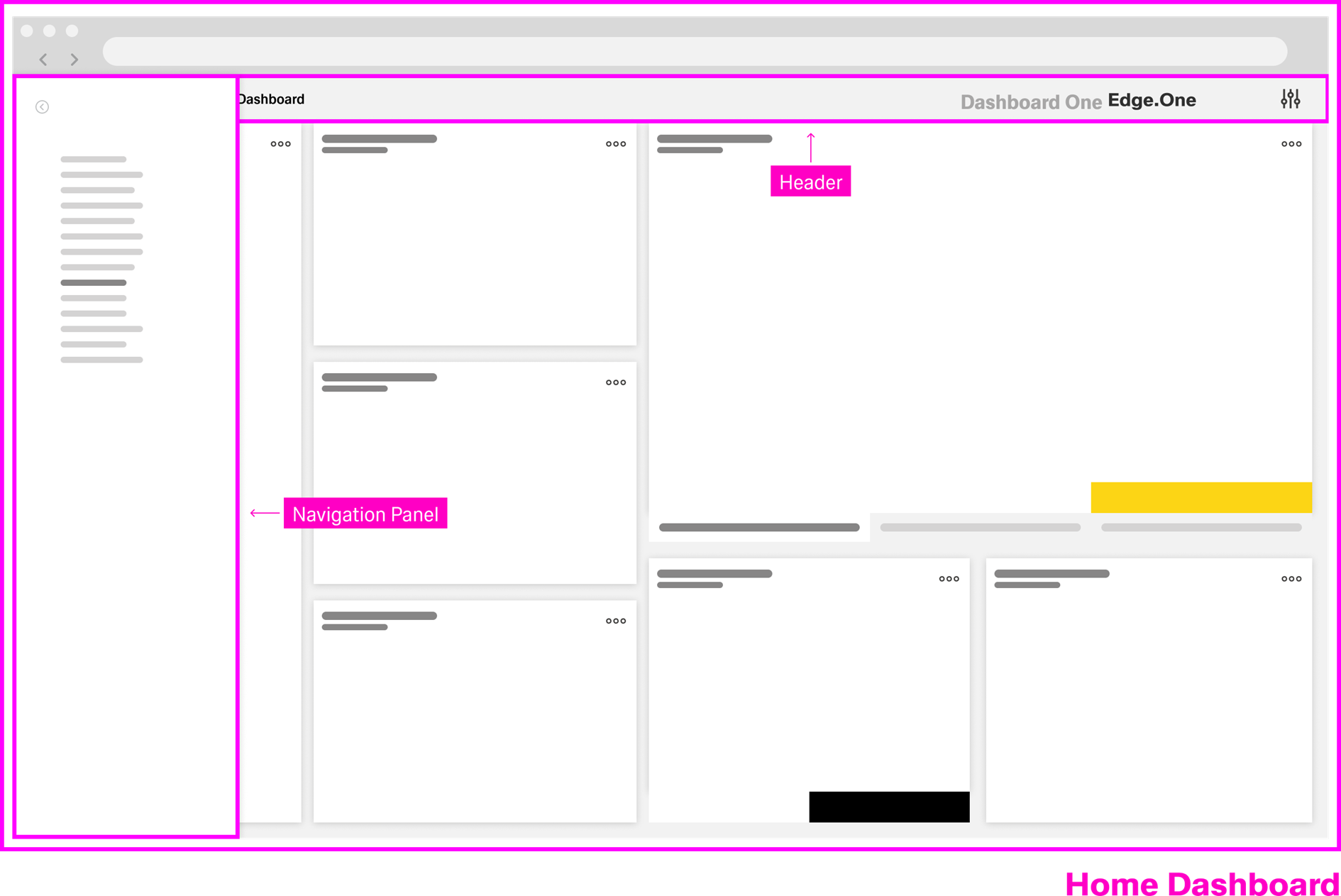
Dashboard Header
The header appears on every dashboard. It combines wayfinding with universal utilities, so users can navigate and act on high-level tasks without leaving their current context.
The header typically includes the burger menu, breadcrumbs, a wordmark that routes to Home, and space for secondary global destinations. Breadcrumbs help communicate position in a hierarchy, but they work best as secondary navigation and should not be the only way to move around.
Navigation Panel
The navigation panel opens from the burger menu. It provides a structured overview of dashboards and destinations, commonly as a list or a tree.
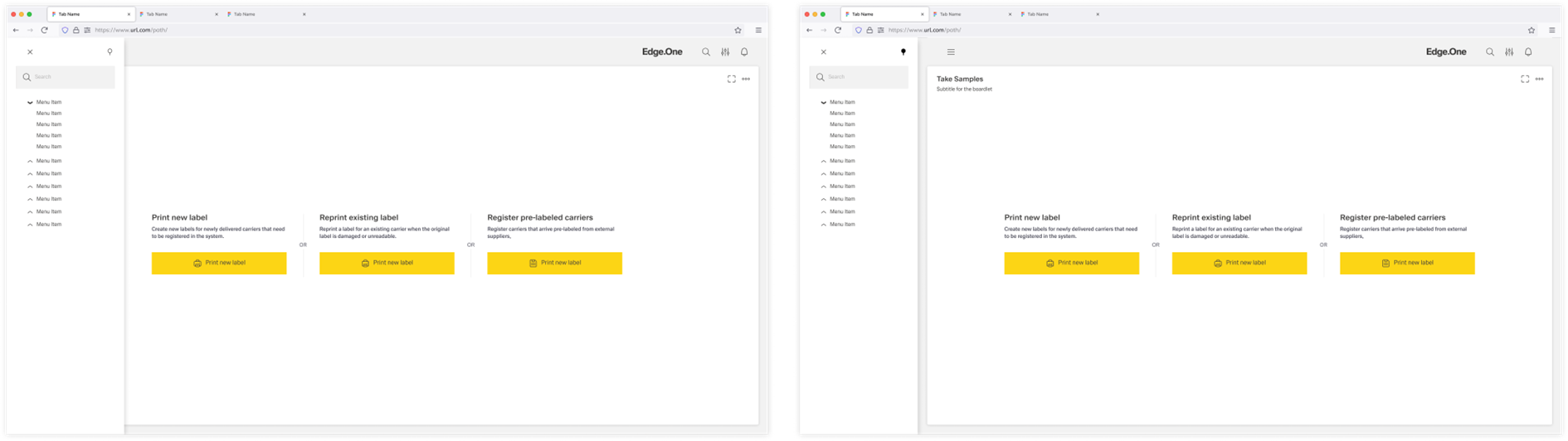
The panel appears as an overlay to keep switching lightweight. It can also be pinnable when users benefit from persistent access. In larger structures, search inside the panel becomes important because it reduces scanning and speeds up access.
Home Dashboard
The Home Dashboard is the starting point of a namespace. It is also the primary reset destination when users want to re-orient and begin again.
Access to Home should be constant, typically through the wordmark. The Home experience can be customized per user group, especially when different personas need different starting points.
Local Navigation
Local Navigation helps users move within a specific product area or workflow. It complements Global Navigation by being task-oriented and context-specific. It is also flexible, so it can vary between dashboards.
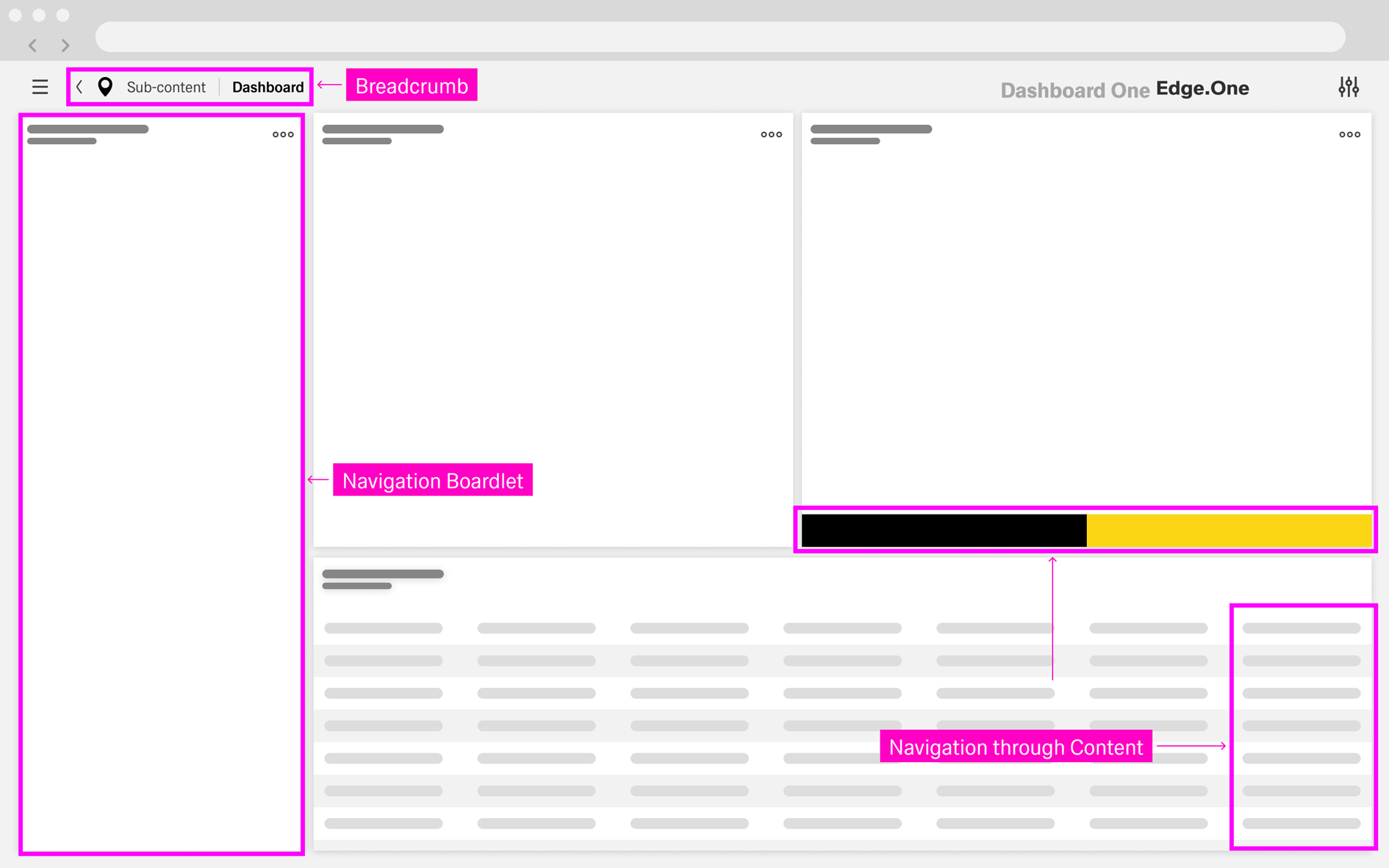
Local Navigation is not required everywhere. It becomes relevant when dashboards have dependencies, when areas contain multiple related sections, or when users move through multi-step processes.
Navigation Boardlet
The Navigation Boardlet is a local navigation surface that can expand and collapse. It sits on the far left of the dashboard and can span from top to bottom.
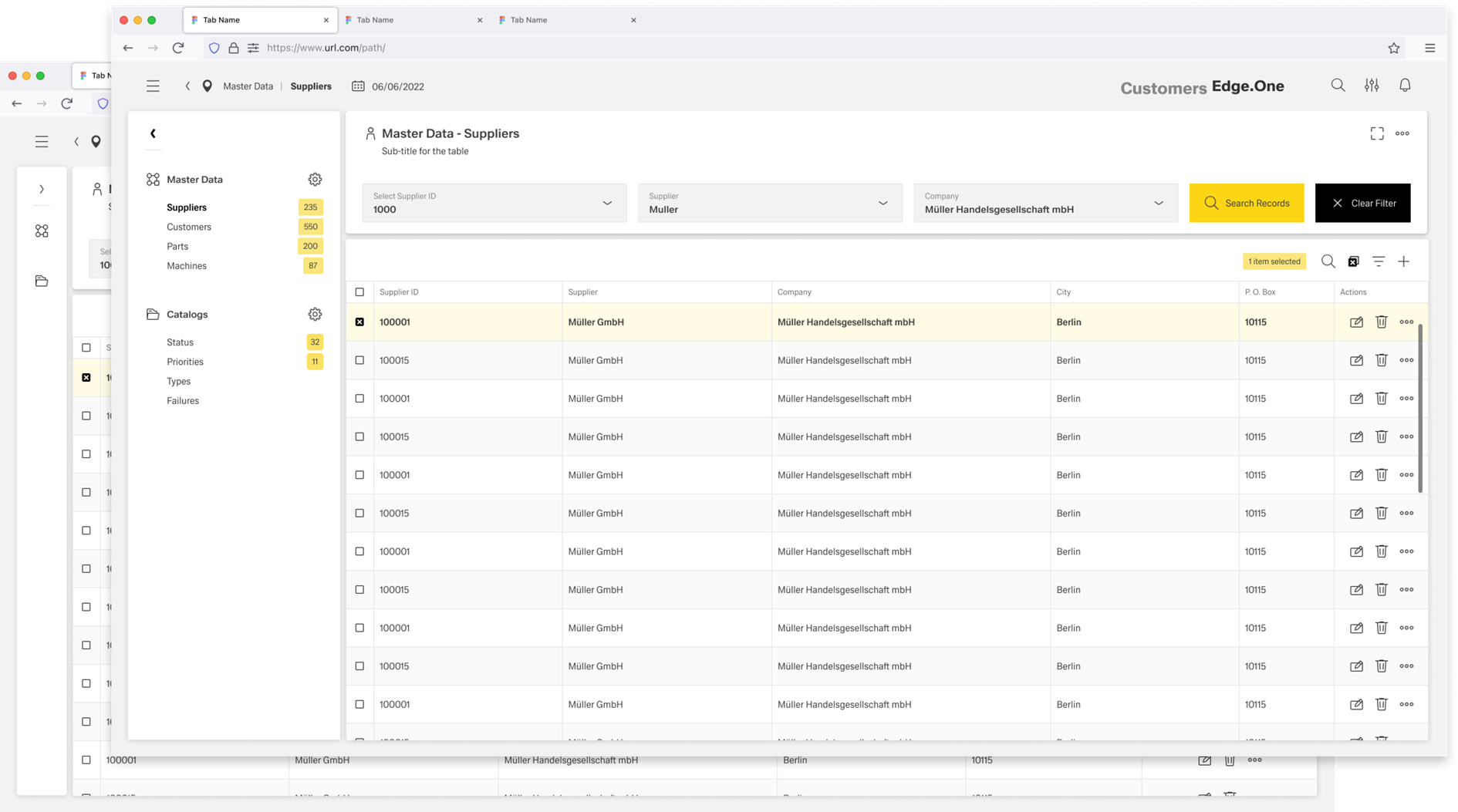
It provides links and tools for navigating within the current area. It is commonly presented as a list or a tree. Grouping items improves scanning and should reflect the local information architecture. When the boardlet is long, it should support independent scrolling so the main content remains usable.
Breadcrumbs
Local breadcrumbs show the user’s current location relative to the local information architecture. They support moving up to parent levels and returning to earlier steps.
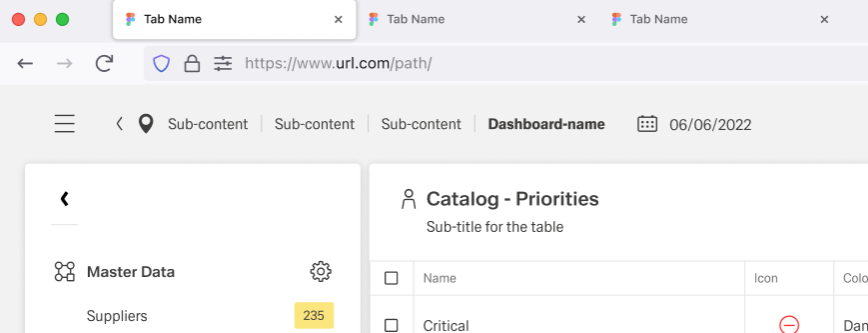
Breadcrumbs are strongest when they reinforce a clear local structure. As with global breadcrumbs, they are best treated as secondary navigation rather than the only navigation available.
In-content Navigation Actions
In-content navigation actions are placed inside the dashboard content. They help users continue a task directly from where they are working. This reduces back-and-forth to side navigation.
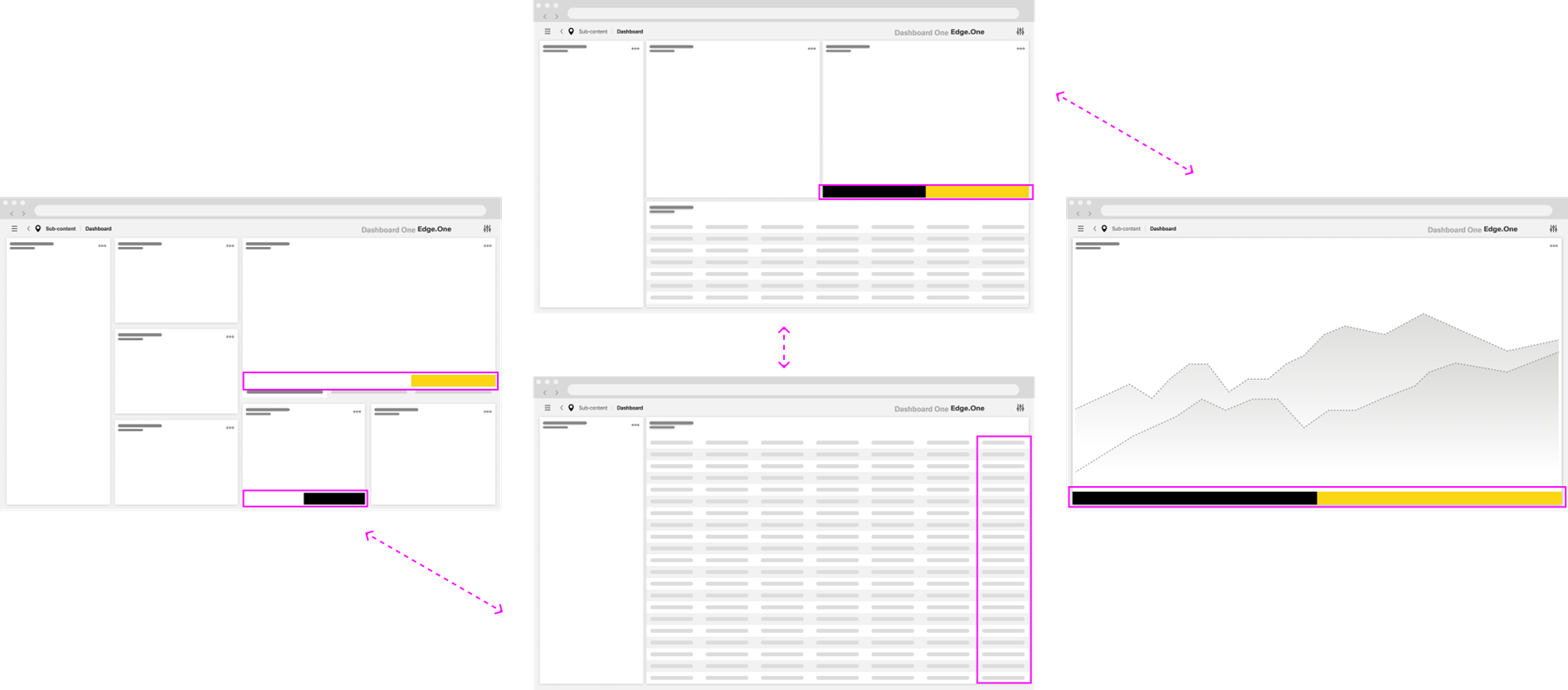
Typical examples include table row actions that open a details view, Next and Back controls in step flows, and dialog footer actions such as Cancel and Continue. When these actions lead to drilldowns, the destination should provide a clear way back. Returning should preserve context when feasible, such as filters or selection.
Best practices
Clarity
Navigation should prioritize orientation before speed. Users should be able to answer three questions quickly. Where am I, what can I do here, and what happens next.
Consistency and structure
Local Navigation can vary by dashboard. That flexibility is useful. Still, behavior should remain predictable within the same application area. Keep placement, interaction models, and naming consistent.
Structures should be easy to scan. Prefer groupings over long flat lists. Avoid deep trees that require repeated expanding and collapsing. When scanning becomes difficult, reduce nesting and shorten labels. If the structure is large, consider search or shortcuts.
Navigating to and in processes
Avoid routing users into the middle of conditional processes. Menus and panels should lead to an entry point or overview. Step-to-step movement should happen inside the process UI.
Wording
Use user-facing language. Keep labels concise and aligned with page titles. Avoid internal jargon. If a link leaves the current context or opens an external destination, label that clearly.
When to use what kind of navigation
| Navigation pattern | When to use | Why it works |
|---|---|---|
| Global Navigation | Use Global Navigation when users need persistent access to system utilities and the ability to switch dashboards or products from anywhere. | A stable global header paired with a global navigation panel supports confident movement. Design systems often emphasize that users rely on global headers for navigation and orientation. |
| Navigation Panel | Use the Navigation Panel when users need to switch dashboards, products, or top-level destinations from anywhere in the application. | A structured list or tree supports cross-area switching and scales well as the number of destinations grows. Search and grouping further reduce scanning effort. |
| Navigation boardlet | Use the Navigation Boardlet when an area contains many related destinations and users switch between them frequently within the same product area or workflow. | A persistent local structure supports scanning and grouping and helps users pivot between peer sections without losing context. |
| In-content navigation actions | Use in-content navigation actions when movement is a direct result of an interaction, such as opening details from a table, advancing through a flow, or confirming a dialog action. | It keeps navigation anchored in the user’s work and reduces reliance on separate navigation surfaces for task progression. |
