
Objects represent physical or logical assets that tasks, documents, and checklists can be linked to. Every object always belongs to a specific Object Type, which defines its structure, tabs, fields, and behaviour.
Objects are essential for connecting operational work (tasks, audits, maintenance activities) with real-world assets such as machines, tools, devices, equipment, or locations.
New objects can be created via:
Object (Web) → New
The system displays all Object Types for which the user has “New allowed” permissions based on their role.
Users can only create objects of types that have been assigned to their role.
Object Header Fields
The object header contains all high-level information about the asset.
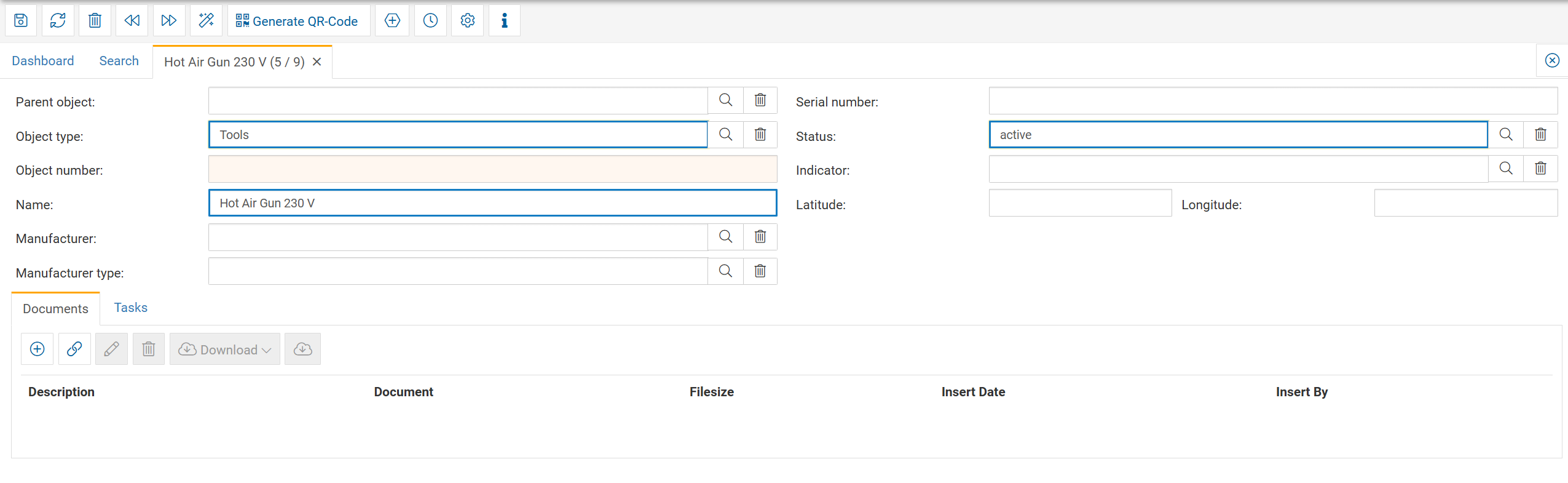
Parent Object
Links the object to a hierarchical structure.
Examples:
Plant → Machine → Component
Server → Virtual Machine
Building → Room → Equipment
This allows creating complete asset structures.
Object Type
Displays the type the object belongs to (e.g., Tools, Machine, Generator).
The Object Type determines:
available fields
available tabs
available status values
permissions for creation/editing
naming rules
template layout
Object Number
A unique internal identifier for the asset.
Often used for inventory, lifecycle management, or system interfaces.
Name
The human-readable name of the object.
If “Disallow edit name” is active in the Object Type, the name cannot be changed later.
Serial Number
The manufacturer or asset-specific serial number.
Latitude / Longitude
Optional geolocation data, useful for:
refinery grounds
city-wide assets
field service areas
outdoor equipment
Tasks can later be filtered or displayed based on proximity.
Status
The current lifecycle state of the object.
Examples:
active
inactive
out of service
maintenance
Statuses are freely configurable and assigned via the Object Type.
Manufacturer / Manufacturer Type
Links the object to a predefined manufacturer and classification.
Indicator
A marker used to classify or highlight assets, depending on configuration.
Object Tabs
Tabs shown below the header depend on the Object Type configuration.
Typical tabs include:
Documents
Stores files, images, manuals, or external links.
Tasks
Shows all tasks assigned to or created for this object.
Completed checklists
For assets with recurring or audit-based workflows.
Notes
Free-form documentation.
Shift events
(only when connected to digital shiftbook)
Universal Field Tabs
Custom-defined fields and data structures for specialized use cases.
Toolbar Functions (Top Bar)
The toolbar above the object view provides all object-related actions.
Save
Stores any changes to the object.
Refresh
Reloads the object data from the server.
Delete
Soft-deletes the object (only removed in UI, not physically deleted from backend).
Navigation (Forward/Back)
Moves between previously viewed objects.
Creation Wizard
Supports guided creation for complex asset structures.
Generate QR-Code
Creates a QR-Code linking to the object’s web URL.
Useful for:
maintenance labels
tool tracking
equipment identification
Generate New Name
Applies automatic naming rules defined in the backend (useful for factories with strict naming conventions).
Audit Trail
Shows every change made to the object:
who changed it
when it was changed
which fields were updated
Settings
Directly opens the Object Type configuration for users with permissions.
Information
Displays metadata such as:
creator
creation date
last modified by
last modification date
Lifecycle of an Object
Object Type is created and assigned to a role.
Object is created based on the type template.
User adds structural data (parent object, manufacturer, indicators, location).
Documents, tasks, or checklists are linked to the object.
Object is used in operations (maintenance, audits, inspections).
Status changes over time (e.g., active → out of service → archived).
