Object Types define the categories of assets or entities that can be managed and linked within Finito. They serve as the structural foundation for associating tasks, documents, checklists, indicators, and other operational data with physical or logical objects.
An Object Type can represent anything, including:
IT assets (computers, servers, network components)
OT assets (PLC, sensors, controllers)
Machines and machine parts
Tools, equipment, production lines
Vehicles, buildings, rooms
Projects, persons, and other organizational entities
Object Types are fully customizable and can be tailored to the customer’s environment.
Object Type Fields
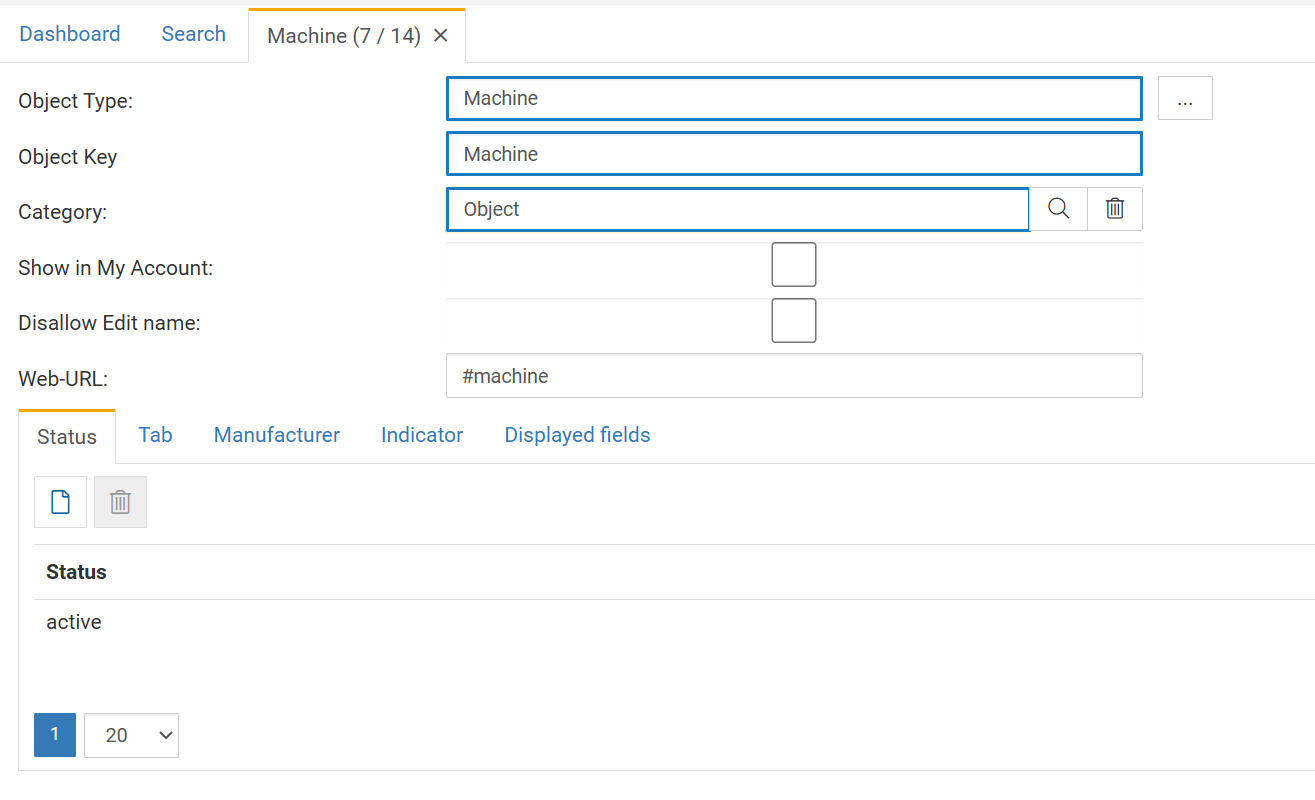
Object Type
Defines the name of the object category (e.g., Machine, Tool, Generator).
This can be freely defined according to customer needs.
Object Key
A unique key or code used to identify this type of object.
Also fully configurable and not system-restricted.
Category
Defines the structural “template” used to display the object later.
This determines which header layout and default fields appear.
Typical categories include:
Object (most common)
Project
Person
Location
Custom templates
Selecting a category primarily influences the visual representation of the object header.
Show in My Account
Optional and usually not relevant.
It is used for linking persons to objects so that objects can appear in a user’s profile.
Disallow Edit Name
When enabled:
The object’s name cannot be edited later.
The name is treated as fixed and “generated”.
Ensures naming conventions are preserved (e.g., asset IDs).
Web-URL
Specifies the direct URL under which the object can be accessed and new ones are created.
Tabs in an Object Type
Tabs define which sections appear inside the object view (“body”) when an object of this type is opened. They allow structuring all data related to an object.
1. Status
Shows the status values assigned to this object type.
Typical statuses include:
Active
Inactive
Out of service
Under maintenance
Statuses are fully configurable via the State search entry and can then be added to the Object Type.
2. Tab
Defines all tabs visible in the object’s main view, such as:
Tasks
Completed checklists
Documents
Notes
Linked shift events
Universal Field Tabs (freely definable custom tabs)
This allows each object type to be structured according to operational needs.
3. Manufacturer
Specifies the manufacturer of the asset.
Manufacturers are managed centrally and can be selected here.
4. Indicator
A marker or classification specific to the asset class.
Examples:
Safety-critical
Mobile equipment
Calibration required
Indicators help categorize or filter objects.
5. Displayed Fields
Shows checklist fields that can be displayed on the object.
Mostly not relevant for standard object use cases.
Creating an Object Type – Workflow Overview
Define the object type (name, key, category).
Configure the tabs and decide which information should appear.
Define allowed statuses.
Optionally set manufacturer, indicators, and displayed fields.
Save the Object Type.
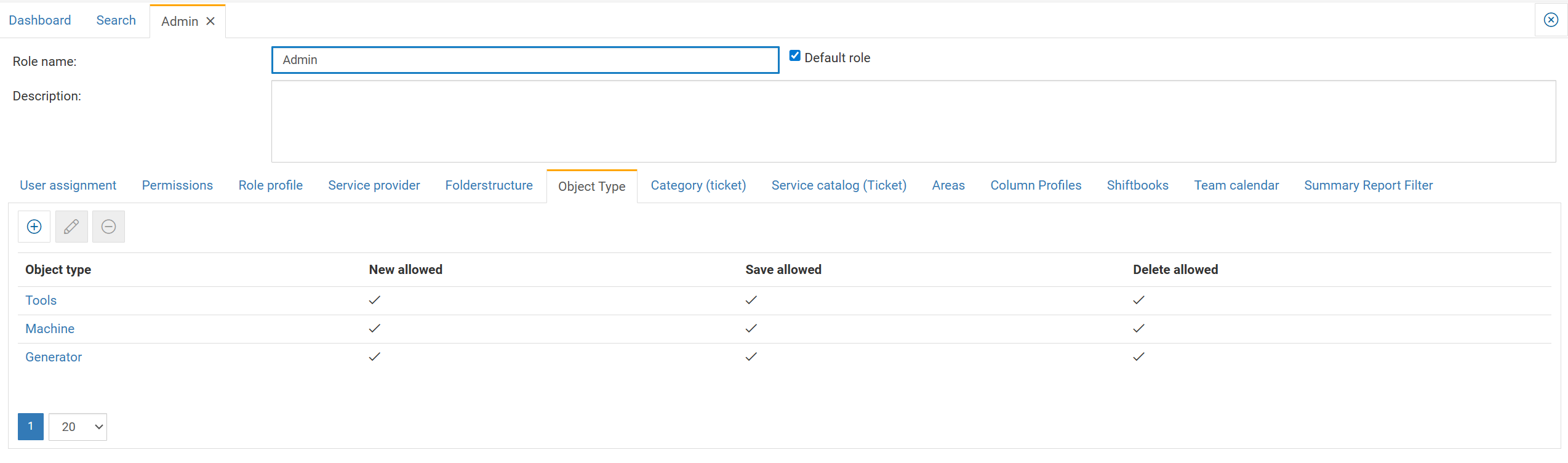
After creation, the Object Type must be assigned to roles.
Assigning Object Types to Roles
Users can only create, edit, or delete objects of a type if the role explicitly allows it.
To assign Object Types to a role:
Go to Search → Role
Open the desired role
Navigate to the Object Type tab
Role permissions:
| Permission | Description |
|---|---|
| New allowed | User may create new objects of this type |
| Save allowed | User may edit existing objects |
| Delete allowed | User may delete objects (soft delete in UI; backend keeps data) |
Available controls:
+ Add a new Object Type to the role
Edit Change permissions
– Remove the Object Type from the role
This ensures fine-grained control over which user groups may work with which assets.