Connecting Edge.One apps with QDAX databases (step by step)
Customers often use more than one database. In QDAX, the management of these databases can be done using the file "Alias.ini", e.g. adding a new database. When starting QDAX, the just needed database is selected in the login dialog. In Edge.One, the file "Alias.ini" is managed in Consul.
Content of this page:
- Database management in QDAX (using file "Alias.ini")
- Database management in in Edge.One
Database management in QDAX
The file "Alias.ini" contains all relevant data to find and open a database in QDAX. It's stored in the folder "Data". The folder "Data" is part of all folders of the QDAX installation, in this example the folder "00_QDA":
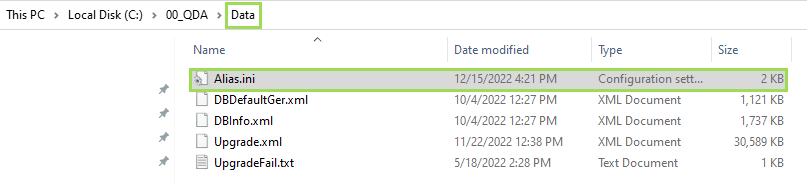
The illustration shows the folder "Data" containing the file "Alias.ini"
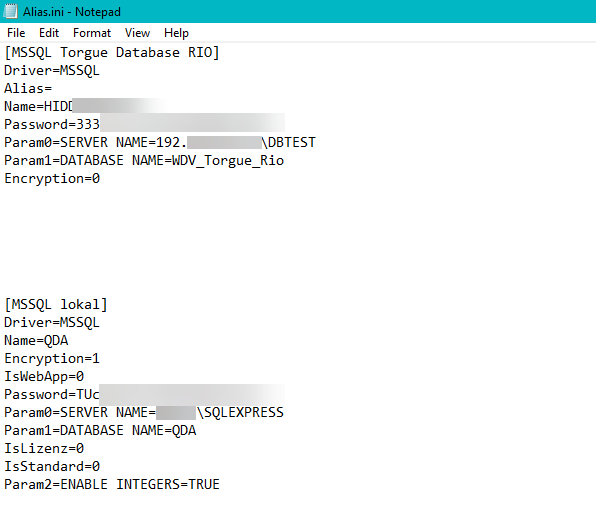
The illustration shows a typical file "Alias.ini"
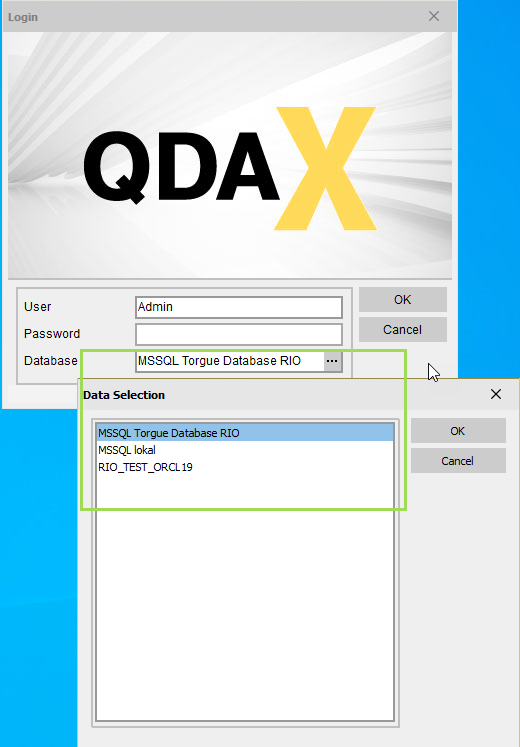
The illustration shows the database selection in QDAX during login
Configuration of the file "Alias.ini" for QDAX
| set value | meaning | example | |
|---|---|---|---|
| [Name] | database name | ||
| Driver= | database type | MSSQL or ORACLE | |
| Alias= | only needed when displayed database name should be different from the [Name], usually not required | ||
| Name= | database user name, NOT login for QDAX | ||
| Password= | database password (displayed using a QDA algorithm to not directly show the real name password) | ||
| Param0=SERVER NAME= | Parameter to transfer the server name where database is located if the server name also contains a comma, it's an information about the port | 192.aa.bbb.cc 192.aa.bbb.cc,16 | |
| Param1=DATABASE NAME= | Parameter to transfer the database name | ||
| Encryption= | 0 | ALWAYS set 0 to prevent problems | |
| IsWebApp= | 0 | old information, not needed anymore | |
| IsLizenz= | 0 or 1 1 is used to address the licence database (only relevant for QDAX) | ||
| IsStandard= | 0 or 1 1 is default database offered as first entry in selection list during QDAX login |
Database management in Edge.One
In Edge.One, the standard (default) database is stored in Kubernetes. Therefore, when creating a namespace, the namespace admin needs to be informed about the default database name.
Please note: The database management in Edge.One can only be done if you have the licence and the correct admin rights. If you don't have both, a Germanedge employee will set up a database according to your needs.
The complete QDAX logic is included in the QDA linux worker (the worker is a limited QDAX without UI). The default (standard) database used both by QDAX and by Edge.One is stored in Kubernetes secrets (defined as "IsStandard=1" in "Alias.ini"). Secrets contains password and other secret information for each namespace.
Please note: To create, edit, and read secrets, you need Kubernetes admin rights.
The following steps show how databases already used with QDAX are also connected to Edge.One.
Depending on your individual user rights for the quality apps, it might be possible that you need to contact an administrator to add a database.
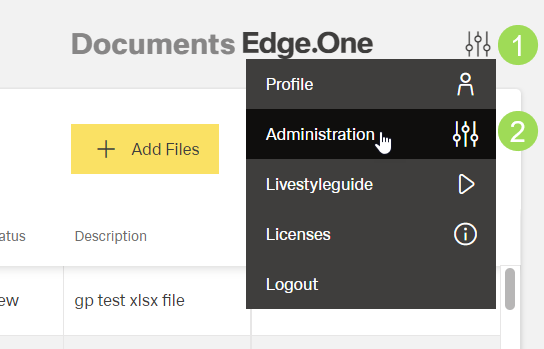
(1) settings button [
], (2) dropdown menu point "Administration"
Click the settings button [] to open the dropdown menu and select "Administration"
The following window appears:
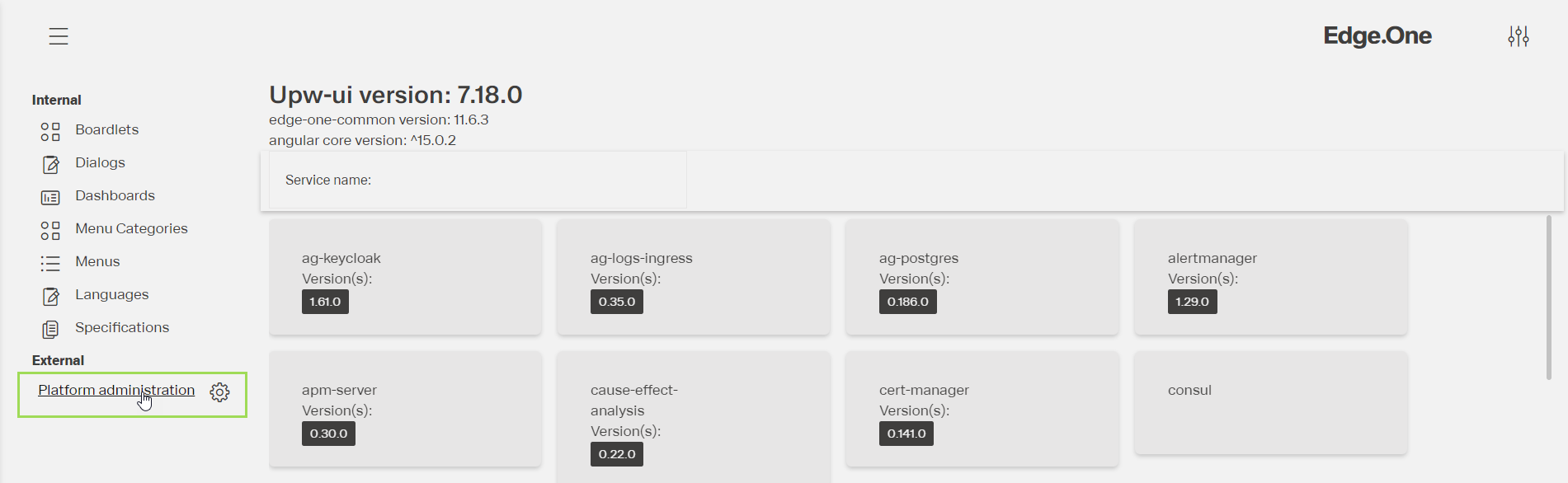
Click the menu item "Platform administration"
The following window appears:
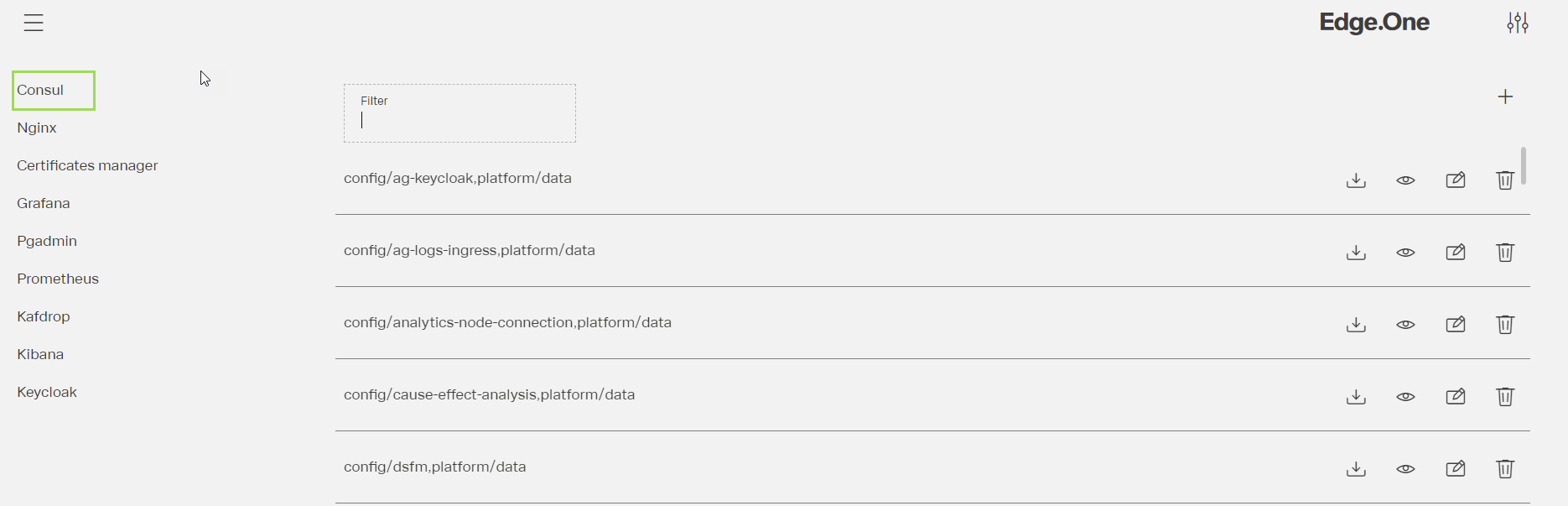
The first menu in the left bar "Consul" is directly displayed.
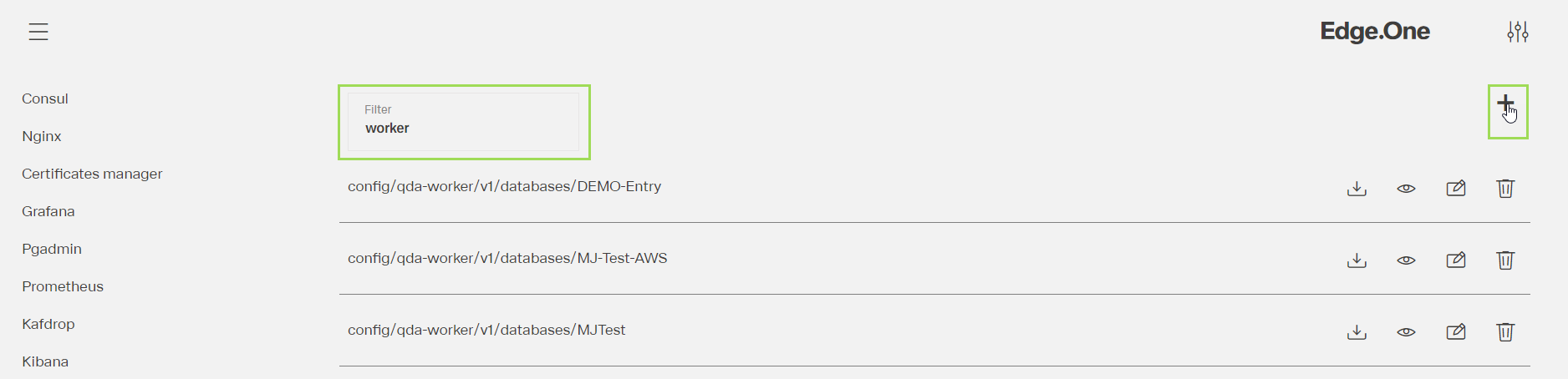
Enter "worker" into the filter field to see all available databases already connected
It's possible to download, view, edit, and delete each entry.
Click the button [ ] to add a new database
The following editable window appears
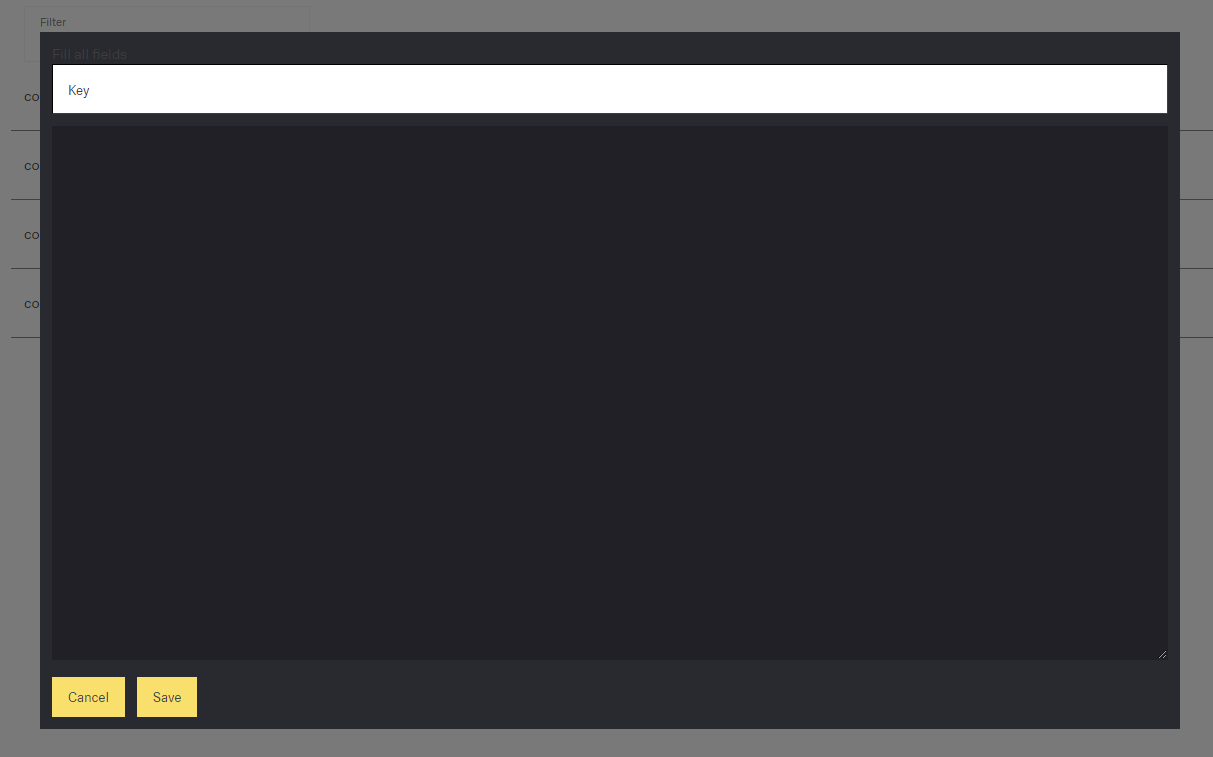
Enter the information of the database:
| Field | information | all relevant database data | example |
|---|---|---|---|
| Key |
| config/qda-worker/v1/databases/MSSQL Torgue Database RIO | |
black editor |
| for more information, please refer to this table. Please note: the linux worker can only process 2 "Params":
| [MSSQL Torgue Database RIO] Driver=MSSQL Alias= Name=HID*** Password=333*** Param0=SERVER NAME=192.***.**.**\DBTEST Param1=DATABASE NAME=WDV_Torgue_Rio Encryption=0 |
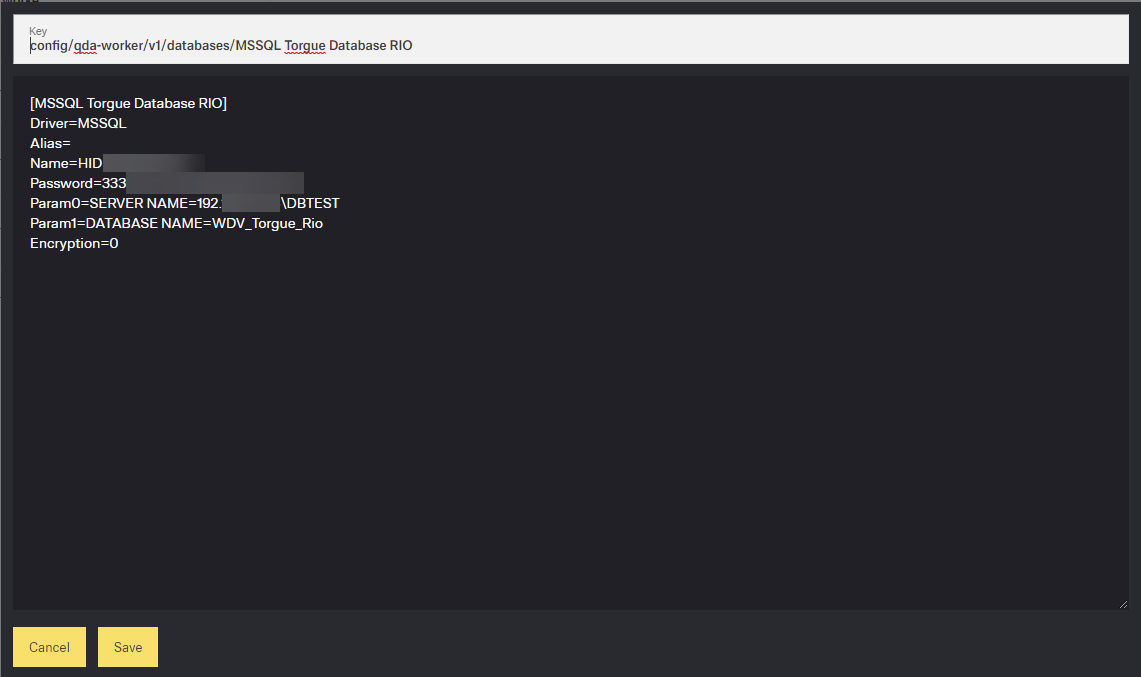
The illustration shows the example of a database entry SCREENSHOT
Click the button Save (or Cancel)
An "Alias.ini" file is created that can run on the Edge.One platform.
The window returns to the consul table.
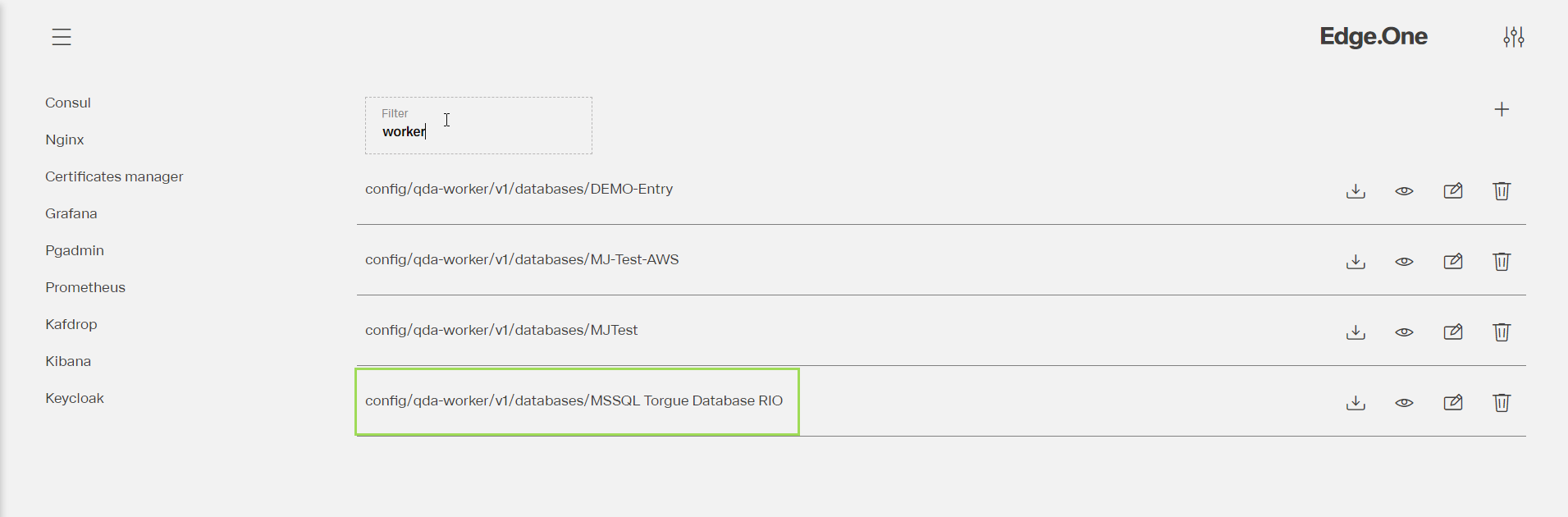
Each entry contains the content of a whole "Alias.ini" section running on the Edge.One platform.
The linux worker on the Edge.One platform shows all available databases. Databases added via Consul are displayed as in the green frame.
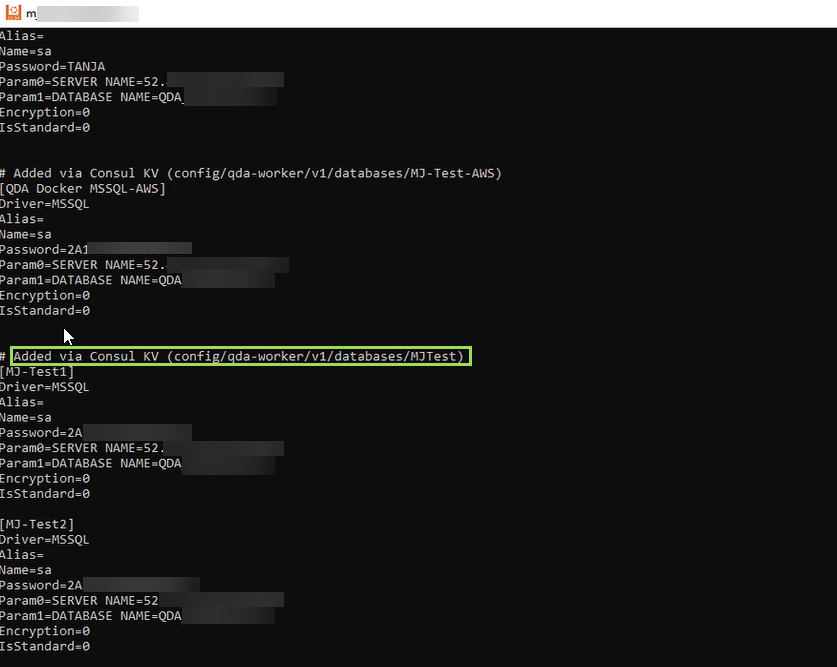
Please note: Changes in an entry in Consul need a few seconds to be visible in the linux worker.
Example of a database selection in an Edge.One app:
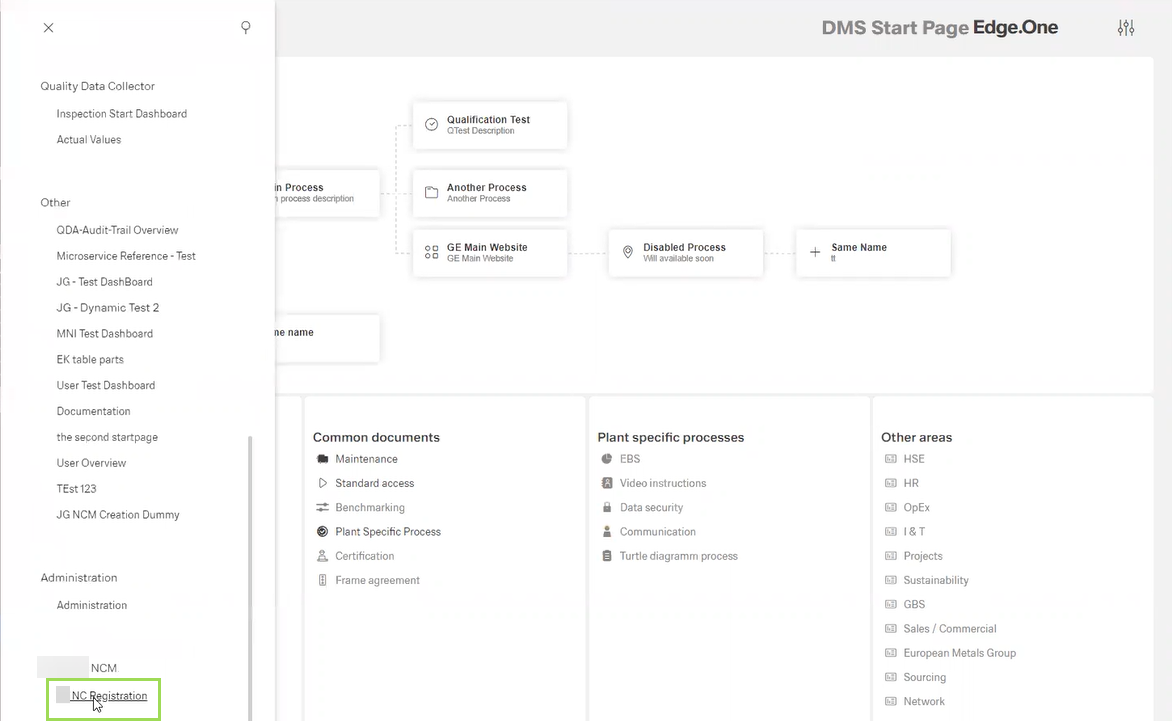
Click "NC Registration"
The following window appears:
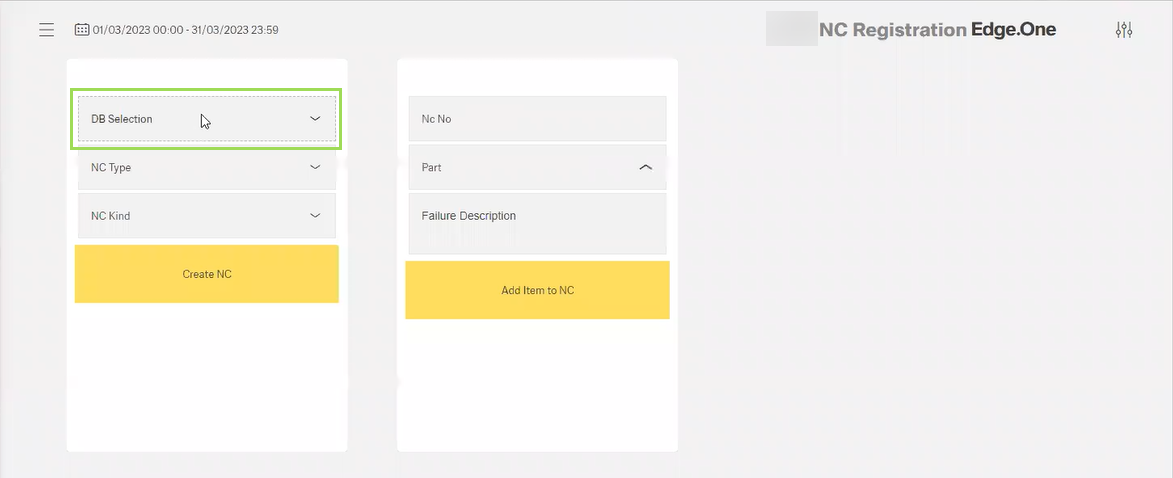
Select the database
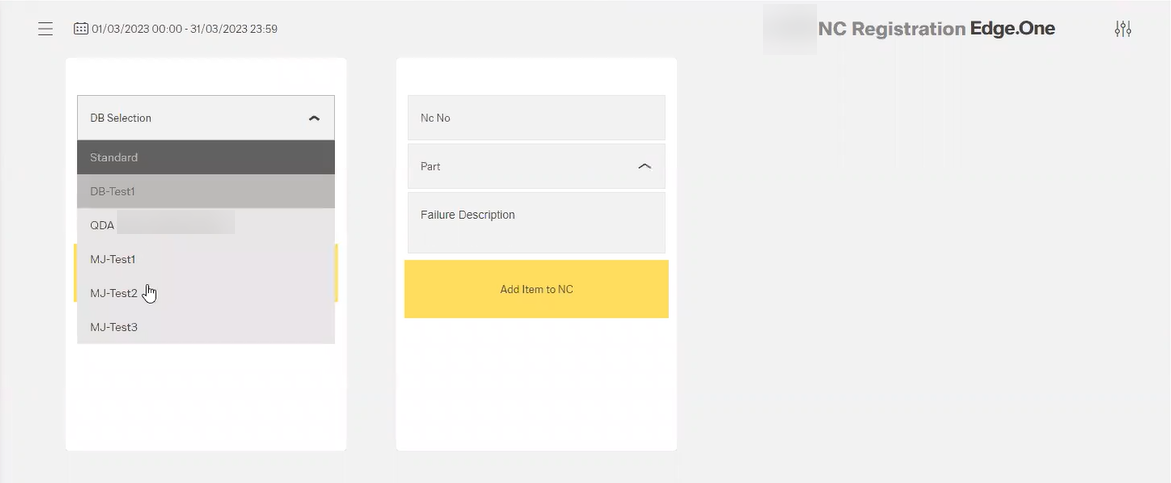
Add a new NC to the database.
This NC will also be available in QDAX.