
A Task (WorkItem) represents an actionable work unit inside a Work Item Collection. It is used to document, assign, track, and complete activities such as maintenance tasks, inspections, instructions, or audits.
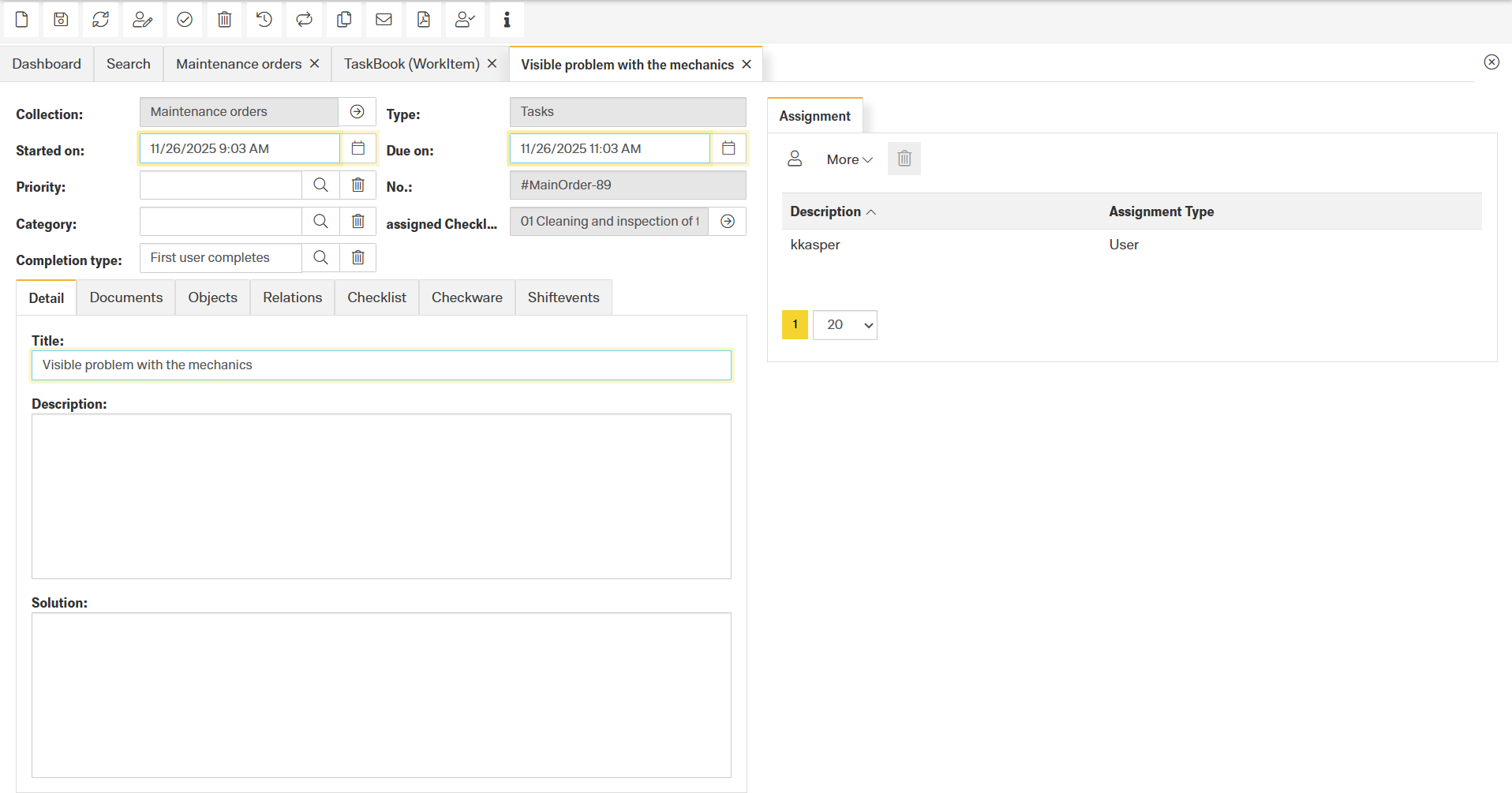
The task form consists of several functional areas: task actions, details, linked objects, documents, checklists, assignments, and relations to other Finito modules.
Header Fields Explained
Collection
The Work Item Collection the task belongs to.
Type
Defines the work item type.
Examples:
Task
Instruction
Audit
Start / Due Date
Planned start and end times for the task.
Priority
Defines urgency or importance.
Category
Classifies the task into an organizational or technical category.
Assigned Checklist
Attach a specific checklist that must be completed for the task.
Completion Type
Defines how the task is considered “done”:
First user completes – any assignee can complete it
All assigned users must complete – all recipients must confirm completion
Task Actions (Top Bar)
These actions allow users to manage the full lifecycle of a task:
Core Actions
New
Create a new task.Save
Save all modifications.Refresh
Reload the task with the latest data from the server.Delete
Permanently remove the task.Print
Export the task as a PDF.
Workflow / State Actions
Set task in progress
Sets the task to an in-progress state. (Currently not active, planned for a future release.)Complete
Mark the task as completed.Approve
Approve a task. (Currently not active, planned for a future release.)
Audit & History
Audit trail
Shows all changes (who, when, what).Information
Displays simplified metadata such as creator and last modifier.
Recurring Work
Recurring Work allows tasks to be created automatically in defined intervals. This is useful for routine activities such as inspections, maintenance cycles, compliance checks, or any other periodic work requirement.
The Series Definition dialog controls the recurrence pattern and determines how long the series should run.
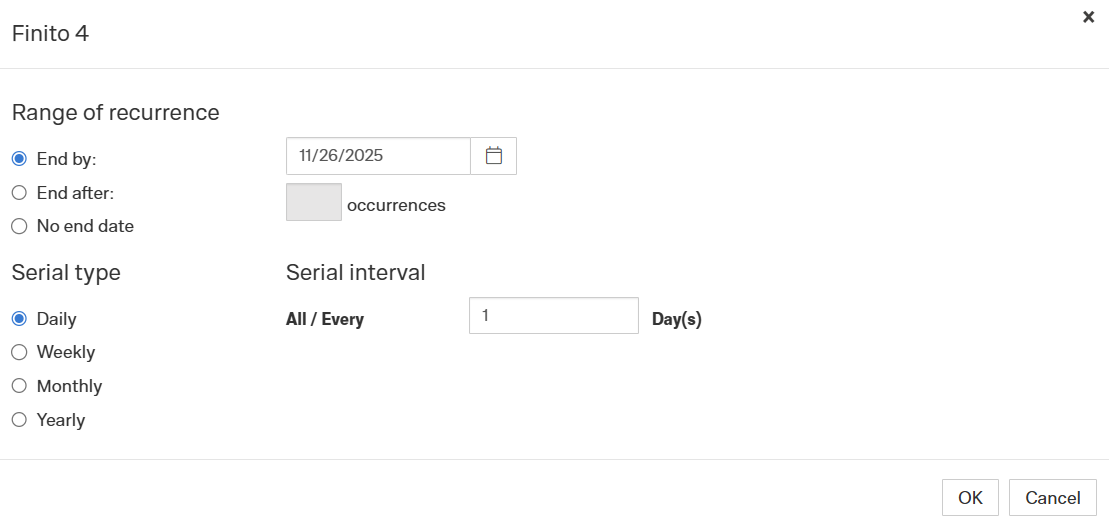
Range of Recurrence
This section defines how long the recurrence pattern remains active.
End by
A specific calendar date.
The recurrence stops after the selected date is reached.
End after
The series ends after a defined number of occurrences.
Example: End after 10 occurrences → only 10 tasks will be created.
No end date
The recurrence runs indefinitely until manually stopped.
Serial Type
This determines how often the task repeats.
Daily
Creates a new task every X days.
Examples:
Every 1 day → daily
Every 7 days → weekly-equivalent but based on day count
Every 30 days → monthly-equivalent but fixed interval
Weekly
Creates a new task every X weeks.
(Depending on Finito configuration, this may allow selecting specific weekdays.)
Monthly
Creates a new task every X months.
This is typically used for monthly routines:
Monthly inspections
Monthly equipment cleaning tasks
Regular safety walkthroughs
Yearly
Creates a new task in yearly cycles, often used for:
Annual audits
Yearly safety or compliance checks
Annual equipment certifications
Communication
Send via Email
Sends task information via email. (Currently not active, planned for a future release.)
Task Details
The Detail tab contains all standard fields for documenting the task.
Fields
Title
Clear, short description of the issue or task.Description
Detailed explanation, context, observations, or instructions.Solution
Measures taken, corrective action, or final outcome.
Additional Tabs and Their Purpose
Documents
Upload files or attach external links relevant to the task.
Objects
Define on which object the task must be performed
(e.g., equipment, device, asset, functional location).
Relations
Link to related tasks such as:
follow-up tasks
predecessor tasks
parallel activities
dependency relations
Checklist
Attach or complete checklists directly within the task.
Checkware
Mainly used for recurring compliance checks.
Example use case:
“Every 7 days, the checklist XYZ must be completed.”
Here you can link the appropriate checklist template.
Shift Events
(Only available when integrated with the digital shiftbook.)
Link shift events that are related to the task, e.g.:
malfunctions
shift notes
abnormalities
safety incidents
Universal Fields
Optional tab that can be added to capture custom attributes when additional information must be maintained beyond the default fields.
Assignments (Recipients)
A task can be assigned to various types of recipients:
Assignment Types
User
Direct assignment to an individual user.Role
Assign a role (dynamic — new users in the role automatically see the task).Users by role
Snapshot of current role members (static — does not update if the role changes).Service provider
Assign a task to an external contractor.Users by service provider
Shiftbook
Users by shiftbook
Shift
Assign tasks to a specific shift (early, late, night shift, etc.)
Important Difference
| Option | Dynamic? | Explanation |
|---|---|---|
| Role | ✔ Yes | Always reflects current role members |
| Users by role | ✘ No | A snapshot of users at assignment time |
