Manufacturer and Manufacturer Types
Manufacturers and Manufacturer Types are part of Finito’s asset management structure.
They help classify objects based on their producer, model family, software version, or other sub-categories that are relevant for lifecycle management, documentation, and maintenance.
These definitions ensure consistency across all assets and enable powerful filtering, reporting, and linking inside tasks, checklists, and audits.
1. Manufacturer
A Manufacturer represents the company, brand, or entity that produces the asset.
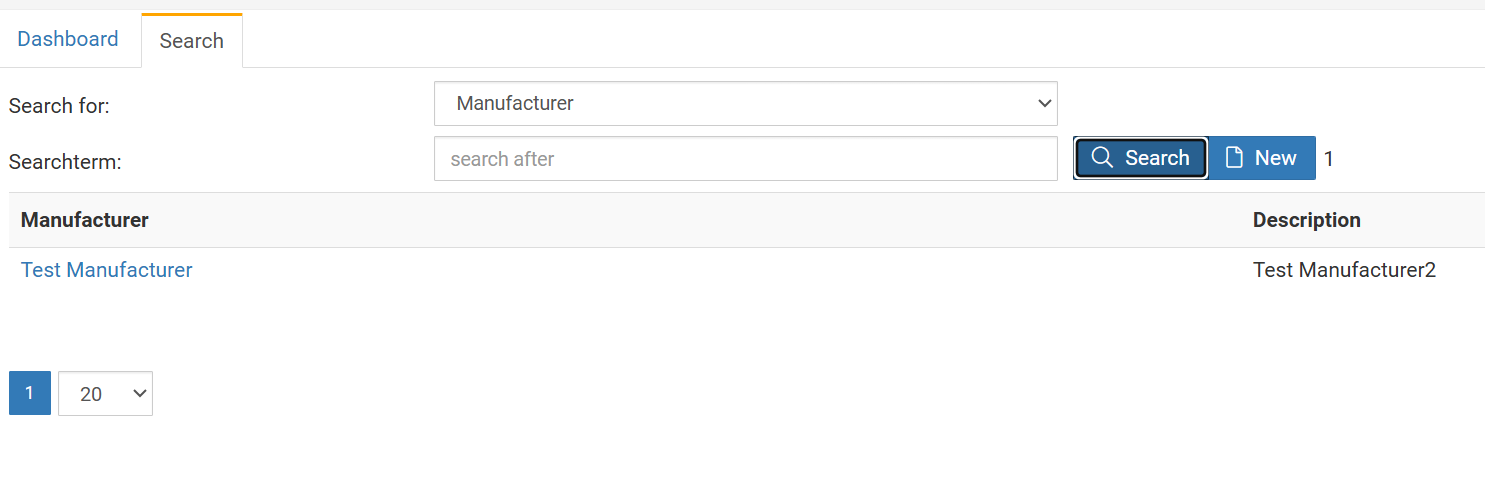
Manufacturers can be created via:
Search → Manufacturer → New
Each manufacturer consists of two fields:
Name
The primary identifier.
Always displayed in object headers and lists.
Must be unique and clearly recognizable (e.g., Siemens, Endress+Hauser, HP, Bosch Rexroth).
Description
Optional explanatory text.
Used to document additional information about the manufacturer (e.g., scope, technology domain, brand notes).
Not shown prominently in most views — purely informational.
After creation, a manufacturer must be assigned to one or more Object Types to appear as a selectable option inside objects.
2. Assigning Manufacturers to an Object Type
To use a Manufacturer for specific asset categories, it must be linked to the Object Type.
This is done via:
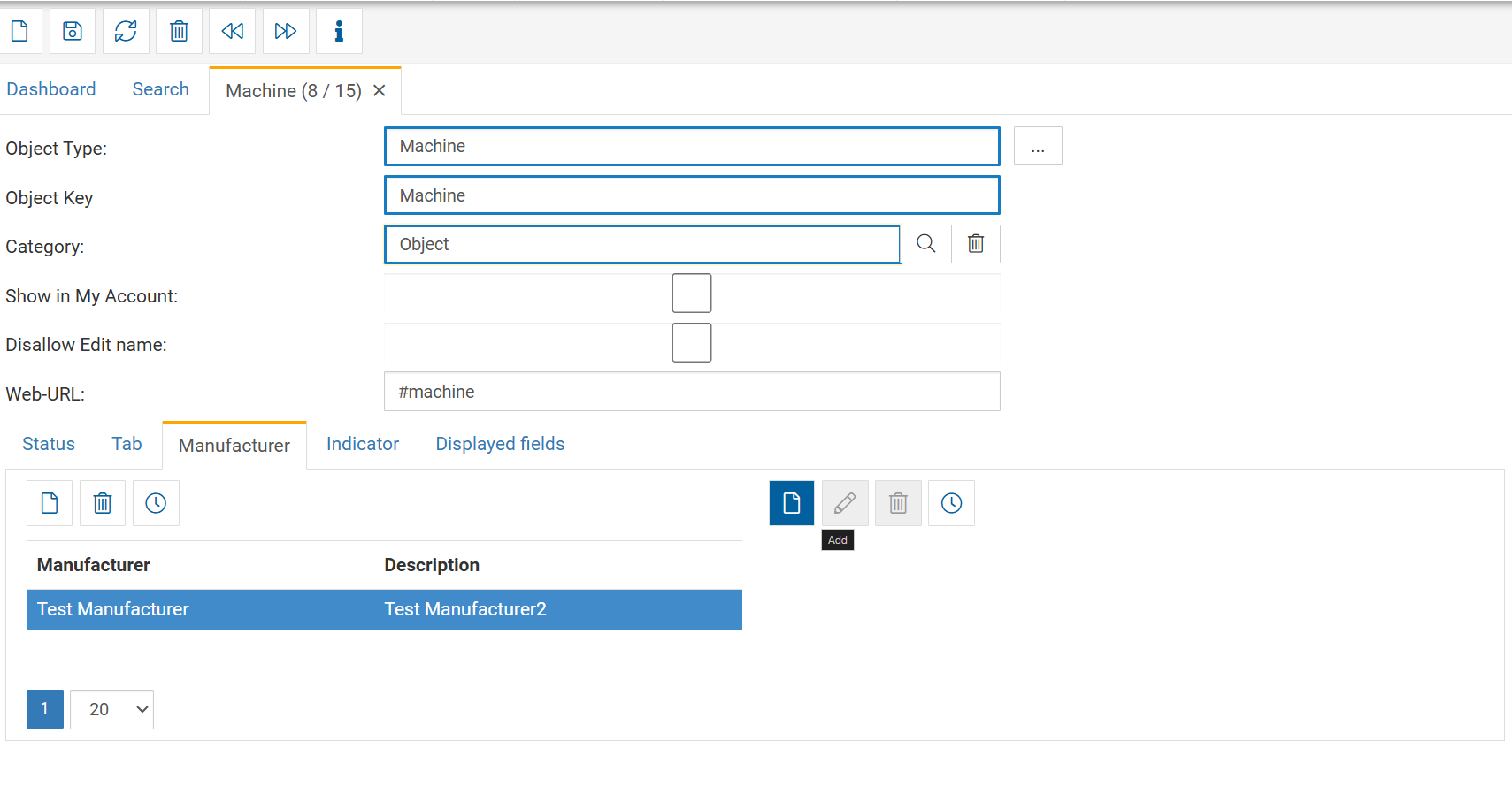
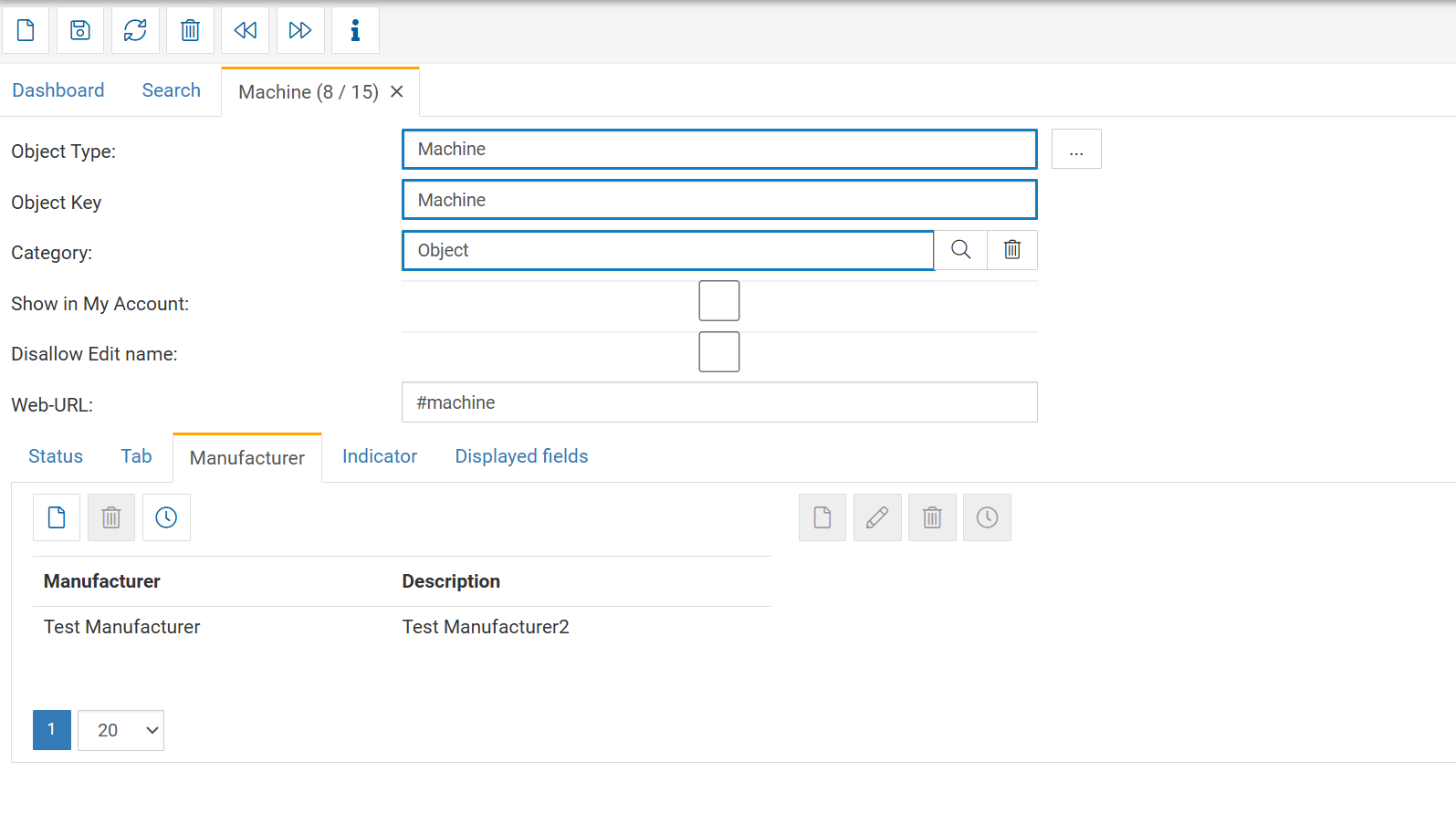
Search → Object Type → open Object Type → Manufacturer tab
Steps:
Open the desired Object Type.
Navigate to the Manufacturer tab.
Click New.
Select one or multiple manufacturers from the list.
Once assigned:
All objects of that Object Type can select the manufacturer in their header.
Only manufacturers linked to the Object Type will appear in the dropdown.
3. Manufacturer Types
A Manufacturer Type extends a Manufacturer with sub-categories.
This is highly flexible and can be used for:
Product families
Model series
Firmware or software versions
Tool variants
Machine generations
End-of-life classifications
Certification groups
Sub-brands
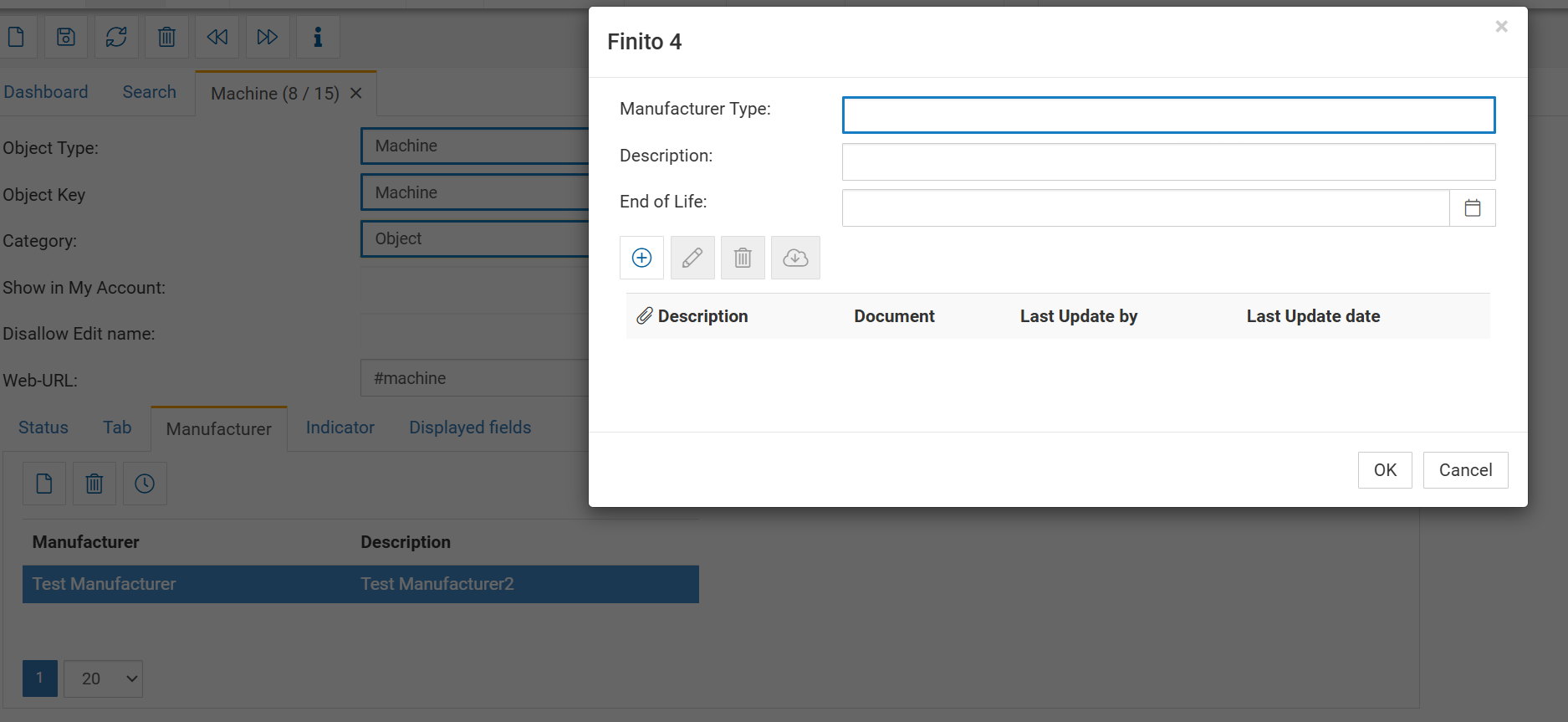
Each Manufacturer Type contains:
Manufacturer Type
The name of the subtype, e.g.:
S7-1200
Eaton XEasy Series
Windows Server 2022
Bosch GWS 18V
Fire pump model FP-400
This is what will later appear in the object.
Description
Additional information or internal notes describing this subtype.
Useful examples:
"Used for all PLC lines since 2019"
"Firmware version 3.x is deprecated"
"New generation with improved thermal protection"
End of Life (EOL)
A date or marker indicating when this subtype is no longer supported.
Typical use cases:
Software versions reaching EOL
Hardware reaching end of support
Deprecated product families
Replacement cycles
Documents
Attach files relevant to the Manufacturer Type:
Datasheets
Manuals
EOL announcements
Certificates
Firmware notes
This creates a central reference point for all objects using this subtype.
4. Creating Manufacturer Types
To create Manufacturer Types for a given Manufacturer:
Go to Search → Object type
Open the desired Object type with the manufacturer
In the right-side action area, click Add Manufacturer Type
Fill in:
Manufacturer Type
Description
End of Life (optional)
Upload relevant documents
All Manufacturer Types are listed under the Manufacturer and can be managed there.