Add a process to the process diagram (step by step)
e
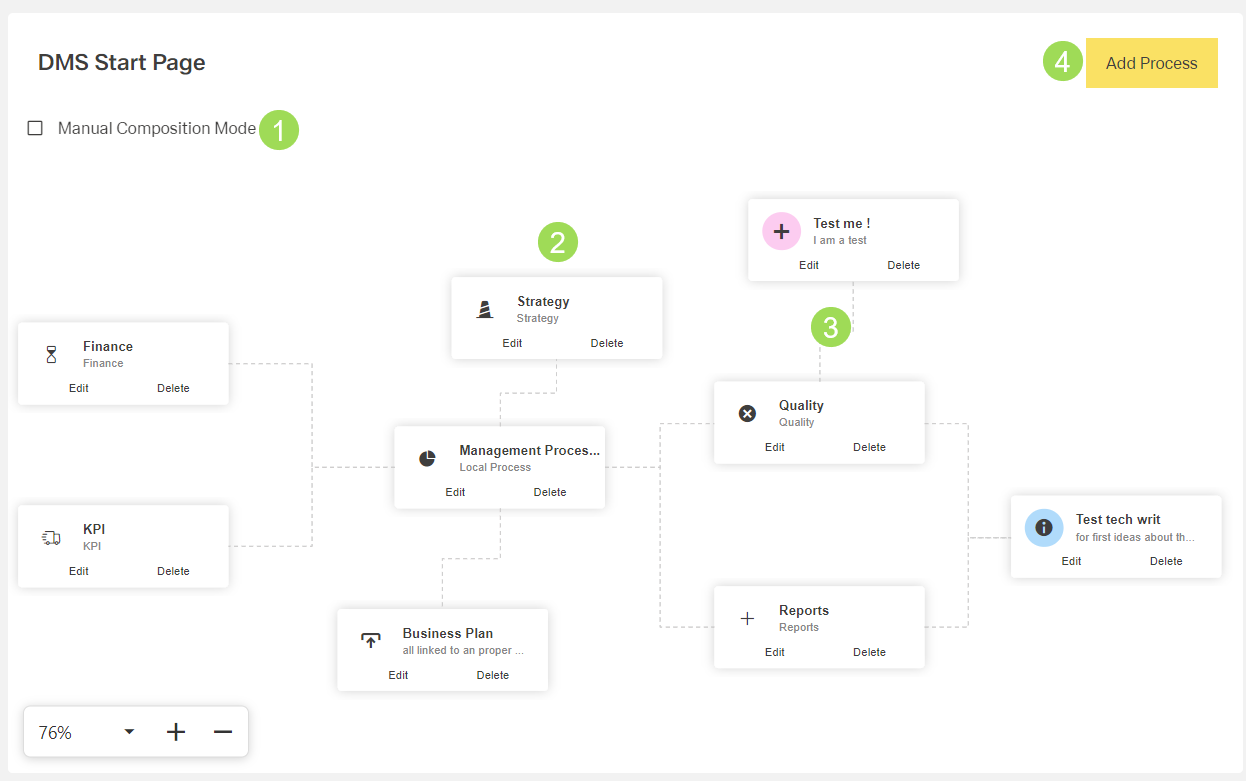
The illustration shows a process diagram: (1) checkbox to enable editing the process diagram, (2) process button, (3) connection between a process and its parent process, (4) button to add a new process button
It is also possible to
Please note: this process diagram is saved as a process group. When changing this diagram, it is also changed wherever this process group is also assigned. If editing this process diagram can be considered as majorly changing it, it is recommended to create a new process diagram as described here.
Click the button Add Process
The following window appears:
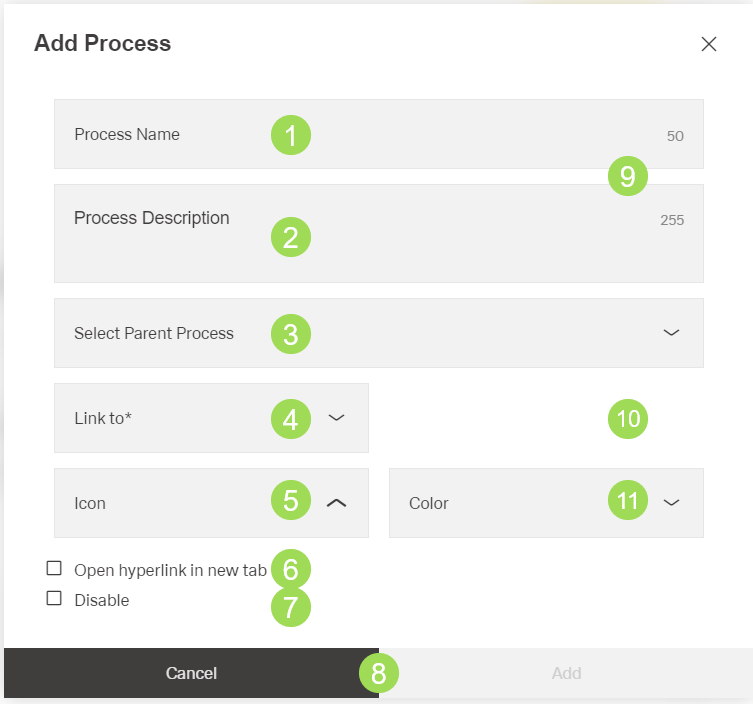
The illustration shows all fields and options of a process: (1) edit field for process name, (2) edit field for a process description, (3) select parent process(es) from dropdown list, (4) select link to from dropdown list, (5) select icon to illustrate the process from dropdown list, (6) checkbox if link shall be openned in a new tab, (7) checkbox if button function as link should be disabled, (8) buttons, (9) remaining characters in edit fields, (10) field to appear after link to <4> is selected, (11)
Mandatory fields:
| Name/function | Meaning | Mandatory? | |
|---|---|---|---|
| 1 | process name | yes | |
| 2 | process description | yes | |
| 3 | parent process | if the process is linked to another process, this connection can be set here | no |
| 4 | link to | link the process to
| yes |
| 5 | icon | process can get icon as additional symbol | yes* ("empty" is an optional selection) |
| 6 | open hyperlink in new tab | the target of the process button is opened in a new tab | no |
| 7 | disable | if activated, the process button is visibly disabled, it's grey | no |
| 10 | dropdown selection/edit field, depending on selected "link to" | dashboard: dropdown list with all available dashboards folder: dropdown list with all available folders external hyperlink: edit field | yes |
| 11 | color | background color for icon | no |
Fill out process name <1>
Fill out process description <2>
Select parent process(es) <3> if needed
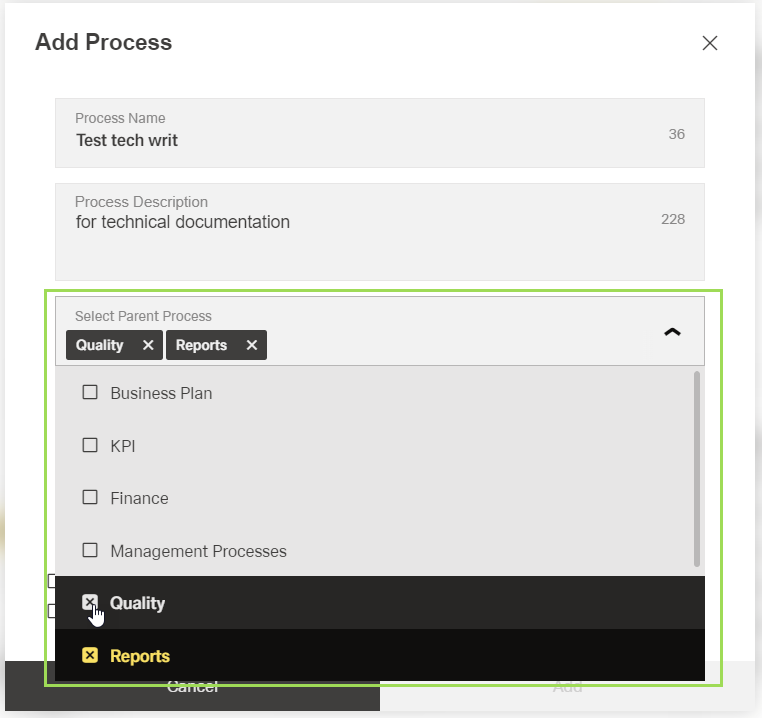
Connecting lines in the process diagram show the parent process(es).
Select the target link <4> of the process button
Select the corresponding element <10> from the dropdown list respectively enter the corresponding external URL
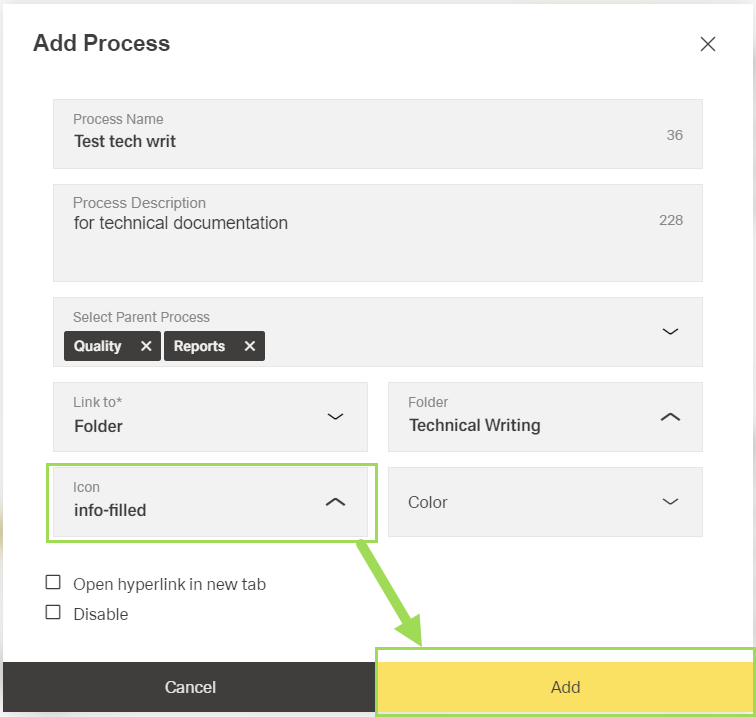
Select an icon <5> (or "empty") from the dropdown list
The button Add <8> gets activated:
Select a color <11> as background for the icon if needed
Activate the checkboxes<6>, <7> if needed
Click the button Add <8> (or Cancel)
A message about the successful action appears at the top of the screen.
The new process appears on the top left, close to the checkbox <1> Manual Composition Mode
Drag & drop the button to place it where you need it
Disable the checkbox <1> Manual Composition Mode
The buttons return to clickable buttons.