
Tabs and Universal Fields in Objects
Tabs and Universal Fields enable flexible extension of object structures in Finito.
They allow organizations to add custom information sections, create new data entry forms, and adapt asset records to any operational need without development effort.
This modular approach makes object structures fully customizable and scalable.
1. Creating New Tabs for Objects
New tabs are created via:
Search → Tab → New
Each tab consists of:
Name
The title of the tab that will be displayed in the object.
Description
An internal description or documentation of the purpose of the tab.
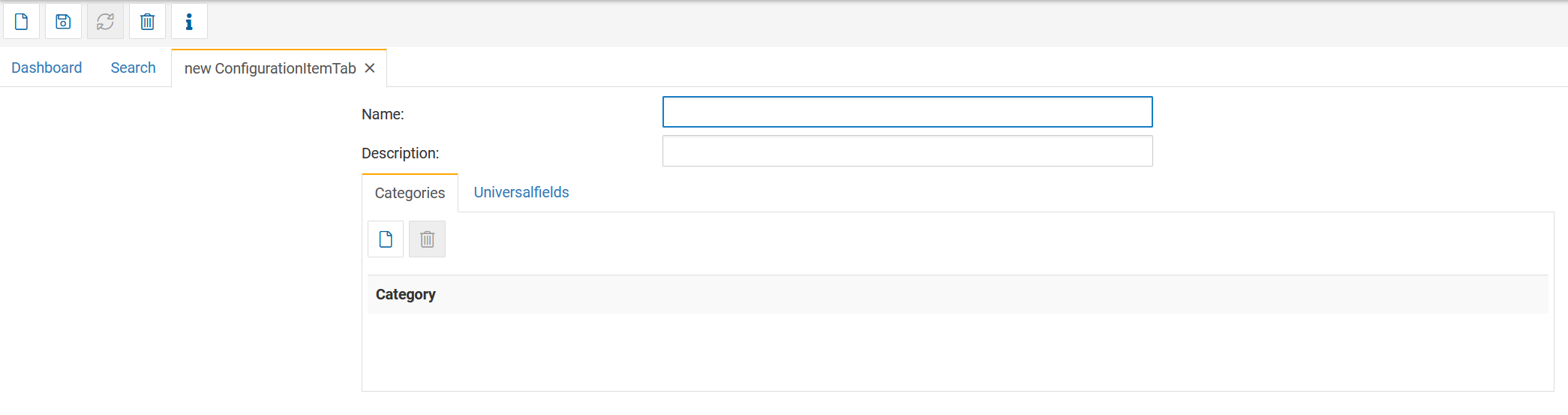
Categories
Defines where the tab should appear:
Object (most common)
Shiftbooks
Work items
Or other modules depending on customer setup
Selecting Object ensures the tab appears within object views.
Universalfields
This section defines which custom fields (Universal Fields) belong to this tab.
Actions available:
Add new Universal Fields
Remove fields
Reorder fields (Up / Down buttons)
Once saved, the tab can be assigned to an Object Type.
Only tabs assigned to the Object Type will appear in objects of that type.
2. Creating Universal Fields
Universal Fields are the building blocks of custom tabs.
They define individual data fields such as text, numbers, dropdowns, yes/no fields, search dialogs, and more.
To create one:
Search → Universalfield → New
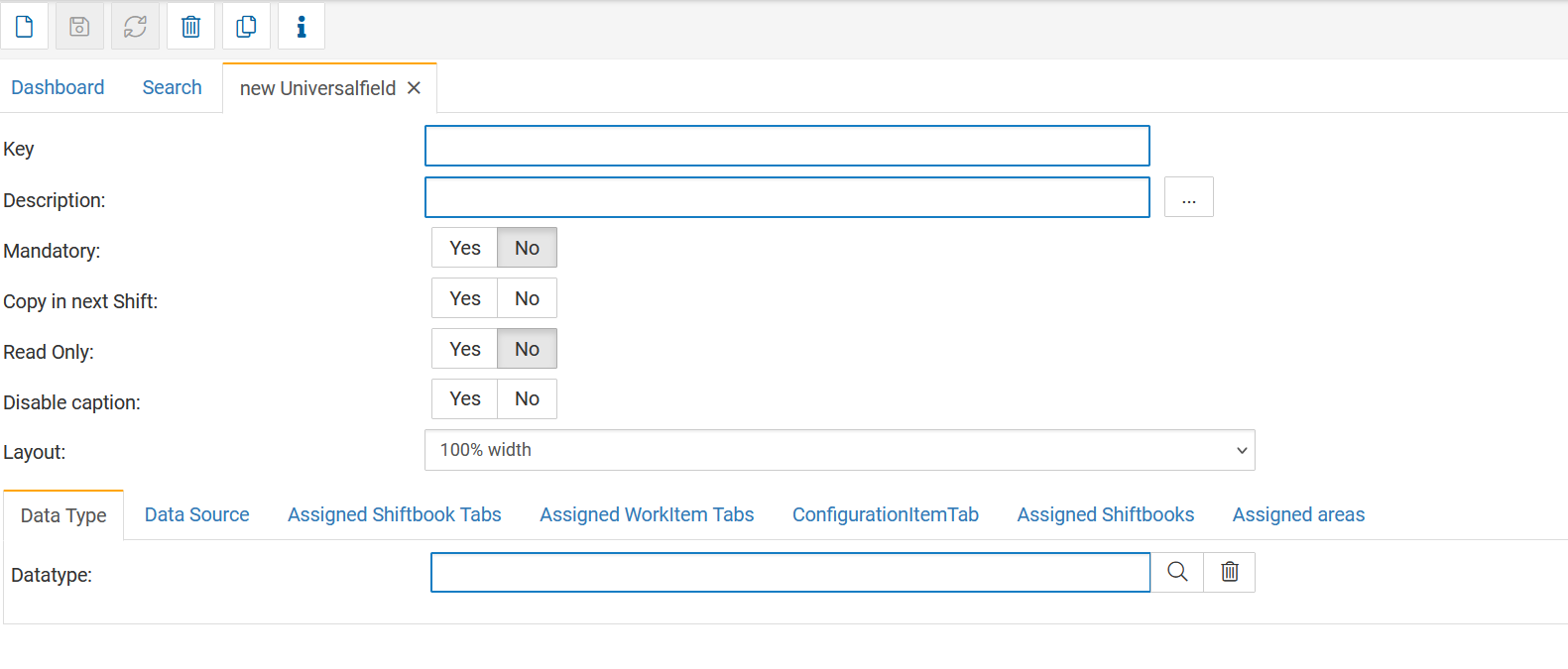
A Universal Field contains the following settings:
Basic Properties
Key
A unique identifier.
Must be system-wide unique.
Not shown to the user.
Description
The label displayed to the user inside the tab.
Required field.
Field Behavior Settings
Mandatory
If set to Yes:
The field must be filled out before saving the object.
Useful for critical information.
Copy in next shift
Relevant only for shiftbooks (ignored for objects).
Copies the field value into the next shift entry.
Read Only
The field becomes non-editable for users.
Disable Caption
Hides the description label and only shows the input field.
Layout
Defines how wide the field should be displayed:
100%
50%
33%
etc.
This helps build clean multi-column forms.
3. Datatype (Field Type)
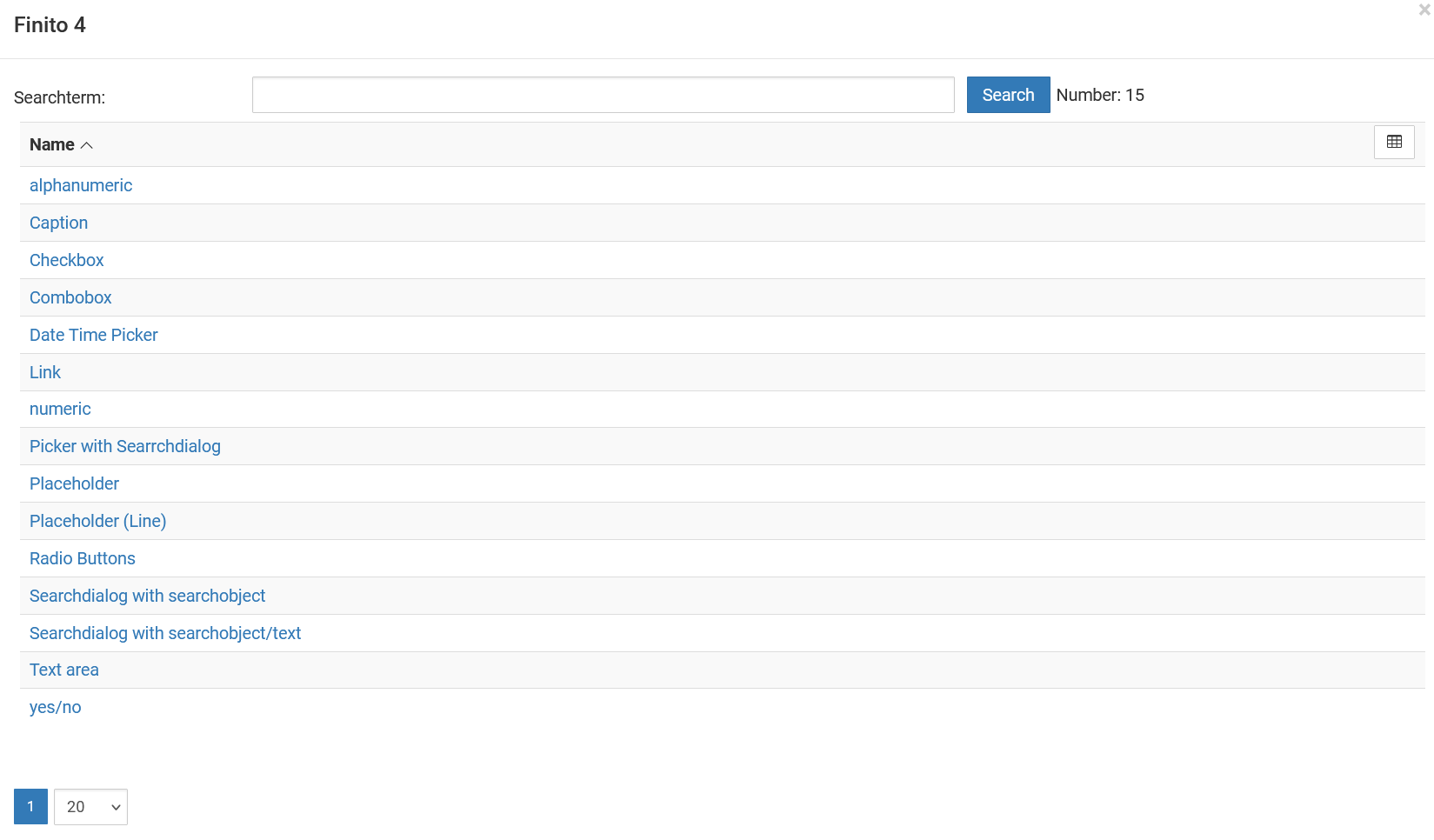
The datatype defines how the field behaves and what input is allowed.
Selecting a datatype opens additional configuration options depending on the field type.
Common datatypes include:
| Datatype | Purpose |
|---|---|
| alphanumeric | Free text |
| numeric | Numbers, quantities, measurements |
| checkbox | Boolean true/false |
| yes/no | Two-choice boolean |
| combobox | Dropdown selection |
| radio buttons | Selection of multiple predefined options |
| date time picker | Date or date/time values |
| link | Hyperlinks |
| text area | Multi-line text |
| Picker | Select objects from a search dialog |
| Searchdialog with searchobject | Select objects with filtering |
| Placeholder fields | Display-only fields for layout |
Each datatype may include additional settings such as:
tolerances (for numerical fields)
min/max values
object linking
rows/columns for text areas
4. Additional Tabs in Universal Fields
Universal Fields contain multiple configuration tabs beyond the basic data field setup:
Data Source
Used to fetch values from external systems via connectors.
Examples:
AVEVA PI (process historian)
AspenTech IP.21
DCS values
ERP reference data
This allows real-time or periodic value synchronization.
Assigned Shiftbook Tabs
Only relevant for shiftbooks.
Defines in which shiftbook tabs the Universal Field is displayed.
Assigned Workitem Tabs
Only relevant for tasks.
If activated, the Universal Field becomes available inside a specific Work Item tab, allowing:
Additional task metadata
Specialized instructions
Custom audit fields
This creates extremely flexible workflows.
Configuration Item Tab
Defines which object tab the field belongs to.
This is mandatory for Objects.
Assigned Shiftbooks
Only for shiftbooks — can be ignored for object configuration.
Assigned Areas
Optional and rarely needed.
Used when a Universal Field should only appear for specific equipment in a shiftbook area.
Can be ignored for Object Types.
5. Required Fields for Object-Level Universal Fields
For Universal Fields used in Objects, the minimum required settings are:
Key
Description
Datatype
(Assigning the Universal Field to a Tab → which is then assigned to an Object Type)
Everything else is optional and depends on process requirements.
6. Workflow Summary for Adding Custom Tabs and Fields to Objects
Step 1 — Create Universal Fields
Search → Universalfield → New
Configure key, description, datatype, and optional settings.
Step 2 — Create a Tab
Search → Tab → New
Add Universal Fields to the tab and order them.
Step 3 — Assign Tab to Object Type
Open Object Type → Tab
Add the new tab so it appears in objects.
Step 4 — Use Fields in Objects
Create or edit an object and fill the custom fields in the new tab.
7. Use Cases
Custom tabs and Universal Fields are perfect for:
Equipment master data
Maintenance-critical parameters
Calibration values
Warranty information
Installation details
Safety and compliance metadata
Regulatory documentation
Customer-specific asset info
IT/OT hybrid asset structures
