Edit a catalog in DMS (step by step)
After clicking the button [ ] of the selected catalog, the following window appears:
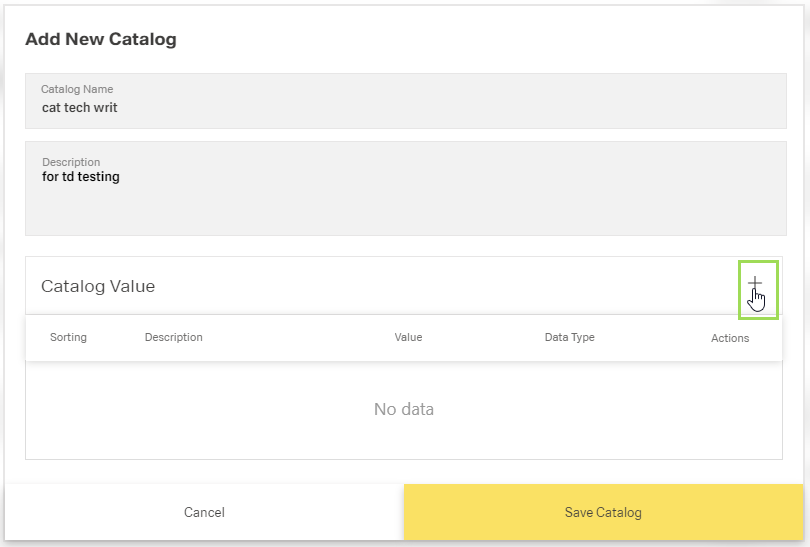
Click the button [ ]
]
The following window appears:
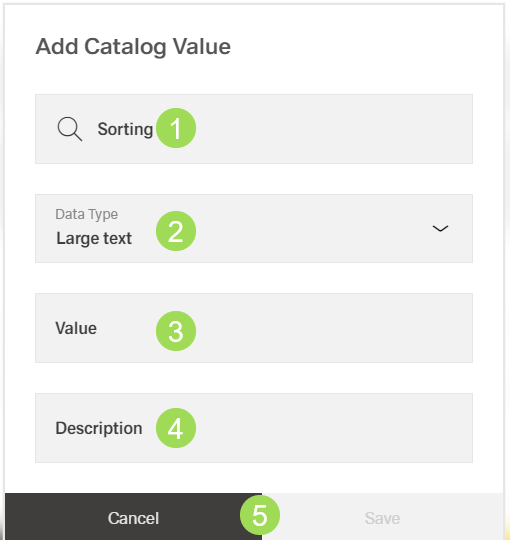
The illustration shows the add catalog values dialog: (1) edit field "Sorting"*, (2) dropdown list for "Data Type"*, (3) edit field "Value"*, (4) edit field "Description"*, (5) buttons
* mandatory fields / elements
Edit field "Sorting" <1>
Sorting is used to put the values in a defined order, e.g. by entering a number.
Select data type <2>:
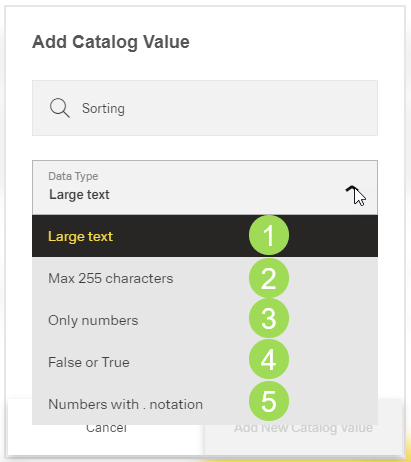
The illustration shows the possible date types: (1) large text, (2) max. 255 characters, (3) only numbers, (4) False or True, (5) numbers with notation
| data type | meaning | value |
|---|---|---|
| large text | text with more than 255 characters | text |
| max. 255 characters | texxt limited to max. 255 characters | text |
| only numbers | integer | integer |
| False or True | boolean | False or True |
| numbers with notation | decimal | number with notation |
Edit field "Value" <3>
The value defines the data type to be entered and controls if the entered information has the correct type.
Edit field "Description" <4>:
The description gives additional information about the currently edited catalog value. If the catalog is a list of gage numbers, "description" can give an example like "1345a" is the number of a calliper.
Click the button Save <3> (or Cancel)
A message about the successful action appears at the top of the screen.
The window returns to the category table.
Please note: As long as a mandatory field is still empty, it is not possible to click the button Save. It's inactive. The missing field is marked with a red "x" symbol:
