Add a user field to DMS (step by step)
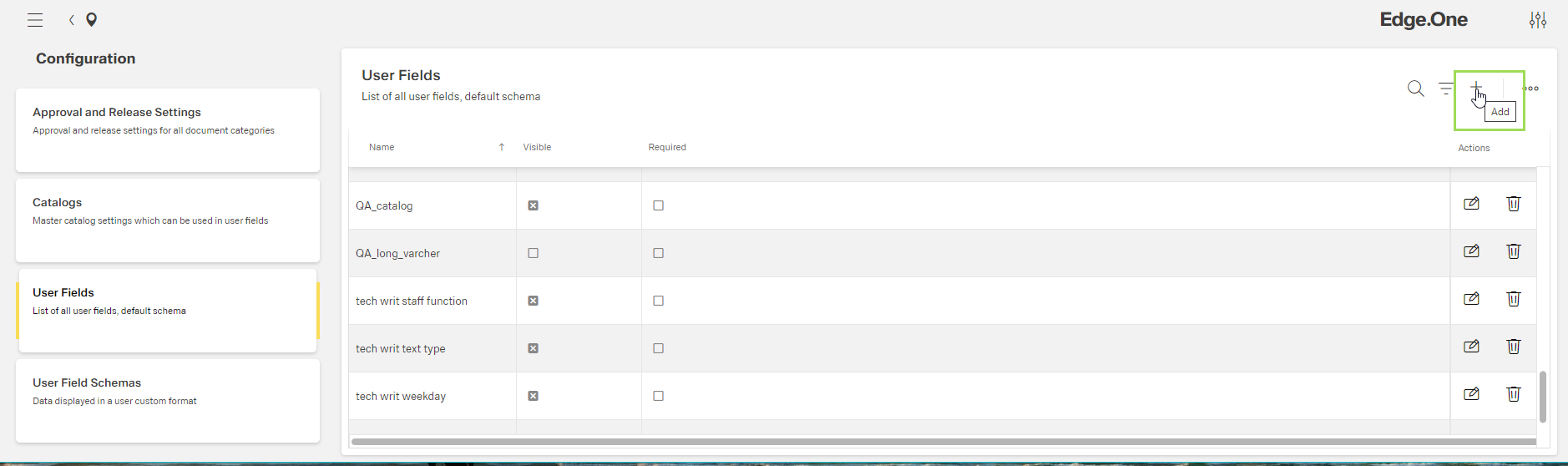
Click the button [ ]
]
The following window appears:
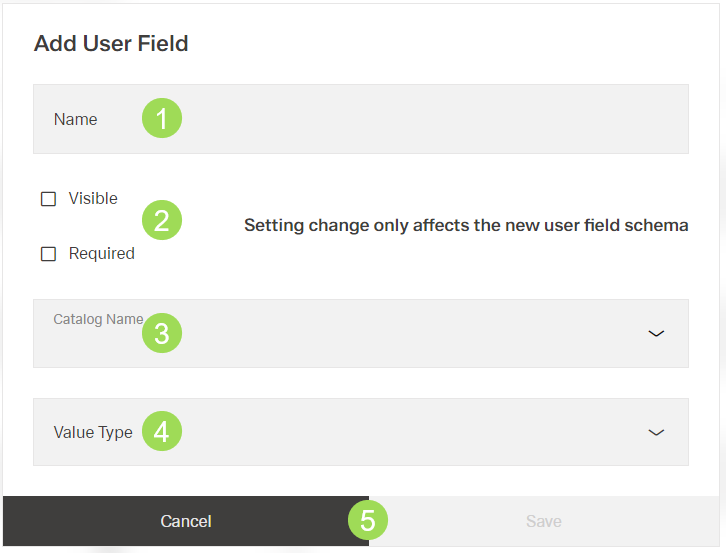
The illustration shows the dialog: (1) user field name*, (2) check boxes, (3) list with available catalogs, (4) data type* for the new user field (e.g. text, number), (5) buttons
* mandatory field / element
Enter a name for the user field <1> (mandatory field)
Select if the new user field is visible or not <2>
Select if the new user field is a mandatory field or not <2>
Select a catalog <3>
The catalog offers the content list for the user field.
Select the value type <4>
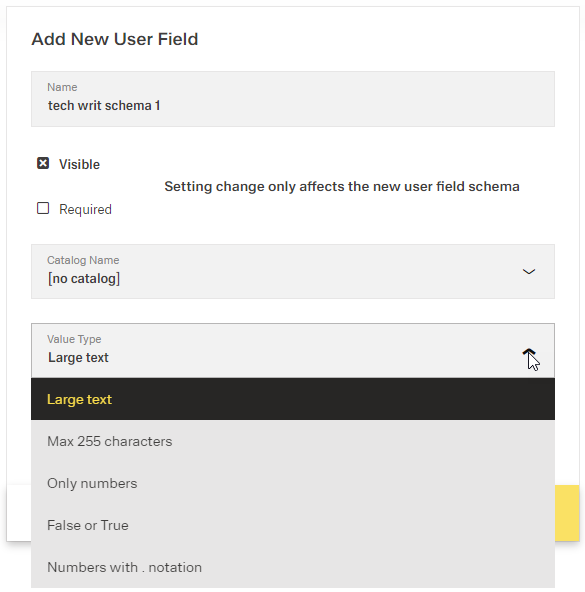
The following window/field appears:
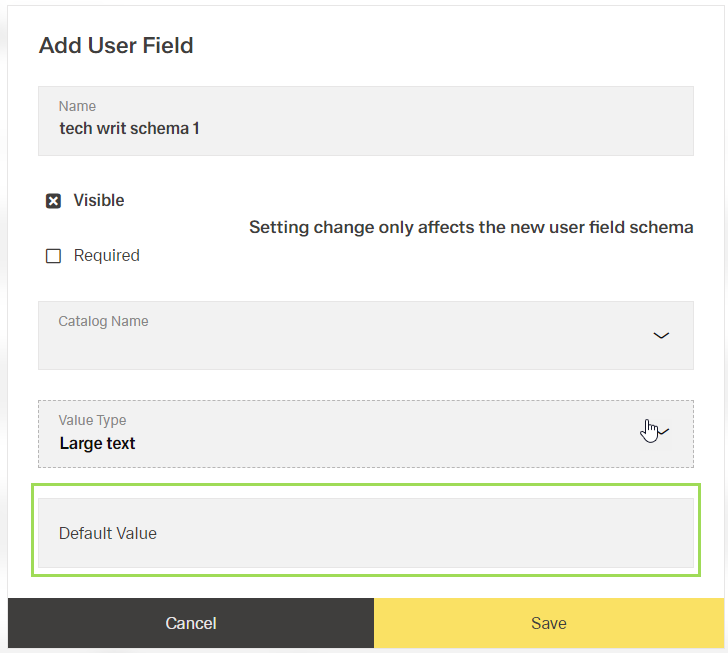
Enter a default value
This value is displayed in the user fields in general information of the document.
Click the button Save (or Cancel)
A message about the successful action appears at the top of the screen.