Add a category in DMS (step by step)
Add a category without approval level / approver
Click the button [ ] in the header.
The following window appears:
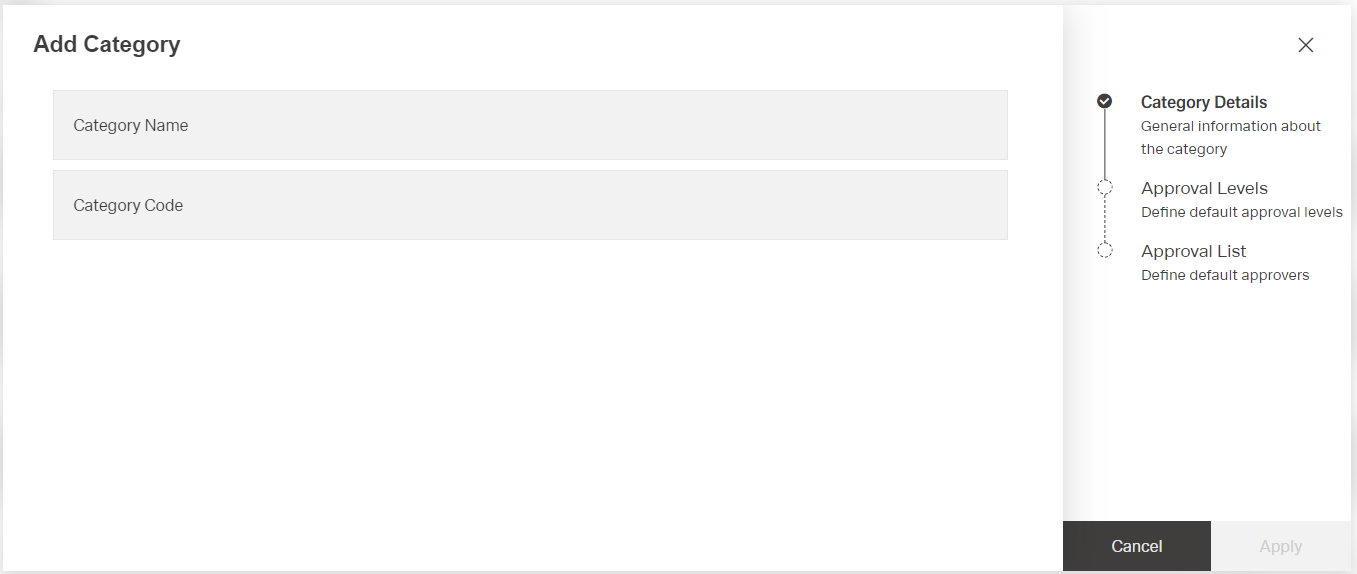
Enter a unique category name <1> and a category code <2>:
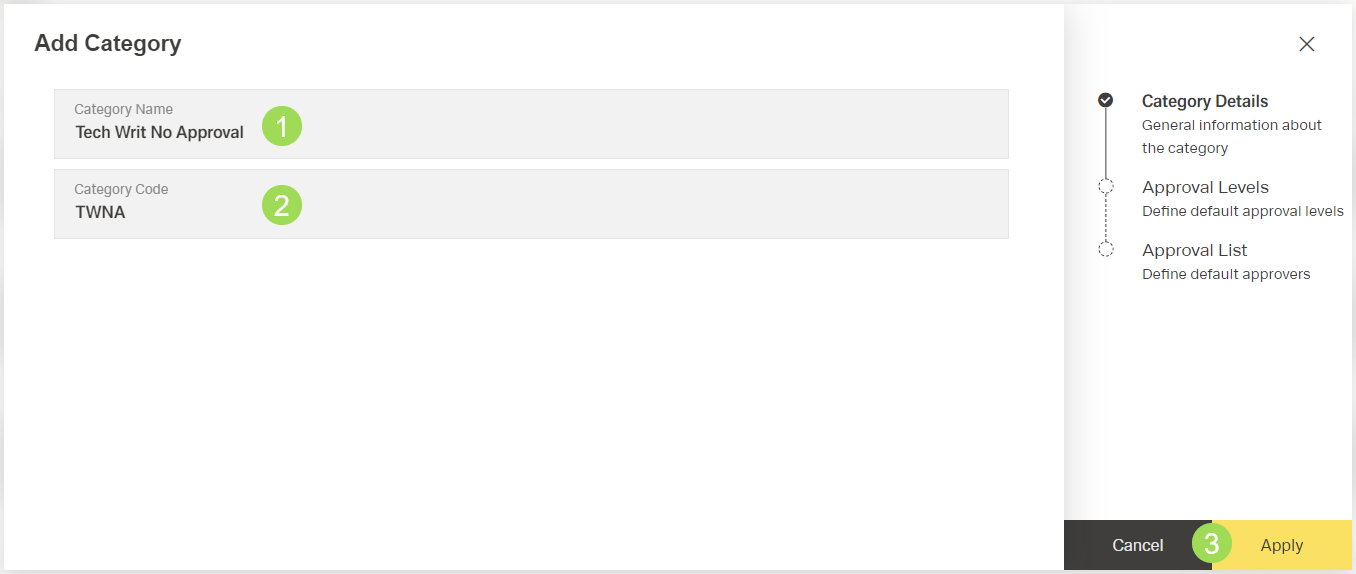
If a name is already used, a warning appears and the category can't be added. Change the name accordingly.
Click the button Apply <3> to create a new category.
The category is added to the list.
A message about the successful action appears at the top of the screen.
The dialog changes to the next submenu "approval list"
Click the button Cancel to finish this task if you don't need approval level(s) and approver(s).
The window returns to the category table.
If necessary, approval level(s) and approver(s) can be added later by editing the category.