Edit a user field in DMS
After clicking the button [ ] of the selected user field, the following window appears:
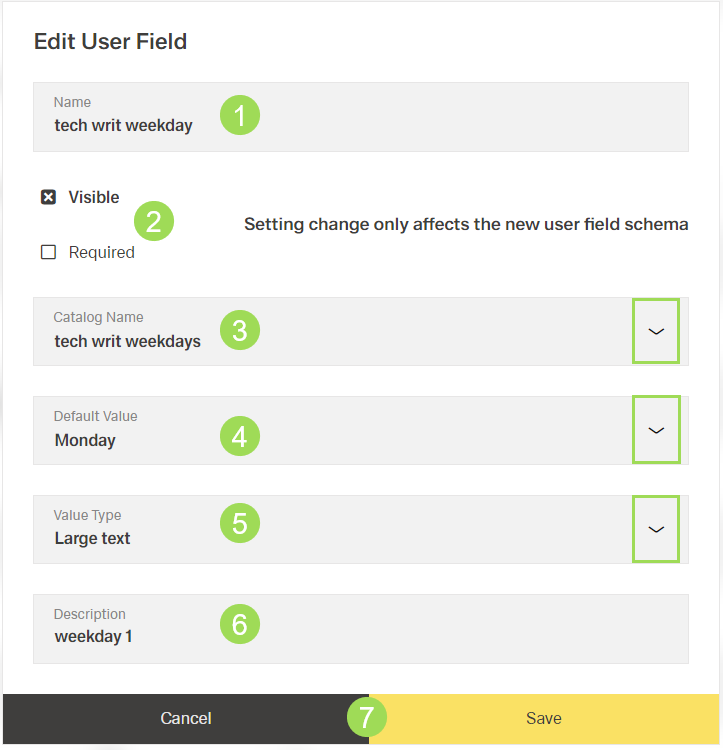
The illustration shows the edit dialog: (1) name of the user field, (2) check boxes if user field is visible and/or mandatory, (3) catalog that delivers the content of the user field, (4) default user field content displayed in general information, (5) data type default value, (6) description of default value, (7) buttons
| Element | Option/function | |
|---|---|---|
| 1 | name of user field | editable |
| 2 | user field visible in general information? user field required in general information? | editable |
| 3 | catolog for user field content | selectable Please note: this change only affects newly uploaded documents directly. Documents already available in the DMS need to be updated manually if necessary. |
| 4 | default content value | selectable this value is displayed in general information when a new document is uploaded. User fields of already uploaded documents are not affected by this change. |
| 5 | data type of the selected default value | automatically filled with catalog information for the default value set in <4> |
| 6 | description of the selected default value | automatically filled with catalog information for the default value set in <4> |