Related documents - external links (step by step)
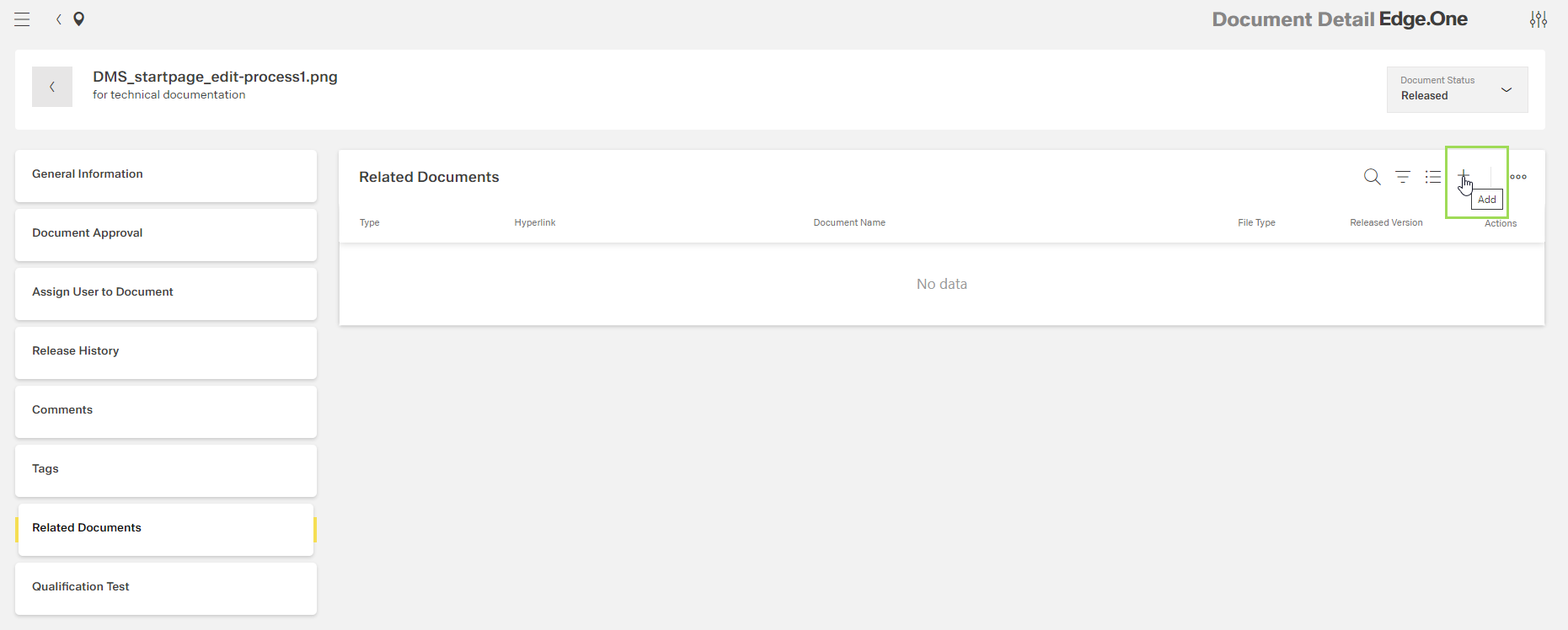
Click the button [ ]
]
The following window appears:
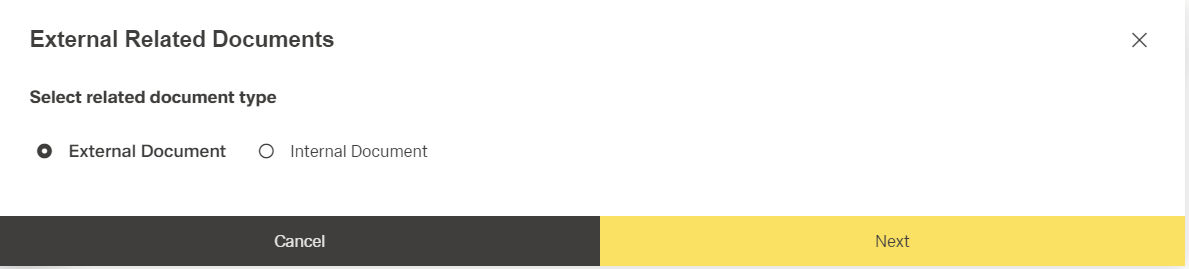
Click the button Next
The following window appears:
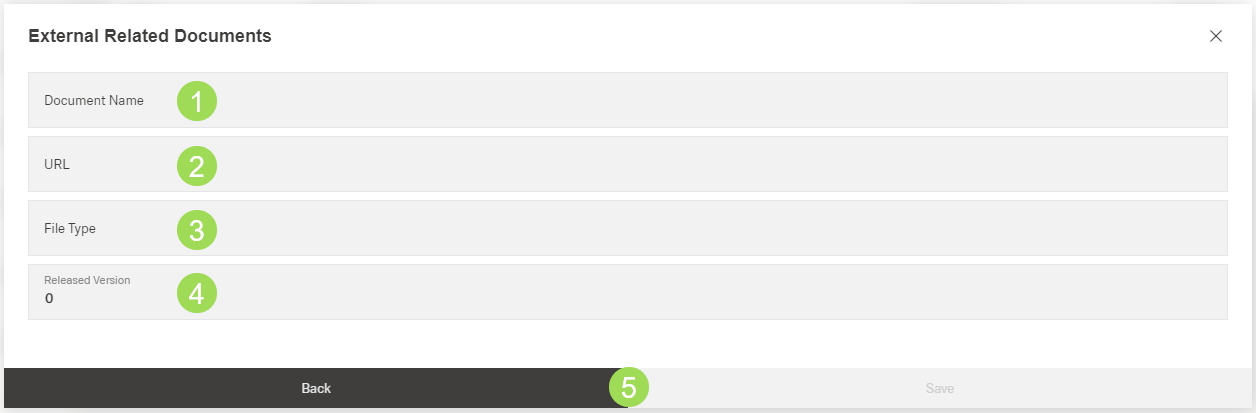
The illustration shows information fields for the externally linked document: (1) document name*, (2) URL (external reference)*, (3) file type (automatically filled), (4) released version (automatically filled), (5) buttons
* mandatory field
Enter document name <1> (mandatory field)
Enter URL (external reference) <2> (mandatory field)
It's the hyperlink to the related document.
Click the button Save <5> (or Back)
A message about the successful action appears at the top of the screen.
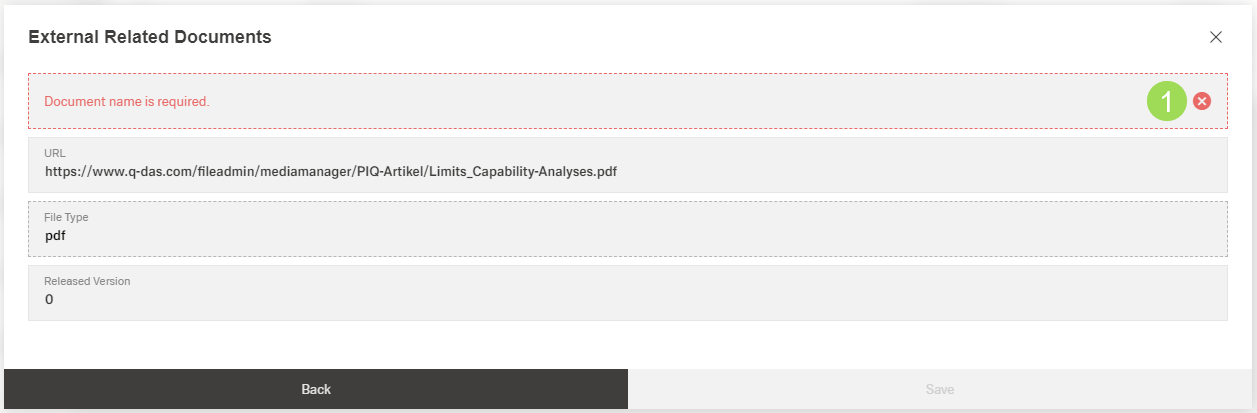
Please note: As long as a mandatory field is still empty, it is not possible to click the button Save. It's inactive. The missing field is marked with a red "x" symbol <1> and a warning message:
The result:
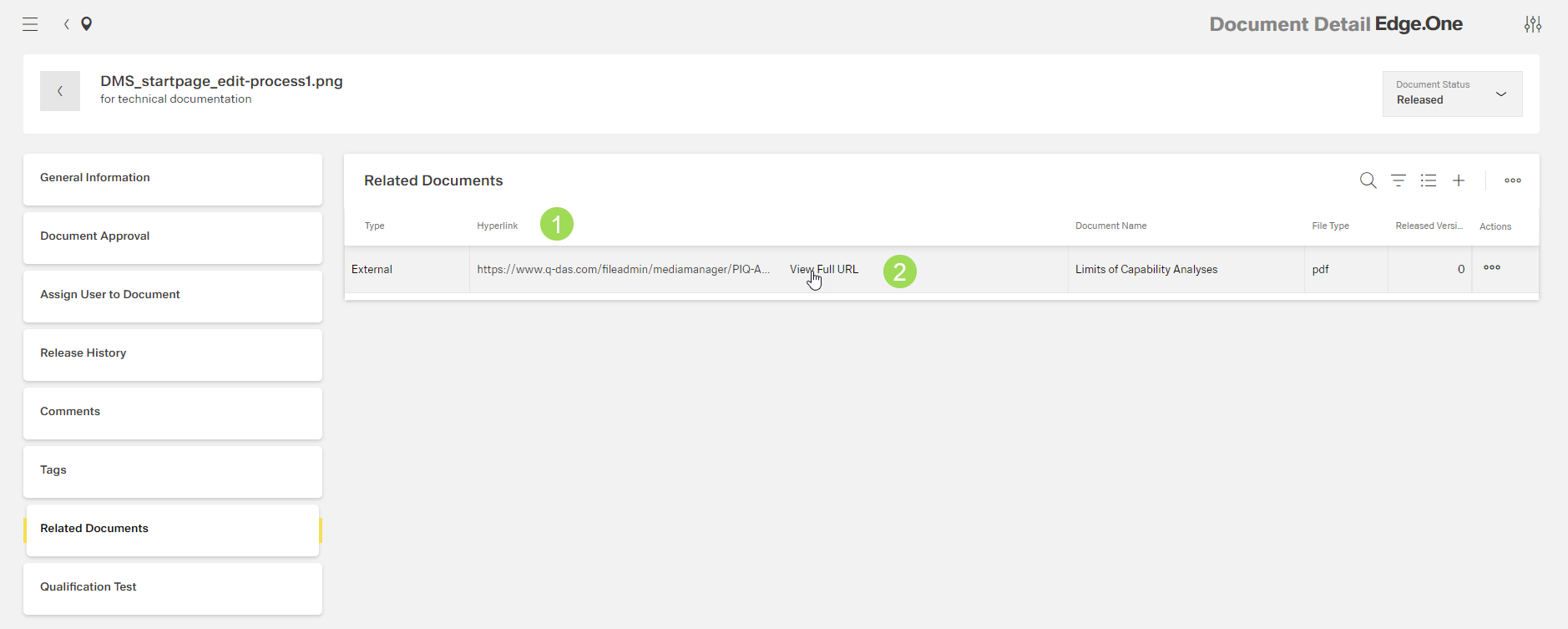
The illustration shows the newly linked related document: (1) Hyperlink shows where the related document can be found, (2) link to expand the hyperlink