DMS documents
Introduction
Main objectives of documents
In this app, documents can be managed. They can be uploaded and linked to various folders (and in the future to further developped apps). Each document has its own information including tags, approval settings etc.
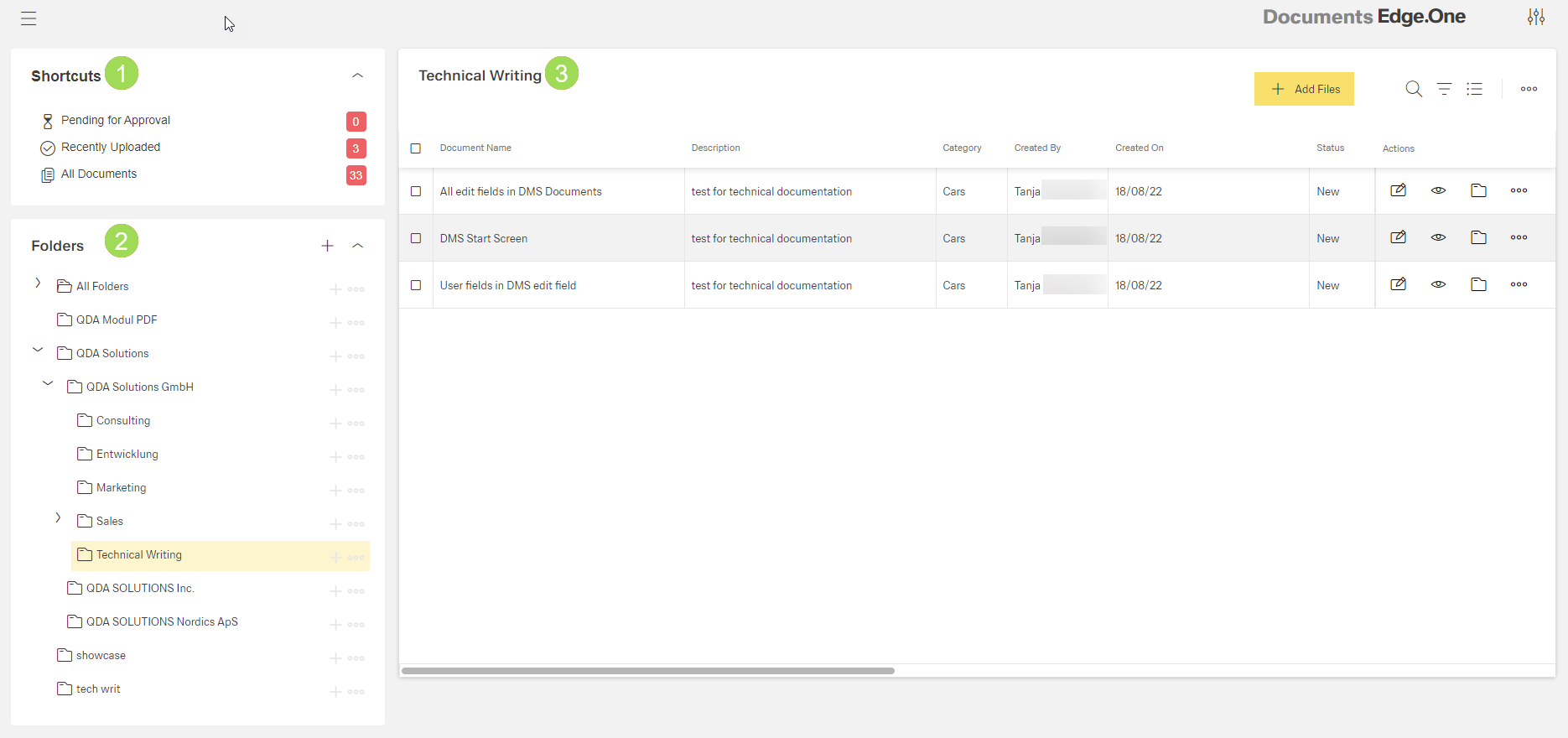
The illustration shows the start screen of Documents. The main areas are (1) shortcuts, (2) folders, (3) upoladed documents.
Dashboard elements
- Shortcuts
- Folders
- Documents
Shortcuts <1>
This area of the screen serves as overview and offers information and links to certain documents:
- direct access to a table of documents waiting to be approved by the current user
- direct access to a table of recently uploaded documents by the currently logged in user. The table can be sorted in many ways. "Recently" describes the period of the last 7 days.
- direct access to a table of all documents uploaded to "Documents". The table can be sorted in many ways.
For the standard licence, the element "Shortcuts" is fixed, the given links and how they are updated are preset and can't be changed by the customer.
Folders <2>
In this area of the screen, folders for documents are managed. New folders can be added by clicking the button [ ].
].
Information on folders can be found here.
Documents <3>
In this area of the screen, all documents contained in the selected folder are displayed. New documents can be added (button +Add Files). Already existing documents can be selected to perform actions according to the table:
| Button | Action |
|---|---|
| opens information on selected document |
| view / read document |
 | shows all folders where the selected document is used |
| more options: "Link" (copy link to clipboard), "Download File", "Delete" |


The table shows buttons and their actions for a selected document.
Information on documents can be found here.
Tasks
- Document upload (button
+Add Files) - Document management (button [
 ])
]) - Document organization:
moving documents
adding documents to folders
assigning documents to users