Participate in a qualification test
Management of qualification tests including creation, assignment of users and documents is done here.
Click on a document in End User Portal to open it
The following window appears:
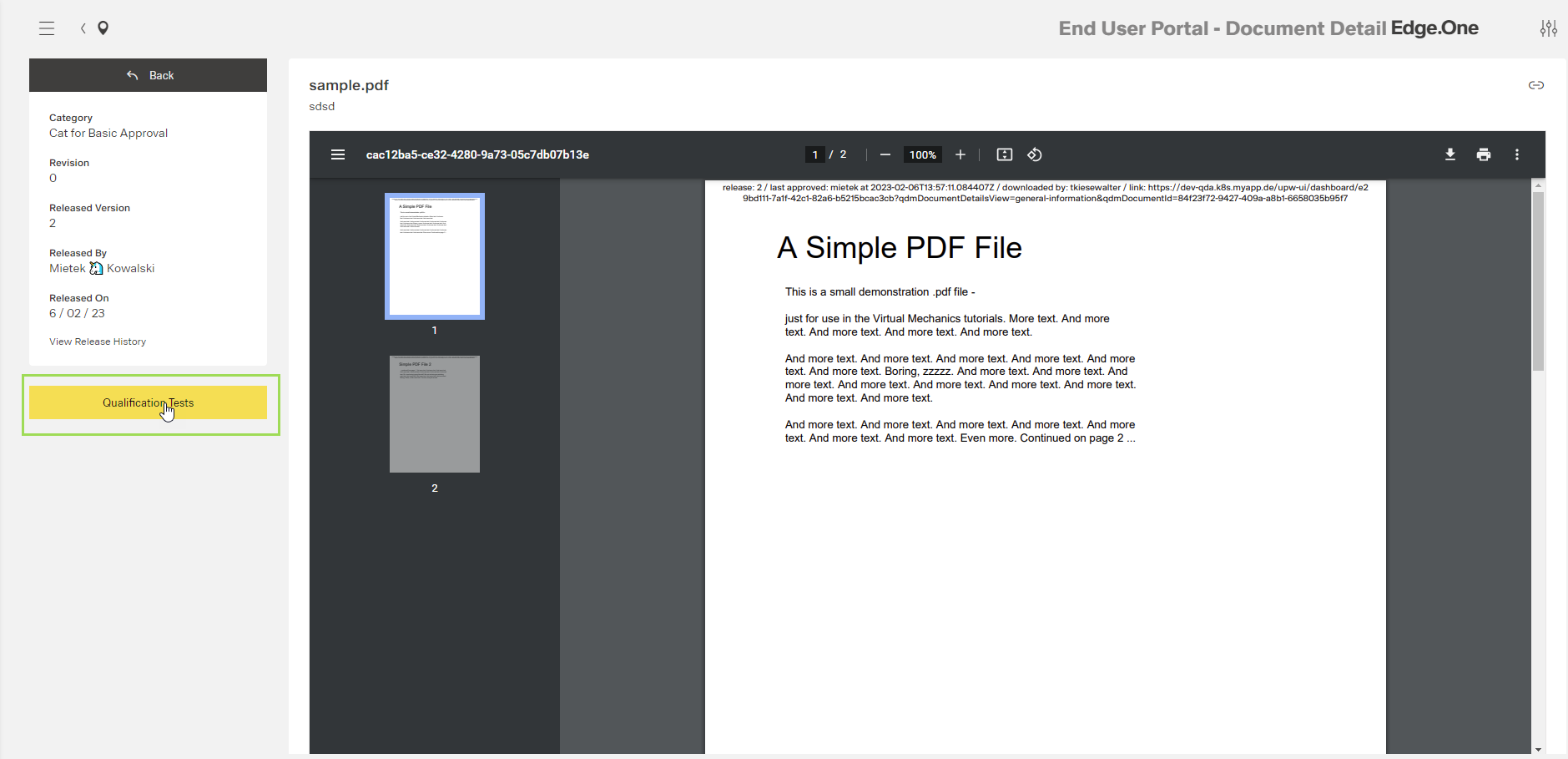
Click the button Qualification Tests
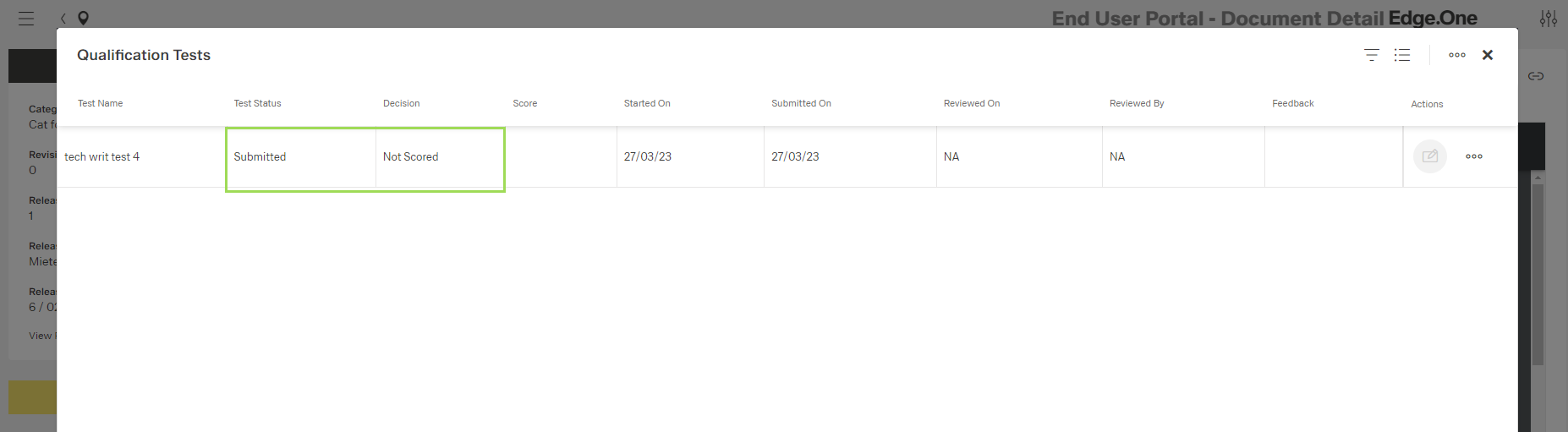
The following window appears:

The illustration shows a table with all qualification tests assigned to this document
Click the button [ ] and then, click the button
 Yes of the confirmation dialog
The first question appears:
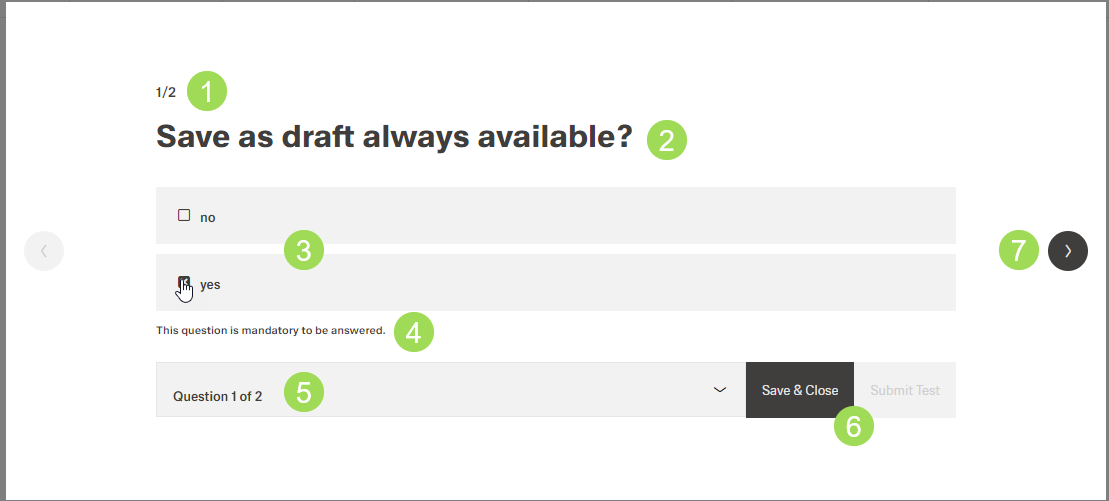
The illustration shows a question and its elements: (1) information about current question of total number of questions, (2) question, (3) multiple choice: select correct answer(s), (4) information if the question is mandatory or not, (5) dropdown to directly change to any other question of this test, (6) button to save and close when test is interrupted; "Submit Test" is enabled once all questions are answered, (7) navigation to next question
Answer all questions by selecting checkboxes <3>
To navigate between questions, either use the dropdown selection <5> or the arrows <7> to the next/last question
Click the button Save & Close If you need to interrupt the test
You can continue later by reopening the test.

The illustration shows the test table with an interrupted test to be continued later.
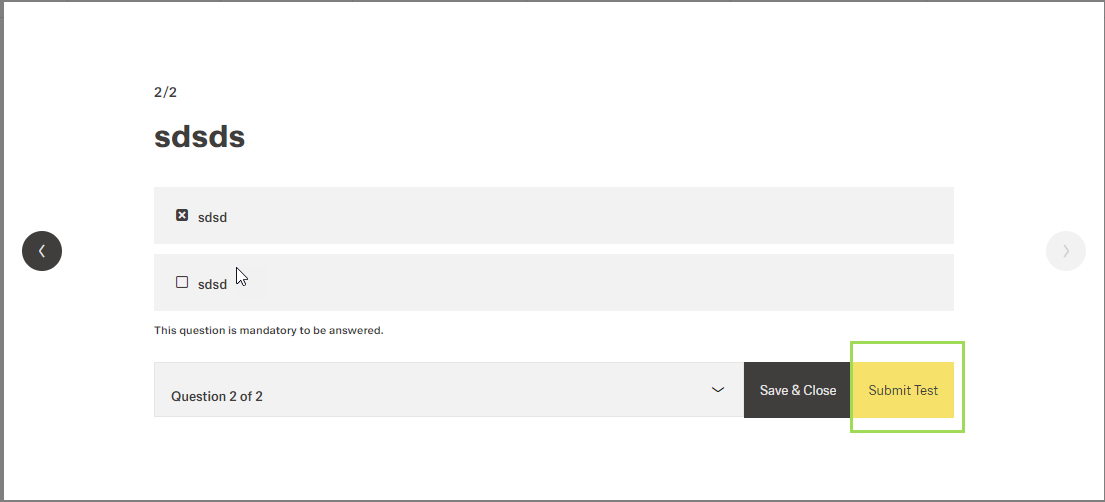
Click the button Submit Test when you are done
The confirmation dialog appears:
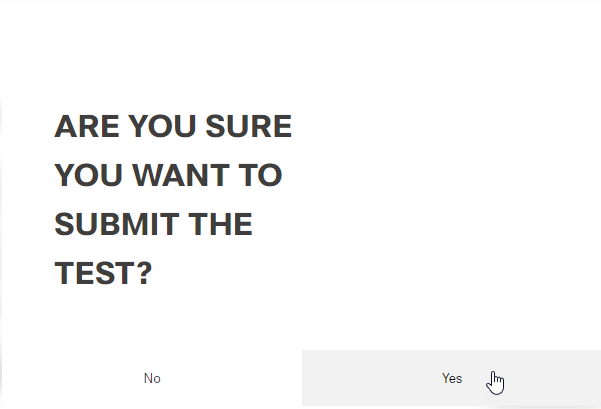
Click the button Yes (or No)
The window returns to the test table: