Publish a test in DMS (step by step)
Please note: A test can only be published when it has at least one question and one assigned document.
Publishing can be done either when editing a test or using the button [ ] of the test to be published.
Publishing after editing
After clicking the button [ ] of the selected qualification test, the following window appears:
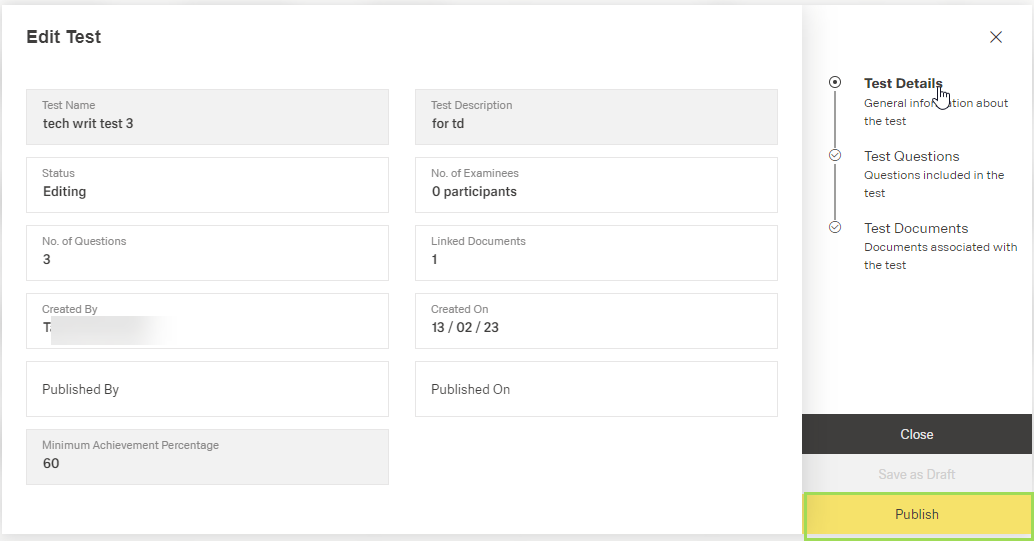
Click the button Publish to publish the test
You can click this button in all 3 steps of the edit process.
Please note: If the button is not active (yellow), you need to either add a question or assign a document. An information is visible above the button Cancel.
A message about the successful action appears at the top of the screen. The window returns to the qualification tests table.
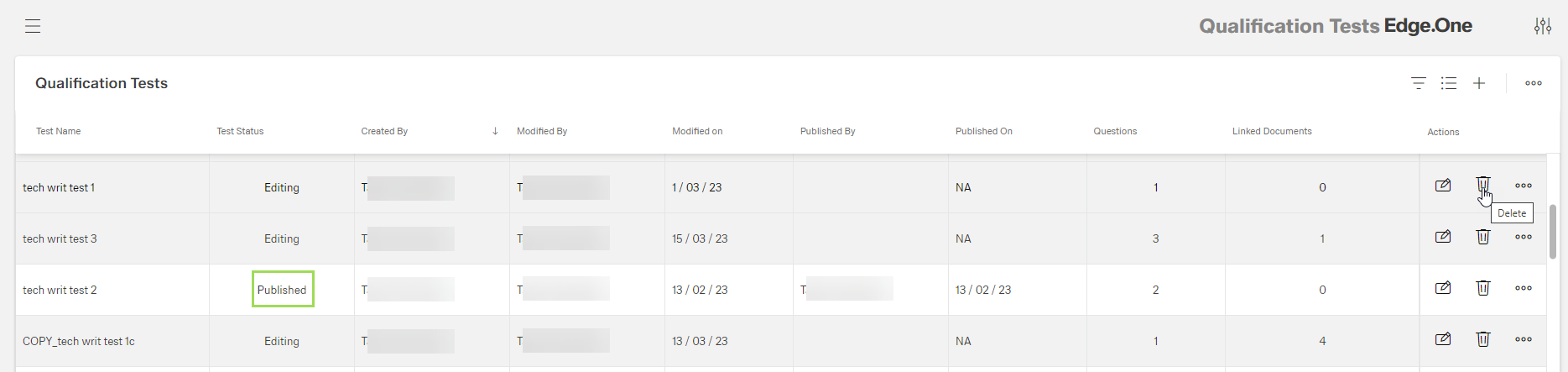
The status of the published test has changed to "Published":
Publishing using the button []
In the qualification test table, click the button [] of the test to be published
The following selection appears:
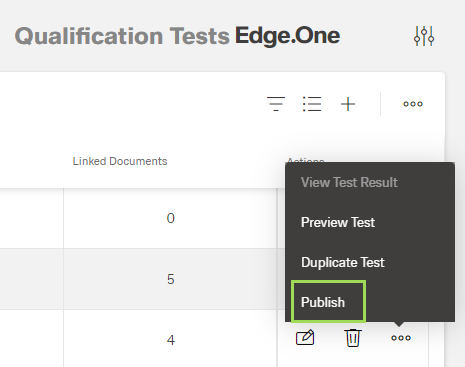
Select "Publish" to publish the test
Please note: If the selection is not active (grey), you need to either add a question or assign a document. In this case, click the button [] of the selected qualification test to check the information visible above the button Cancel.
A message about the successful action appears at the top of the screen. The window returns to the qualification tests table.
The status of the published test has changed to "Published":