Test questions of a qualification test (step by step)
Please note: Only multiple choice questions are available at the moment.
Test questions can be added, edited or deleted.
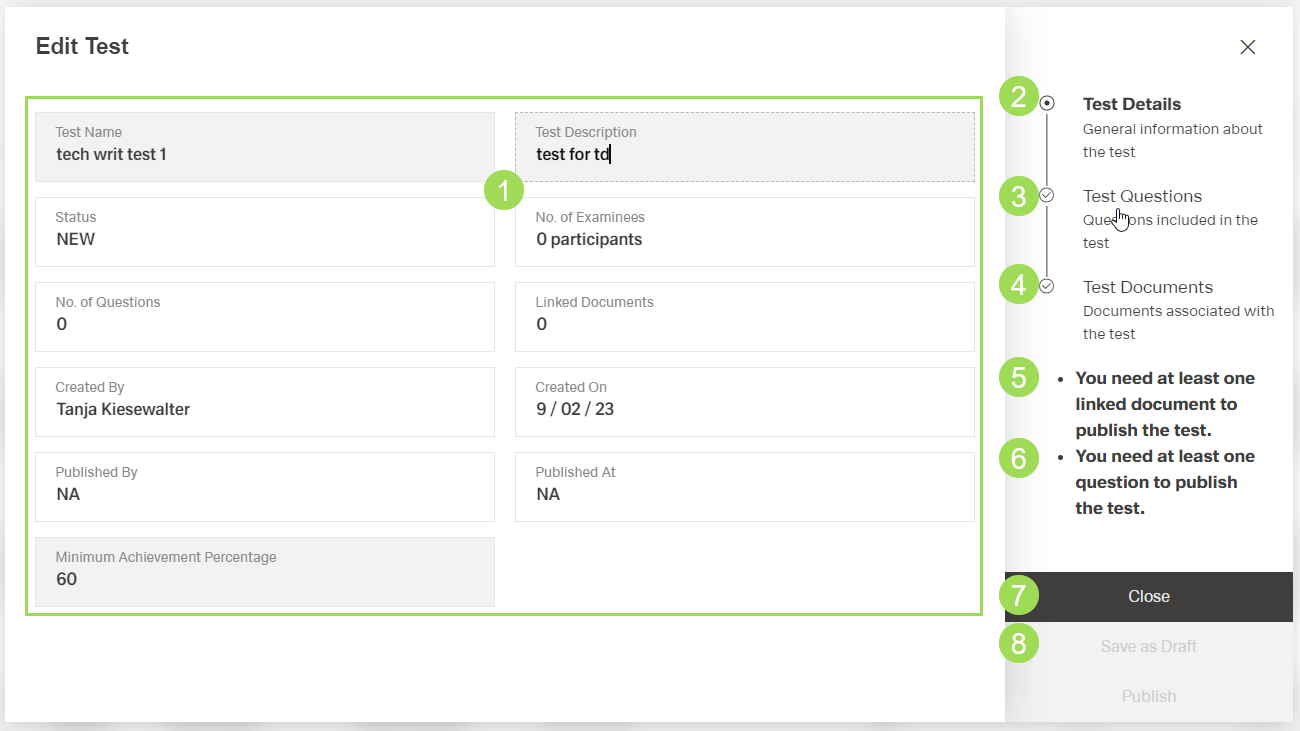
(1) test detail fields, (2) currently active submenu "Test Details", (3) submenu "Test Questions", (4) submenu "Test Documents", (5) information on submenu "Test Documents", this information disappears when a document is linked to the test, (6) information on submenu "Test Questions", this information disappears when a question is added, (7) button
Close, (8) buttonSave as Draft
Add test questions
Click on "Test Questions" <3> to edit the test questions
The following window appears:
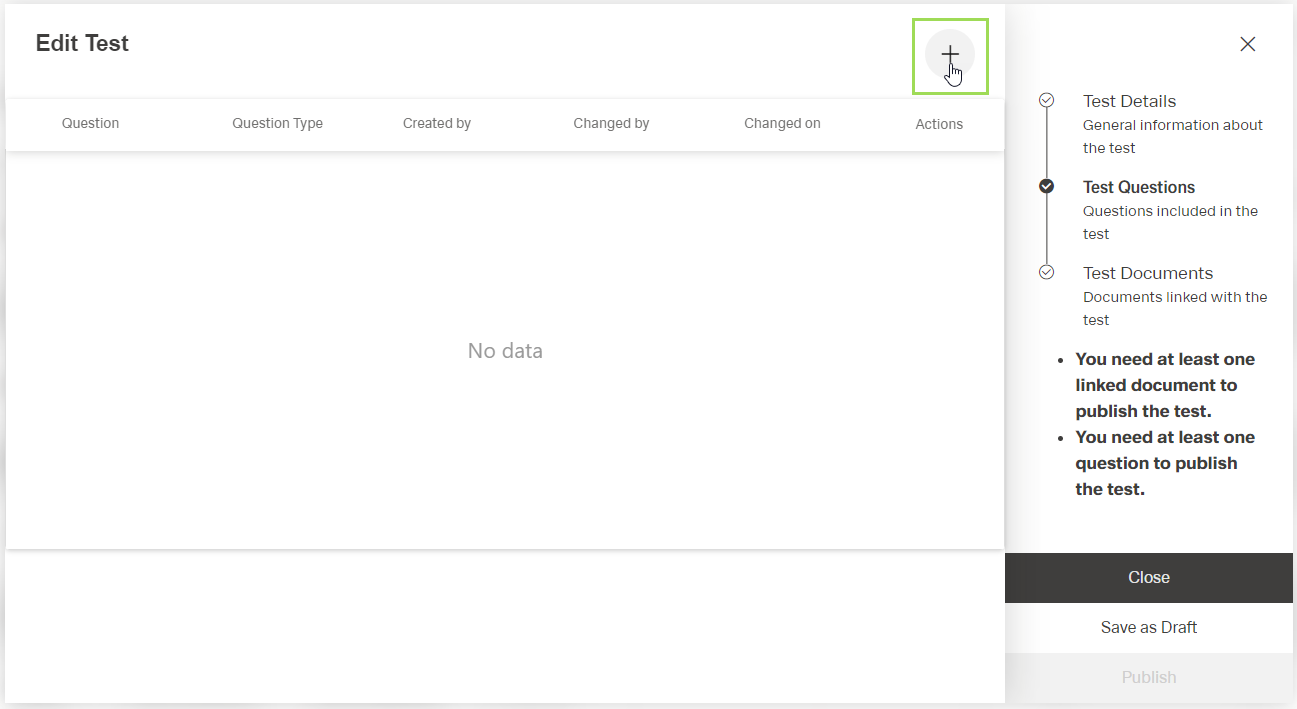
Click the button [ ] to add a question
The following window appears:
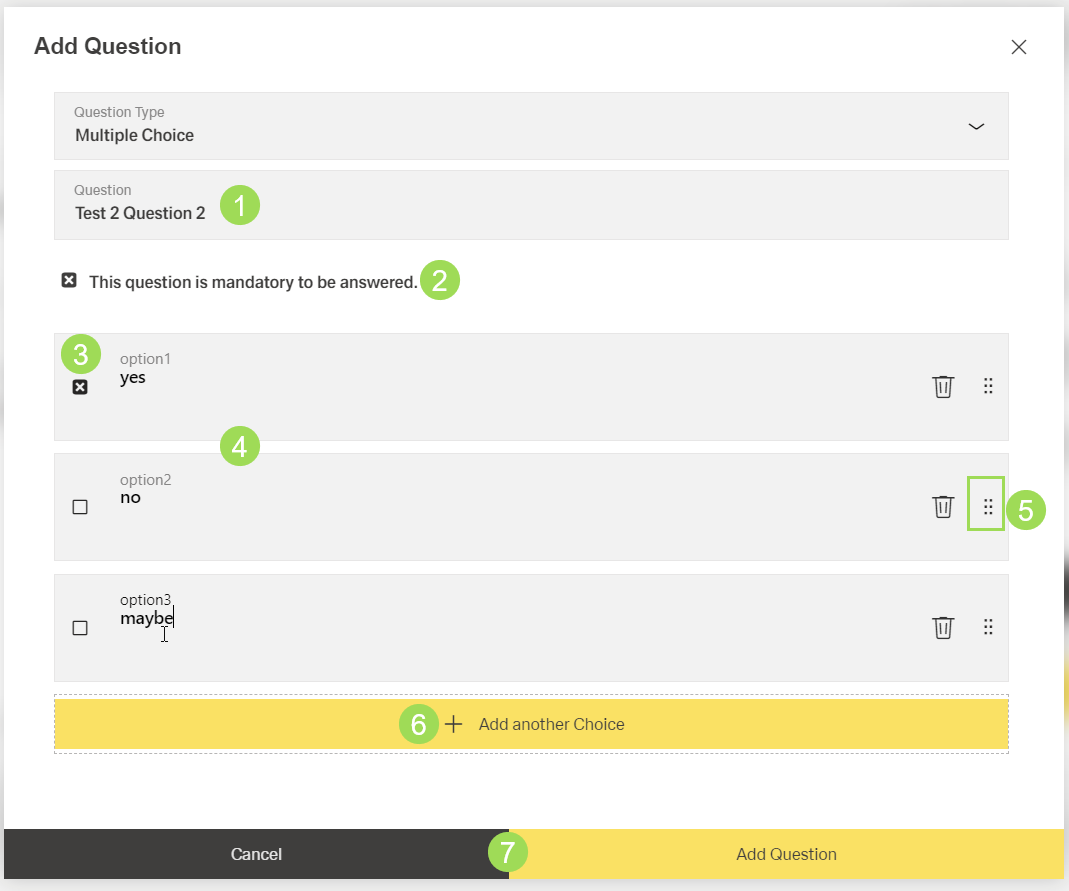
(1) question name, (2) checkbox if question needs to be answered, (3) checkbox to indicate correct answer(s), (4) possible answers, (5) option to change the order of answers, (6) button to add another possible answer to the question, (7) buttons
Enter a question name <1>
Enter at least 2 answers <4>
Mark the correct answer(s) by activating the checkbox of the question <3>
More answers can be added by clicking the button Add another Choice <6>
Click the button Add Question (or Cancel)
A message about the successful action appears at the top of the screen.
Continue or click the button Cancel
After canceling, the window returns to the qualification tests table.
Edit a test question
After clicking the button [ ] of the selected qualification test and selecting "Test Questions", the following window appears:
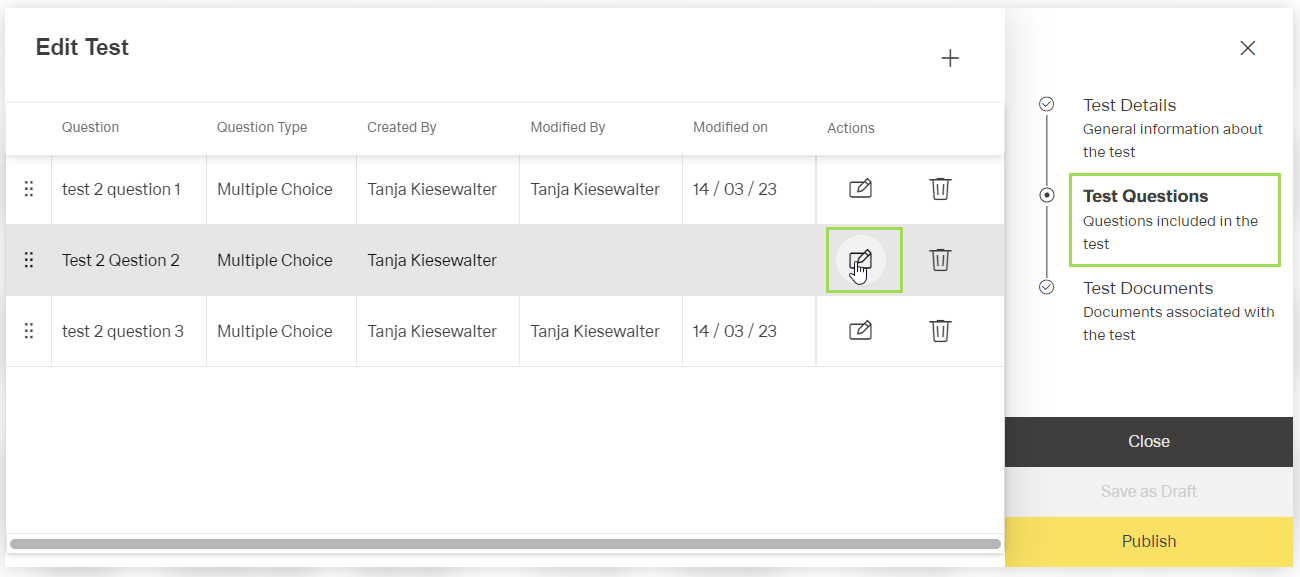
Click the button [] of the question to be edited
The edit dialog appears:
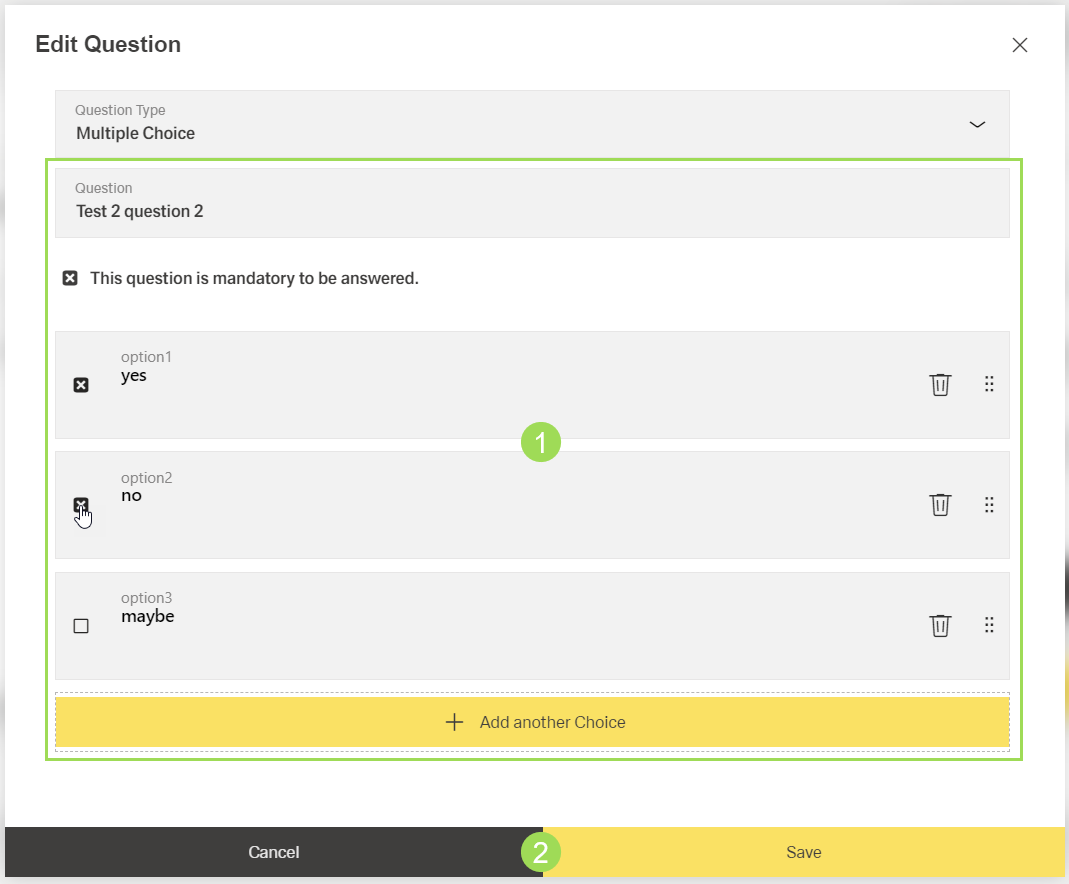
Edit / update the needed elements <1>. The following elements can be updated:
- question title
- checkbox "mandatory"
- each answer: text and checkbox
- order of answers
- add another answer as choice or delete answer(s)
Click the button Save (or Cancel)
A message about the successful action appears at the top of the screen.
Delete a test question
After clicking the button [] of the selected qualification test and selecting "Test Questions", the following window appears:
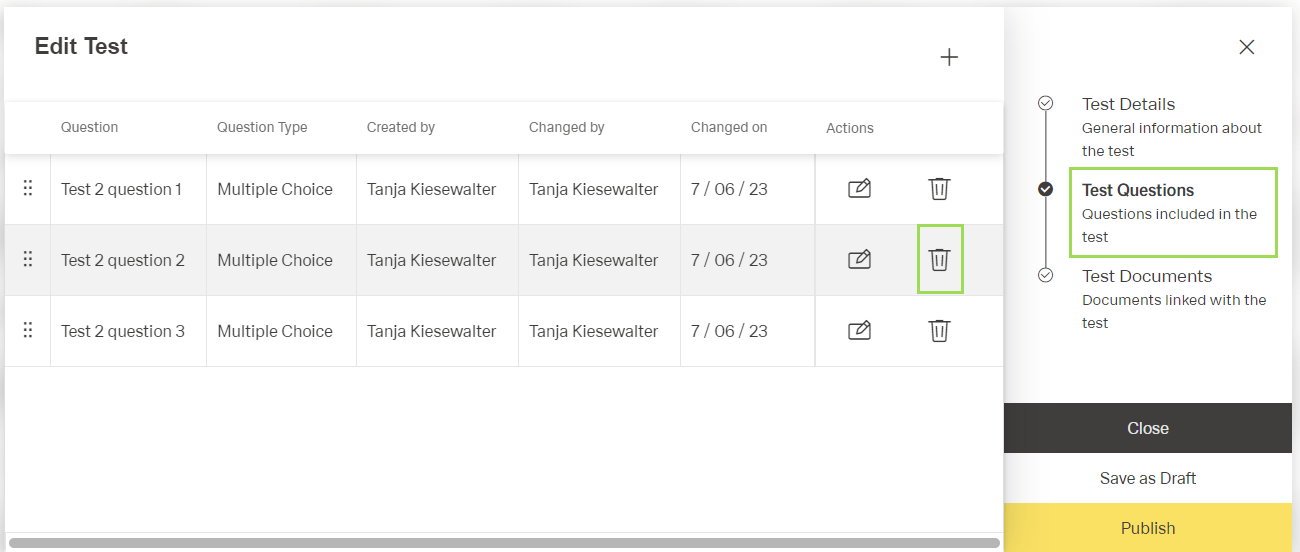
Click the button [ ] of the question to be deleted
The confirm dialog appears:
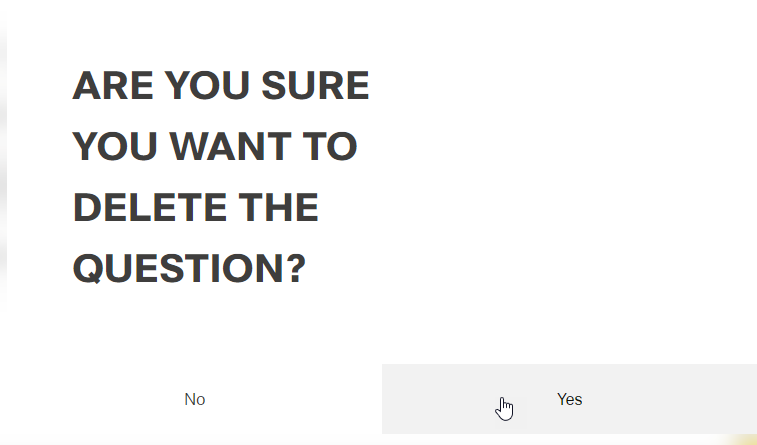
Click the button Yes (or No)
A message about the successful action appears at the top of the screen.