Assign documents to a qualification test (step by step)
After clicking the button [ ] of the selected qualification test, the following window appears:
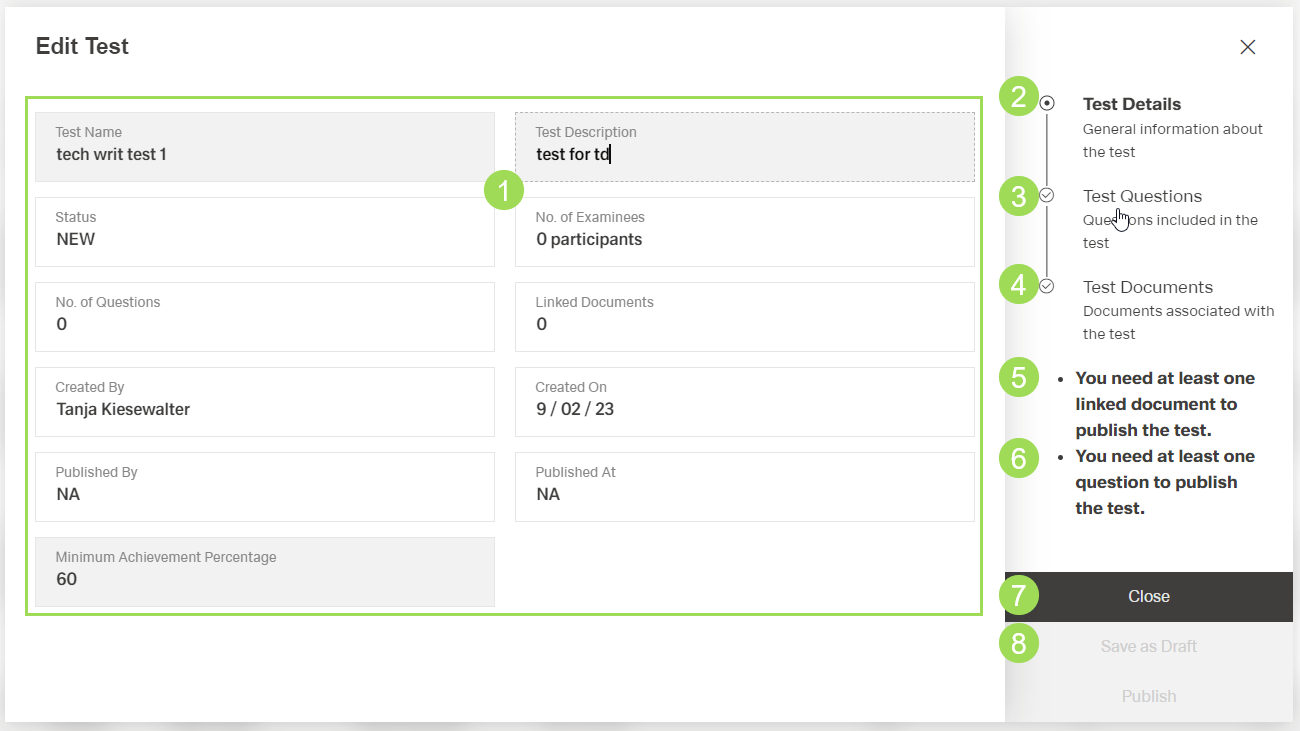
(1) test detail fields, (2) currently active submenu "Test Details", (3) submenu "Test Questions", (4) submenu "Test Documents", (5) information on submenu "Test Documents", this information disappears when a document is linked to the test, (6) information on submenu "Test Questions", this information disappears when a question is added, (7) button
Close, (8) buttonSave as Draft
Test documents can be assigned, edited or removed.
Assign documents to the qualification test
Click on "Test Documents" <4> to edit the test documents
The following window appears:
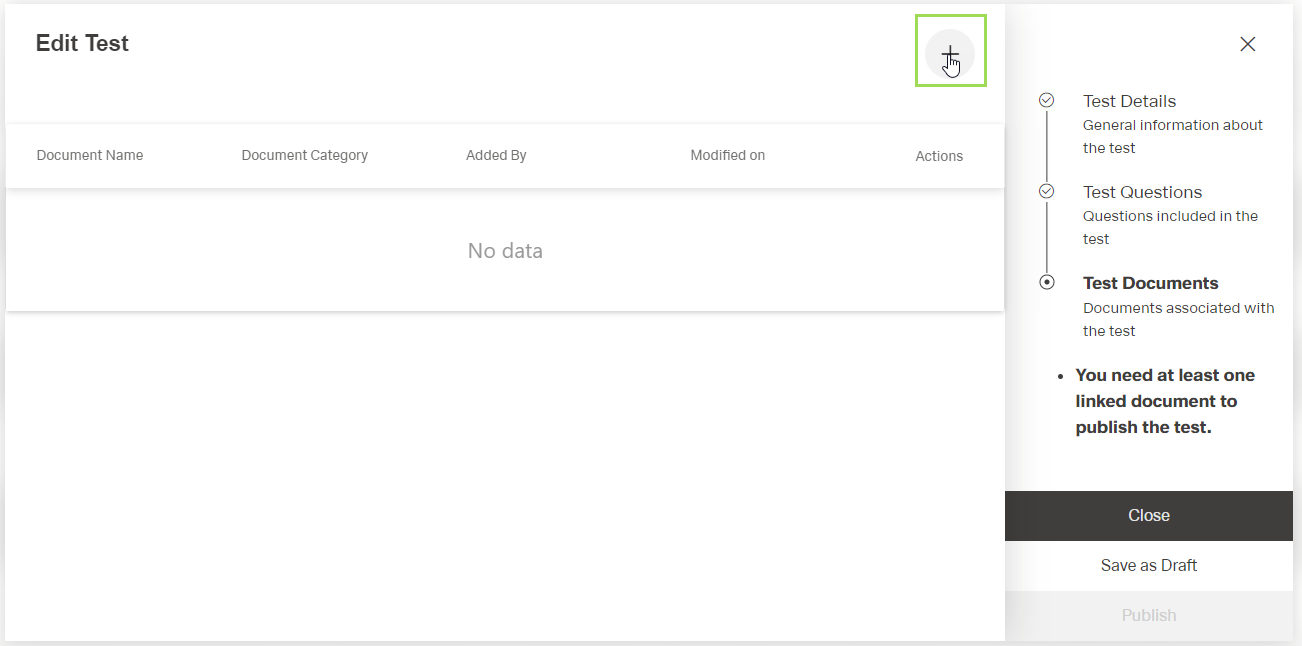
Click the button [ ] to assign a document to the qualification test
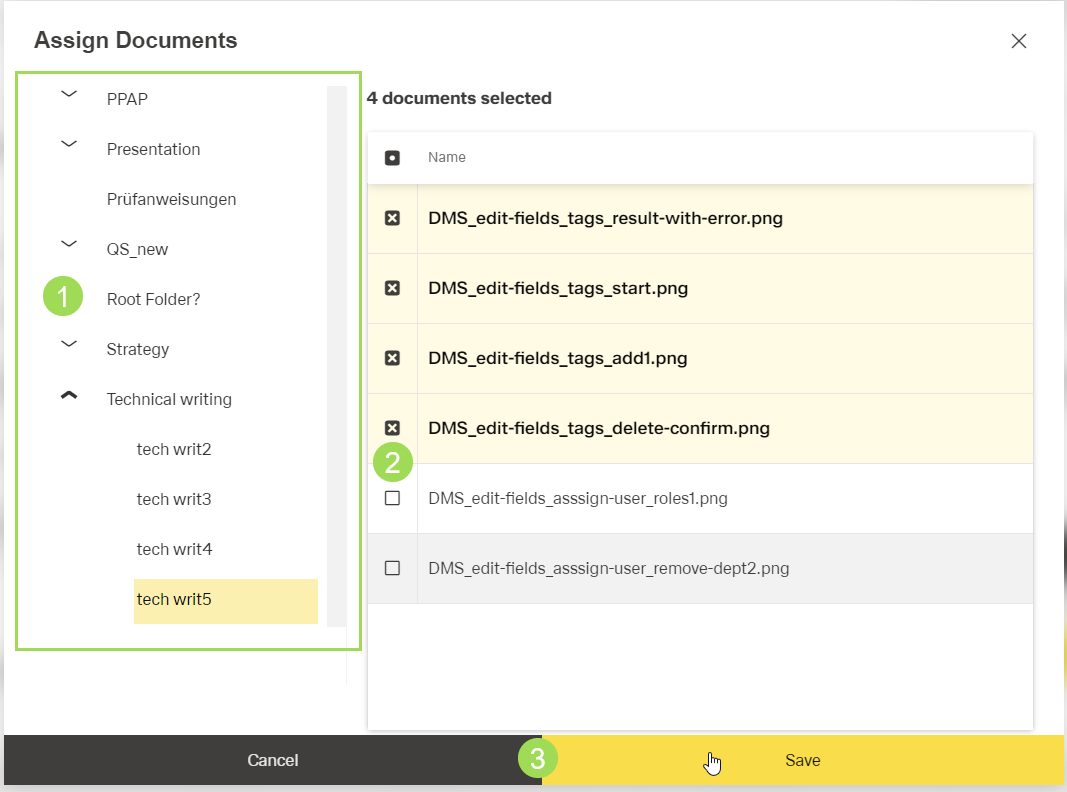
The following window appears:
Alternatively, it's also possible to later assign a qualifiation test to a document (in edit fields of a document).
Select the folder <1> with the document to be assigned
Select the document(s) <2> from this folder to be assigned
Click the button Save <3> (or Cancel)
A message about the successful action appears at the top of the screen. The window returns to the qualification tests table.
If you want to assign more documents from other folders, repeat this process
Click the button Save as Draft (or Close)
or
Click the button Publish to publish the test
Please note: if you publish the test, you can't edit it anymore.
A message about the successful action appears at the top of the screen. The window returns to the qualification tests table.
Edit test documents
After clicking the button [] of the selected qualification test and selecting "Test Documents", the following window appears:
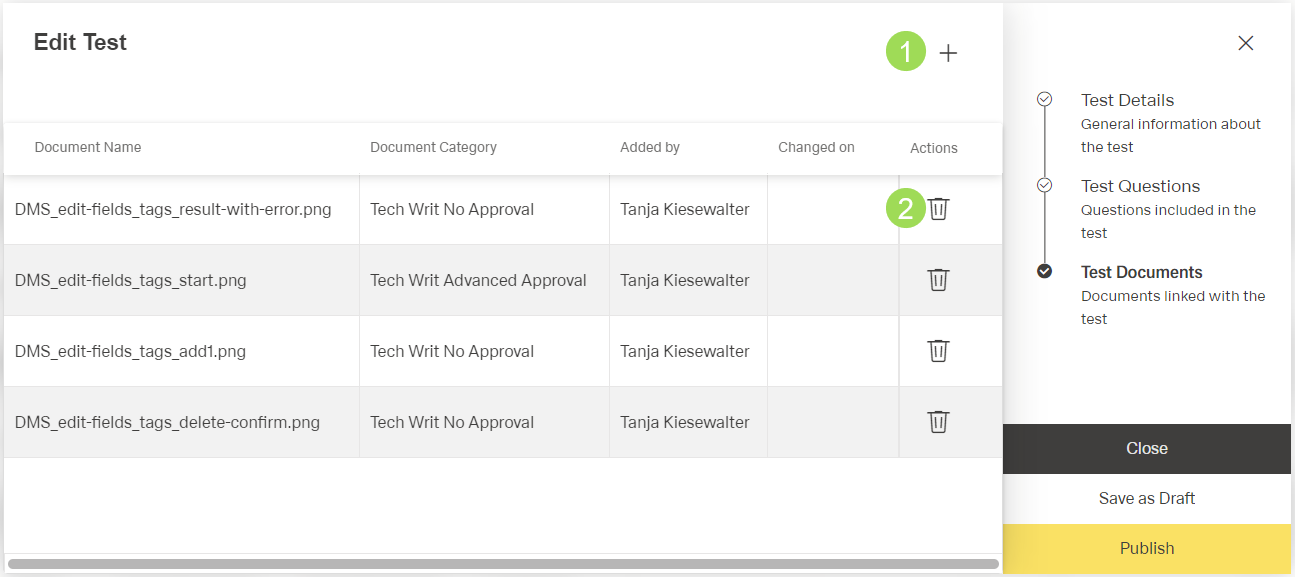
Assign further document(s) <1> according to these process steps
Click the button Save as Draft (or Close)
or
Click the button Publish to publish the test
Please note: if you publish the test, you can't edit it anymore.
A message about the successful action appears at the top of the screen. The window returns to the qualification tests table.
Remove a test document
After clicking the button [] of the selected qualification test and selecting "Test Documents", the following window appears:
Click the button [ ] of the document to be removed
The confirm dialog appears:
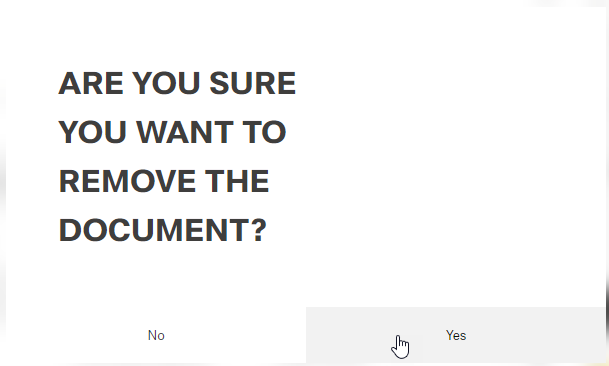
Click the button Yes (or No)
A message about the successful action appears at the top of the screen.
Click the button Save as Draft (or Close)
or
Click the button Publish to publish the test
Please note: if you publish the test, you can't edit it anymore.
A message about the successful action appears at the top of the screen. The window returns to the qualification tests table.