Remove a user from a document assignment list (step by step)
To remove a user from a document assignment, it is necessary to select users individually as described here. It is possible to delete the preselection of departments and job roles.
Please note: Removing a department or a job role doesn't change the list of users assigned to the document. There are many possibilities how users were added to this list - as a member of a department, because of the job role(s) or because the user was added directly.
Remove a department or a job role from the list
The removal of departments respectively job roles is explained for the department list. The handling of the job roles list is the same.
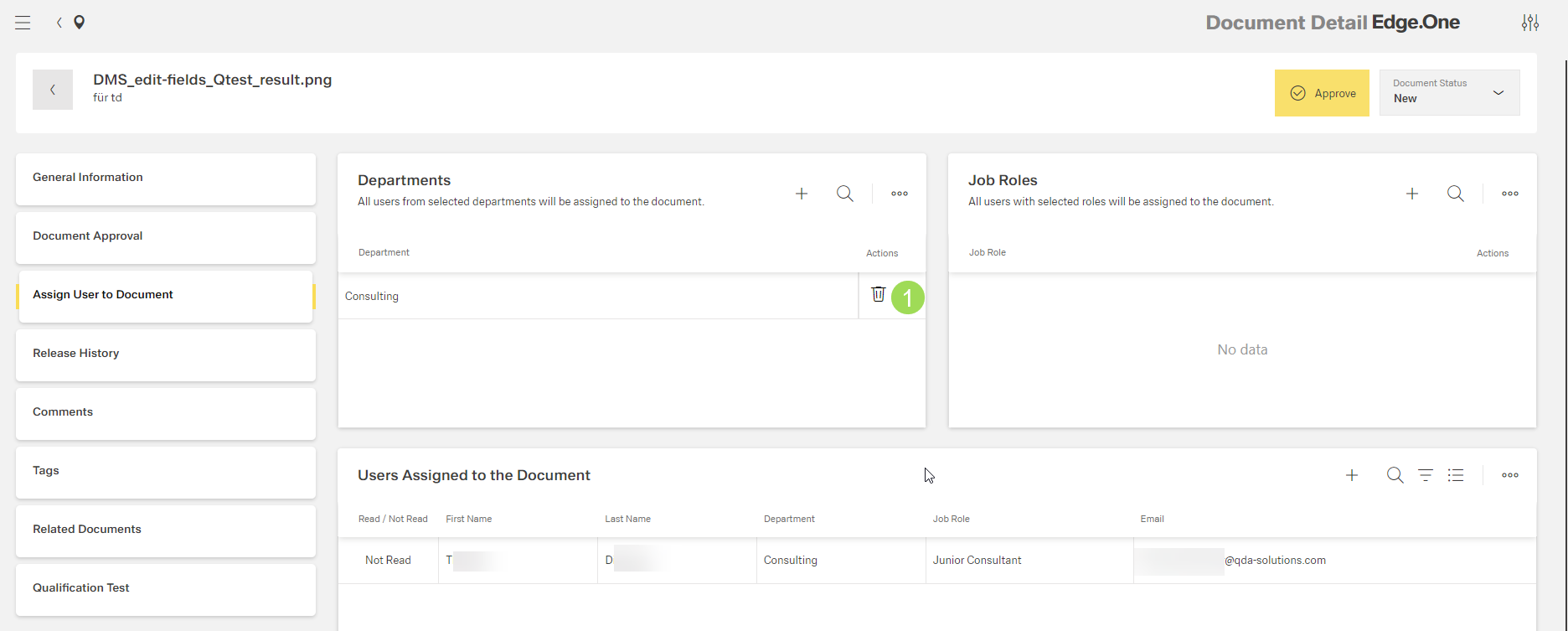
The illustration shows a department (1) and a user assigned to the document.
Click the button [ ] <1>
] <1>
The following window appears:
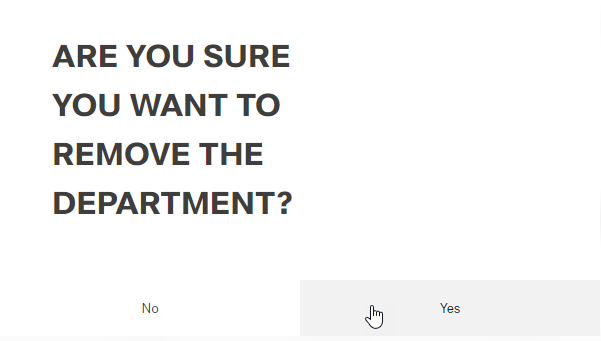
Click the button Yes (or No)
A message about the successful action appears at the top of the screen.
Please note: the list "Users assigned to the document" is NOT affected by removing the department.
Remove a user from the assignment list
Click the button [ ]
]
The following window appears:
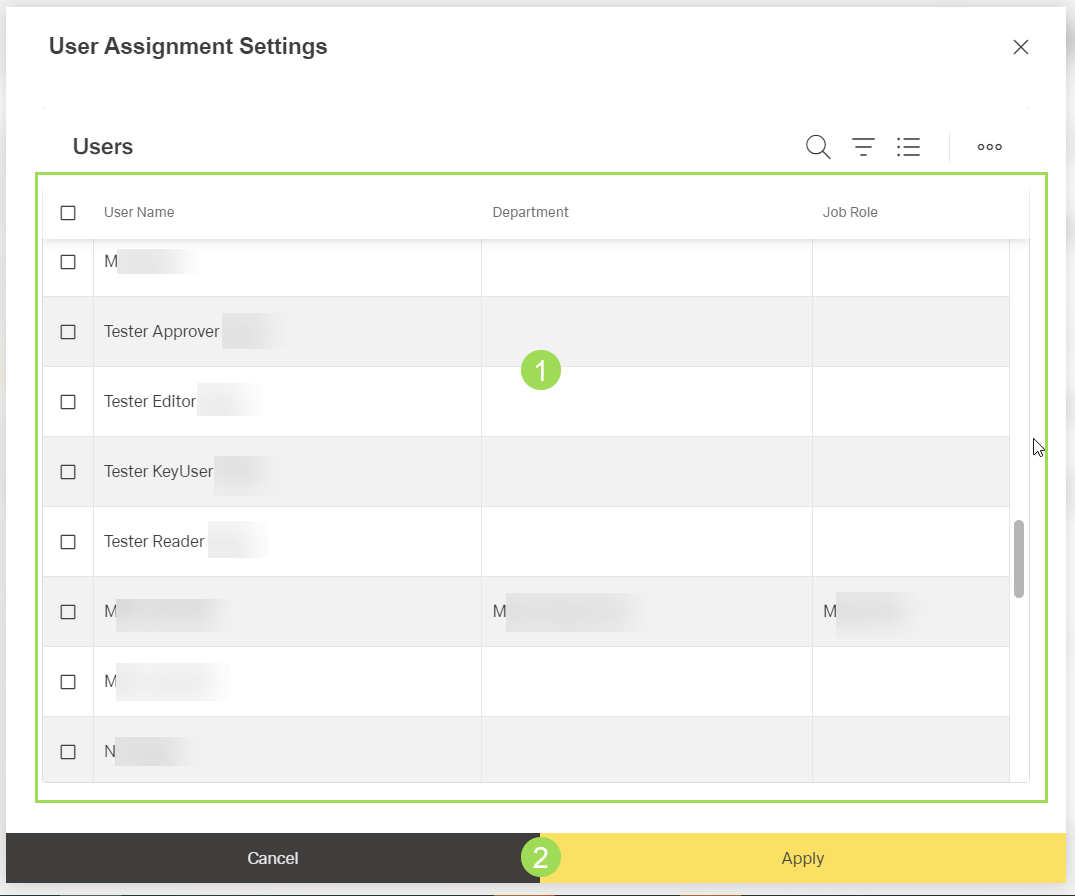
The illustration shows the selection of individual users: (1) list of users including checkboxes to select one or more users, (2) buttons
The currently assigned users are highlighted.
Deselect one or more users by deactivating the corresponding checkbox(es)
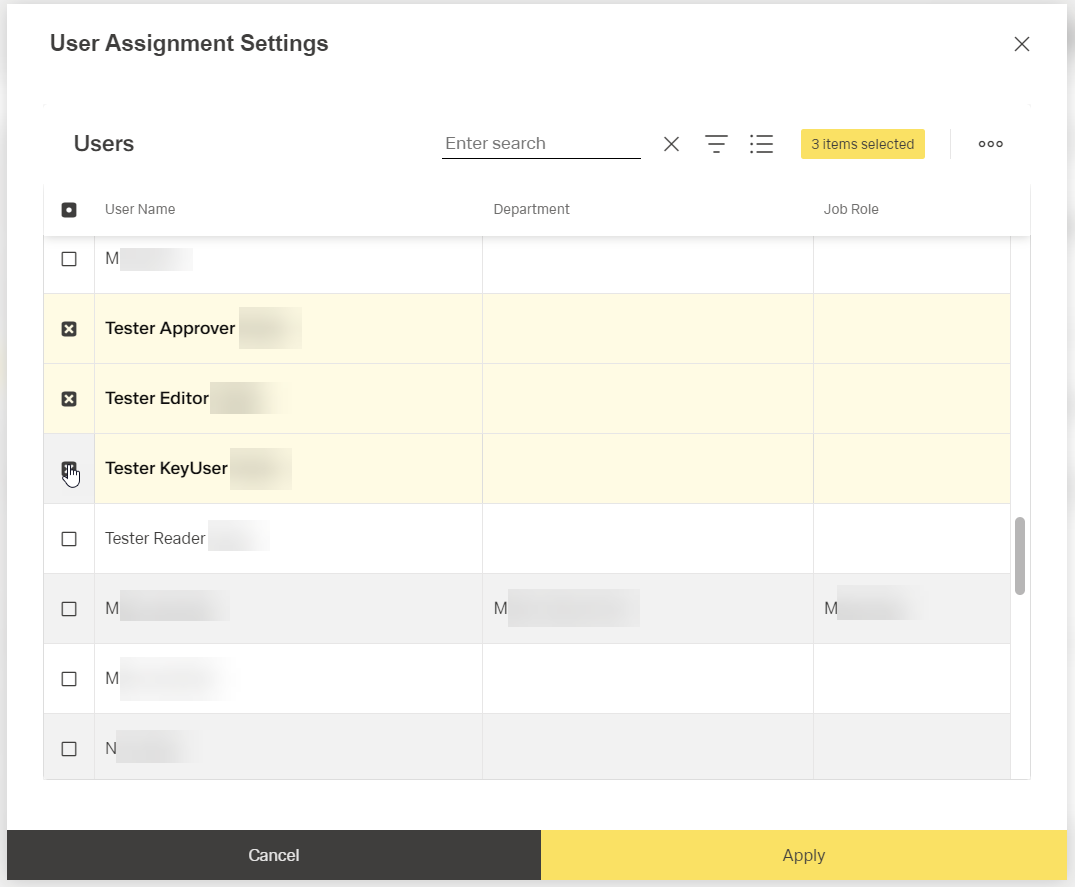
The deselected users aren't highlighted anymore.
Click the button Apply <2> (or Cancel)
A message about the successful action appears at the top of the screen.
All deselected users are removed from the list "Users assigned to the document":
