Related documents - internal links (step by step)
Internally linked documents are linked "from both sides": Both documents have the respective related document listed under "Related Documents".
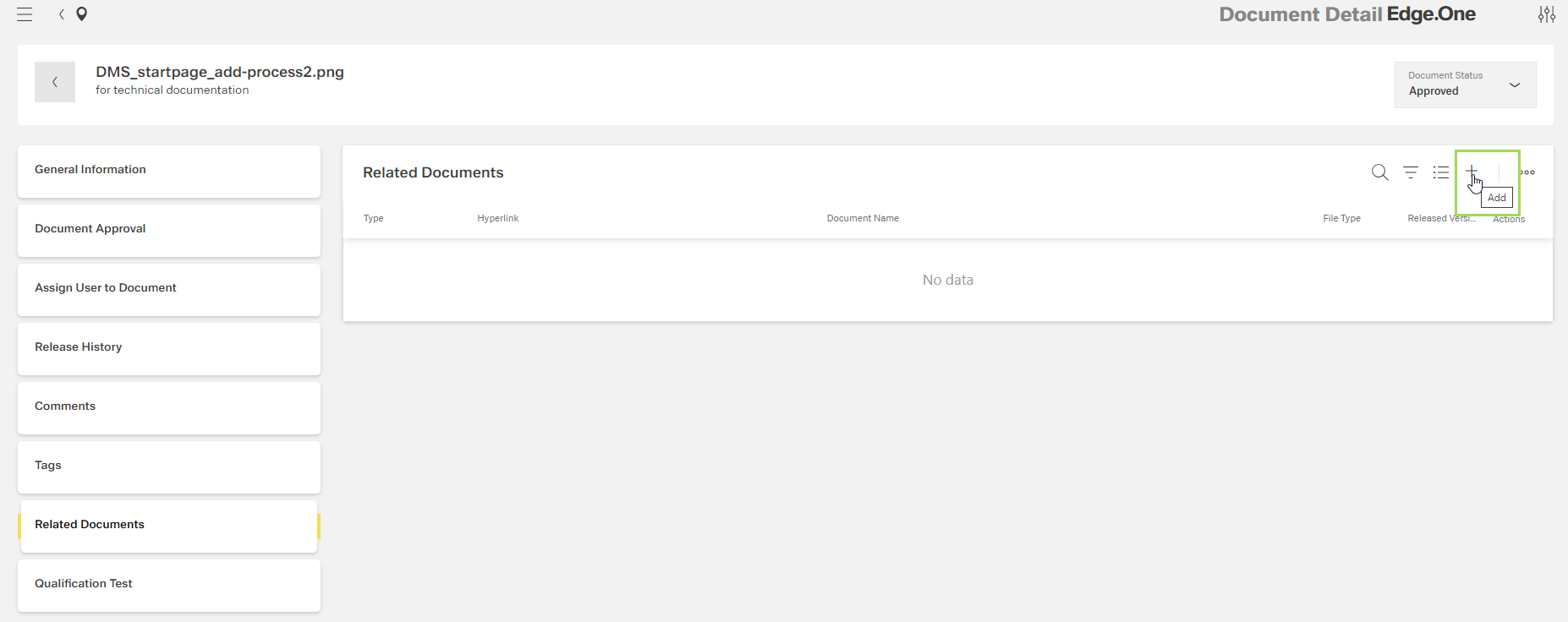
Click the button [ ]
]
The following window appears:

Select "Internal" and click the button Next
The following window appears:
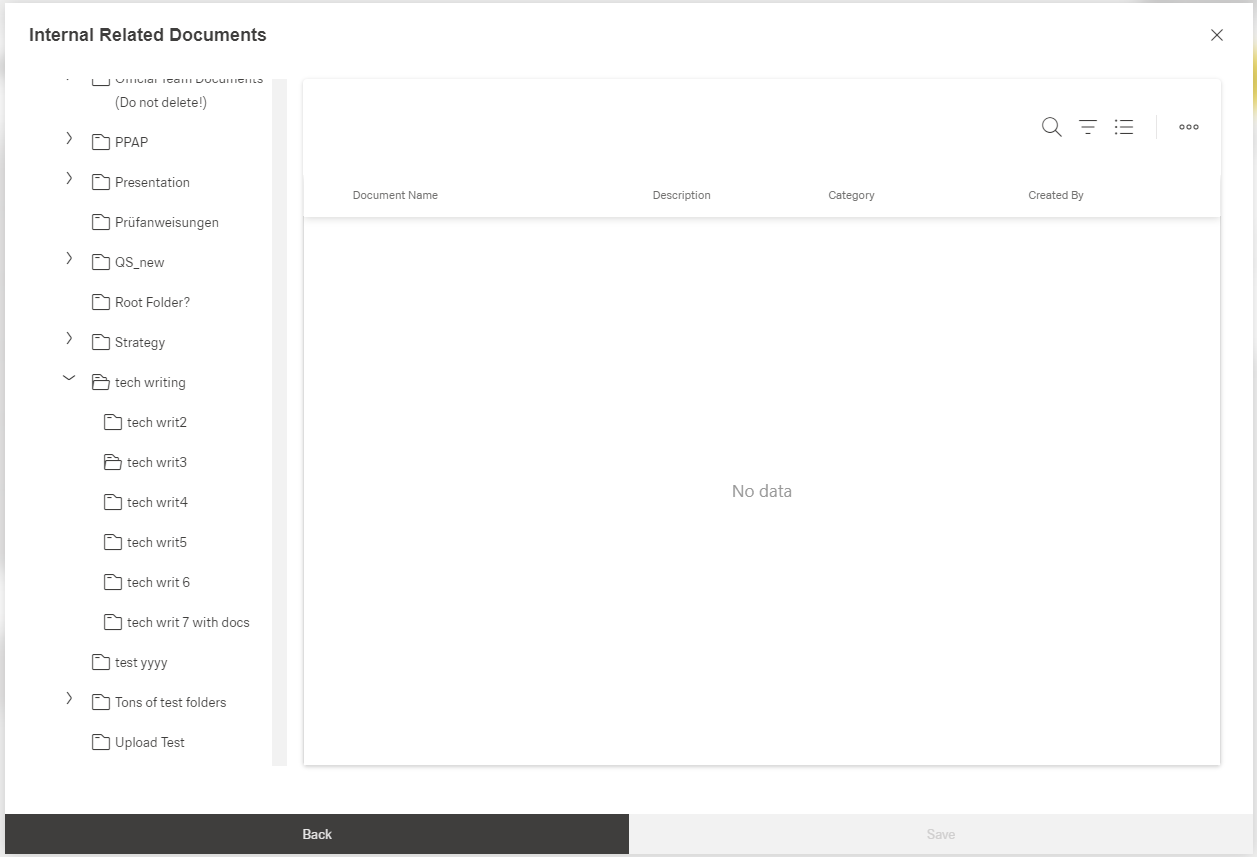
Select the folder containing the document to be linked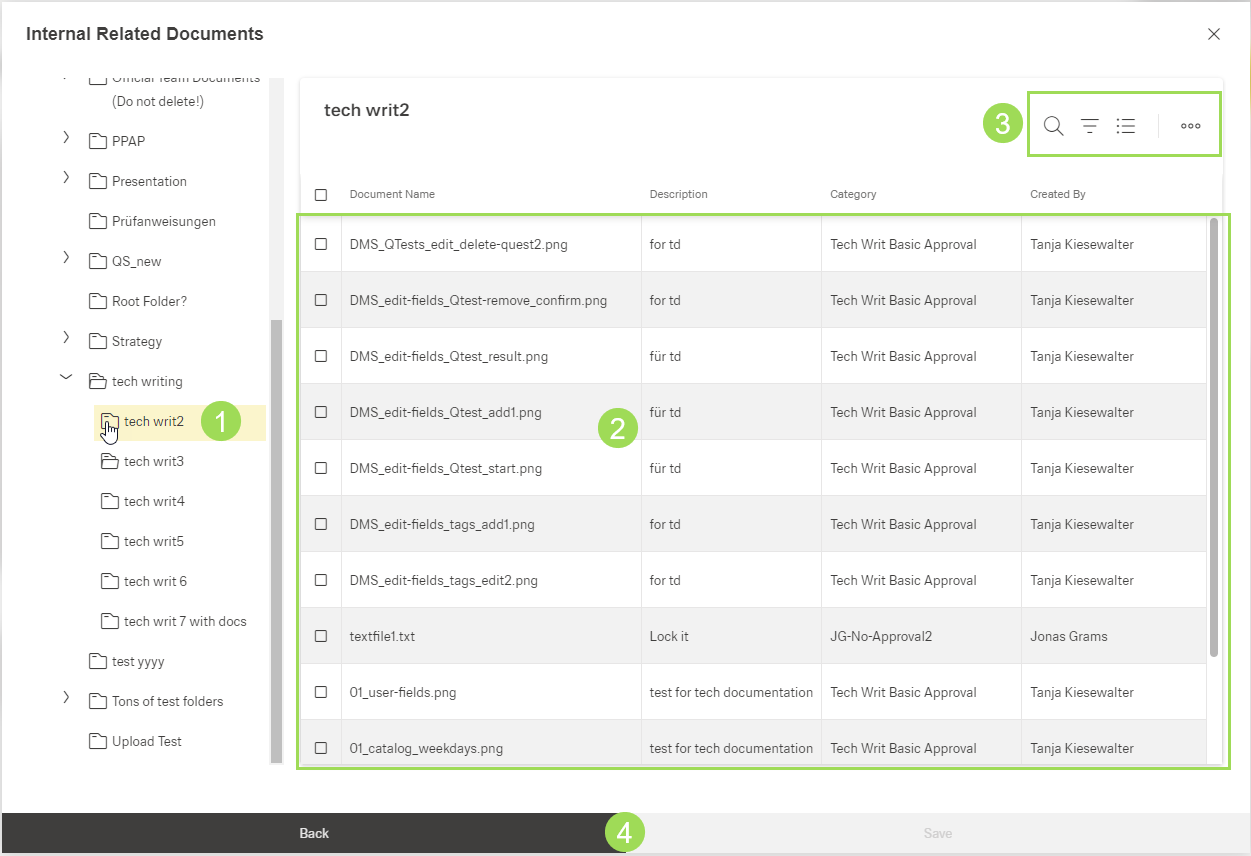
(1) selected folder, (2) docs to be selected, (3) standard action buttons to sort and group the table, (4) buttons
Select the document(s) to be linked <2> by activating the checkbox:
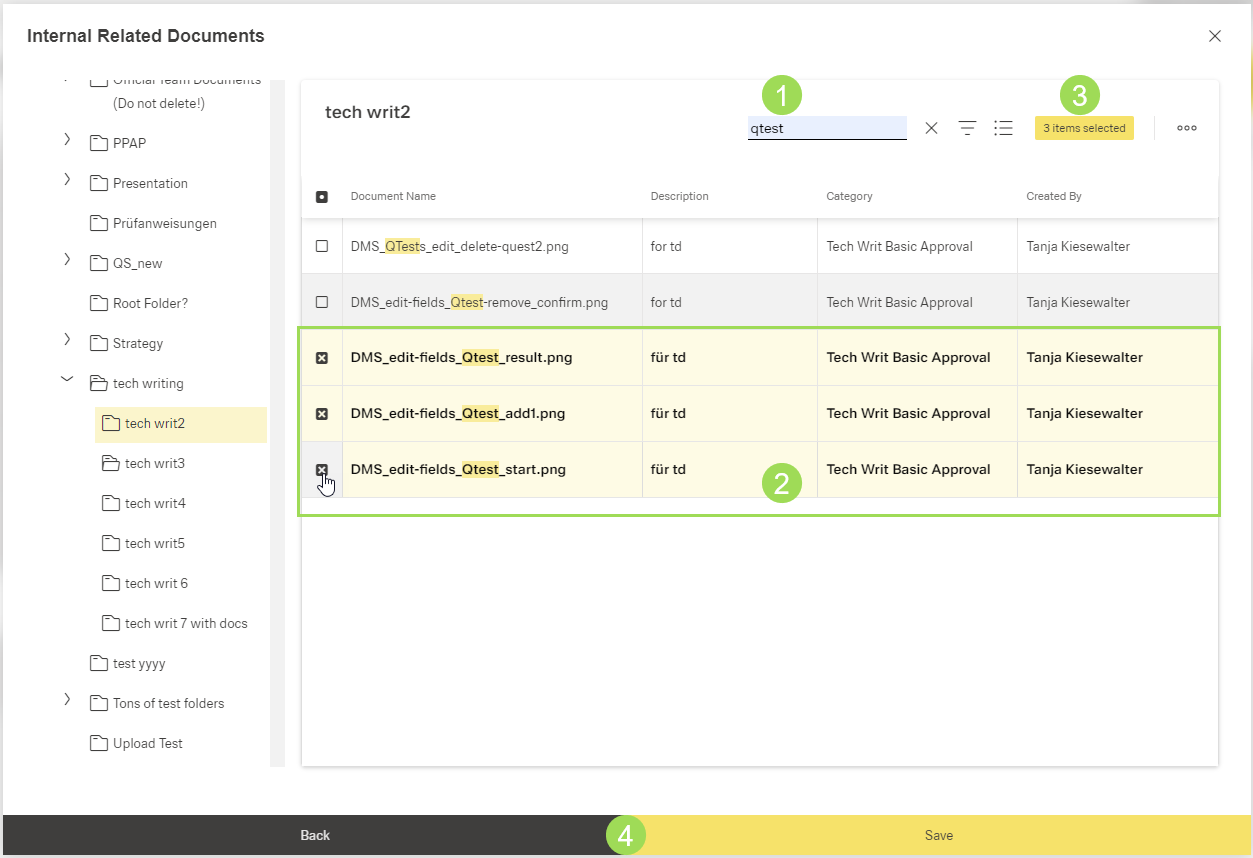
(1) search field, (2) selected documents to be internally linked, (3) number of selected documents to be linked, (4) buttons
Click the button Save <4> (or Cancel)
A message about the successful action appears at the top of the screen.
If you need to link more documents from other folders, repeat the process.
The result:
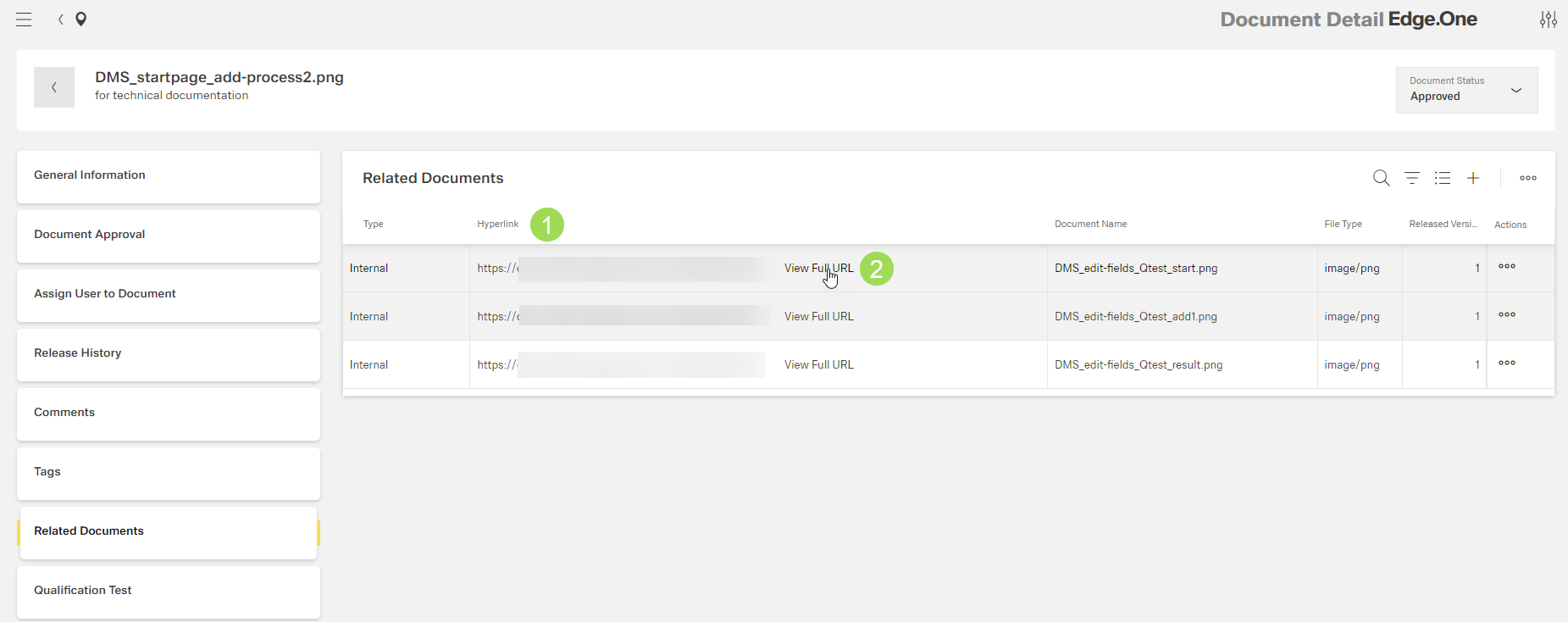
The illustration shows the newly linked related document: (1) Hyperlink shows where the related document is stored, (2) link to expand the hyperlink; the other columns give information in the linked document.
The following illustration shows the information given in the linked document:
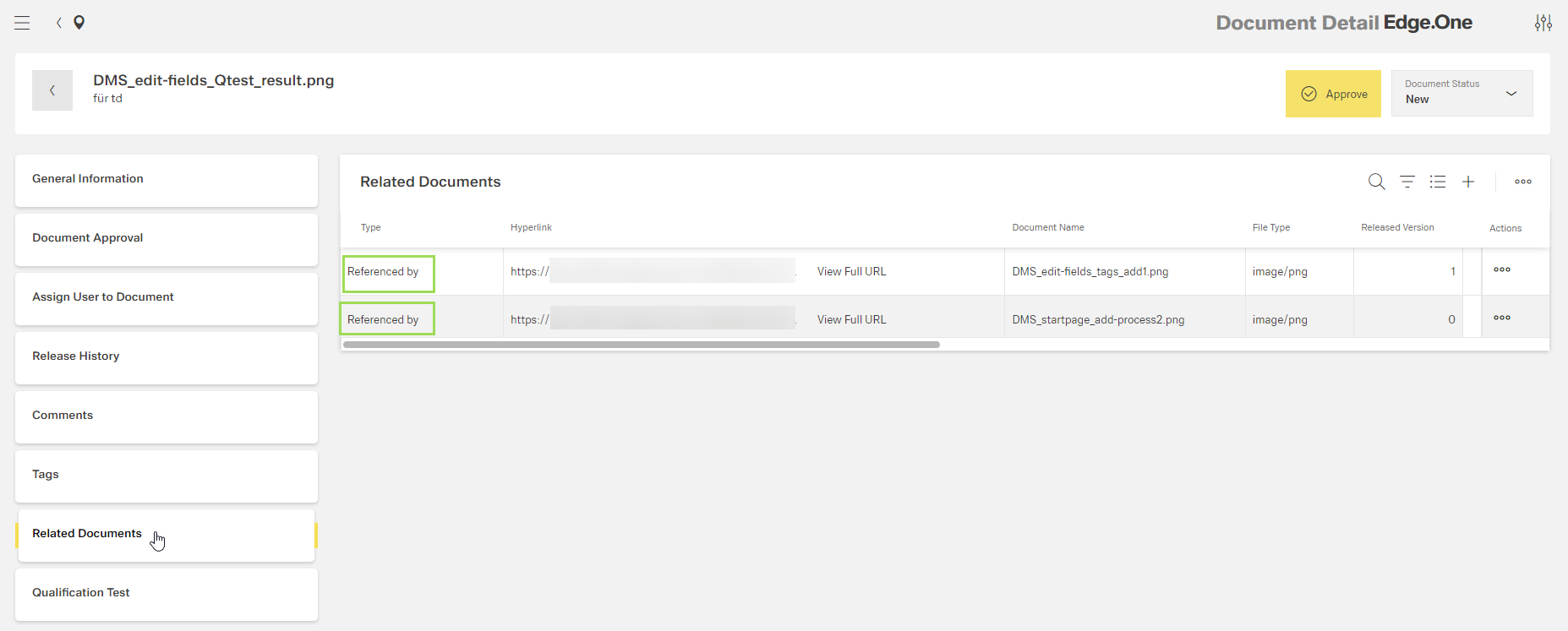
The main difference between both documents is framed. When clicking on the link, the document details of the linked / other document opens.