General information (DMS document)
This menu offers information and management of a document included in the DMS. These fields contain document information. Some fields are required as indicated in the table. The table of the folder shows all content as separate columns, user fields included.
After clicking the button [ ] of a document, the following screen appears:
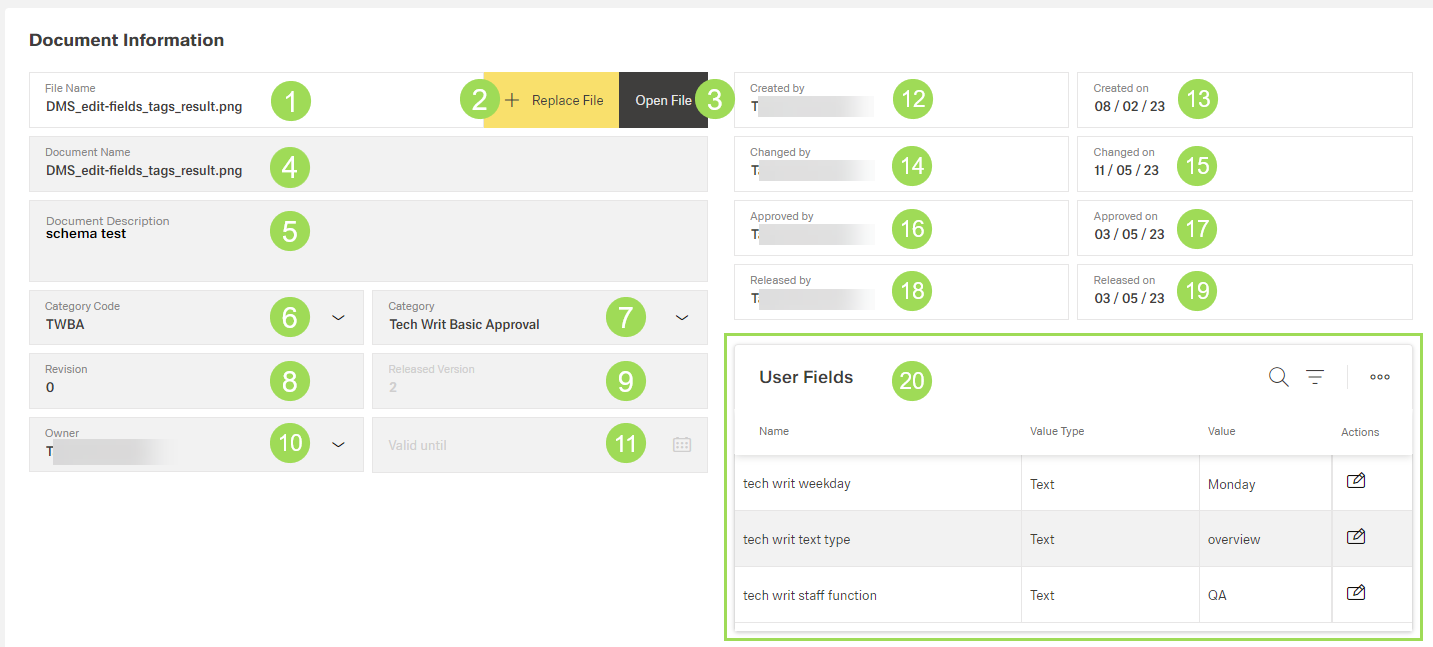
The illustration shows all available fields. Details on each field are given in the table below.
| No. | Name | Function | Edit field (edit) or information only (info)? | Required field (y/n)? |
|---|---|---|---|---|
| 1 | File Name | shows the name of the uploaded document including file type extension | info | |
| 2 | Replace File | button to open a file manager | button | |
| 3 | Open File | button to open the uploaded document | button | |
| 4 | Document Name | this name is indicated where the document is available,e.g. in document lists | edit | y |
| 5 | Document Description | gives a short description about the document, its content etc. | edit | y |
| 6 | Category Code | assigned during upload and selected from a dropdown list. Category (6) and Category Code (7) are connected: if one of the two is changed, the other is changed, too. | selectable | y |
| 7 | Category | assigned during upload and selected from a dropdown list. Category (6) and Category Code (7) are connected: if one of the two is changed, the other is changed, too. | selectable | y |
| 8 | Revision | manually entered information about document status | edit | n |
| 9 | Version | automatic system information about uploaded version | info | |
| 10 | Owner | user who have certain rights to manage, approve (depending on the approval setting) and release a document | selectable | y |
| 11 | Valid to | assigned during release | info | |
| 12 | Created By | automatic system information about user who uploaded the document | info | |
| 13 | Created On | automatic system information about when the document was uploaded | info | |
| 14 | Changed By | automatic system information about the last user who changed anything in this window | info | |
| 15 | Changed On | automatic system information about when it was changed | info | |
| 16 | Inspected By | automatic system information about the last approver | info | |
| 17 | Inspected On | automatic system information about when the last approval was done | info | |
| 18 | Released By | automatic system information about the last user who released the document | info | |
| 19 | Released On | automatic system information about when the last release was done | info | |
| 20 | User Fields | see details below | mainly info |
User Fields
Depending on the selected user field schema of the current folder (assigned when folder is added), user fields show additional information on the document. User fields can be edited by selecting the correct information from a drop dropdown list.
The information shown here is the result of configuration settings for catalogs, user fields, and user field schemas:
- Catalogs offer a list of attributes, e.g. a list of part types. An element of this list is shown in the user field.
- User field schema:
The assigned user field schema of the folder defines the user fields visible and / or mandatory for the documents uploaded to that folder.
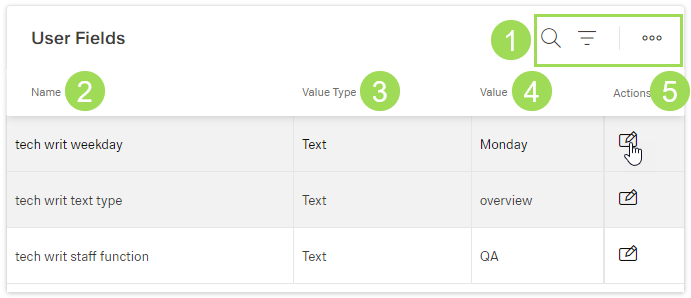
The illustration shows the user fields: (1) standard action buttons to sort and group the table, (2) column "Name", (3) column "Value Type", (4) column "Value", (5) column "Actions".
| No. | Name | Function |
|---|---|---|
| 1 | standard action buttons | general dashboard elements |
| 2 | Name | name of the additional information |
| 3 | Value Type | data type, can be text, boolean, number or decimal |
| 4 | Value | value for the current document. |
| 5 | Actions | click the button [ |
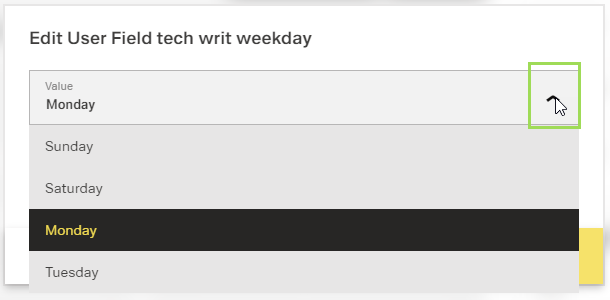
When clicking the button [] under <5>, the following window appears with a dropdown list to select the fitting information for this document: