DMS setting "no approval" (step by step)
For this approval setting, the owner of the document can directly release it by selecting the document status "Released" and follow the corresponding dialog.
Start the approval process by opening the general document information (click the button [ ]):
]):
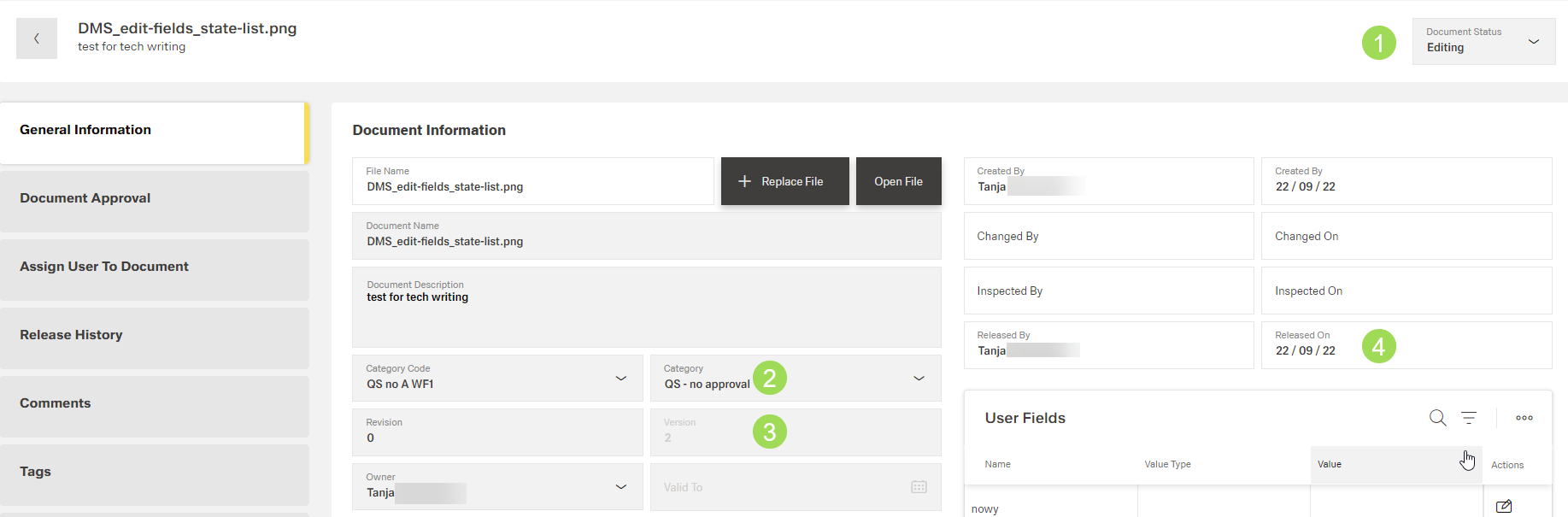
The illustration shows the document information before release: (1) document status dropdown, (2) category (active / selectable), (3) information on actual document version, (4) latest release date
Click "Document Status" dropdown.
The following window appears:
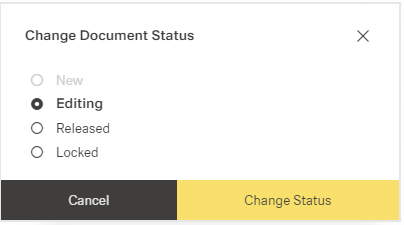
Change the document status to "Released".
The window changes to:
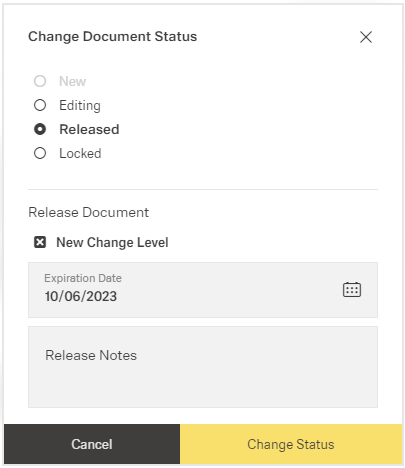
Set the needed settings (the release process is described here).
Click the button Change Status (or Cancel).
The result of the no approval process is a released document:
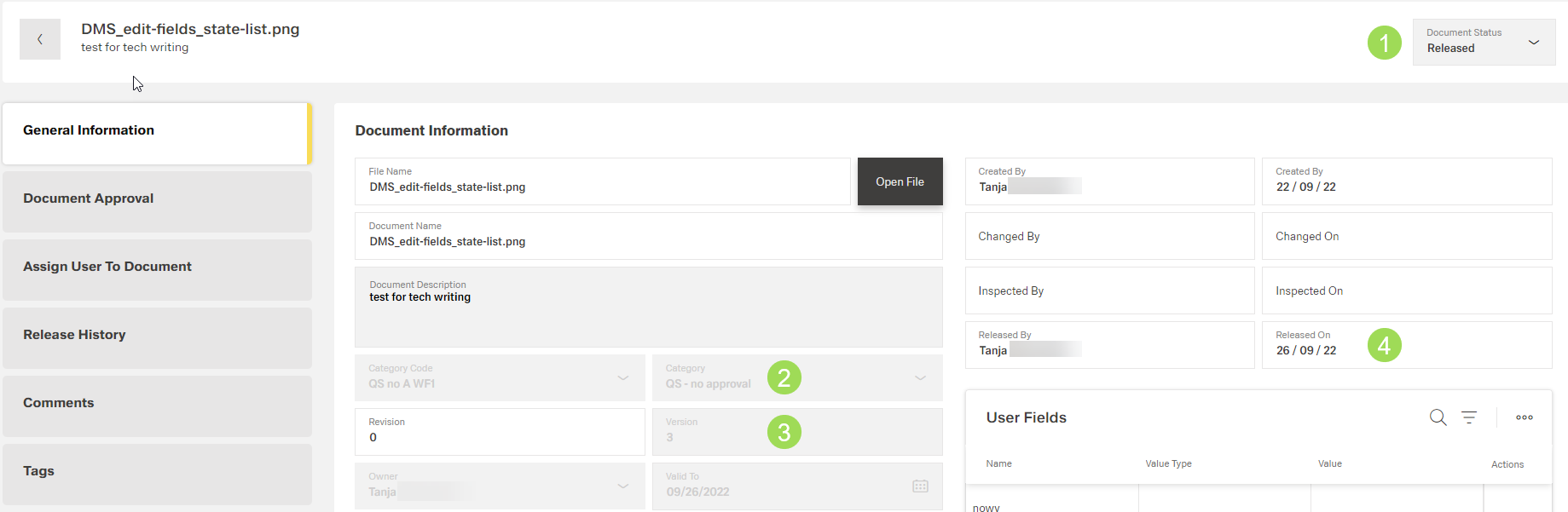
The illustration shows the document information after release: (1) document status dropdown, (2) category (now only as information, (3) information on updated actual document version, (4) updated latest release date