Document approval
This menu offers information on the approval history and listed approvers for the selected document.
Depending on the approval settings, the approvers can also be edited for the selected document. The approval information set in the assigned category was copied to the field "Approvers".
Please note: the approvers copied to the document approval are those who were included in the category at the moment of assigning the category to the document. Approvers added to the category at a later date DON'T get added to the document.
Available approval settings:
The approval process is described here.
Approval settings "no approval" and "basic approval"
After clicking the button [ ] of a document and clicking the button
 Document Approval, the following screen appears:
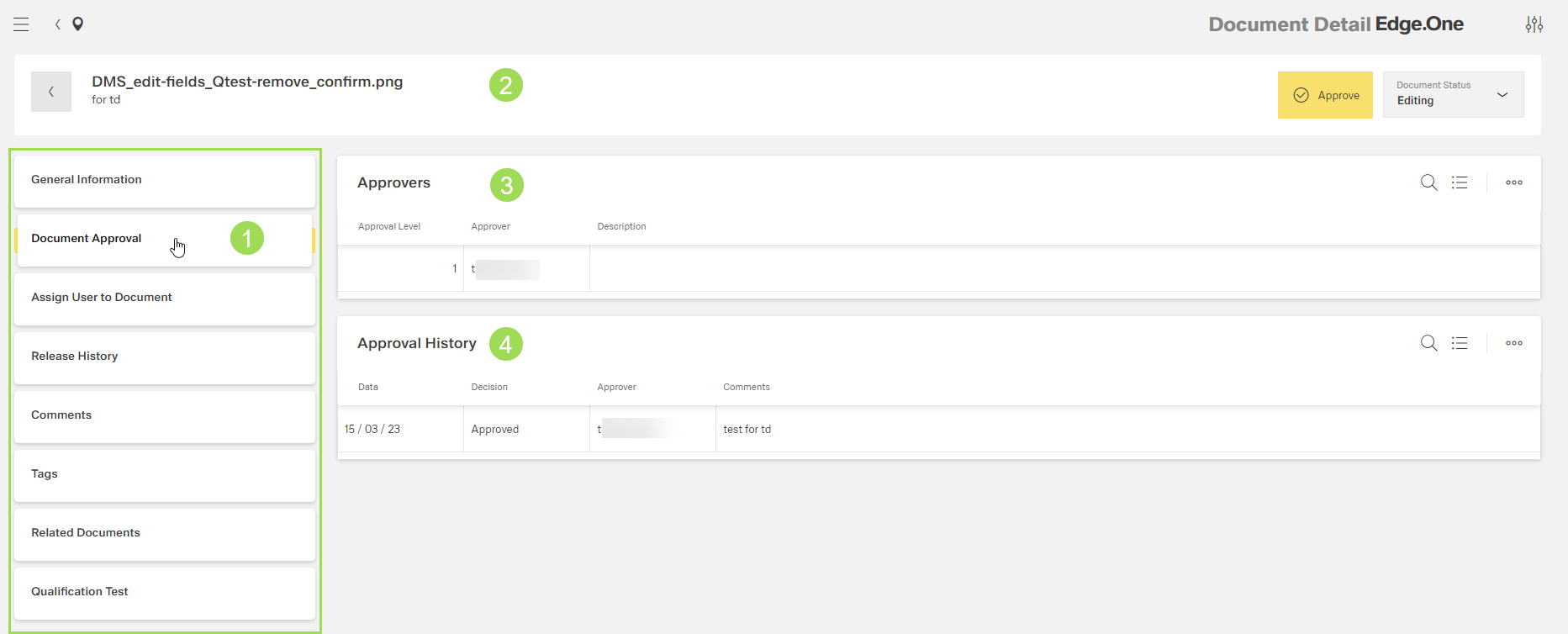
The illustration shows the menu "document approval" for the approval settings "no approval" and "basic approval": (1) main navigation of document fields, (2) header of document information (for a document under basic approval), (3) information on approver, (4) information on approval history
Approval settings "four eyes principle"/ "advanced approval"
After clicking the button [] of a document and clicking the button Document Approval, the following screen appears:
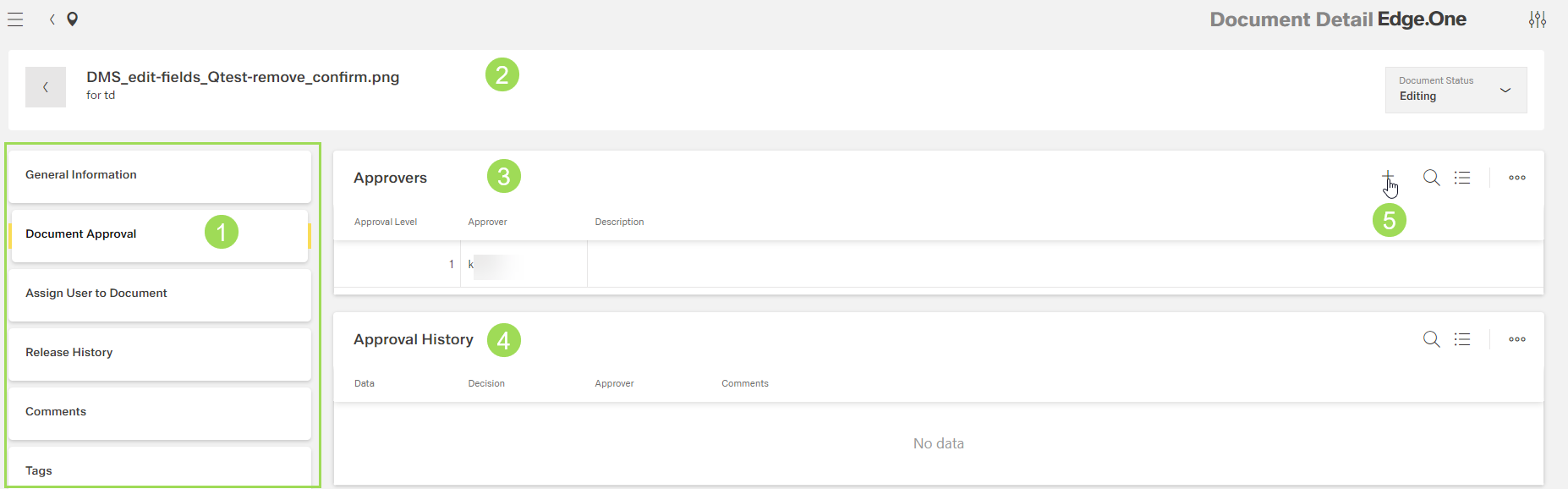
The illustration shows the menu "document approval" for the approval setting "four eyes principle" and "advanced approval": (1) main navigation of document fields, (2) header of document information, (3) information on approver, (4) information on approval history, (5) settings button for approval level(s) and list of approver(s)
The settings for approval level and list of approvers are descibed under categories. The process is the same.
Please note: approvers entered here are copied to the document. If another approver is added at a later time, the new approver is not visible in the corresponding submenu of the document. The new approver does NOT approve documents that already use the category. The new user ony applies to newly assigned documents.
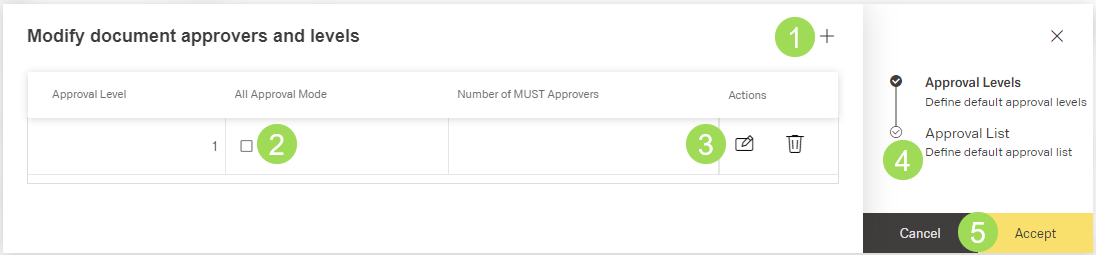
The illustration shows the window after clicking the settings button. (1) add approval level, (2) checkbox for "all aproval mode", (3) button [
] for the row, (4) next step to edit approval list (5) buttons
ApplyandCancel
The checkbox <2> only shows the state. If you want to change it, you have to delete the row and add a new level with the correct all approval mode.
Four eyes principle
For this approval mode, only one approval level is needed. One user additional to the owner is is assigned as the approver.
Advanced Approval
For this approval, the customer can define the number of approval levels and which approval mode is used in every single level. The customer also assigns the approvers for each level according to the company regulations. Please note that one user can only be assigned once as approver for this category.