Document statuses
A document can have various statuses:
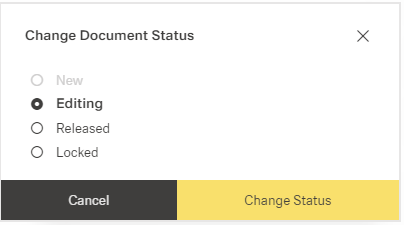
The illustration shows possible statuses of a document (when the approval was successful, "Under Approval" is replaced with "Approved")
| Status | Meaning | Possible actions under edit fields |
|---|---|---|
| New | newly uploaded document | change status to "editing", "under approval", "locked" |
| Editing | document that needs to be updated or newly approved concerning possible actions, it's like a "new" document | change status to "under approval" / "approved" (if no approval is in action), "locked", "new" |
| Under Approval | document waits for approval | approve or reject document change status to "editing", "locked" |
| Approved | document is automatically set on "approved" when it passed "under approval". A document with "no approval" setting can be manually set on "Approved" | change status to "released", "editing", "locked" |
| Released | published document, available in end user portal only available for approved document | change status to "locked" |
| Locked | document is not accessible to readers / end user portal If release validation expires, a document is automatically set on "locked". Locked document needs to be newly approved before being released again. | change status to "editing" |
Flowchart of status changes
The different options can be generally shown in one flowchart. Depending on the approval processes, the elements "Under Approval" and "Approved?" can be passed fast or slowly.
The release process is described here.
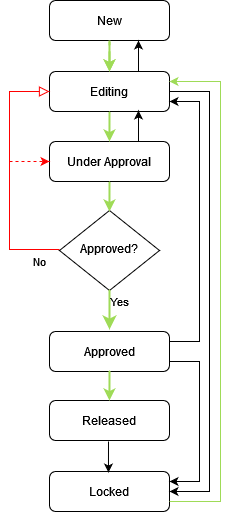
The illustration shows the general possible changes of document status. The green arrows show the main process flow to get released documents.