Global settings for document approval and release
Global settings are valid for all documents respectively document categories if not defined otherwise in Custom settings for document approval and release (step by step).
This menu offers settings of
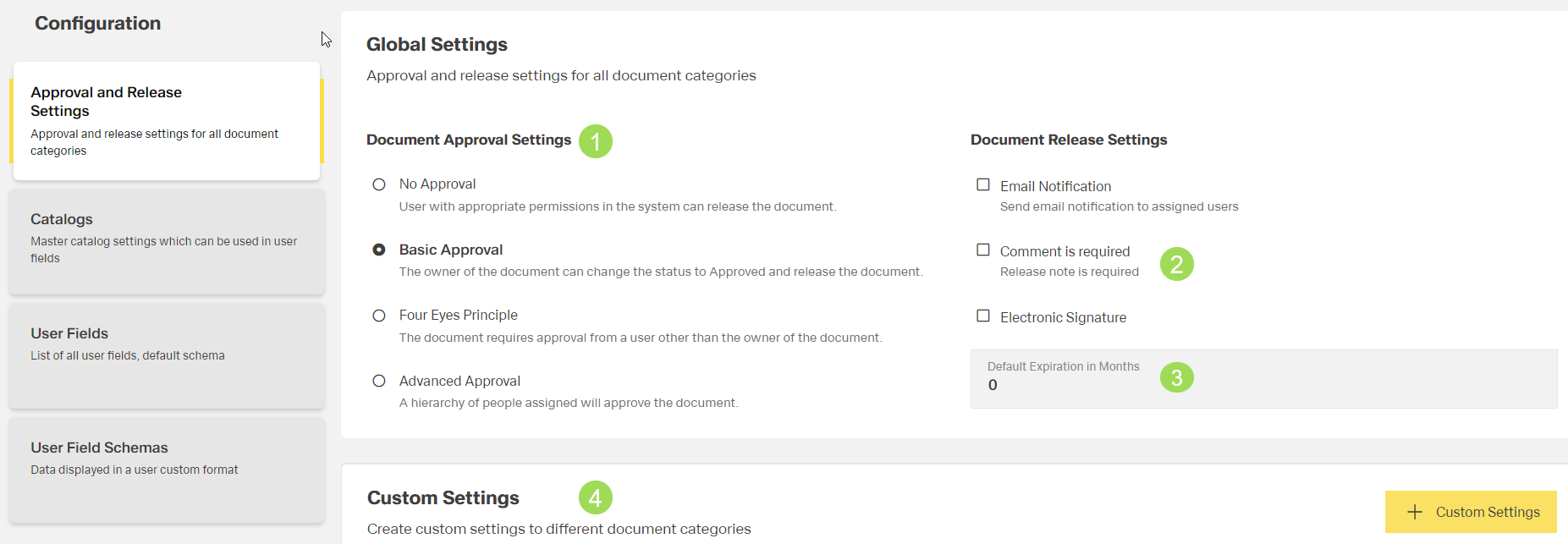
(1) selection of document approval settings, (2) option for document release settings, (3) option for default expiration date, (4) custom settings for document approval and release
Set or change the global settings
Select the approval setting
Information on approval settings is given here.
Select the release settings
Information on release setting is given here.
Enter the expiration period
Information on expiration period is given here.
Click the button Save Changes (or Cancel)
A message about the successful action appears at the top of the screen.
Document approval settings
There are 4 different approval settings available:
- no approval
- basic approval
- four eyes principle
- advanced approval
When changing the global approval setting, click on the button Save Changes to activate the new global setting.
The approval processes are described here.
No approval
No approval is needed to release this document. The release can be done by a user with the corresponding user rights by setting the according document status under "Documents".
Basic approval
To release the document, it needs to pass a basic approval. The owner of the document can do the approval.
The approval is done directly at the document under "Documents" by clicking the button [ ]. The approval process is described here.
The release of the approved document can be done by the owner by setting the according document status under "Documents".
Four eyes principle
Additonally to the approval of the owner, one other user has to approve the document. This user is assigned either in a category or directly in the menu "document approval" under document information of the document to be approved.
The approval is done directly at the document under "Documents" by clicking the button []. The approval process is described here.
The release of the approved document can be done by the owner by setting the according document status under "Documents".
Advanced approval
A hierarchy of people assigned have to approve the document. After all approvals are done, the document can be released by setting the according document status under "Documents".
If a document fails the approval, its document status is automatically set to "Editing". A notification e-mail is sent to the owner and all users on the approver list.
The approval is done directly at the document under "Documents" by clicking the button []. The approval process is described here.
The release of the approved document can be done by the owner by setting the according document status under "Documents".
Editing
The document status "Editing" offers the possibility to upload a new document with correct content. Depending on the reason of rejection, the document status can changed accordingly.
Under approval
This setting won't be realised as it doesn't make sense.
Document release settings
Available optional release settings are:
"Email Notification"
When the notification is activated, all users assigned to this document get an e-mail informing about the release respectively that the document is now available."Comment Required"
Information on the release note comment is given here. The comment is attached to the release document and can contain information on the document version, changes etc.
The release note is shown in "View Release History" of the selected document and in the menu "DMS end user portal"."Electronic Signature"
Activating this signature affects the release process. Information is given here.
The actual release is done by setting the according document status under "Documents". The process is described here.
Default expiration in months
For every release, an expiration date is set. The optional field "Default Expiration in Months" allows to set a default period how long a document is valid. The default period can be set for global settings and for custom settings. An exact expiration date can be set during the actual release in document status under "Documents".
A calibration certificate is an example for a document with a limited validation period.
| Default expiration in months | Example - the period is set on Sep 20, 2022 |
|---|---|
| 0 / nothing entered | validation ends on Sep 20, 2022 (the same day) |
| 1 | validation ends on Oct 20, 2022 |
| 12 | validation ends on Sep 20, 2023 |
Examples for default expiration periods